Skip to content
Trio Travel guide

Sales officer commission rules

On this page
  1. Add Reservations rules
  2. Booking rules and file types
  3. Flights rules and saving
  4. Edit and search
  5. Deletion confirmation and result

This guide covers configuring and maintaining commission rules linked to an employee definition in Settings.
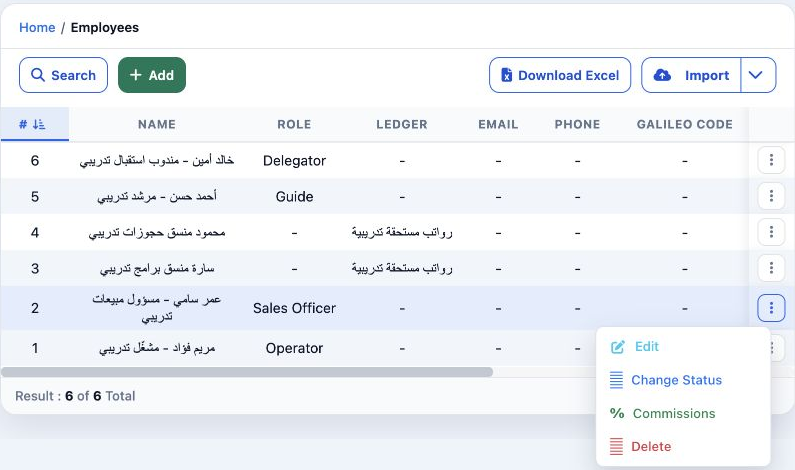
1 Open Settings → Employees. Open the sales officer’s row menu and choose Commissions. The example uses Omar Sami with the Sales Officer role.
Open Settings → Employees. Open the sales officer’s row menu and choose Commissions. The example uses Omar Sami with the Sales Officer role.

Under General in Role Permissions, Sales Officer Commissions has View, Add, Edit and Delete permissions. Save the role changes. Access to the employee register is also needed to reach its row menu.

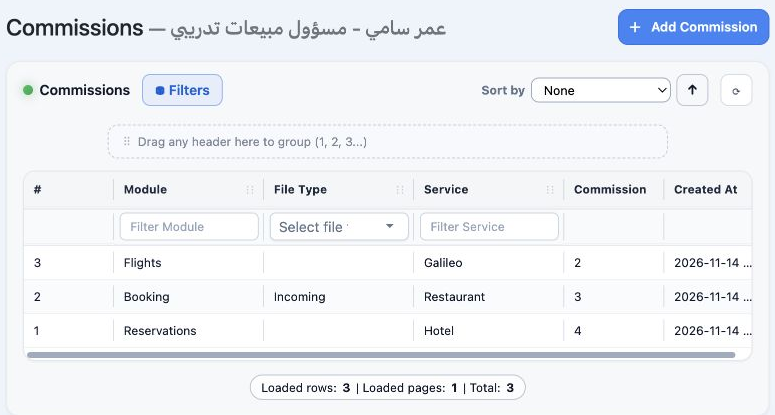
The register shows the rule number, module, file type, service, commission and creation date.

Add Reservations rules
2 Select Add Commission and open Reservations. Enter a percentage beside the required service; Hotel is set to 4% here. Leave unneeded service...
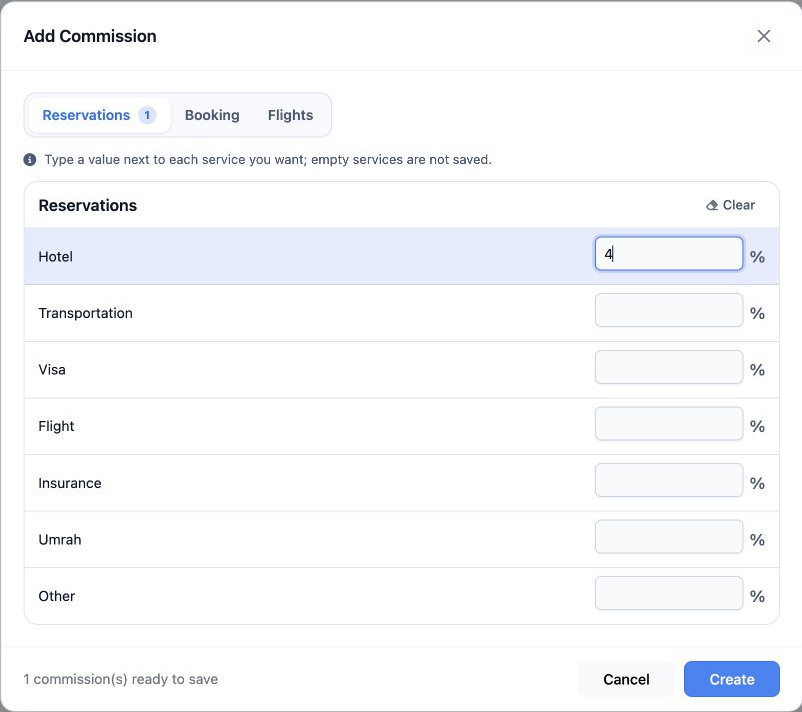
Select Add Commission and open Reservations. Enter a percentage beside the required service; Hotel is set to 4% here. Leave unneeded services blank: empty fields are not saved as rules.

The displayed services are Hotel, Transportation, Visa, Flight, Insurance, Umrah and Other. A counter shows how many rules are ready to save.

Booking rules and file types
3 In Booking, choose a file type from the side list and enter the service percentage. This example uses Restaurant at 3% for Incoming. Rule co...
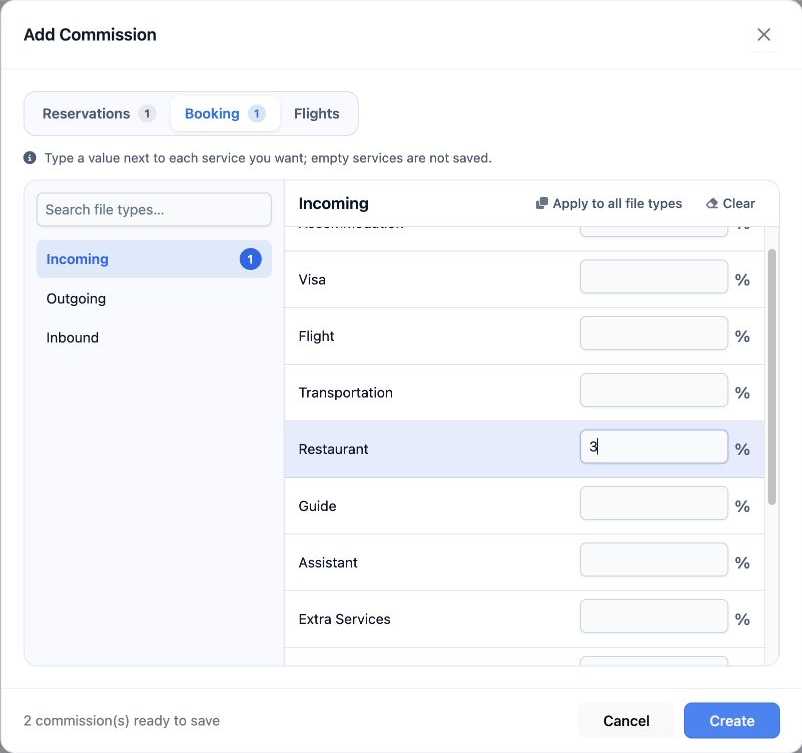
In Booking, choose a file type from the side list and enter the service percentage. This example uses Restaurant at 3% for Incoming. Rule counters appear on the tab and at the bottom of the form.

The list contains Incoming, Outgoing and Inbound, with Search file types to locate them. Scroll within the services area to reach the remaining services.

Flights rules and saving
4 Open Flights and enter the required percentage. The choices shown are Amadeus, Galileo and FlightBooking. Galileo is set to 2%, bringing the...
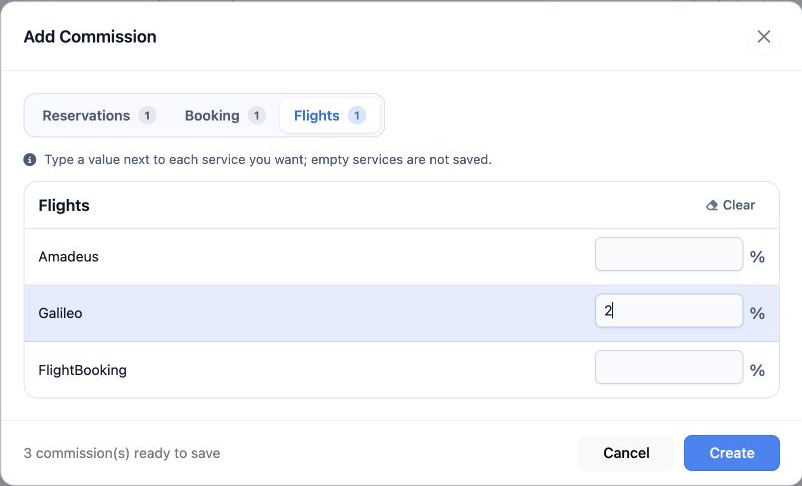
Open Flights and enter the required percentage. The choices shown are Amadeus, Galileo and FlightBooking. Galileo is set to 2%, bringing the total to three rules. Select Create to save or Cancel to return.
5 After saving and refreshing the view, three rules appeared: Hotel at 4, Restaurant at 3 for Incoming, and Galileo at 2. Total shows the resu...
After saving and refreshing the view, three rules appeared: Hotel at 4, Restaurant at 3 for Incoming, and Galileo at 2. Total shows the result count.

Edit and search

6 Right-click the rule and choose Edit Commission. The form shows Module, Service and Commission (%). The previous value is 4; change it to 5...
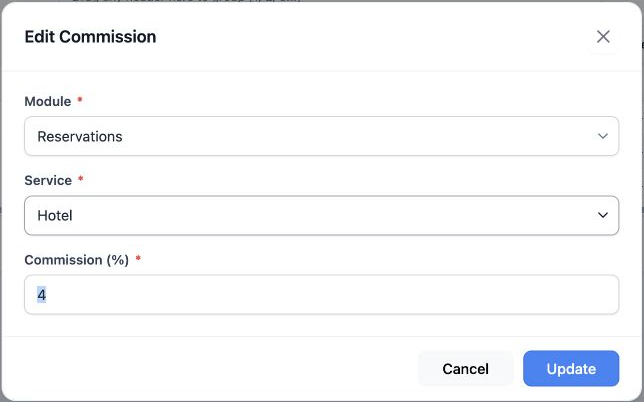
Right-click the rule and choose Edit Commission. The form shows Module, Service and Commission (%). The previous value is 4; change it to 5 and select Update.
7 Enter a service in Filter Service; Restaurant returned one rule. Filters opens a panel for Module, File Type and Service. Reset restored all...
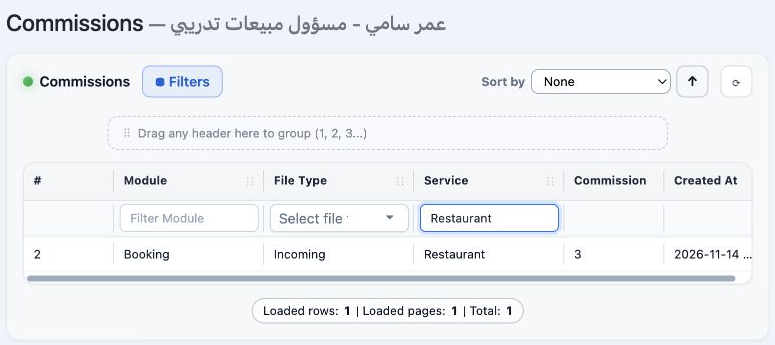
Enter a service in Filter Service; Restaurant returned one rule. Filters opens a panel for Module, File Type and Service. Reset restored all three rules and closed the filter panel.

Sort by offers a column choice, the arrow changes direction, and the refresh button reloads the view.

Deletion confirmation and result
8 Right-click the rule and choose Delete. No keeps it; Yes confirms deletion. The confirmation was cancelled first, then only training rule 3...
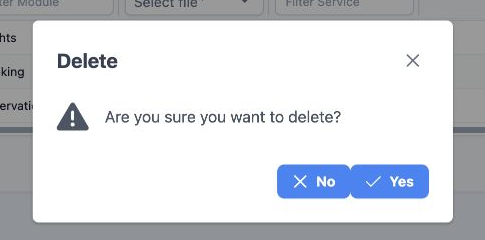
Right-click the rule and choose Delete. No keeps it; Yes confirms deletion. The confirmation was cancelled first, then only training rule 3 for Galileo was deleted.
9 After refreshing, two rules remain: Reservations / Hotel at 5 and Booking / Incoming / Restaurant at 3. Total confirms two results.
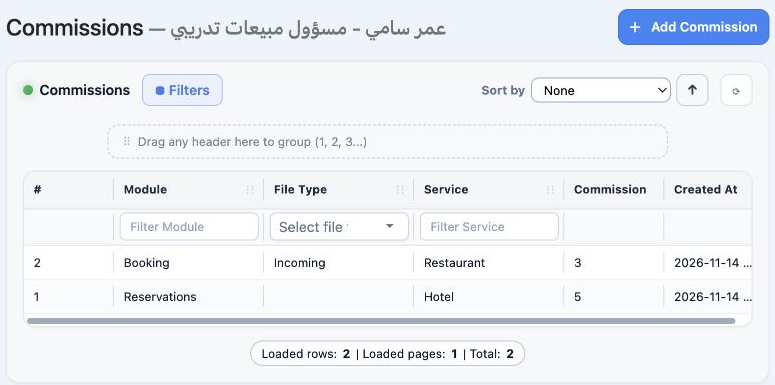
After refreshing, two rules remain: Reservations / Hotel at 5 and Booking / Incoming / Restaurant at 3. Total confirms two results.

Sign in to record the lessons you have read. Sign in