Skip to content
Trio Travel guide

Transport trip type permissions

On this page
  1. 1. View transport trip types
  2. 2. Add and edit
  3. 3. Search for a trip type
  4. 4. Delete confirmation and download

1. View transport trip types

Use this screen to define transport trip types. Open Transportation → Transport Settings → Trip type.
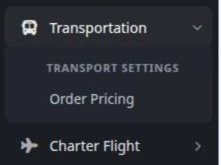
1 With View disabled, the Trip type entry is absent for the training user.
With View disabled, the Trip type entry is absent for the training user.
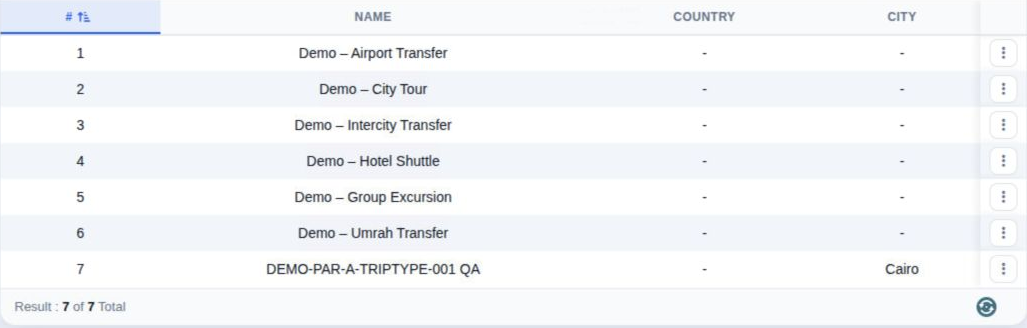
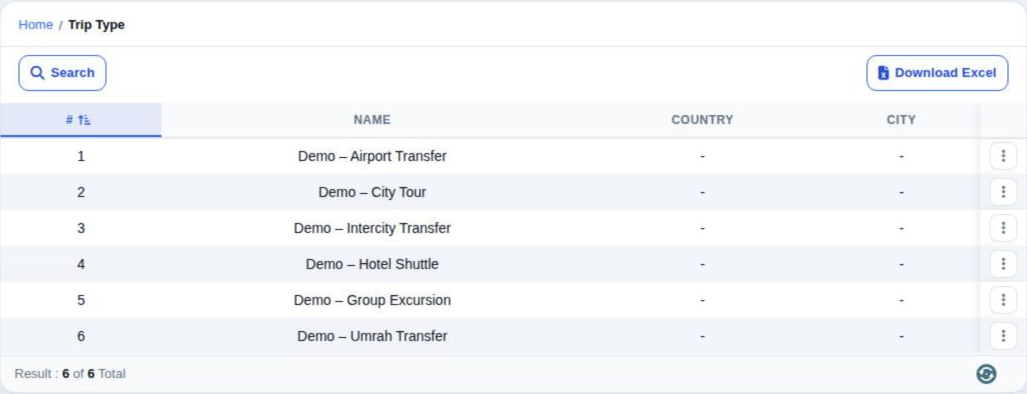
2 After enabling View and signing in again, the list appears. Columns show Name, Country and City; the result count is below.
After enabling View and signing in again, the list appears. Columns show Name, Country and City; the result count is below.

View, Add, Edit and Delete are separate permissions. A user may see records without controls to change them.

2. Add and edit
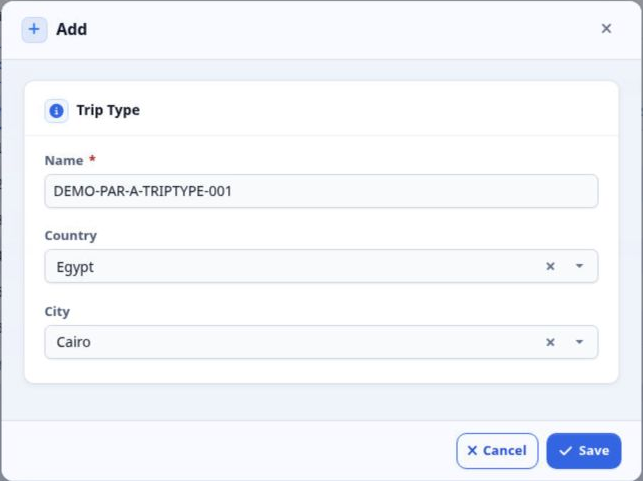
3 With Add permission, select Add. Enter Name, choose Country and City, then select Save. Name is required and marked with an asterisk. The ex...
With Add permission, select Add. Enter Name, choose Country and City, then select Save. Name is required and marked with an asterisk. The example uses DEMO-PAR-A-TRIPTYPE-001, Egypt and Cairo.
4 To edit, open the intended row’s three-dot menu and select Edit. Change Name and save. The QA suffix remained after reloading. After saving,...
To edit, open the intended row’s three-dot menu and select Edit. Change Name and save. The QA suffix remained after reloading. After saving, reopen the record to review the name.

3. Search for a trip type

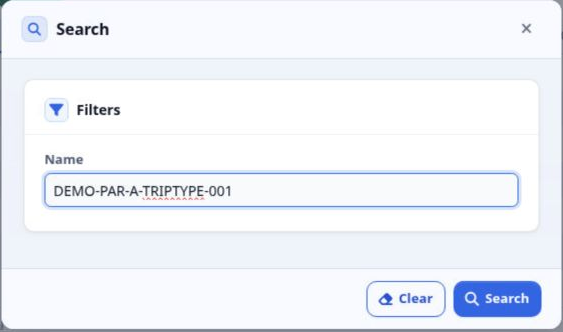
5 Select Search, enter the name in Name, then select Search in the dialog. This example searches for the training record by name.
Select Search, enter the name in Name, then select Search in the dialog. This example searches for the training record by name.
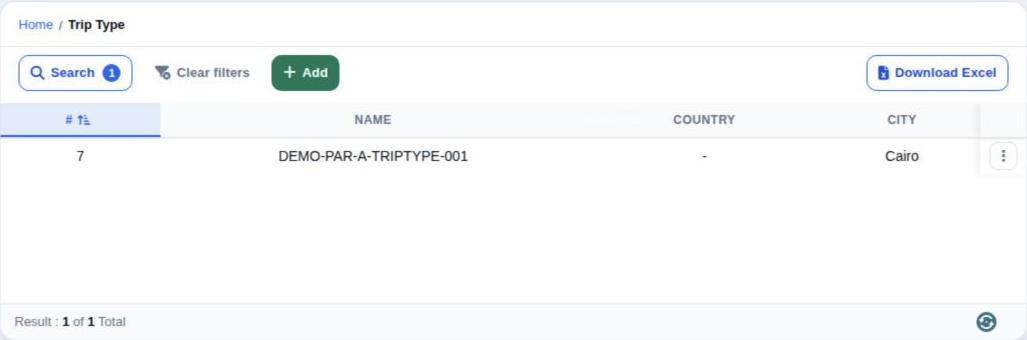
6 One matching result appears. The number beside Search indicates an active filter. Select Clear filters to show the full list; all seven reco...
One matching result appears. The number beside Search indicates an active filter. Select Clear filters to show the full list; all seven records returned in this example.

4. Delete confirmation and download
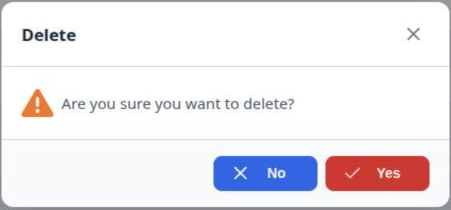
7 With Delete permission, select Delete from the row menu. A confirmation appears. Select No to retain the record; this is what was done in th...
With Delete permission, select Delete from the row menu. A confirmation appears. Select No to retain the record; this is what was done in the example.
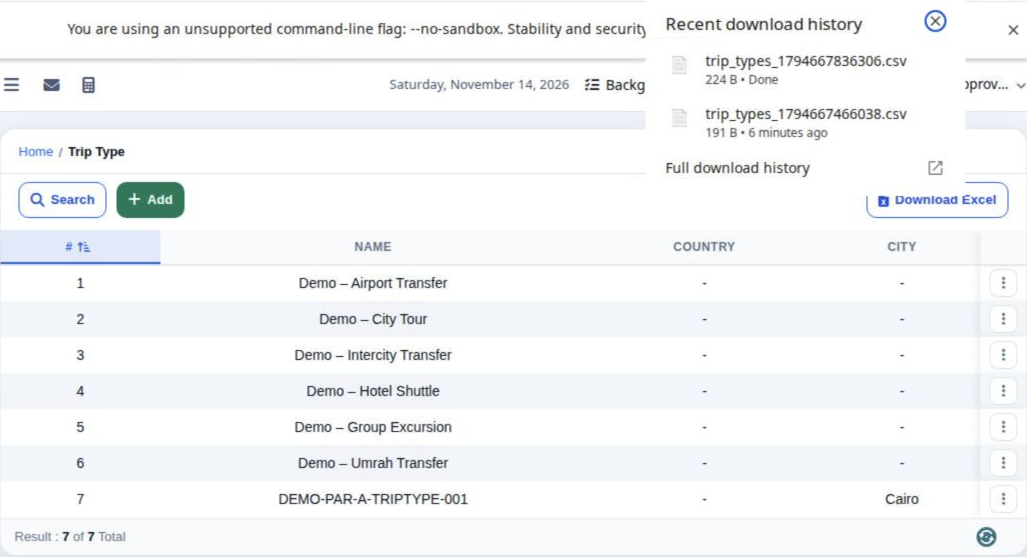
8 Select Download Excel to download the list. The browser confirms completion with Done. The file generated in this test is CSV.
Select Download Excel to download the list. The browser confirms completion with Done. The file generated in this test is CSV.

Sign in to record the lessons you have read. Sign in