Skip to content
Trio Travel guide

Hotel groups user guide

On this page
  1. Find and download data
  2. Delete and review the list

Add, edit, find, export and delete hotel group names. The example uses a training company.
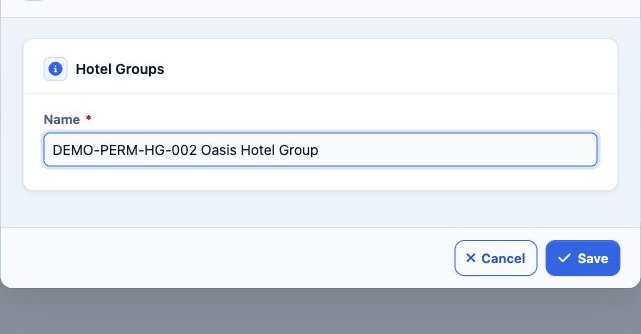
1 1  Open Settings, Hotel Groups and Add. Enter the required Name, then Save. DEMO-PERM-HG-002 Oasis Hotel Group was saved in the English inte...
1 Open Settings, Hotel Groups and Add. Enter the required Name, then Save. DEMO-PERM-HG-002 Oasis Hotel Group was saved in the English interface.
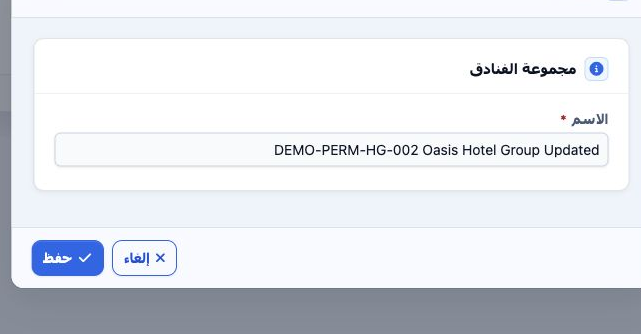
2 2  Select Edit from the row menu. Change the name and Save. Updated was appended; the Arabic reopening shown here confirms the saved change.
2 Select Edit from the row menu. Change the name and Save. Updated was appended; the Arabic reopening shown here confirms the saved change.

Find and download data

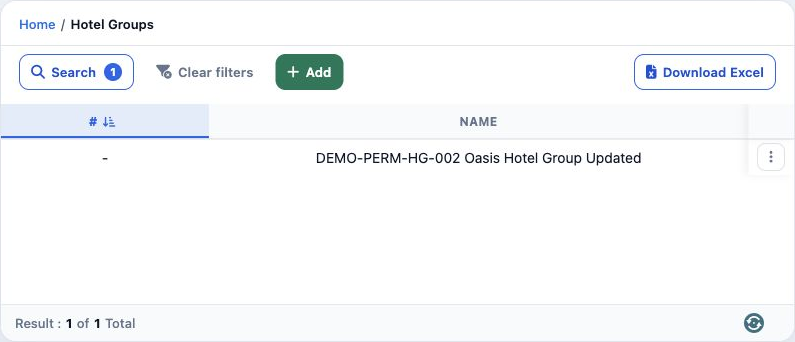
3 3  Select Search, enter DEMO-PERM-HG-002 in Name, then run Search. Only the updated group appears.
3 Select Search, enter DEMO-PERM-HG-002 in Name, then run Search. Only the updated group appears.

Download Excel saves the filtered list as a CSV with number and Name columns. Use Clear filters to show all groups.

The definition form contains Name only. Use a clear name that distinguishes the group.

Delete and review the list
4 4  Choose Delete from the intended group row. Select No to return or Yes to confirm deletion. In the example, the English confirmation was c...
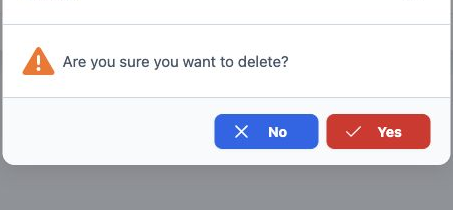
4 Choose Delete from the intended group row. Select No to return or Yes to confirm deletion. In the example, the English confirmation was canceled, then deletion was confirmed in Arabic.
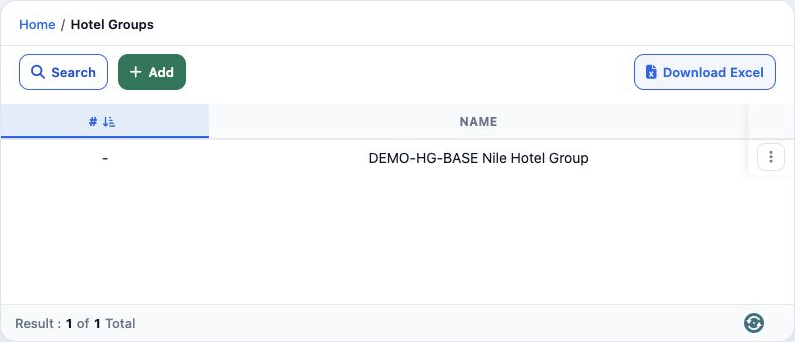
5 5  After reloading the list, the test group disappeared. The reference DEMO-HG-BASE Nile Hotel Group remained unchanged.
5 After reloading the list, the test group disappeared. The reference DEMO-HG-BASE Nile Hotel Group remained unchanged.

Sign in to record the lessons you have read. Sign in