Skip to content
Trio Travel guide

Tourism file types permissions guide

On this page
  1. Add and edit
  2. Search for a file type
  3. Delete and review the list

Configure tourism File Type permissions and manage each type name and code. The example uses demo_approval_15000 with Demo Documentation Review.
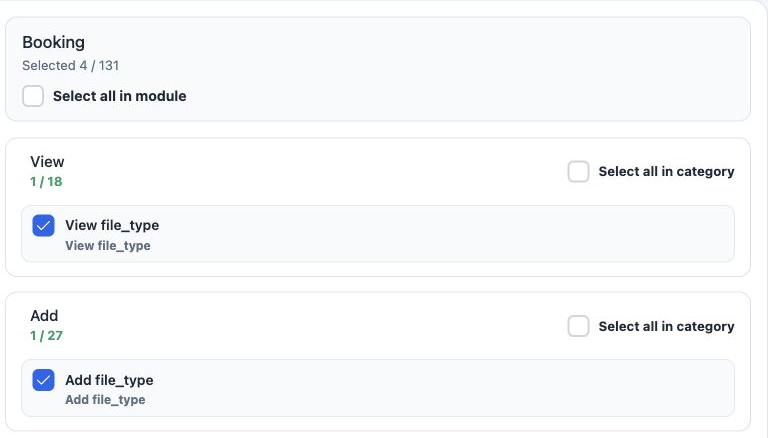
1 1  Open Roles, the role menu and Permissions. Select Booking, search for file_type, expand View, Add, Edit and Delete, select the required p...
1 Open Roles, the role menu and Permissions. Select Booking, search for file_type, expand View, Add, Edit and Delete, select the required permissions and Save Changes.

View file_type

View file types and their codes.

Add file_type

Create a file type with a name and code.

Edit file_type

Edit the name and code.

Delete file_type

Delete the selected type.

Add and edit
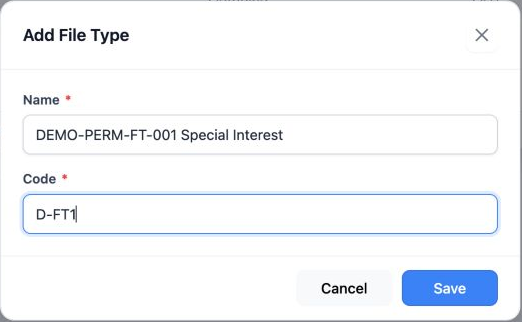
2 2  Open File Type and select Add. Name and Code are required. Code is a company-chosen symbol, such as INC for Incoming. DEMO-PERM-FT-001 Sp...
2 Open File Type and select Add. Name and Code are required. Code is a company-chosen symbol, such as INC for Incoming. DEMO-PERM-FT-001 Special Interest was saved as serial 4 with code D-FT1.
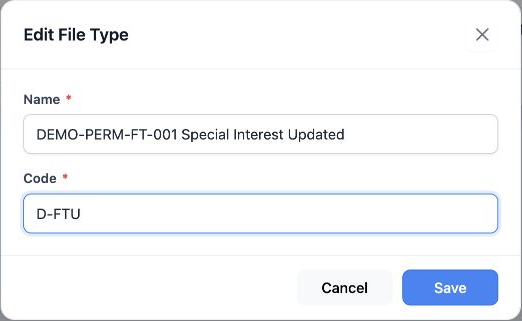
3 3  Choose Edit from the row menu and wait for the saved values. Updated was appended to the name, Code changed to D-FTU, then the changes we...
3 Choose Edit from the row menu and wait for the saved values. Updated was appended to the name, Code changed to D-FTU, then the changes were saved.

Search for a file type

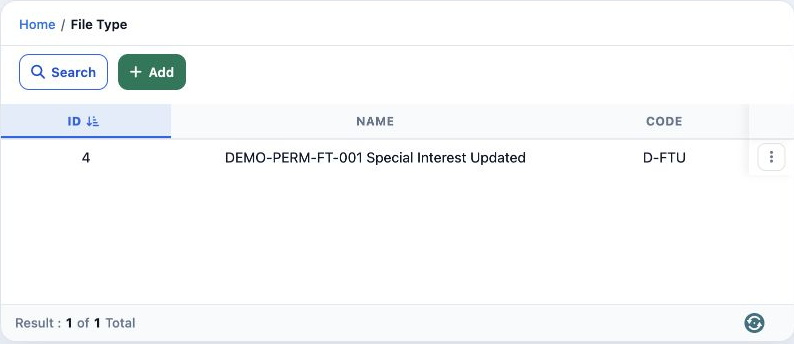
4 4  Select Search, enter DEMO-PERM-FT-001 in Name and press the magnifying-glass button. One record appears with the updated name and code D-...
4 Select Search, enter DEMO-PERM-FT-001 in Name and press the magnifying-glass button. One record appears with the updated name and code D-FTU.

To return to all types, open Search, select Clear and run the empty search using the magnifying-glass button.

https://portal.etolv.net/newportal/settings/file-type

Delete and review the list
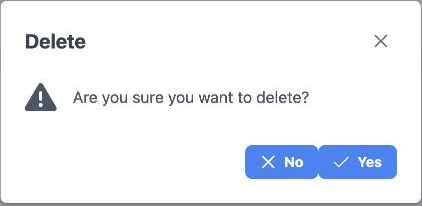
5 5  Choose Delete from the row menu. Check the intended type, then select Yes to delete or No to return without deleting.
5 Choose Delete from the row menu. Check the intended type, then select Yes to delete or No to return without deleting.
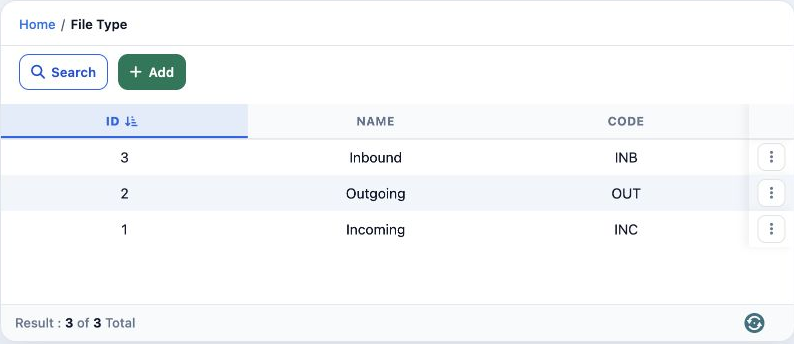
6 6  Only test type 4 was deleted, then the search filter was cleared. Incoming, Outgoing and Inbound retained their original codes and values...
6 Only test type 4 was deleted, then the search filter was cleared. Incoming, Outgoing and Inbound retained their original codes and values.

Sign in to record the lessons you have read. Sign in