Reservation transportation permissions
On this page
Opening the transport service
This guide covers adding and editing transport inside a Reservation and opening deletion confirmation. Open Reservations, then Reservations, select the file number and select Trans.
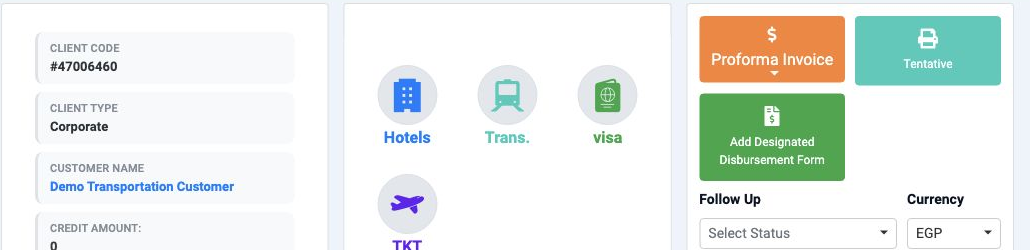
To prepare a vehicle type, open Settings, then Vehicles Type. Add and save the name, then return to the service to select it.
Trip types are defined under Transportation, Transport Settings, then Trip type. Add the name and country/city when applicable, save, then return to Trip Type in the service.
Transport details and prices
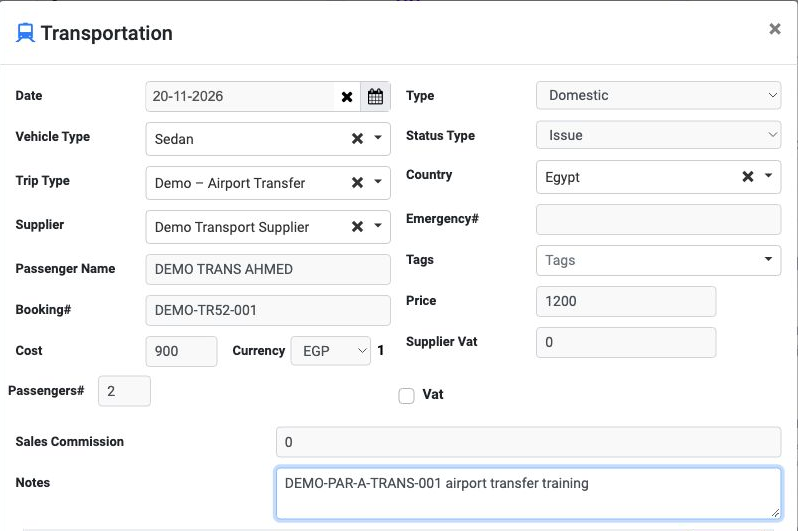
Set Date, then select Vehicle type, Trip Type and supplier for the transport service.
Enter Passenger Name and the Booking# reference, and set the passenger count under passengers#.
Select International or Domestic under Type and Issue or Refund under Status Type. Select Country and enter Emergency# when needed.
Enter the supplier cost under Cost, select Currency, then enter the selling price under Price. Review the amounts before saving.
The form also contains Supplier Vat, Vat and Sales Commission. Enter the values approved for the reservation, and add Tags and notes when needed.
The example uses 20 November 2026, Sedan, Demo – Airport Transfer, Demo Transport Supplier, Domestic and Issue. Cost 900 and selling price 1200 EGP were entered.
Passenger names and saving
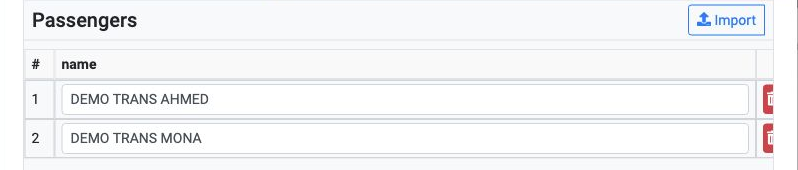
Review the row count and passenger names in the Passengers table before saving. The section also displays Import.

After saving, review the transport service row in the file and check the supplier, trip type, cost and selling price.
Editing the transport service
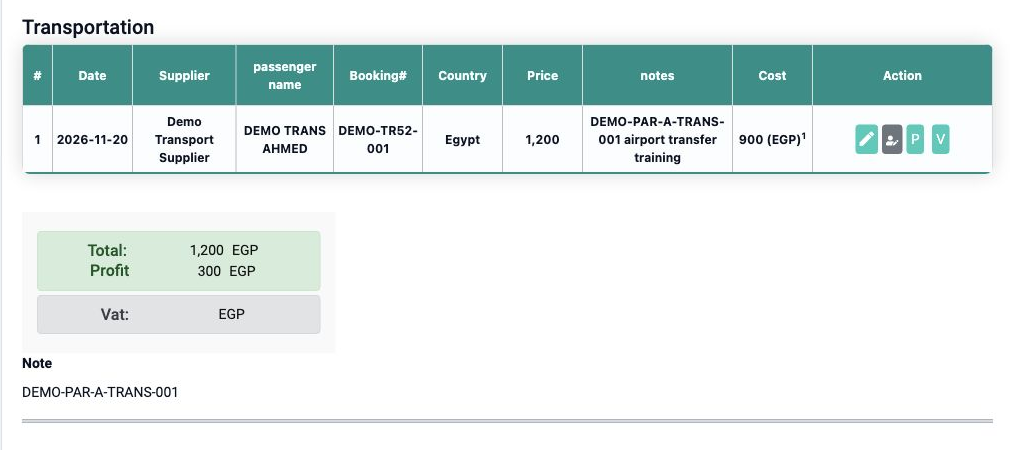
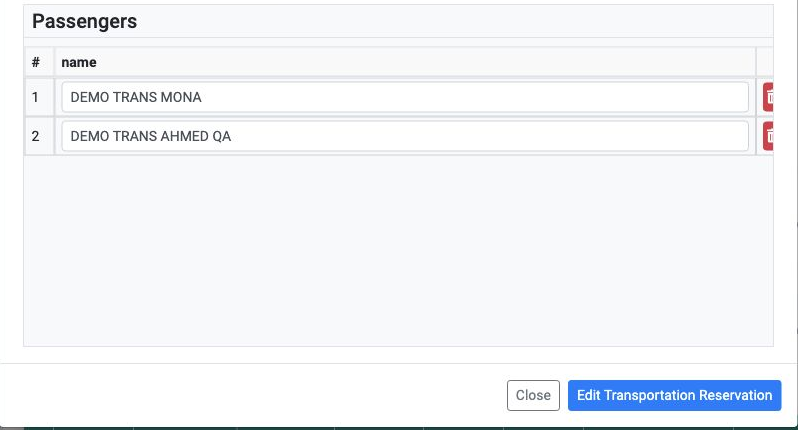
The example changes the name to DEMO TRANS AHMED QA and the price to 1300 while keeping cost 900. After saving, reopen the file to review the details.
Reviewing saved values
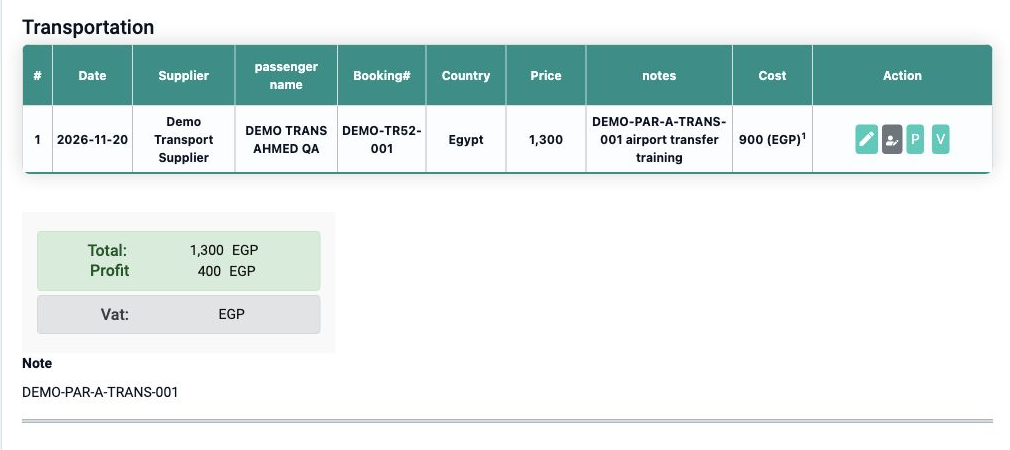
Review passenger details when reopening Edit. The example retains DEMO TRANS AHMED QA and DEMO TRANS MONA, passenger count 2 and booking reference DEMO-TR52-001.
In this example, cost and price are totals for the service. The amounts were not multiplied by the two passengers.
Deletion confirmation and cancellation
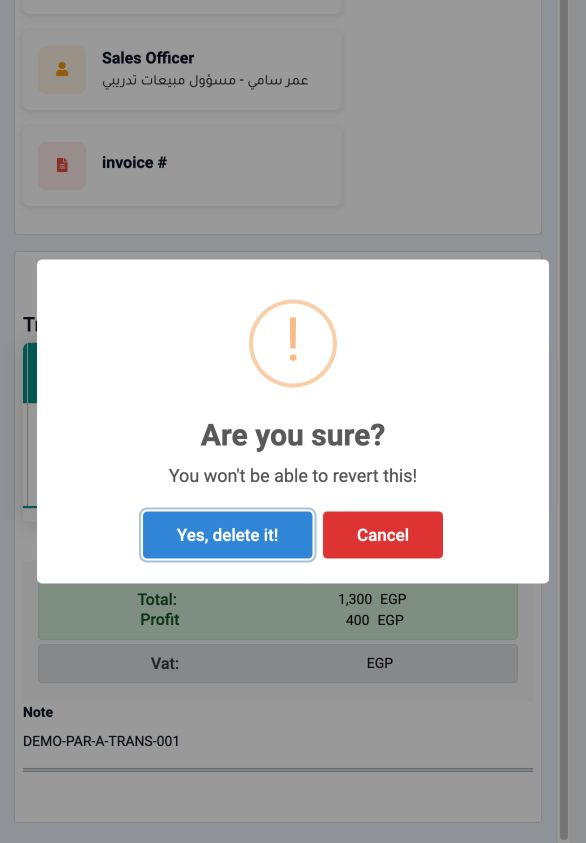
Close the cancellation message using OK, then check that the service remains in the file.
Sign in to record the lessons you have read. Sign in