Reservation permissions
On this page
1 View the reservation list
This guide covers creating and viewing a Reservation file, finding it and exporting its list. Open Reservations → Reservations.
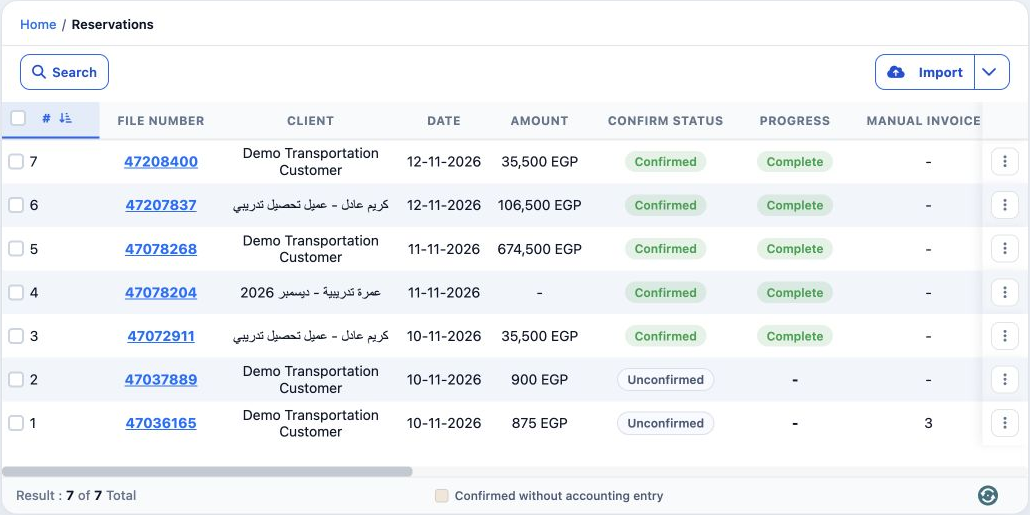
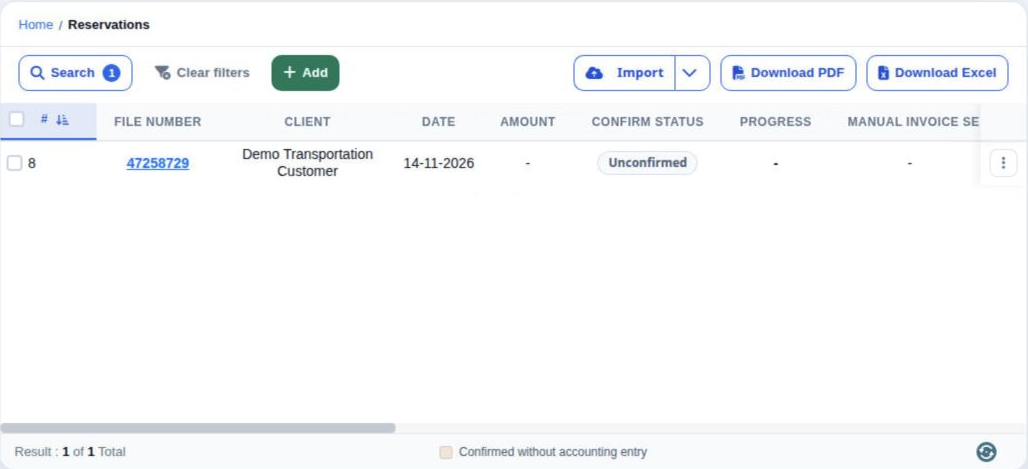
File Number identifies the file; Client, Date and Amount show its customer, date and amount. Confirm Status shows confirmation status, Progress its progress, and Manual Invoice the manual invoice reference when present. Result shows the number of records.

2 Create a reservation file
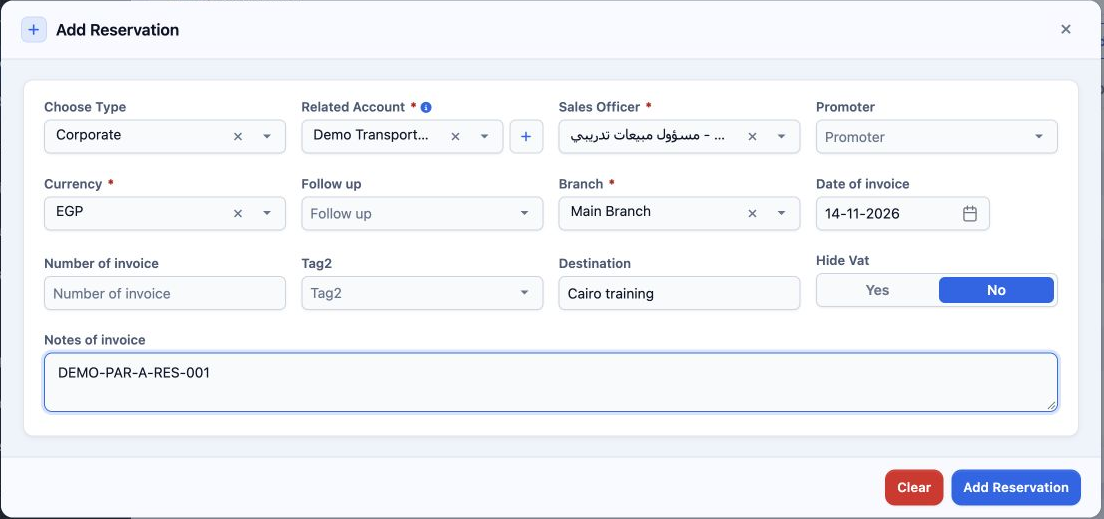
Select Currency, Branch and Date of invoice. The example uses EGP, Main Branch and 14-11-2026. Asterisks mark required fields.
Promoter selects a representative, Follow up a follow-up status, and Tag2 a flexible classification tag. Number of invoice is the manual reference, Destination the destination, and Notes of invoice the notes. Hide Vat offers Yes and No; No is selected here.
Enter destination and notes as needed, then select Add Reservation. Clear clears the form. After saving, return to the list to review the new file number.
3 View details and delete confirmation
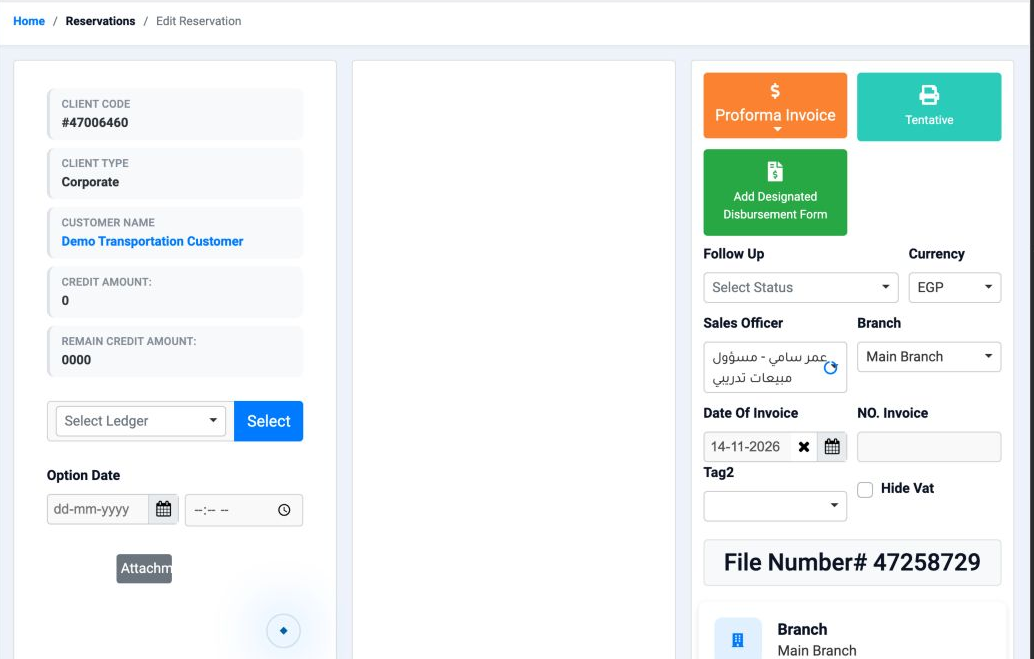
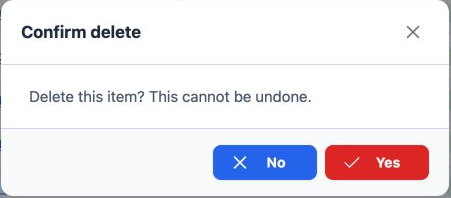
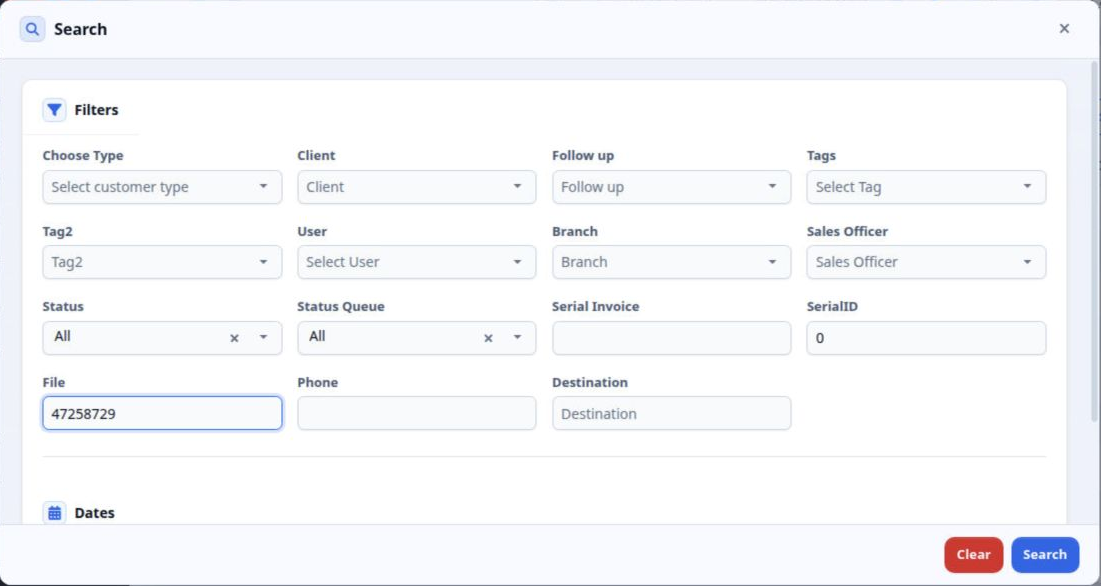
4 Search by file number
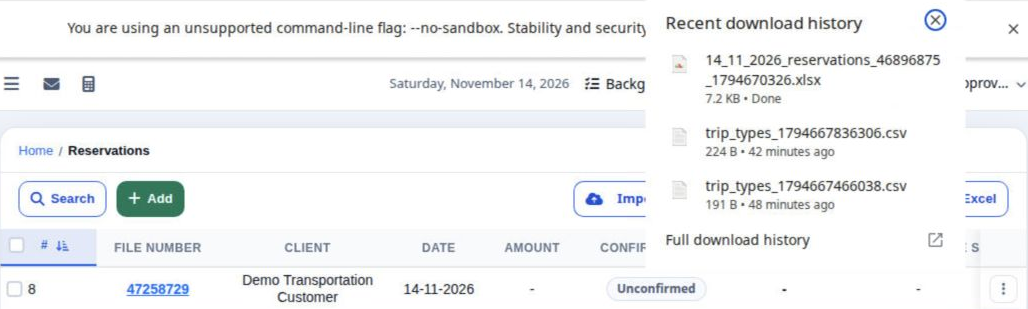
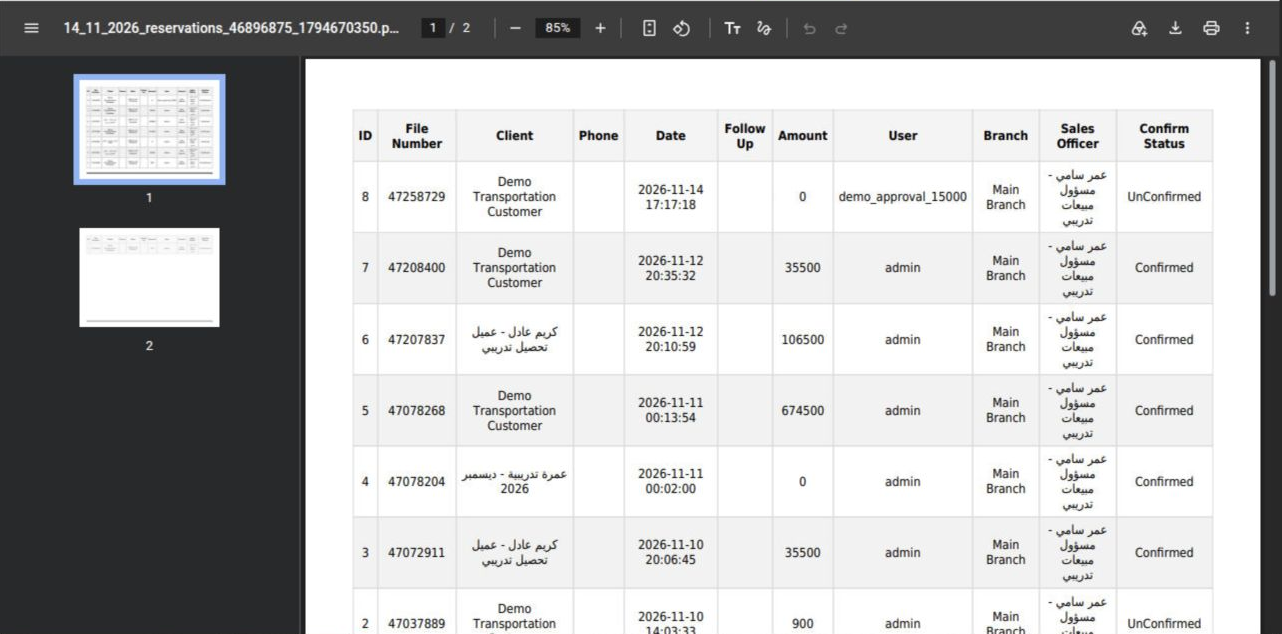
5 Export the list and preview PDF
Sign in to record the lessons you have read. Sign in