Skip to content
Trio Travel guide

CRM quotation permissions

On this page
  1. Permissions and opening Quotations
  2. Quotation and inquiry details
  3. Itinerary and service items
  4. Totals and saving a new quotation
  5. Editing and checking the saved change
  6. Viewing details and checking values
  7. Deletion confirmation and cancellation
  8. Restricting the list to the user’s own quotations
  9. Searching and clearing filters

Permissions and opening Quotations

This guide covers preparing a CRM quotation, its view, add and edit permissions, reviewing deletion confirmation, and restricting the list to the user’s own quotations.

Review View Quotation, Add Quotation, Edit Quotation and Delete Quotation in role permissions. View Only My Quotations restricts visibility by ownership. Save, then sign in again as the user assigned to the role.
1 Before View Quotation was enabled, the link returned the user to Home.
Before View Quotation was enabled, the link returned the user to Home.
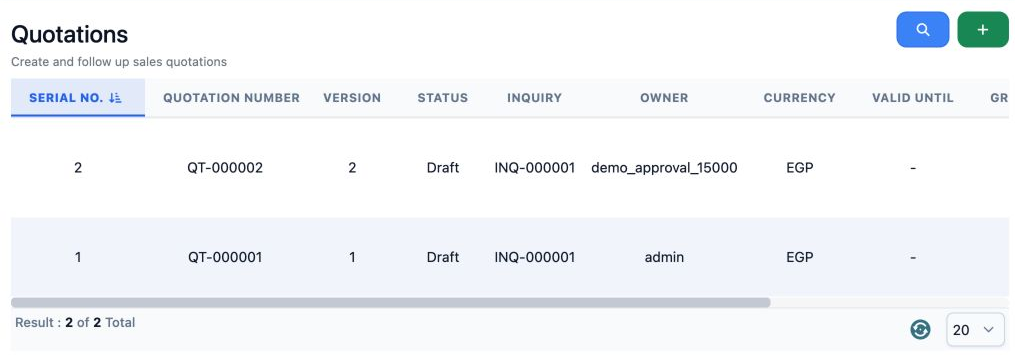
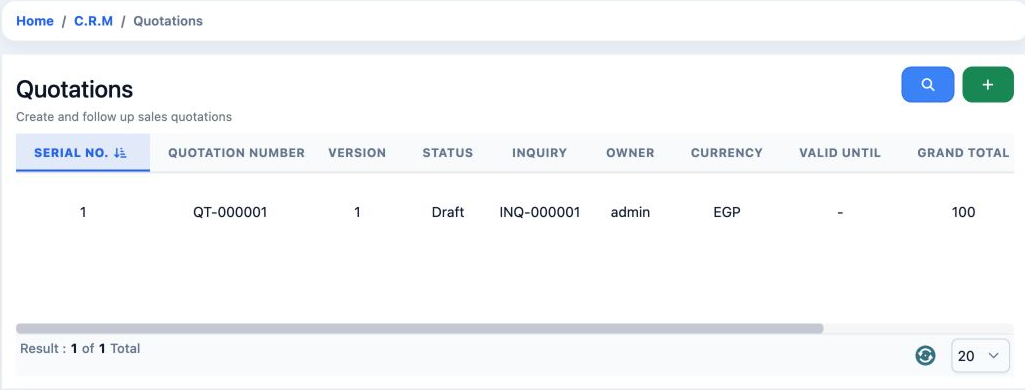
2 After View was enabled, open CRM, then Quotations. QT-000001 appeared in the list.
After View was enabled, open CRM, then Quotations. QT-000001 appeared in the list.

Also review View Inquiry to select an inquiry inside the quotation. Access to the quotation page alone does not replace this prerequisite.

Quotation and inquiry details

Click + to create a quotation. Select an open Inquiry and the quotation Currency. The example uses INQ-000001 and EGP. The inquiry must already exist before it can be selected.
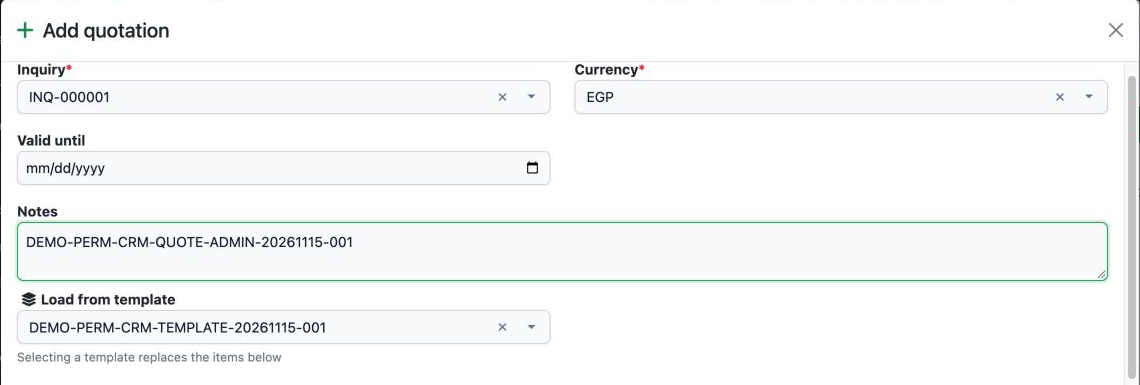
3 The top of the add form shows Inquiry, Currency, Valid until, Notes and Load from template.
The top of the add form shows Inquiry, Currency, Valid until, Notes and Load from template.

Valid until is the offer validity date when needed. Notes holds quotation notes. Load from template selects a prepared template for service items and itinerary. Review the populated values.
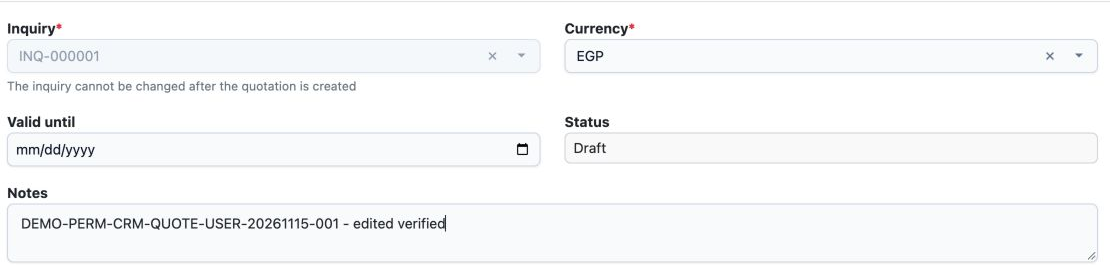
4 In Edit, Status is shown and Inquiry is locked after creation. The example remains Draft.
In Edit, Status is shown and Inquiry is locked after creation. The example remains Draft.

The quotation number identifies the offer; Version identifies its version. Keep the quotation number distinct from the linked inquiry number.

Itinerary and service items

5 After loading a template, review each Day and Description. This draft shows two identical days that need review.
After loading a template, review each Day and Description. This draft shows two identical days that need review.

Use Add day for another day and its bin to remove an unwanted day from the draft. Review the day order and descriptions before saving.

6 The item is Tour with description Demo Cairo city tour, Quantity 1, Unit price 100, Unit cost 60, Discount 0, Tax 0 and Total 100.
The item is Tour with description Demo Cairo city tour, Quantity 1, Unit price 100, Unit cost 60, Discount 0, Tax 0 and Total 100.

Service type identifies the service. Description identifies the item. Quantity is the unit count. Unit price is the selling price per unit and Unit cost is its cost. Discount and Tax apply to that item; Total is its displayed amount.

Service choices include Hotel, Flight, Visa, Transfer, Tour, Insurance, Umrah and Other. Use Add item for another item and its bin to remove a draft item.

Totals and saving a new quotation
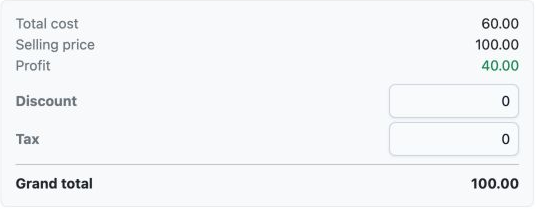
7 The summary shows Total cost 60, Selling price 100, Profit 40 and Grand total 100, with quotation-level discount and tax at 0.
The summary shows Total cost 60, Selling price 100, Profit 40 and Grand total 100, with quotation-level discount and tax at 0.

Total cost is the combined cost, Selling price the combined selling amount, and Profit the displayed profit. The Discount and Tax fields beneath the summary apply at quotation level, separately from item fields. Check Grand total, then choose Add quotation.

8 Without Add permission, saving showed You do not have permission: add quotation.
Without Add permission, saving showed You do not have permission: add quotation.
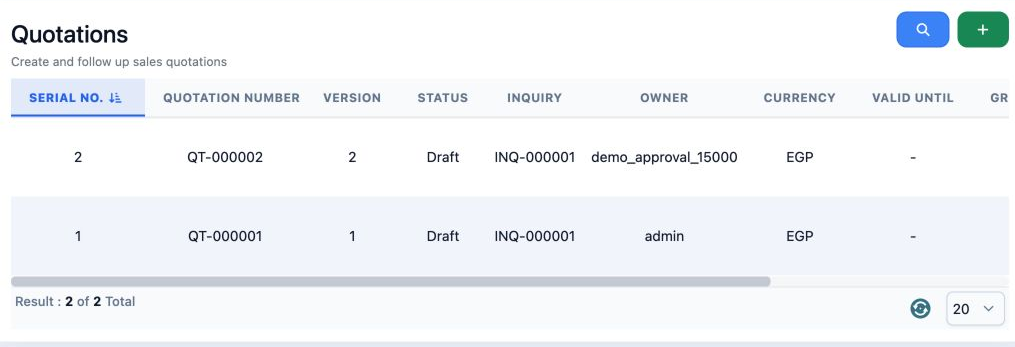
9 After Add Quotation was granted and the form saved, QT-000002 appeared under demo_approval_15000 alongside the admin quotation.
After Add Quotation was granted and the form saved, QT-000002 appeared under demo_approval_15000 alongside the admin quotation.

Editing and checking the saved change

Choose Edit from the quotation row menu, update Notes or the required details, then click Edit quotation.

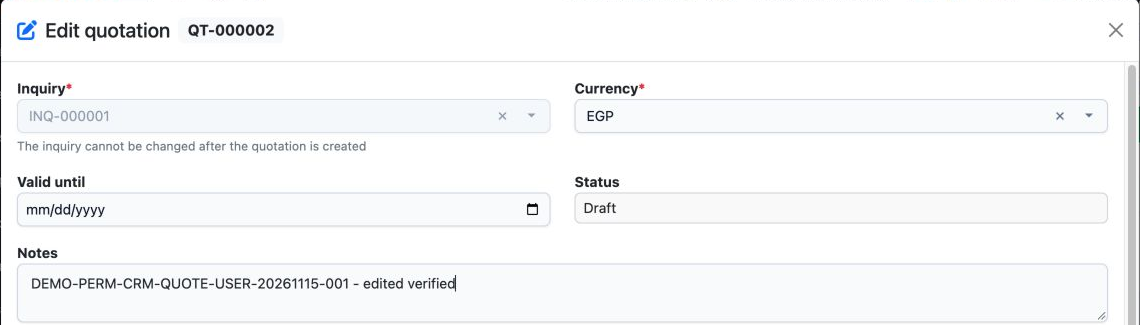
10 Without Edit Quotation, saving was refused with You do not have permission: edit quotation.
Without Edit Quotation, saving was refused with You do not have permission: edit quotation.
11 After Edit was enabled, edited verified was added to the Notes of QT-000002.
After Edit was enabled, edited verified was added to the Notes of QT-000002.
12 After saving and reloading, open View to check the result. Notes displays the updated note on the same quotation.
After saving and reloading, open View to check the result. Notes displays the updated note on the same quotation.

Viewing details and checking values
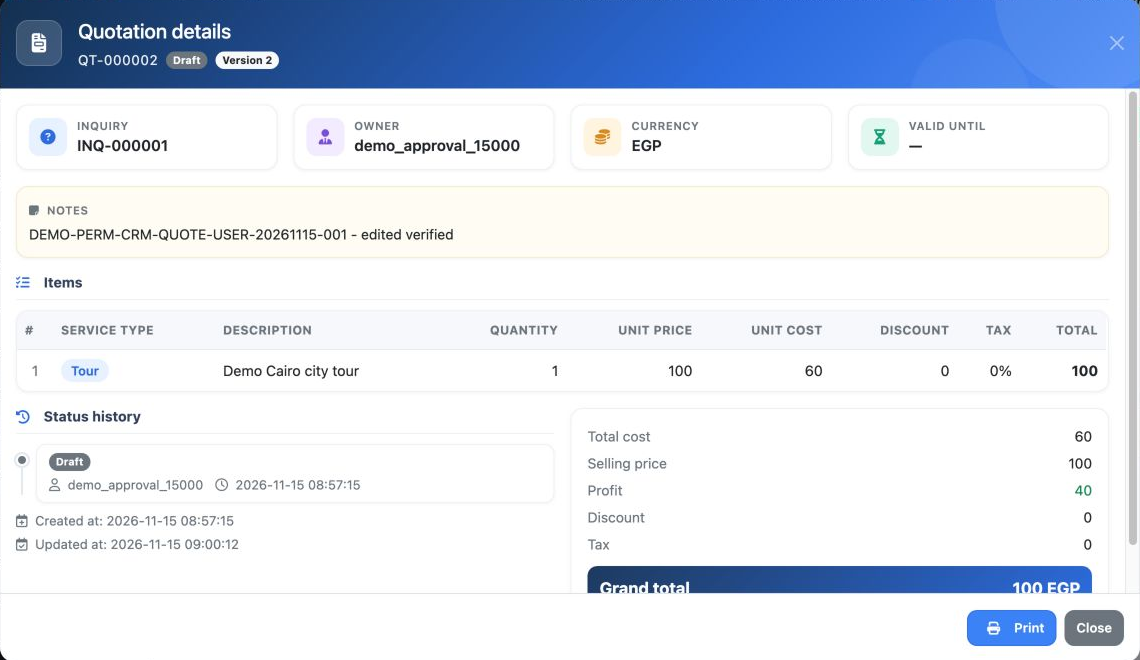
13 Choose View from the row menu to open Quotation details. The example shows QT-000002, Draft, Version 2, its inquiry, owner, currency and upd...
Choose View from the row menu to open Quotation details. The example shows QT-000002, Draft, Version 2, its inquiry, owner, currency and updated note.

Owner identifies the quotation owner, Inquiry the linked inquiry and Currency its currency. The same view displays service items, cost, selling amount, profit and grand total.

Status history shows the status log, Created at the creation time and Updated at the last update. The example remained Draft with grand total 100 EGP and profit 40. Choose Close to return.

Deletion confirmation and cancellation

Choose Delete from the quotation row menu and review the warning before deciding.
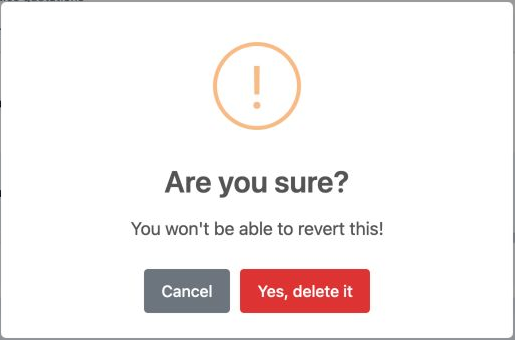
14 The confirmation warns that the action cannot be undone. Choose Cancel to keep the quotation.
The confirmation warns that the action cannot be undone. Choose Cancel to keep the quotation.
15 After Cancel, two records remained in the list: the user quotation and the admin quotation.
After Cancel, two records remained in the list: the user quotation and the admin quotation.

Restricting the list to the user’s own quotations

View Only My Quotations is a visibility restriction, not an add permission. Enable it in the role to restrict the list to that user’s quotations, then save and sign in again.
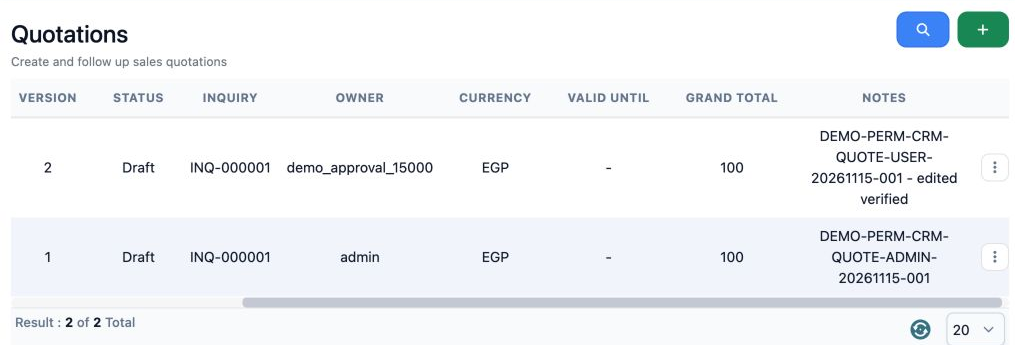
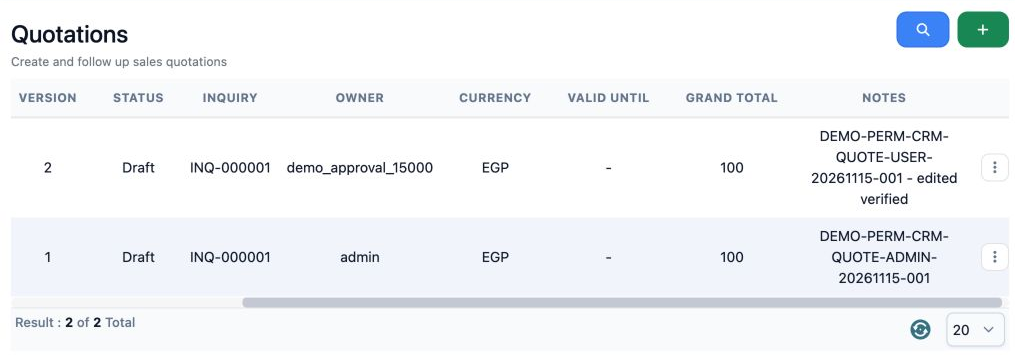
16 With the restriction off, the user saw both their own quotation and the admin quotation.
With the restriction off, the user saw both their own quotation and the admin quotation.
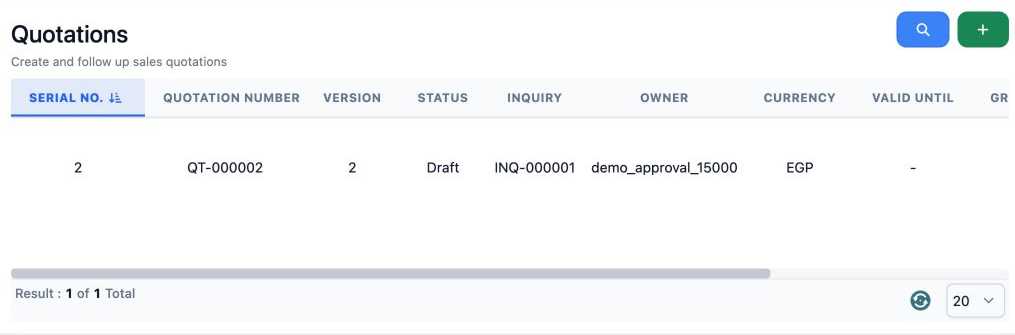
17 After enabling the restriction, only QT-000002 appeared, owned by demo_approval_15000.
After enabling the restriction, only QT-000002 appeared, owned by demo_approval_15000.
18 After the restriction was turned off again and the user signed in afresh, both quotations reappeared.
After the restriction was turned off again and the user signed in afresh, both quotations reappeared.

Searching and clearing filters

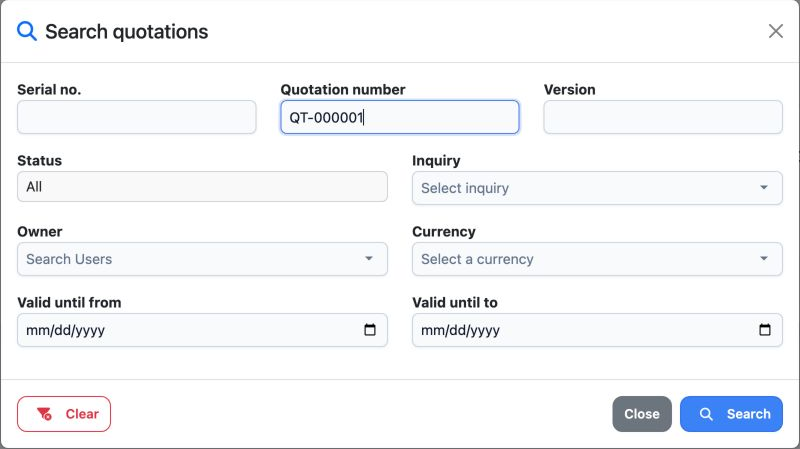
19 Click the magnifier to open Search quotations. The example enters QT-000001 in Quotation number.
Click the magnifier to open Search quotations. The example enters QT-000001 in Quotation number.

Serial no. filters by serial; Quotation number by quotation number; Version by version; Status by status; Inquiry by inquiry; Owner by owner; Currency by currency. Valid until from and Valid until to set the validity-date range.
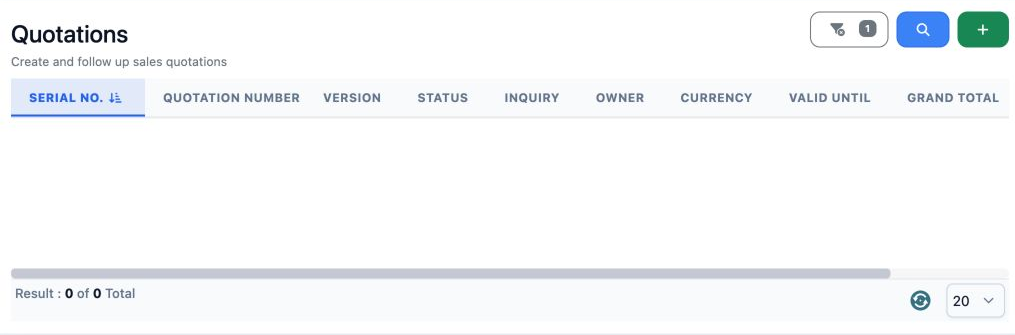
20 While the own-quotation restriction was enabled, the search did not show the admin quotation. Use Clear to remove filters; the list returns...
While the own-quotation restriction was enabled, the search did not show the admin quotation. Use Clear to remove filters; the list returns within your access scope.

Sign in to record the lessons you have read. Sign in