Skip to content
Trio Travel guide

Visa information and permissions

On this page
  1. Prepare the type and enter details
  2. Requirements and links
  3. View the reference and use its links
  4. Edit and search
  5. Confirm deletion

This guide covers adding a visa information reference with requirements and links, then viewing, editing and deleting it. Open Visas from the main menu.
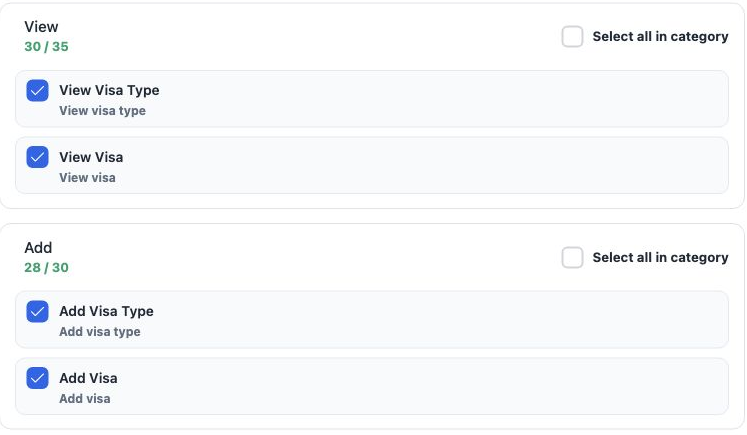
1 Under General in Role Permissions, search for visa. This screen uses View Visa, Add Visa, Edit Visa and Delete Visa. Select the required per...
Under General in Role Permissions, search for visa. This screen uses View Visa, Add Visa, Edit Visa and Delete Visa. Select the required permissions and Save Changes. Visa Type refers to a separate setting.
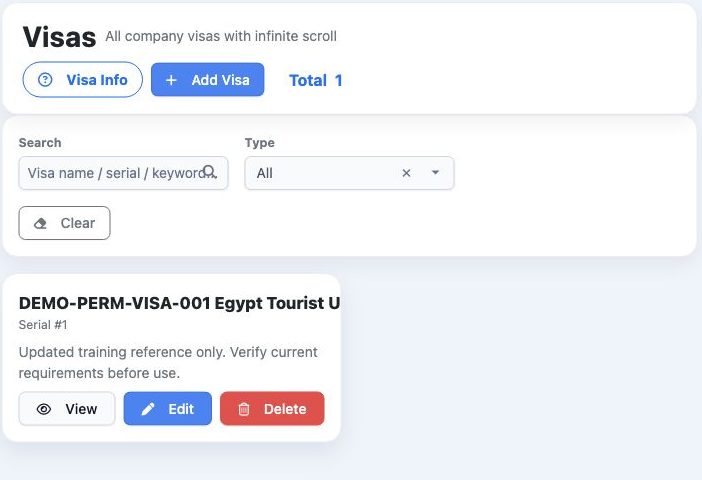
2 Each card shows a reference name, serial and description. View opens details, Edit opens the form and Delete begins deletion. Write controls...
Each card shows a reference name, serial and description. View opens details, Edit opens the form and Delete begins deletion. Write controls appear according to the user’s permissions.

Prepare the type and enter details

3 Manage beside Type opens the types used by this guide. Enter New type name and select Add; the saved type appears in the list. Search and Go...
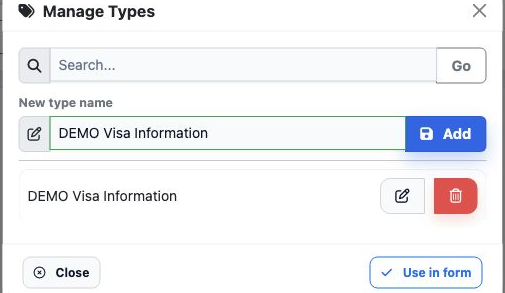
Manage beside Type opens the types used by this guide. Enter New type name and select Add; the saved type appears in the list. Search and Go search the types, and Close closes the window.

In this example, Add Visa was closed to expose Manage Types, then reopened after the type was saved.
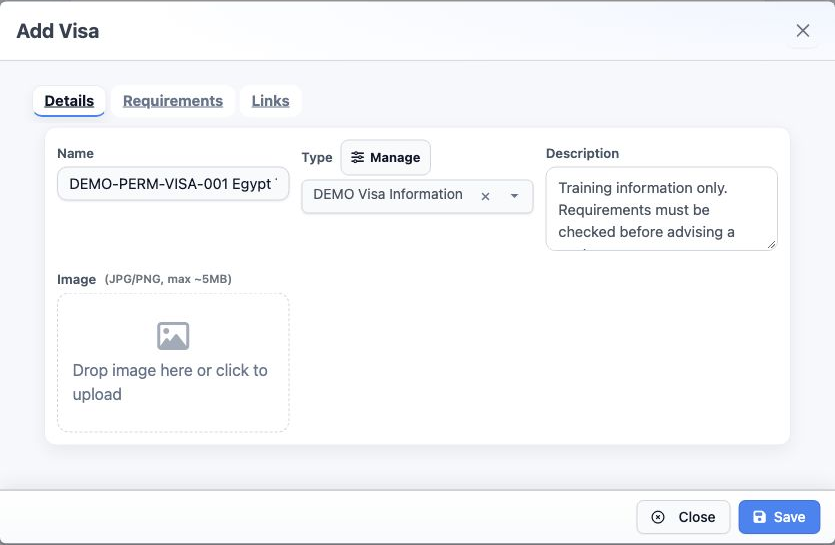
4 Select Add Visa. Under Details, enter Name, choose a Type such as DEMO Visa Information, and enter Description. Select an actual type; All i...
Select Add Visa. Under Details, enter Name, choose a Type such as DEMO Visa Information, and enter Description. Select an actual type; All is not a valid type for saving. Image offers JPG/PNG selection; the interface displays an approximate 5MB limit.

Requirements and links

5 Open Requirements and Add Requirement. Enter Title and the details in the editor. Font, paragraph and list formatting tools are available. A...
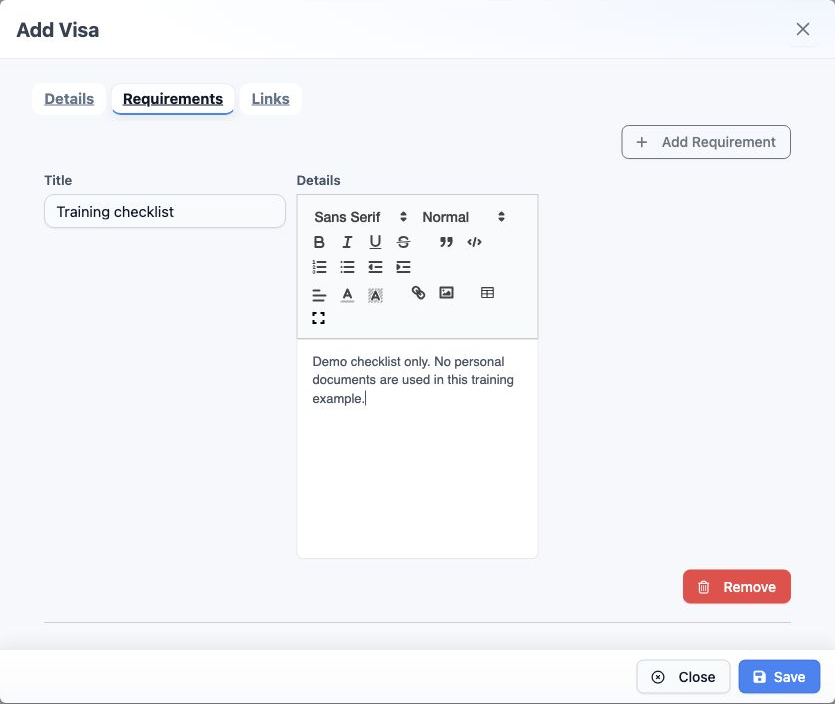
Open Requirements and Add Requirement. Enter Title and the details in the editor. Font, paragraph and list formatting tools are available. Add another item with the same button; Remove removes an item from the form.
6 Open Links and Add Link. Enter Label and the full URL. Add Link adds another link, and Remove removes it from the form. Select Save to save...
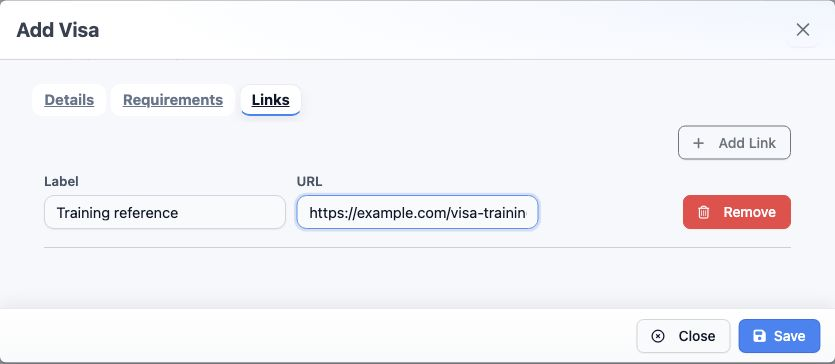
Open Links and Add Link. Enter Label and the full URL. Add Link adds another link, and Remove removes it from the form. Select Save to save the visa details, requirements and links together.

View the reference and use its links
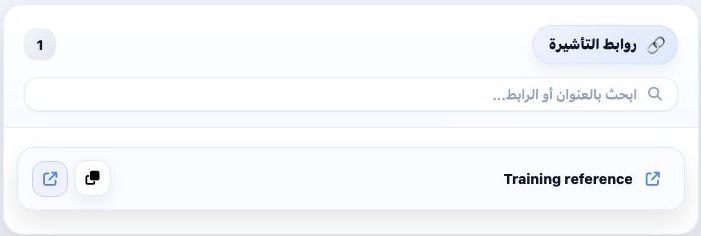
7 Select View on a visa card. The links section displays the saved labels. Its search field accepts a label or URL. The Copy link icon copies...
Select View on a visa card. The links section displays the saved labels. Its search field accepts a label or URL. The Copy link icon copies the address to the clipboard; the saved example address was copied successfully.
8 The page shows the visa name, description and requirements. Select a requirement heading to expand or collapse its text. All visas or Back r...
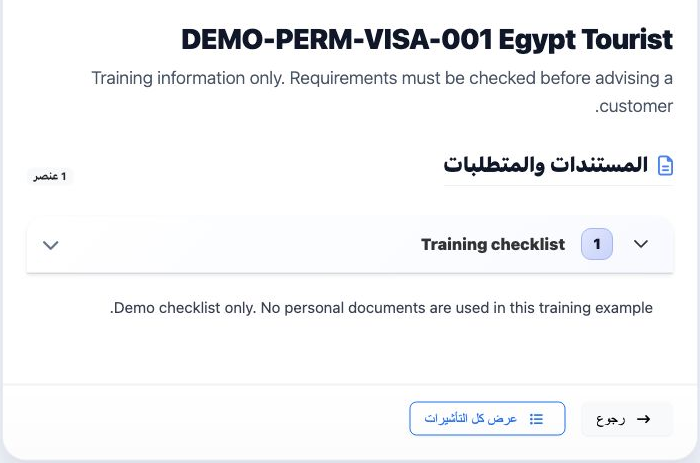
The page shows the visa name, description and requirements. Select a requirement heading to expand or collapse its text. All visas or Back returns to the list.

Edit and search

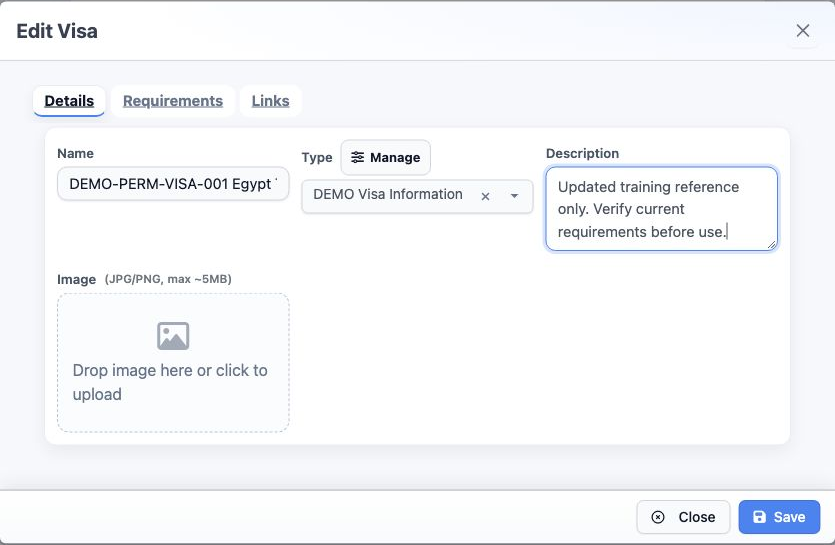
9 Select Edit on the card, change the required fields and Save. The example saved the name DEMO-PERM-VISA-001 Egypt Tourist Updated and a new...
Select Edit on the card, change the required fields and Save. The example saved the name DEMO-PERM-VISA-001 Egypt Tourist Updated and a new description; both persisted after reloading.
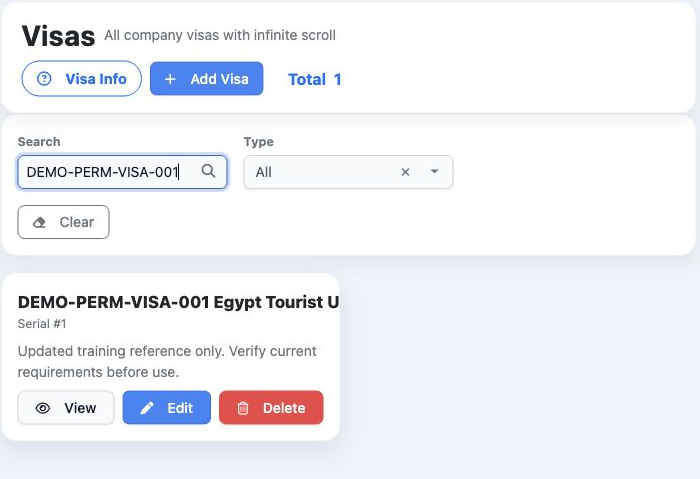
10 Enter part of the name in Search to narrow the cards; DEMO-PERM-VISA-001 returned one reference. Type offers a type filter. Clear resets the...
Enter part of the name in Search to narrow the cards; DEMO-PERM-VISA-001 returned one reference. Type offers a type filter. Clear resets the filter values and restores the list.

Confirm deletion

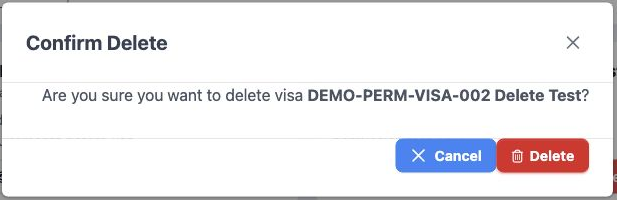
11 Select Delete on the intended card. The dialog names the visa; check it before confirming. Cancel stops the operation, while Delete confirms...
Select Delete on the intended card. The dialog names the visa; check it before confirming. Cancel stops the operation, while Delete confirms it. The example cancelled first, then deleted only temporary record 002.
12 After reloading, only Serial 1 with its updated name remained, and Total was 1. This reference was retained for training.
After reloading, only Serial 1 with its updated name remained, and Total was 1. This reference was retained for training.

Sign in to record the lessons you have read. Sign in