Skip to content
Trio Travel guide

Room view permissions guide

On this page
  1. Add and edit
  2. Search and export
  3. Delete and review the list

This guide explains the Room Views permissions and the associated tasks. The example uses demo_approval_15000 with the Demo Documentation Review role.
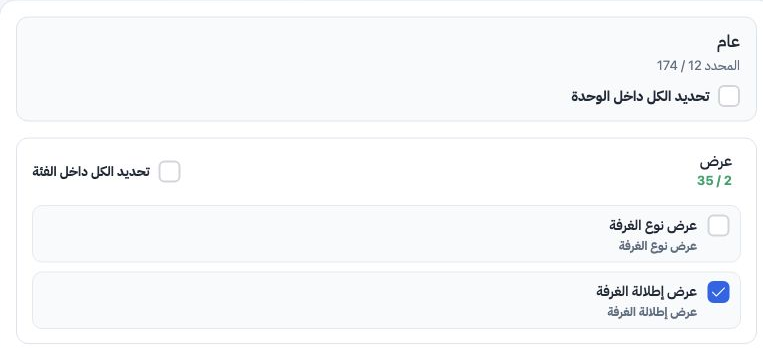
1 1  Open Roles, the role menu and Permissions. Choose General, search for the room-related permissions and expand the action categories. Sele...
1 Open Roles, the role menu and Permissions. Choose General, search for the room-related permissions and expand the action categories. Select the required Room View permissions and Save Changes. The screenshot shows the Arabic labels.

View Room View

For viewing the room view list.

Add Room View

For creating a new named room view.

Edit Room View

For changing an existing room view name.

Delete Room View

For deleting a room view record.

Export Room View

For exporting list data to a file.

Print Room View

Shown as a separate print option in the role configuration.

Add and edit
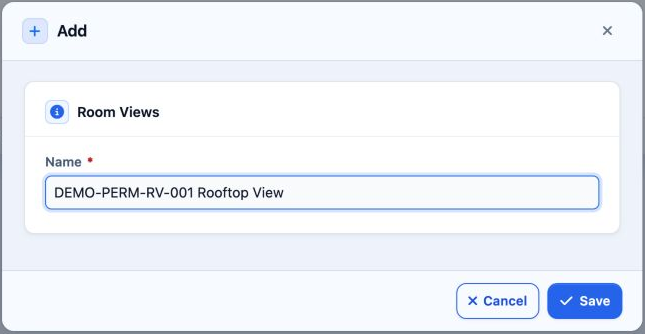
2 2  Sign in as the user assigned to the role and open Room Views. Select Add, enter the name and Save. DEMO-PERM-RV-001 Rooftop View was crea...
2 Sign in as the user assigned to the role and open Room Views. Select Add, enter the name and Save. DEMO-PERM-RV-001 Rooftop View was created as serial 21.
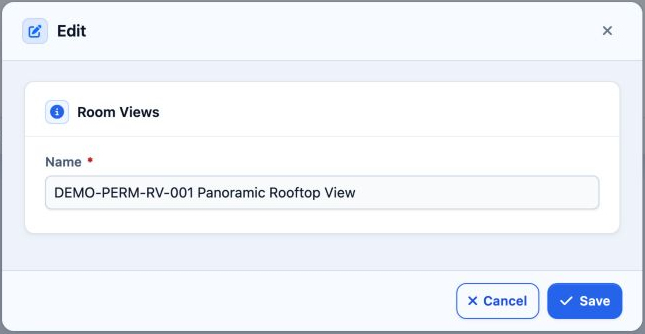
3 3  Choose Edit from the row menu. Wait for the existing name to load, change it and Save. The example becomes DEMO-PERM-RV-001 Panoramic Roo...
3 Choose Edit from the row menu. Wait for the existing name to load, change it and Save. The example becomes DEMO-PERM-RV-001 Panoramic Rooftop View.

https://portal.etolv.net/newportal/settings/room-view

Search and export
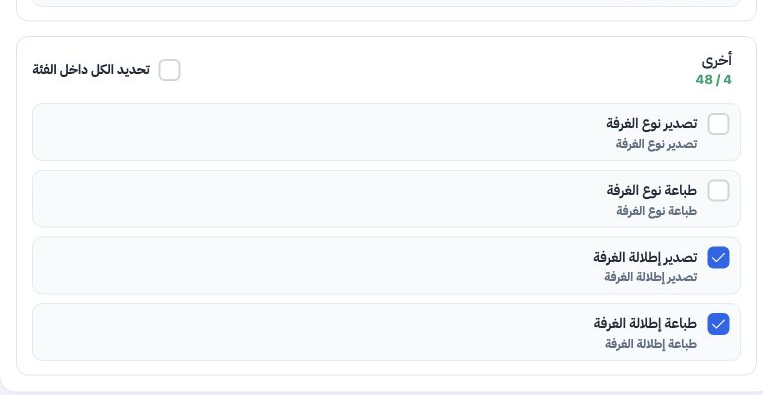
4 4  Other contains separate export and print permissions. Select the intended Room View permission and save the changes.
4 Other contains separate export and print permissions. Select the intended Room View permission and save the changes.
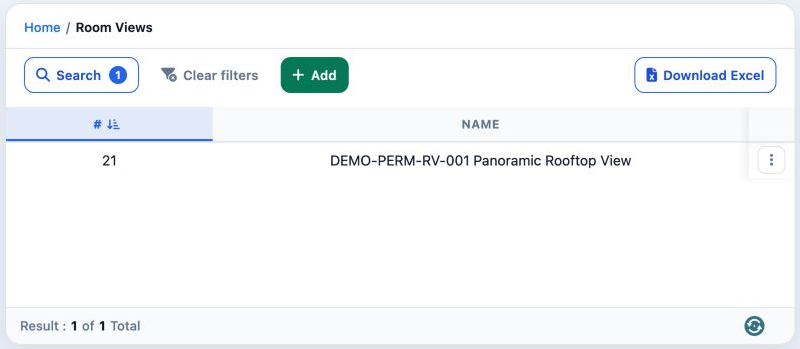
5 5  Select Search, enter DEMO-PERM-RV-001 in Name and run the search. Only the updated record appears. Select Download Excel to download the...
5 Select Search, enter DEMO-PERM-RV-001 in Name and run the search. Only the updated record appears. Select Download Excel to download the result. The example produces a CSV with serial and name columns.

Delete and review the list

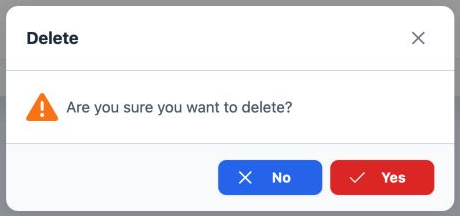
6 6  Choose Delete from the row menu. Check the intended record, then select Yes to delete or No to return without deleting.
6 Choose Delete from the row menu. Check the intended record, then select Yes to delete or No to return without deleting.
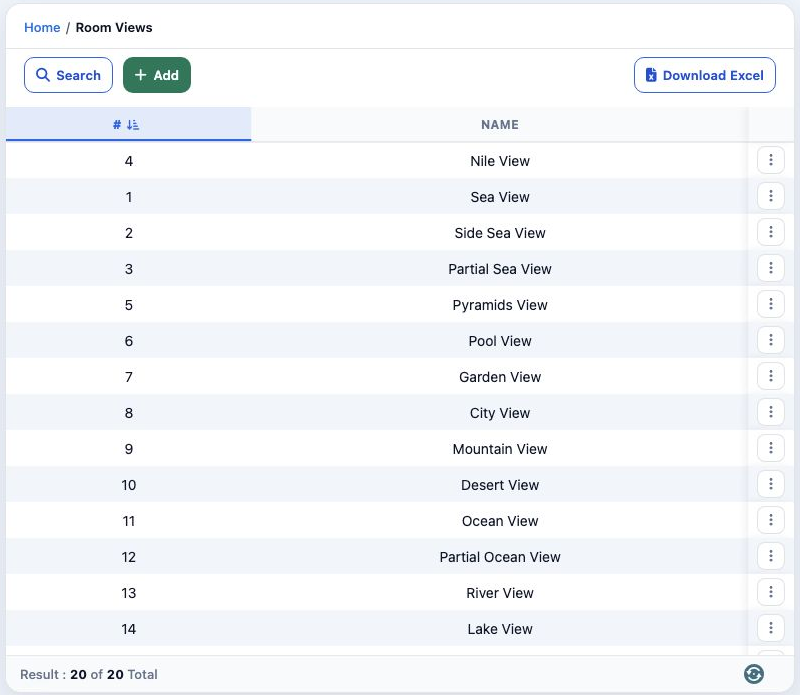
7 7  Only training record 21 was deleted. Select Clear Filters to review the list. The total returns to 20 and the original room views remain...
7 Only training record 21 was deleted. Select Clear Filters to review the list. The total returns to 20 and the original room views remain unchanged.

Sign in to record the lessons you have read. Sign in