Skip to content
Trio Travel guide

Hotel supplements and permissions guide

On this page
  1. Add and edit a hotel supplement
  2. Search and export
  3. Delete and review the result

Manage hotel supplement names using demo_approval_15000 and the Demo Documentation Review role.
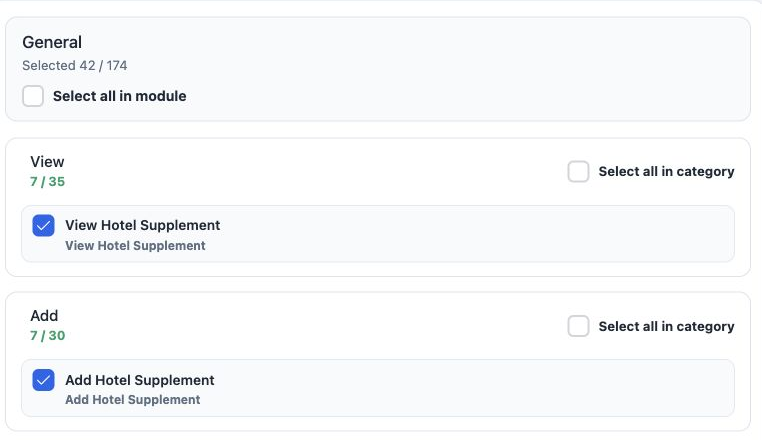
1 1  Open Roles and Permissions. Under General, search Supplement and expand the action categories. Select the required permissions and Save C...
1 Open Roles and Permissions. Under General, search Supplement and expand the action categories. Select the required permissions and Save Changes. The image shows the View and Add portion.

View Hotel Supplement — read hotel supplement names.

Add Hotel Supplement — create a hotel supplement.

Edit Hotel Supplement — change a hotel supplement name.

Delete Hotel Supplement — delete the selected hotel supplement.

Export Hotel Supplement — download list data.

Print Hotel Supplement — a separate option in role permissions.

Add and edit a hotel supplement
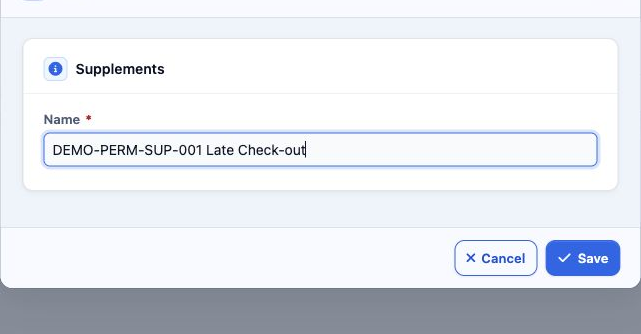
2 2  Open Settings, Supplement and Add. Enter the required Name and Save. DEMO-PERM-SUP-001 Late Check-out was saved as serial 2.
2 Open Settings, Supplement and Add. Enter the required Name and Save. DEMO-PERM-SUP-001 Late Check-out was saved as serial 2.
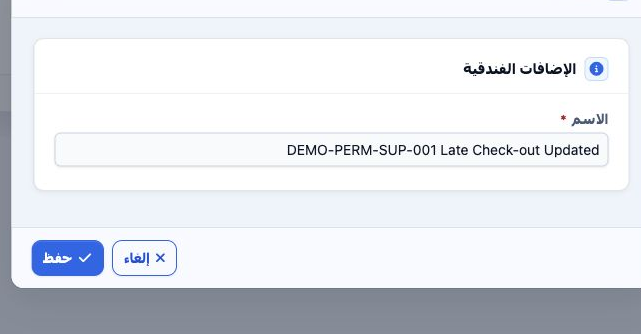
3 3  Choose Edit from the row menu. Updated was appended to the name and saved. The Arabic reopening shown here confirms the saved value.
3 Choose Edit from the row menu. Updated was appended to the name and saved. The Arabic reopening shown here confirms the saved value.

Search and export

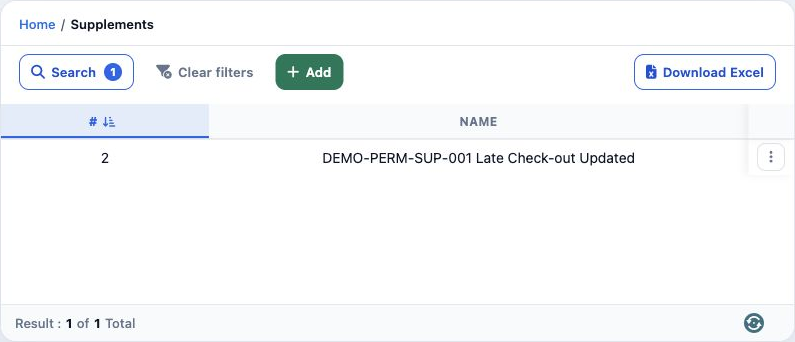
4 4  Select Search, enter DEMO-PERM-SUP-001 in Name, then run Search. One result appears with the updated name.
4 Select Search, enter DEMO-PERM-SUP-001 in Name, then run Search. One result appears with the updated name.

Download Excel downloads the filtered list as a CSV containing serial and Name. Use Clear Filters to return to all hotel supplements.

The hotel supplement form in this example contains Name only. Choose a clear service name, such as late check-out.

Delete and review the result
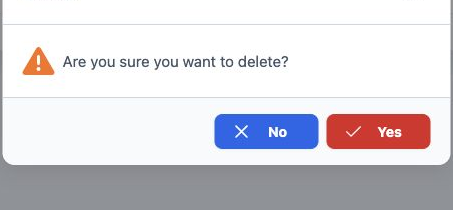
5 5  Choose Delete from the row menu. Verify the intended record, then select Yes to delete or No to return without changing it.
5 Choose Delete from the row menu. Verify the intended record, then select Yes to delete or No to return without changing it.
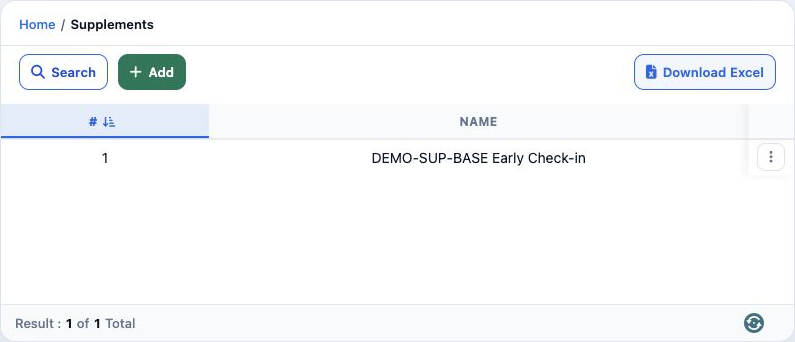
6 6  Only test record 2 was deleted. Reference training hotel supplement 1 remained unchanged as DEMO-SUP-BASE Early Check-in.
6 Only test record 2 was deleted. Reference training hotel supplement 1 remained unchanged as DEMO-SUP-BASE Early Check-in.

Sign in to record the lessons you have read. Sign in