Skip to content
Trio Travel guide

File tags and permissions guide

On this page
  1. Add and edit a tag
  2. Search and delete

Define tag names under Settings, File Tag. The example uses the Demo Documentation Review role.
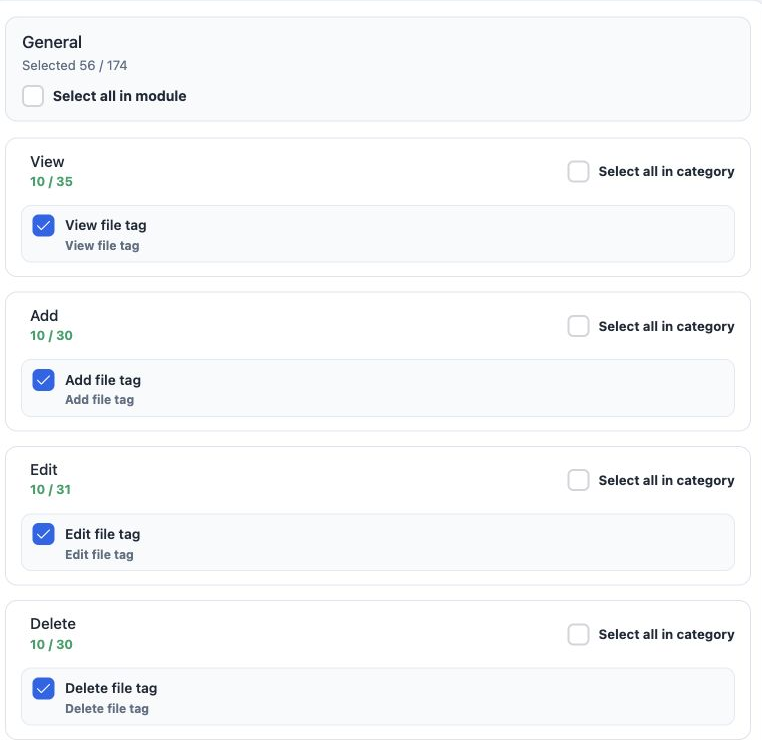
1 1  Open Roles and Permissions. Under General, search File and expand the action categories. Select the required File Tag permissions, then S...
1 Open Roles and Permissions. Under General, search File and expand the action categories. Select the required File Tag permissions, then Save Changes.

View file tag — read tag names.

Add file tag — create a tag.

Edit file tag — rename a tag.

Delete file tag — delete the selected tag.

Add and edit a tag
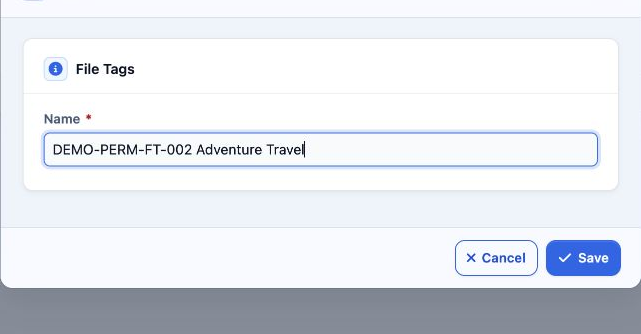
2 2  Select Add, enter the required Name, then Save. DEMO-PERM-FT-002 Adventure Travel was saved as serial 3.
2 Select Add, enter the required Name, then Save. DEMO-PERM-FT-002 Adventure Travel was saved as serial 3.
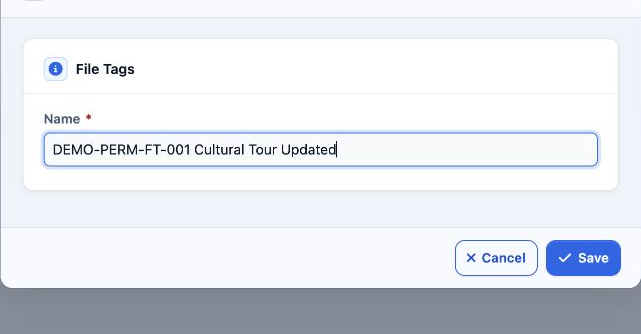
3 3  Choose Edit from the row menu. Updated was appended to the first example and saved. Reopening in Arabic confirmed the saved value.
3 Choose Edit from the row menu. Updated was appended to the first example and saved. Reopening in Arabic confirmed the saved value.

Search and delete

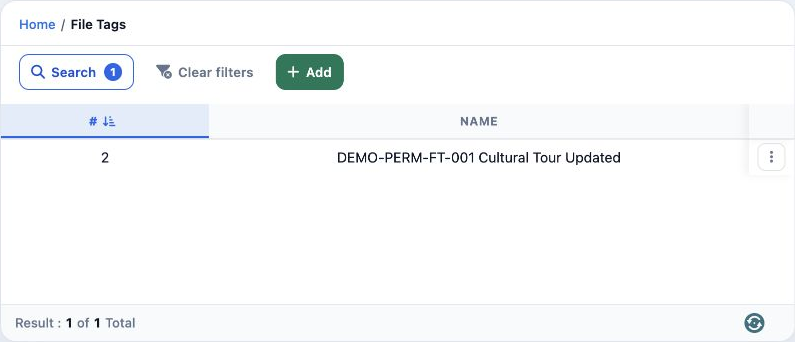
4 4  Select Search, enter DEMO-PERM-FT-001 in Name and run Search. One updated record appears. Clear Filters returns to all tags.
4 Select Search, enter DEMO-PERM-FT-001 in Name and run Search. One updated record appears. Clear Filters returns to all tags.
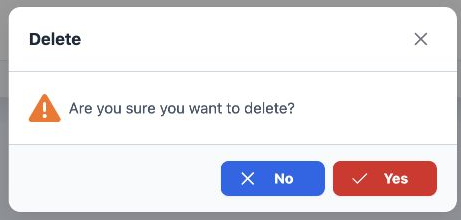
5 5  Choose Delete from the row menu. No cancels the action; Yes confirms deletion of the selected tag.
5 Choose Delete from the row menu. No cancels the action; Yes confirms deletion of the selected tag.
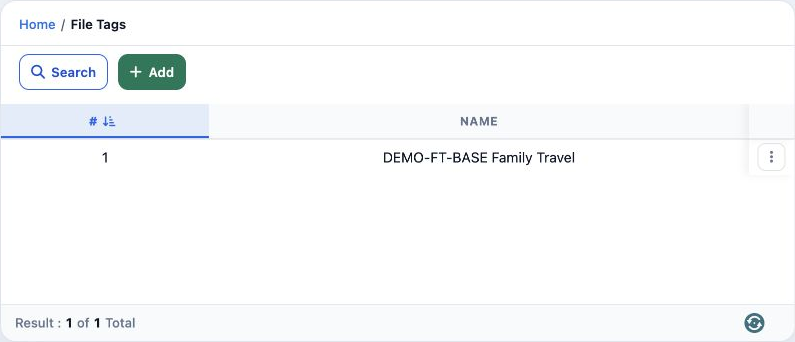
6 6  After deleting test examples 2 and 3, reference tag 1, DEMO-FT-BASE Family Travel, remained.
6 After deleting test examples 2 and 3, reference tag 1, DEMO-FT-BASE Family Travel, remained.

Sign in to record the lessons you have read. Sign in