Skip to content
Trio Travel guide

Flight sales report permission

Sales Report groups sales and refunds by branch and data source for the selected period. This guide covers view permission, filtering and reading the totals.
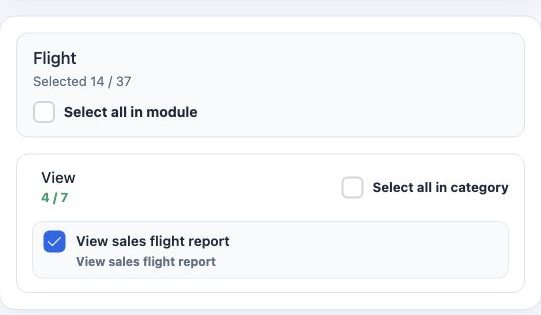
1 Under Management, then Roles, open Permissions for the intended role. Select Flight and search for sales flight report. Enable View sales fl...
Under Management, then Roles, open Permissions for the intended role. Select Flight and search for sales flight report. Enable View sales flight report and select Save Changes. Sign in again to load the updated permissions.
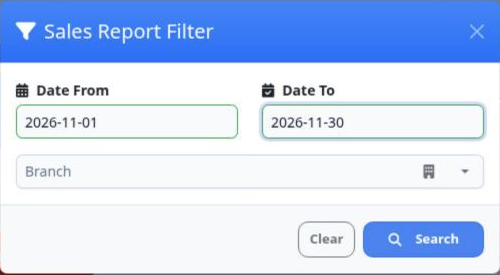
2 Open Flights, then Sales Report, and select Search. Set Date From and Date To, optionally choose Branch, then select Search in the filter pa...
Open Flights, then Sales Report, and select Search. Set Date From and Date To, optionally choose Branch, then select Search in the filter panel. The example uses 1–30 November 2026 without selecting a branch.

Read sales and refunds

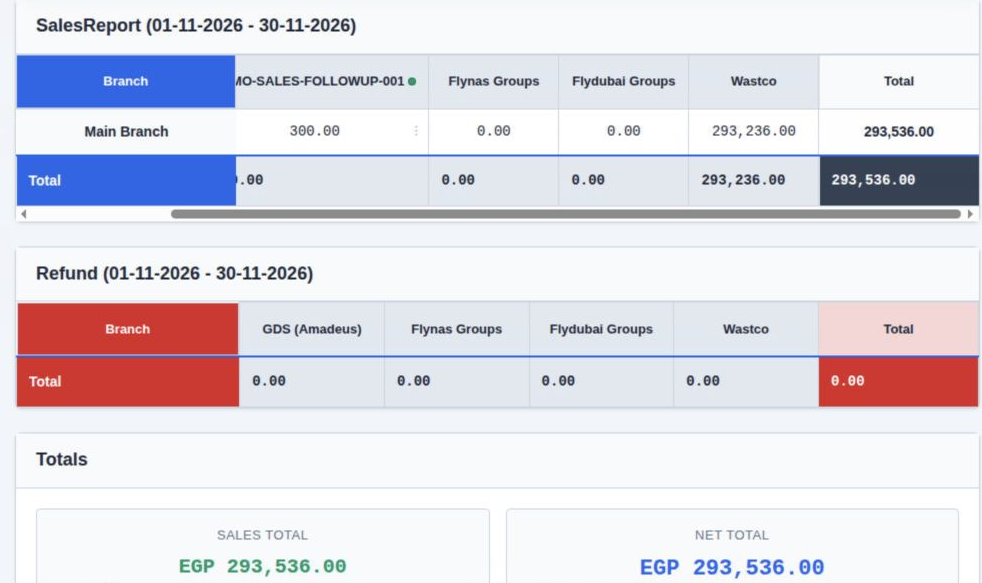
3 SalesReport displays sales and Refund displays refunds for the period shown in each heading. Branch identifies the branch; Total shows the r...
SalesReport displays sales and Refund displays refunds for the period shown in each heading. Branch identifies the branch; Total shows the row or column total. Main Branch has sales of EGP 293,536.00 and total refunds of EGP 0.00.

Scroll the table horizontally to read the source columns. In this example, Wastco is EGP 293,236.00 and the custom follow-up column DEMO-SALES-FOLLOWUP-001 is EGP 300.00. Their sum is EGP 293,536.00. The other displayed sources are zero.

Under Totals, Sales Total is EGP 293,536.00 and Net Total is EGP 293,536.00. Check the period and branch before comparing two reports.

Sign in to record the lessons you have read. Sign in