Skip to content
Trio Travel guide

Reservation visa permissions

On this page
  1. Opening the visa service
  2. Visa type supplier and appointment
  3. Prices currency and notes
  4. Passenger details and saving
  5. Reviewing the saved visa row
  6. Editing the visa and passengers
  7. Deletion confirmation and returning safely

Opening the visa service

This guide covers adding and editing a visa service inside a Reservation, and reviewing deletion confirmation. Open Reservations, then Reservations, and open the required file number.
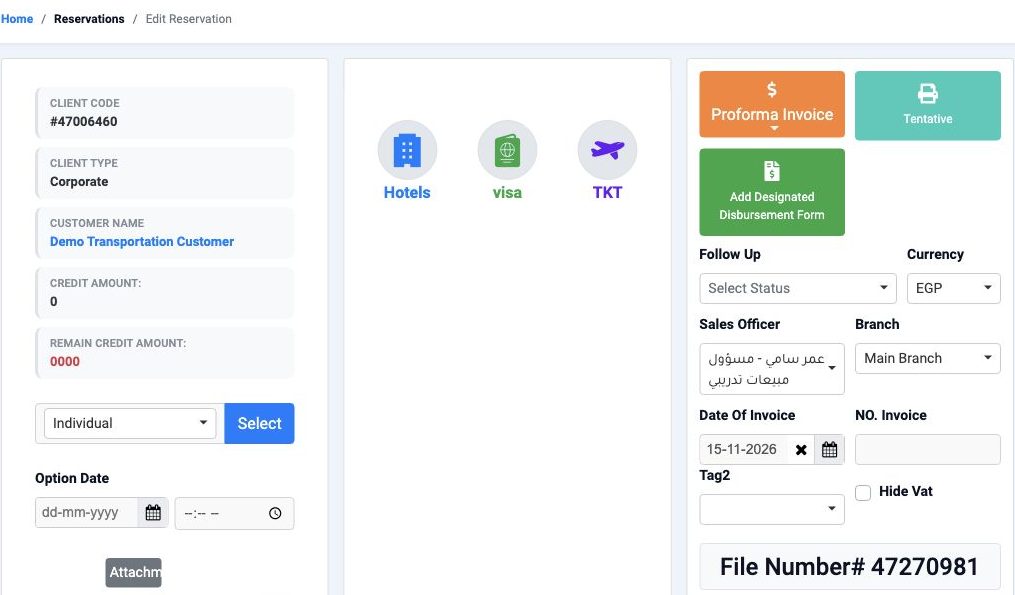
1 Select visa inside the file to open the form. This example uses file 47270981 for Demo Transportation Customer.
Select visa inside the file to open the form. This example uses file 47270981 for Demo Transportation Customer.

Add, Edit and Delete actions depend on the user permissions. Use the visa service within the Reservation file to record its details, prices and passengers.

Visa type supplier and appointment
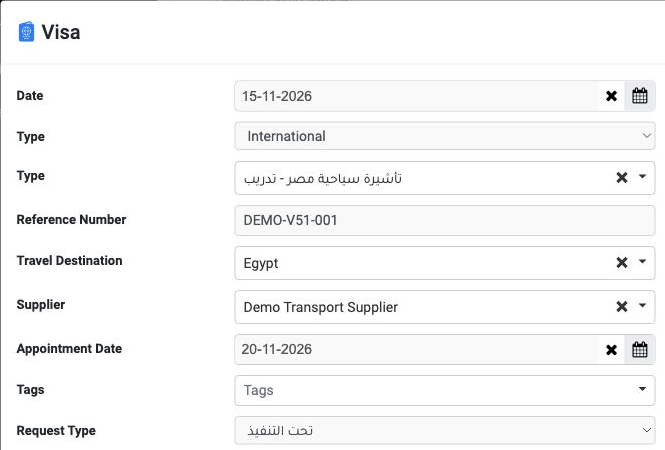
2 The upper section groups the service date, type, reference, travel destination, supplier and appointment.
The upper section groups the service date, type, reference, travel destination, supplier and appointment.

Set Date and choose International or Domestic in the first Type field. Select the required visa type in the second Type field; the example uses تأشيرة سياحية مصر - تدريب.

Enter Reference Number and select Travel Destination and Supplier. This example shows DEMO-V51-001, Egypt and Demo Transport Supplier.

Set Appointment Date when an appointment is available. The example date is 15 November 2026 with an appointment on 20 November 2026. Request Type offers completed, in progress or rejected; the example uses تحت التنفيذ, in progress.

Tags also offers a tag selection when needed.

To prepare a visa type, open Settings then Visa Types, select Add, enter its Name and Save. Return to the service and select the type from the list.

Prices currency and notes
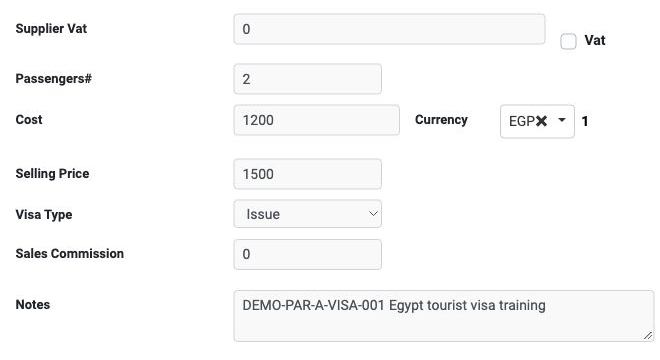
3 The lower section contains passenger count, cost, currency, selling price, commission and notes.
The lower section contains passenger count, cost, currency, selling price, commission and notes.

Enter Passengers# and Cost per passenger, then select Currency and review the adjacent rate. Two passengers at cost 1200 each give total cost 2400 EGP. The example uses EGP at exchange rate 1.

Enter Selling Price and review Price at the bottom. In the example, selling price 1500 for two passengers produces a displayed footer Price of 3000.

Visa Type offers Issue and Refund; the example uses Issue. Enter Sales Commission and Notes as needed. Supplier Vat and a Vat checkbox are also available; review the approved tax values before entering them.

Passenger details and saving
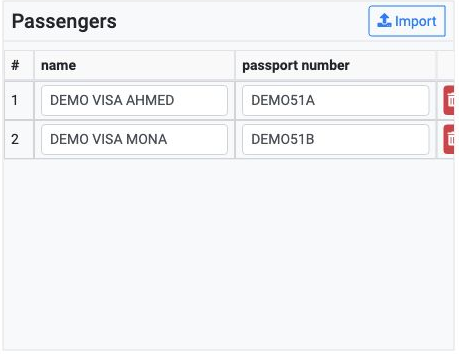
4 Entering Passengers# as 2 displays two passenger rows. Enter name and passport number in each row. The example uses training data.
Entering Passengers# as 2 displays two passenger rows. Enter name and passport number in each row. The example uses training data.

The # column identifies the row number. A row-delete control appears at the row edge, and Import appears in the Passengers header.

5 Review Price, then select Save Visa Reservation to save the service. Close closes the form.
Review Price, then select Save Visa Reservation to save the service. Close closes the form.

Reviewing the saved visa row

6 After saving and refreshing, a row appears in the Visa table. Review the type, request status, supplier, passenger count and destination.
After saving and refreshing, a row appears in the Visa table. Review the type, request status, supplier, passenger count and destination.

Date shows the date, Visa Type shows Issue or Refund, Type shows the visa category, and Request Type shows request status. Supplier identifies the supplier, Passenger# shows the passenger count, and Destination shows the travel destination.

Cost is the unit cost and Total Cost is the aggregate cost. Price is the unit selling price and Total is aggregate sales. For two passengers:1200 × 2 = 2400 cost and 1500 × 2 = 3000 sales.
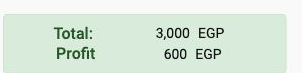
7 The file footer shows Total 3000 EGP and Profit 600 EGP in this example.
The file footer shows Total 3000 EGP and Profit 600 EGP in this example.

Editing the visa and passengers

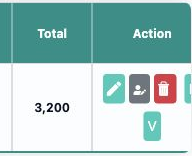
8 Select the service pencil in the required Visa row under Action.
Select the service pencil in the required Visa row under Action.
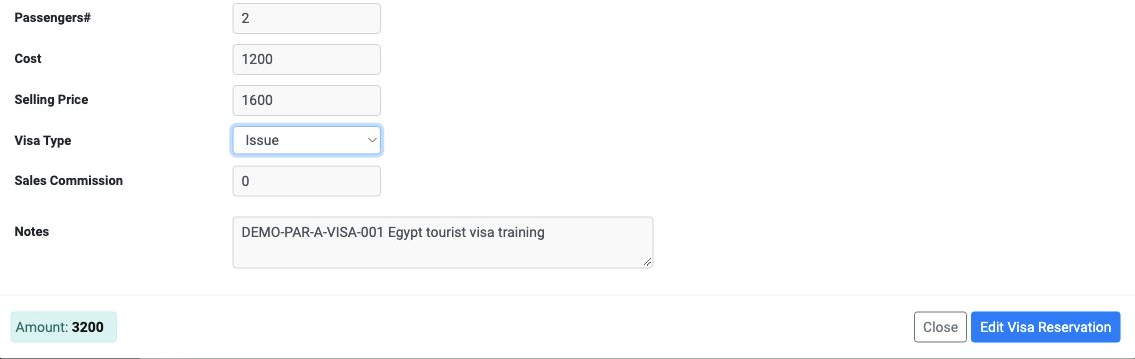
9 In Edit Visa, Selling Price was changed to 1600 per passenger, making the footer Amount 3200. Select Edit Visa Reservation to save changes.
In Edit Visa, Selling Price was changed to 1600 per passenger, making the footer Amount 3200. Select Edit Visa Reservation to save changes.
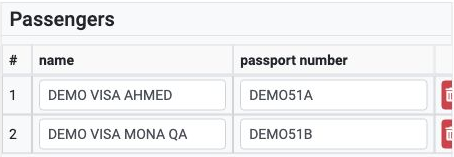
10 Passenger names can be edited in Passengers. After saving and reopening, DEMO VISA MONA QA remained alongside DEMO VISA AHMED.
Passenger names can be edited in Passengers. After saving and reopening, DEMO VISA MONA QA remained alongside DEMO VISA AHMED.

Before saving changes, review Date, Appointment Date, prices and passenger details for accuracy.

Deletion confirmation and returning safely
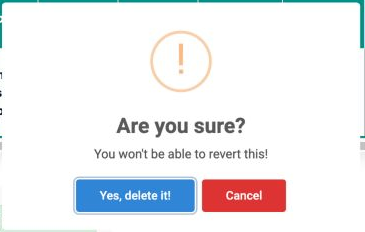
11 Select the trash icon in the service row to open deletion confirmation. The dialog warns that the action cannot be reverted. Select Cancel t...
Select the trash icon in the service row to open deletion confirmation. The dialog warns that the action cannot be reverted. Select Cancel to return without deleting.
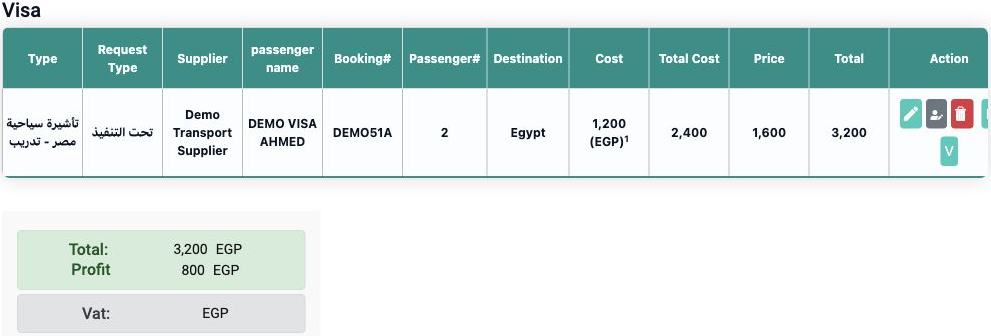
12 After cancelling deletion, the service remains. Aggregate cost is 2400, sales 3200 and Profit 800 EGP after the edit.
After cancelling deletion, the service remains. Aggregate cost is 2400, sales 3200 and Profit 800 EGP after the edit.

Sign in to record the lessons you have read. Sign in