Skip to content
Trio Travel guide

Extra services and permissions guide

On this page
  1. Add a service and costs
  2. Edit and ledger fields
  3. Search and list tools
  4. Confirm deletion and review the result

Define an extra service and its costs, edit it, find it and delete it. The example uses demo_approval_15000 and the Demo Documentation Review role.
1 1  Open role permissions and General. Search Extra Service, expand the action categories, select the required permissions and Save Changes....
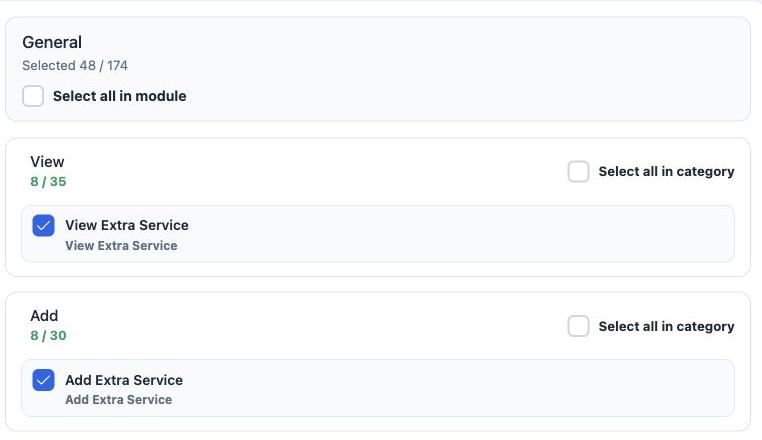
1 Open role permissions and General. Search Extra Service, expand the action categories, select the required permissions and Save Changes. The image shows View and Add.

View Extra Service: read the services list.

Add Extra Service: define a service.

Edit Extra Service: change service details.

Delete Extra Service: delete the selected service.

Export Extra Service: show the data download command.

Print Extra Service: a separate role permission.

Add a service and costs
2 2  Open Settings, Extra Services and Add. Enter Name, Currency, Cost Calculation and the four costs, then Save. Example in EGP: adult 150, a...
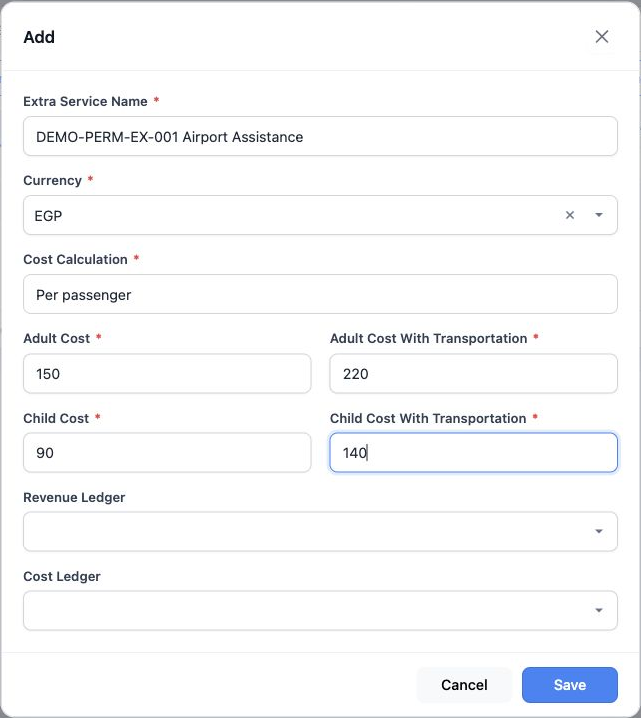
2 Open Settings, Extra Services and Add. Enter Name, Currency, Cost Calculation and the four costs, then Save. Example in EGP: adult 150, adult with transportation 220, child 90 and child with transportation 140.

Name, Currency, Cost Calculation and all four cost fields are marked required. The calculation choices are Per passenger and For all passengers.

The record was saved in English. The Arabic image is an explanatory draft canceled without creating another record.

Edit and ledger fields
3 3  Choose Edit from the service row. Updated was appended to the name; costs became 160, 230, 95 and 145 in the same order, then the changes...
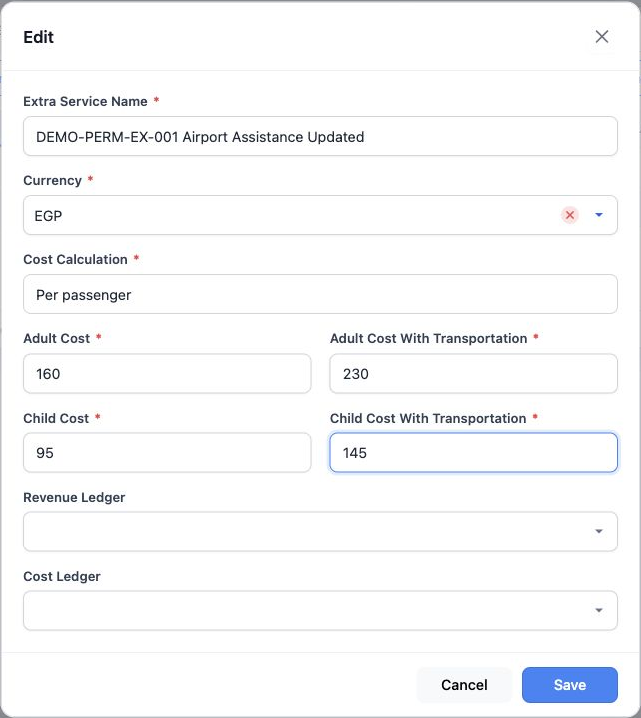
3 Choose Edit from the service row. Updated was appended to the name; costs became 160, 230, 95 and 145 in the same order, then the changes were saved.

Revenue Ledger and Cost Ledger select the service ledger accounts. Choose them according to the accountant’s setup. Both were left blank in this definition example.

Reopening confirmed the saved name and costs. The Arabic image shows Per passenger selected for explanation, followed by Cancel.

Search and list tools
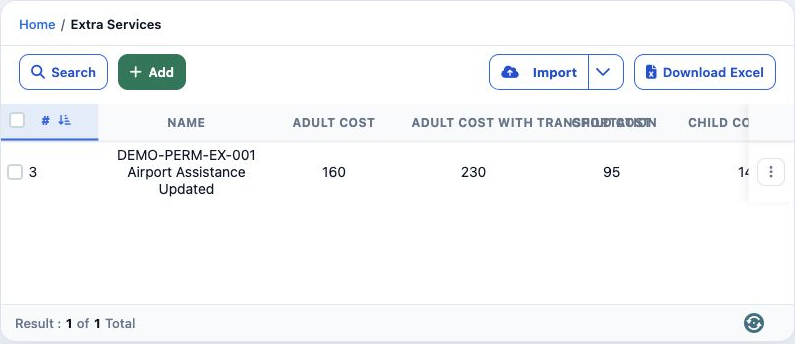
4 4  Select Search, enter DEMO-PERM-EX-001 in Name, then use the search button inside the dialog. Only the updated service appears.
4 Select Search, enter DEMO-PERM-EX-001 in Name, then use the search button inside the dialog. Only the updated service appears.

To return to all services, clear the filter in Search or reload the list. Scroll horizontally to reach the remaining columns, including Currency, Revenue Ledger and Cost Ledger.

Download Excel appears after Export permission is granted. Select it to request a list download. Import includes the import button and the Example / Catalog menu.

Confirm deletion and review the result
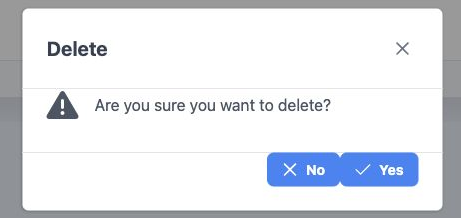
5 5  Choose Delete from the intended service row. Select No to return or Yes to confirm. These button labels also appeared in English inside t...
5 Choose Delete from the intended service row. Select No to return or Yes to confirm. These button labels also appeared in English inside the Arabic confirmation.
6 6  The English confirmation was canceled. DEMO-PERM-EX-001 was then deleted through the Arabic interface. After reloading, the original two...
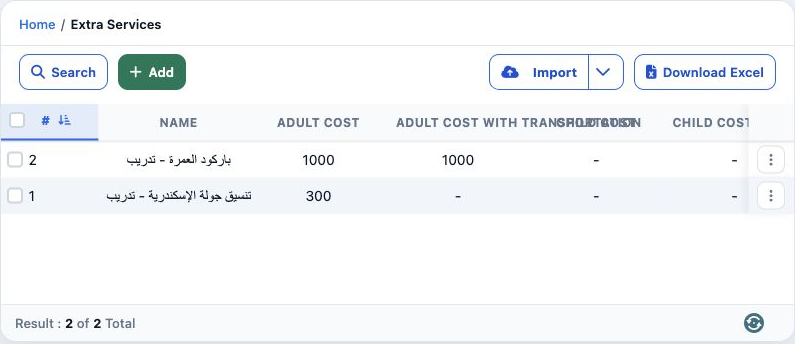
6 The English confirmation was canceled. DEMO-PERM-EX-001 was then deleted through the Arabic interface. After reloading, the original two services remained unchanged.

Sign in to record the lessons you have read. Sign in