Reservation hotel permissions
On this page
Opening accommodation
This guide covers adding and editing hotel accommodation inside a Reservation, and opening the deletion confirmation. Open Reservations, then Reservations, and select the required file number.
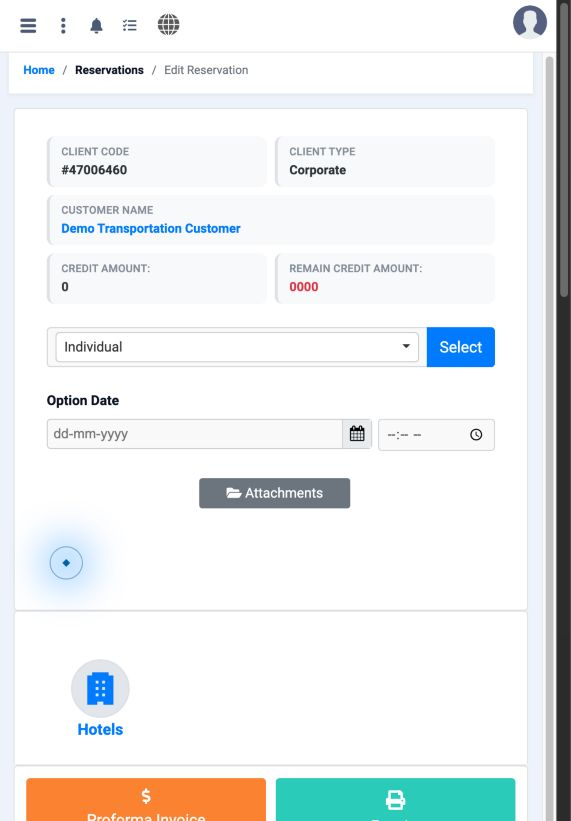
Hotel and supplier details
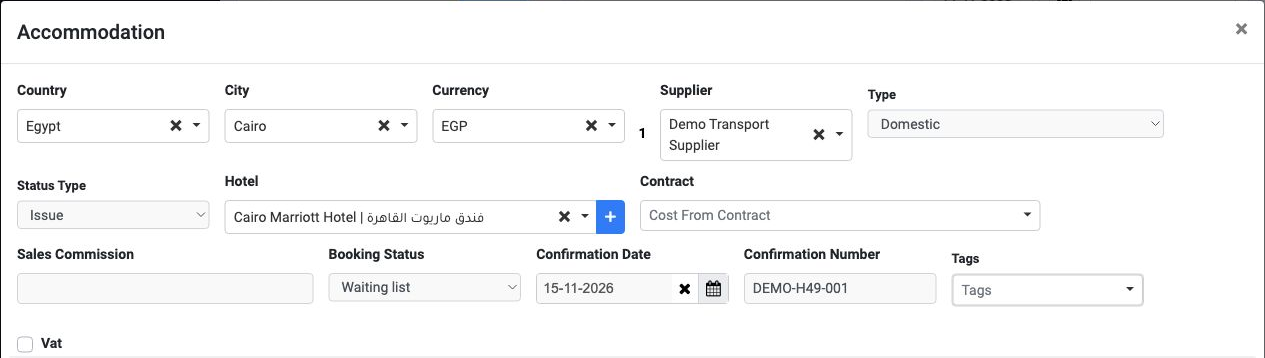
Select Country, City, Currency and Supplier. The example uses Egypt, Cairo, EGP at exchange rate 1, and Demo Transport Supplier.
Select the hotel under Hotel. Type offers International and Domestic, while Status Type offers Issue and Refund. The example uses Cairo Marriott Hotel with Domestic and Issue.
Choose Waiting list, Confirmed or Cancelled under Booking Status, and enter the confirmation date and number when available. The example shows Waiting list and confirmation number DEMO-H49-001.
The form also contains Contract, Sales Commission, Tags and Vat. Review the contract, commission and tax choices approved for the reservation before entering their values.
Rooms and prices

Enter the guest name, select Rooms Type and set Room Count. Set Check In and CheckOut, then review Night#. Arrival and departure time fields appear below the dates.
Select meals and the room view. The example uses one Single room from 15 to 17 November 2026, two nights, Bed and Breakfast and City View.
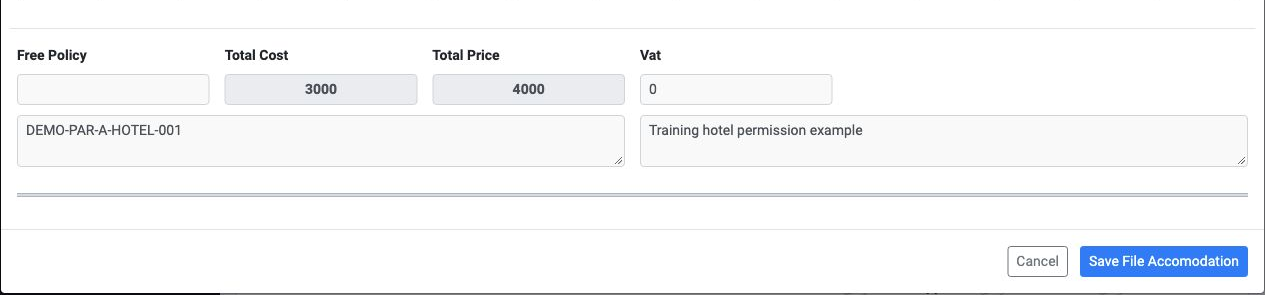
Enter Cost and Price after completing the room selections. Review Discount, Sale Discount, Total Cost and Total Price. The edited example shows cost 1500 per night, total 3000, and price 2000, total 4000 EGP.
Use the plus icon beside Rooms to add another row. The room row also has its own confirmation number field.
Prepare the lists in Settings under Hotels, Room Types, Meal Plans and Room Views, then select the values in the accommodation form.
Reviewing and saving accommodation
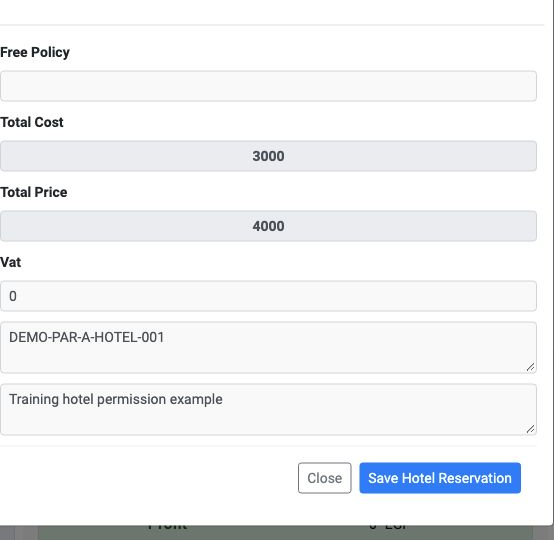
The footer contains Free Policy, total cost, total price and Vat. Enter hotel notes in Notes For Hotel and client notes in Notes For Client.
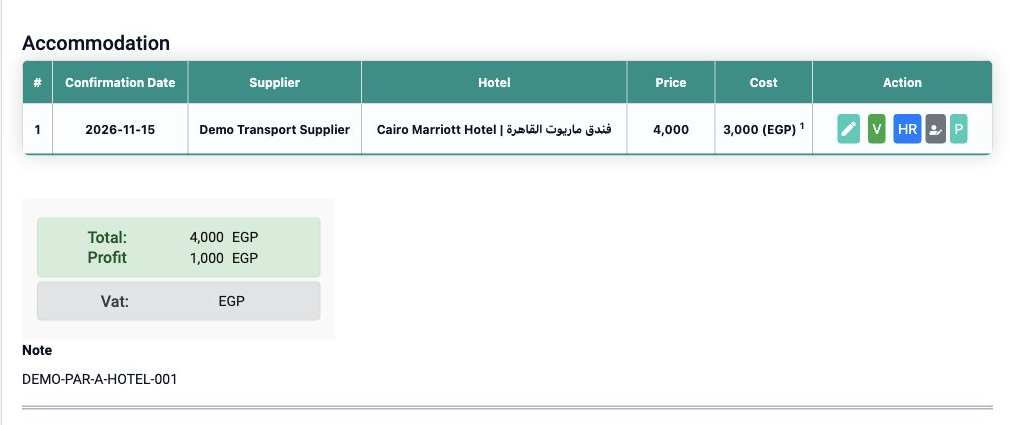
After saving, return to the Accommodation table and review the hotel, supplier, cost and price in the saved row.
Editing accommodation
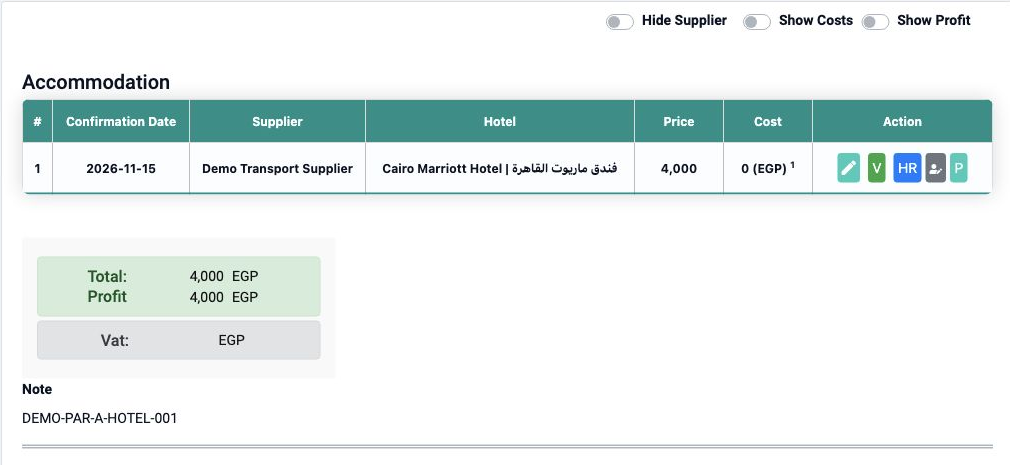
After saving, reopen the row to review the updated details.
Viewing the hotel voucher
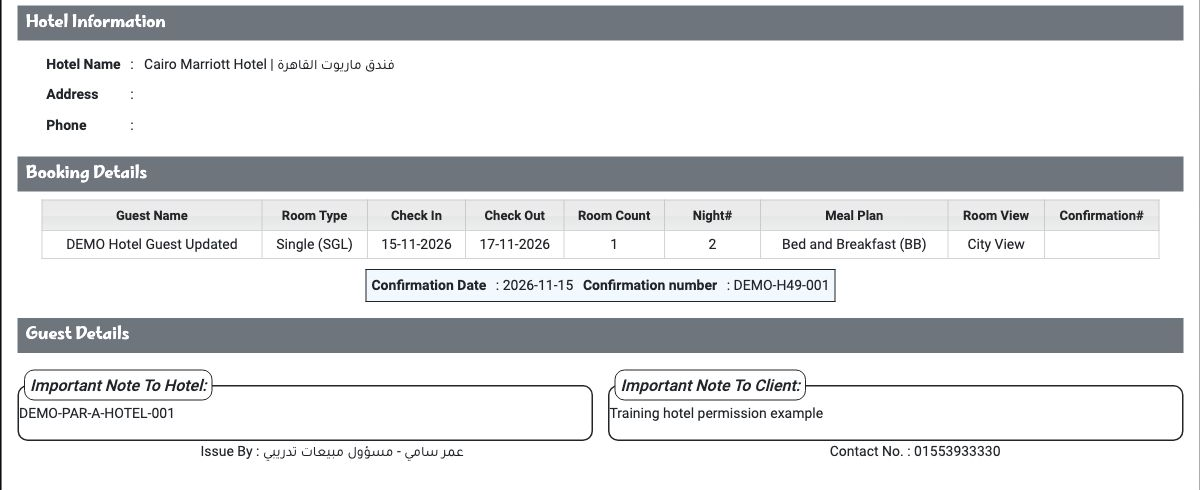

The example shows DEMO Hotel Guest Updated, one room for two nights, confirmation DEMO-H49-001, and the hotel and client notes.
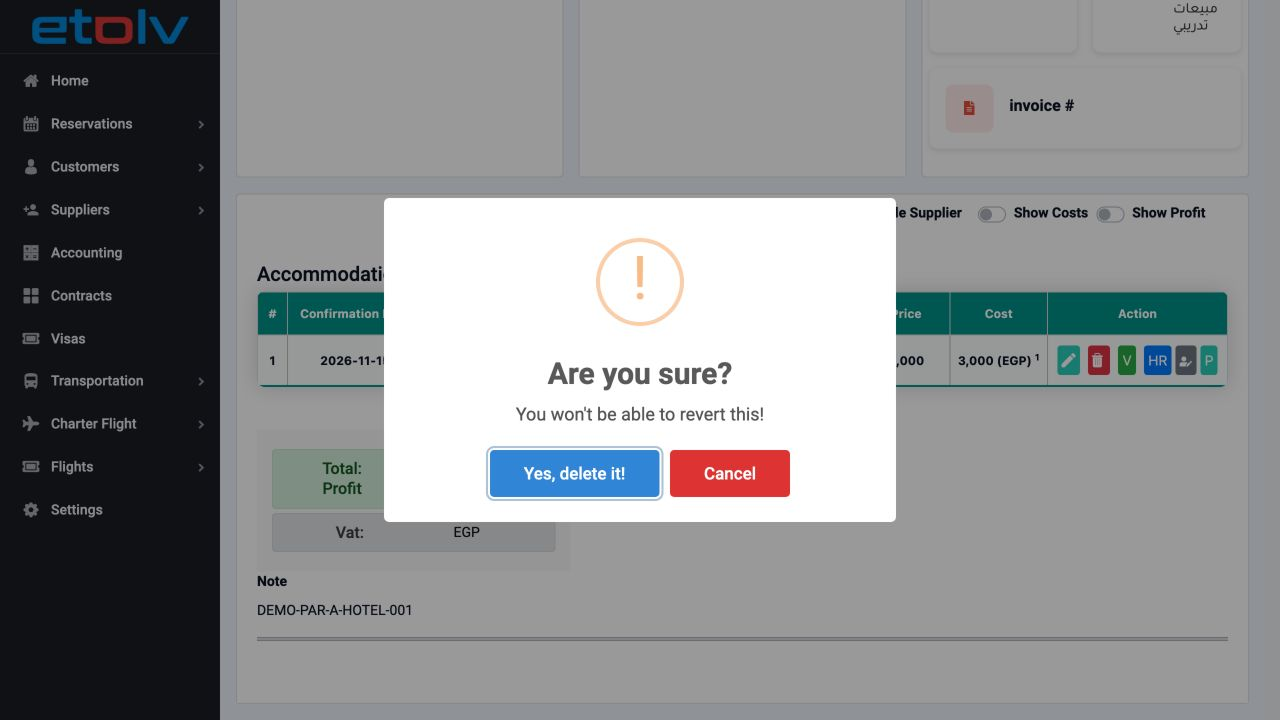
Deletion confirmation and cancellation
Sign in to record the lessons you have read. Sign in