Branches and permissions guide
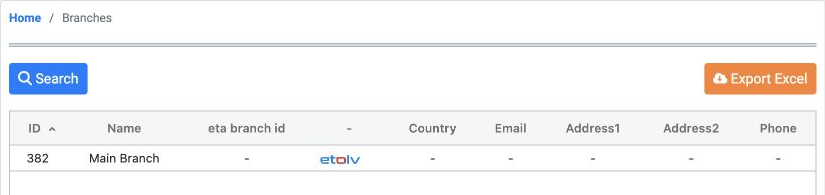
Administrative path: Accounting, Settings, Branches. The list displays saved company branches.
Assign role permissions
In Roles, Permissions, General, search Branch. Select the required permissions and choose Save Changes. Sign in again as the user to check the result.
View Branch: read saved branches.
Add Branch: permission to create a branch.
Edit Branch: change branch details.
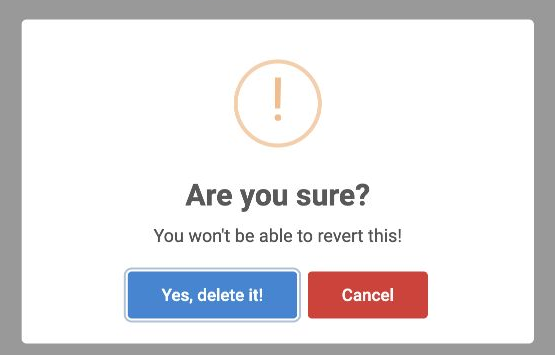
Delete Branch: request deletion of a selected branch.
Export Branch / Print Branch: export and print permissions.
Select Search to find a branch or Export Excel to download the list. Right-click a branch row to open its actions.
Edit branch details
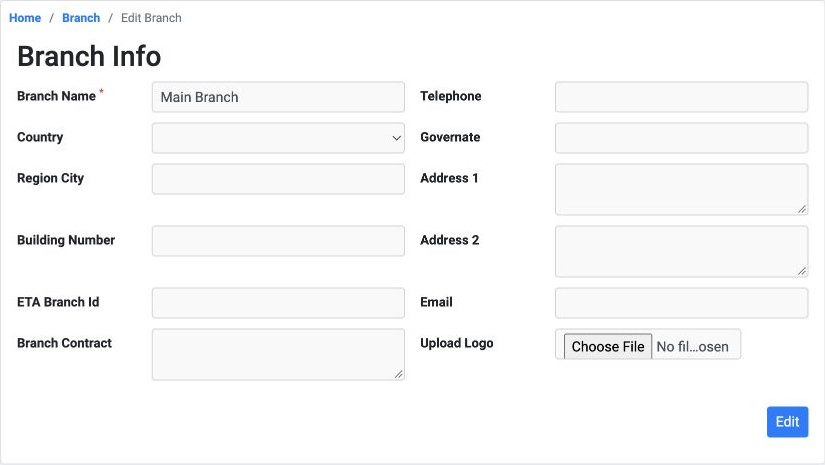
Branch name is required. Telephone, email and address fields hold contact details. Country, governorate, city and building number describe the location.
ETA Branch Id is the branch identifier used for the tax system, distinct from its displayed list identifier. Branch Contract accepts text; Upload Logo lets you choose a logo file.
The example saved a training note in Branch Contract and reopened the form to verify it. The field was restored to its original value after testing.
Search, export and deletion confirmation
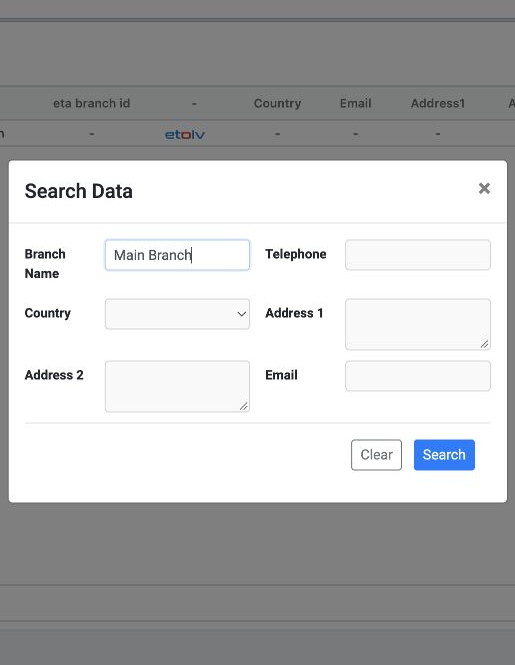
To download the list, select Export Excel. The example downloaded a workbook containing the Main Branch record.
Sign in to record the lessons you have read. Sign in