Reservation insurance permissions
On this page
Choosing insurance coverage
This guide covers insurance inside a Reservation. From Reservations, then Reservations, open the file number and select Insurance. The example uses file 47271228.
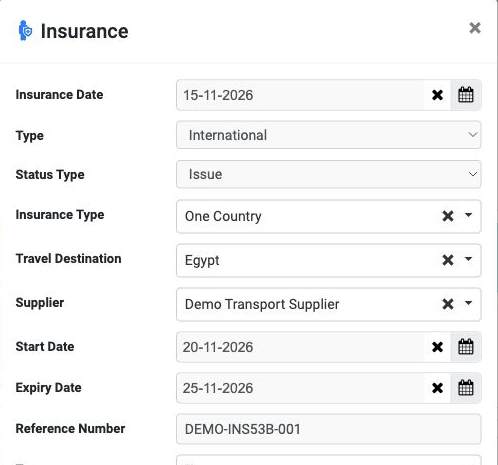
Type offers International and Domestic; Status Type offers Issue and Refund. The example uses International and Issue.
Insurance Type offers All Countries, All Without America And Canada, Schengen Area and One Country. Choosing One Country reveals Travel Destination for selecting the country; the example selects Egypt.
The service date is 15 November 2026 and coverage runs from 20 to 25 November. The reference is DEMO-INS53B-001 and the supplier is Demo Transport Supplier.
Cost price and passengers
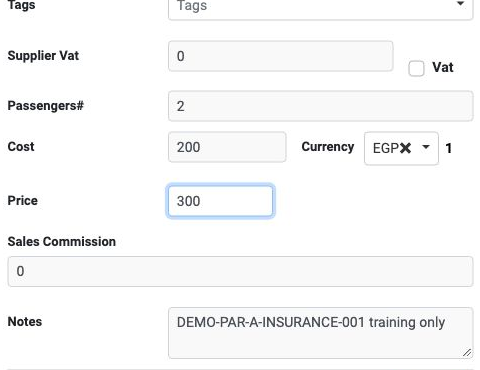
Tags selects transaction tags. The form shows Supplier Vat, a Vat option and Sales Commission; review them for the transaction. The example uses zero tax and commission and leaves Vat unchecked.
Enter 2 in Passengers#, 200 in Cost, select EGP, and enter 300 in Price. Add transaction notes in Notes.
Passenger names and insurance numbers
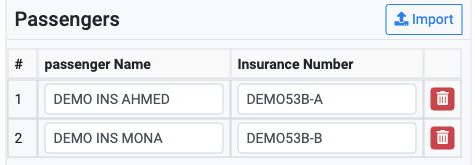

The example contains DEMO INS AHMED with number DEMO53B-A and DEMO INS MONA with number DEMO53B-B. Before saving, the form shows Amount 600.
Editing the insurance service
Select the pencil in the Insurance row to open Edit Insurance. Update the required fields and review passenger names and their insurance numbers.
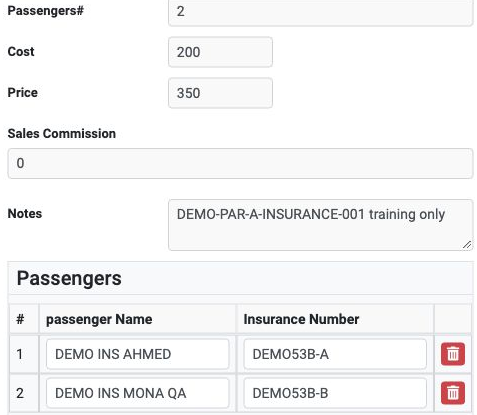

After saving, reopen Edit to review the details. The example retains DEMO INS AHMED and DEMO INS MONA QA with insurance numbers DEMO53B-A and DEMO53B-B.
Reviewing saved values
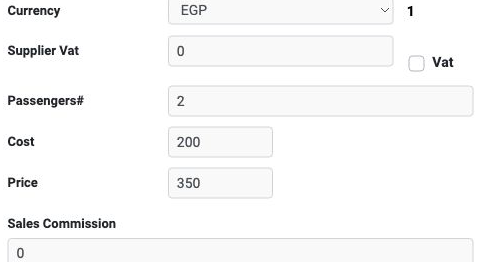
In this example, Cost and Price are per passenger. The sale total was 2 × 300 = 600 before editing and became 2 × 350 = 700 afterwards.
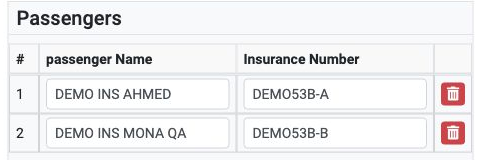
The same file contains an Other service priced at 900 with cost 500. Therefore the file total is 1600 and file profit is 700; the insurance sale total alone is 700.
Opening deletion confirmation and keeping the service
Select the trash icon in the Insurance row to open deletion confirmation.
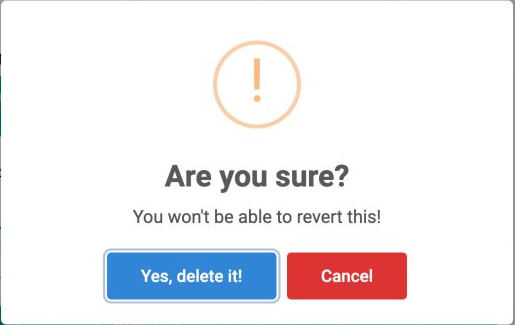
The example keeps the insurance group for two passengers with a sale total of 700. Do not select Yes, delete it! when you intend to retain the service.
Sign in to record the lessons you have read. Sign in