Vehicle permissions in Transportation
On this page
Opening Vehicles
This guide covers opening Vehicles in Transportation, adding and editing a training vehicle, and reviewing deletion confirmation without deleting the record.
To show Vehicles in the Transportation menu, enable View Vehicle for the appropriate role, save and check the selection after reloading the role. Sign in again, then choose Transportation and Vehicles.
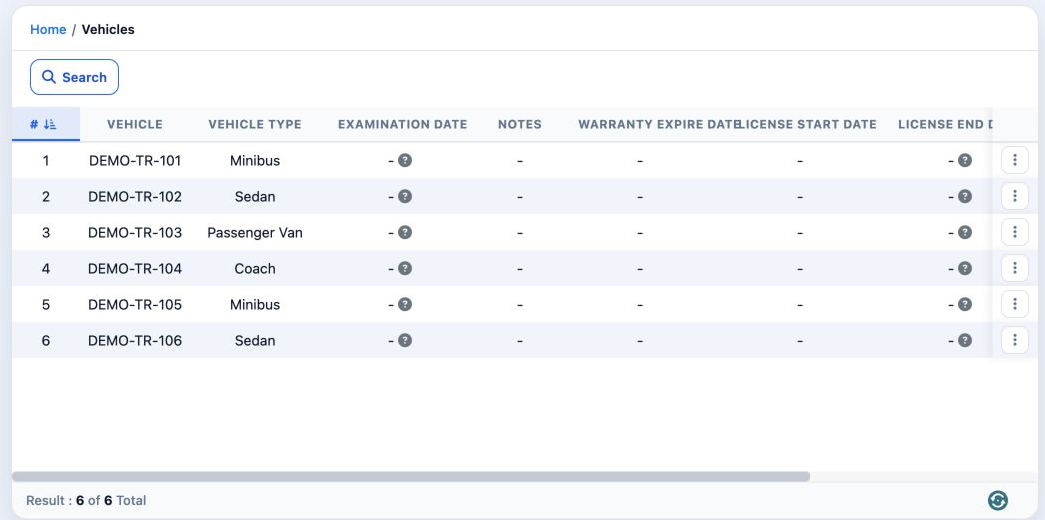
With view enabled on its own, Add, Import and Export were unavailable and the record menu did not show Edit or Delete.
Adding a vehicle
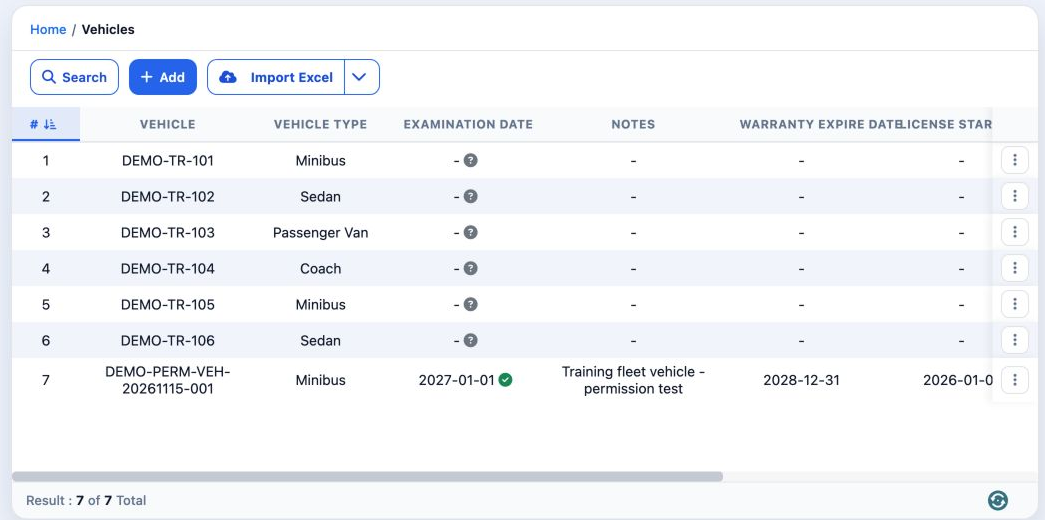
After Add Vehicle was enabled on its own, saved and checked, a fresh sign-in showed + and Import Excel. Click + to open Add Vehicle.

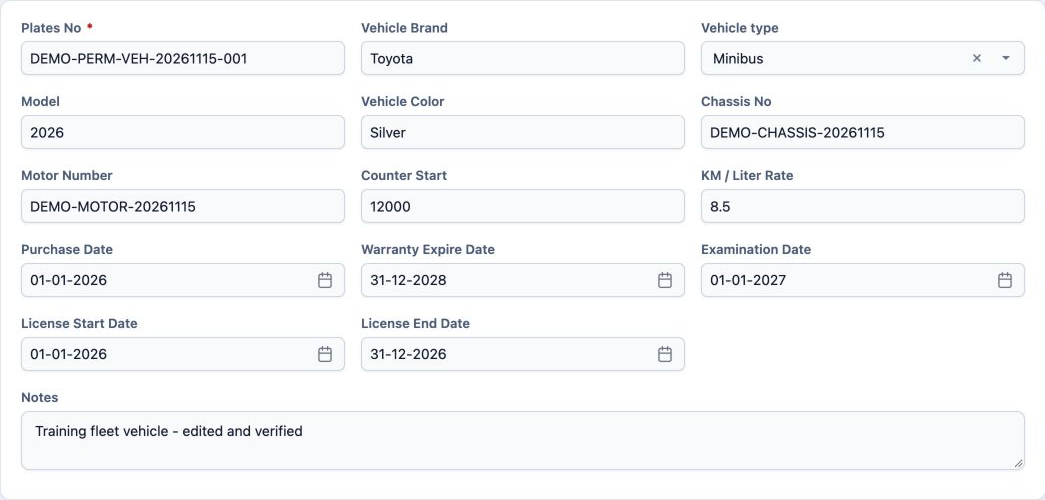
Plates No is the required plate number; the example uses DEMO-PERM-VEH-20261115-001. Vehicle Brand is Toyota, Vehicle type is Minibus, Model is 2026 and Vehicle Color was White when added.
Chassis No is DEMO-CHASSIS-20261115 and Motor Number is DEMO-MOTOR-20261115. Counter Start is the opening odometer reading, 12000. KM / Liter Rate is kilometers per liter, set to 8.5.
Dates and notes
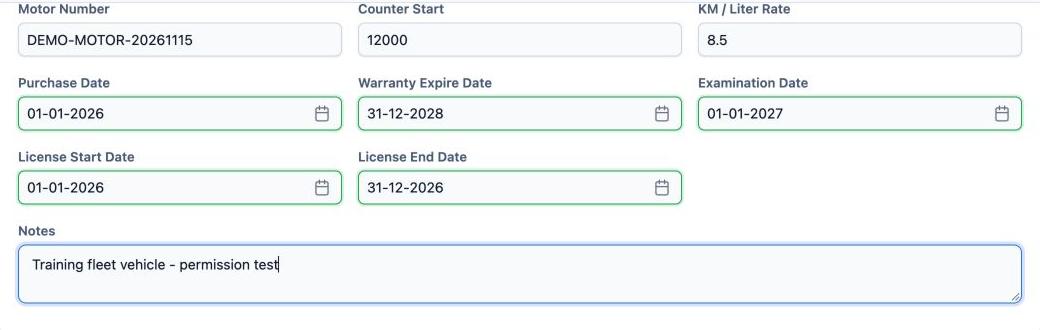
Purchase Date is 01-01-2026, Warranty Expire Date is 31-12-2028 and Examination Date is 01-01-2027. License Start Date is 01-01-2026 and License End Date is 31-12-2026.
Notes initially contained Training fleet vehicle - permission test. Vehicle Images and Files sections were available, but no image or file was uploaded in this example. Click Save to create the vehicle.
Editing the vehicle
To continue the example, Edit Vehicle and Delete Vehicle were enabled together, followed by Export Vehicle and Print Vehicle together. The settings were checked and a fresh session started. Choose Edit from the training vehicle menu.
Vehicle Color was changed to Silver and Notes to Training fleet vehicle - edited and verified, then saved.
Reviewing deletion confirmation
Choose Delete for training vehicle number 7. Review the warning, then select No to cancel deletion.
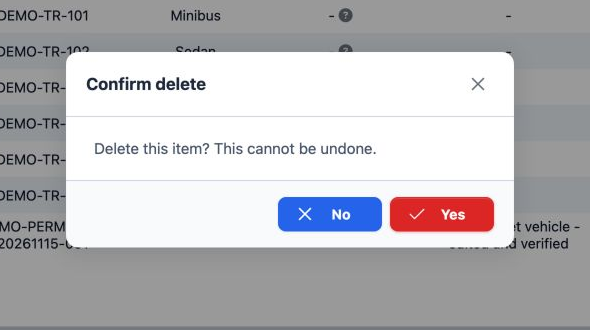
This step demonstrates reviewing and cancelling the confirmation only. It does not demonstrate actual deletion.
Closing and reopening the vehicle
Choose Close from the training vehicle menu, review the confirmation and select Yes. In this example the status became Closed.
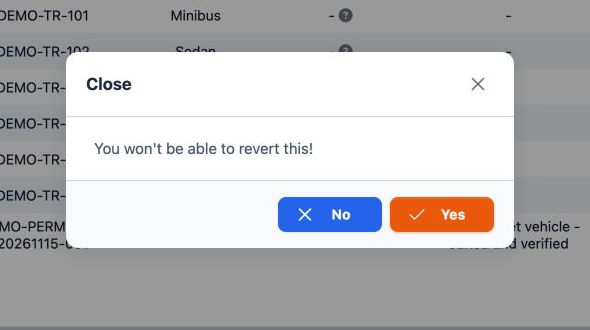
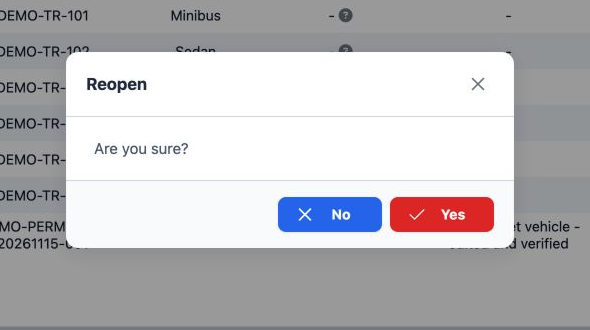
After closing, Reopen appeared in the record menu. Choose it and confirm with Yes. After reloading, the status returned to Open and all seven records remained.
Exporting the vehicle list
With Export Vehicle and Print Vehicle enabled together, Export Excel appeared. Click it to download the workbook. In this example vehicles-export.xlsx was downloaded and all seven records were checked.

The columns are #, Vehicle, Examination Date, Warranty Expire Date, Notes and Status. Record 7 contains the training plate, examination date 01-01-2027, warranty expiry 31-12-2028, the revised notes and status Open.

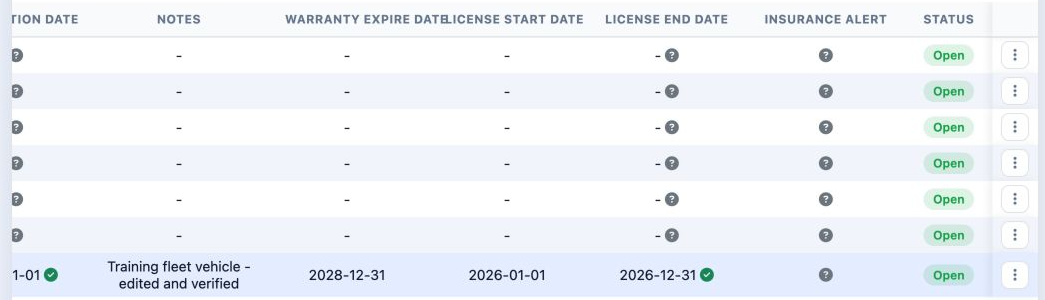
The export does not contain every form field; check Silver in Edit. Each of the six original vehicles appeared once.
Finding a vehicle
Click Search, enter the training plate in Plates No and run the search. DEMO-PERM-VEH-20261115-001 returned one record.
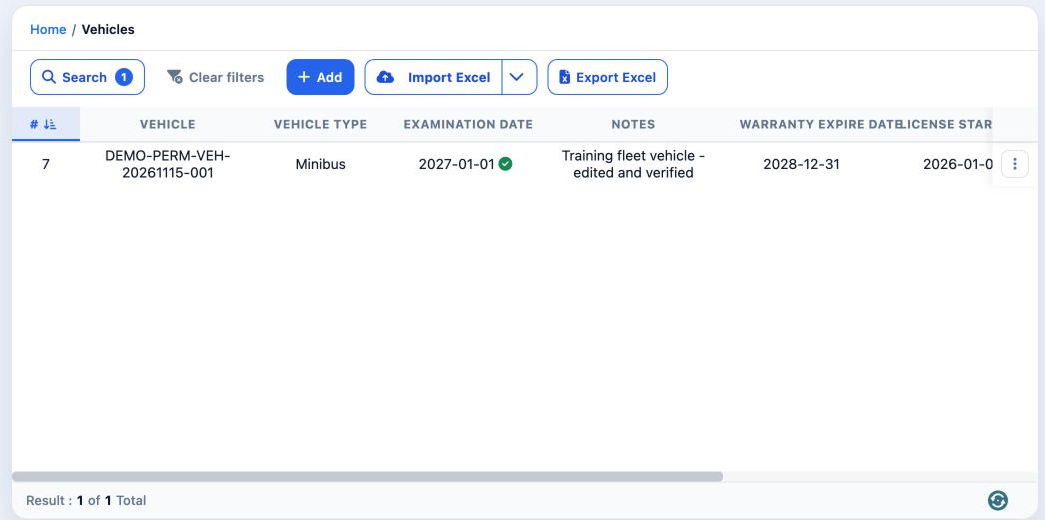
To restore the full list, clear the search value and run Search again. All seven records returned in this example.
Sign in to record the lessons you have read. Sign in