Skip to content
Trio Travel guide

Bank directory permissions

On this page
  1. Enable adding a bank
  2. Verify the saved bank
  3. Permissions needed to edit the bank name
  4. Edit and verify the name
  5. Cancel the deletion confirmation
  6. Open the bank’s Accounts page

Defining a bank name is separate from linking a bank account number or a chart ledger. Open Accounting → Settings → Banks.
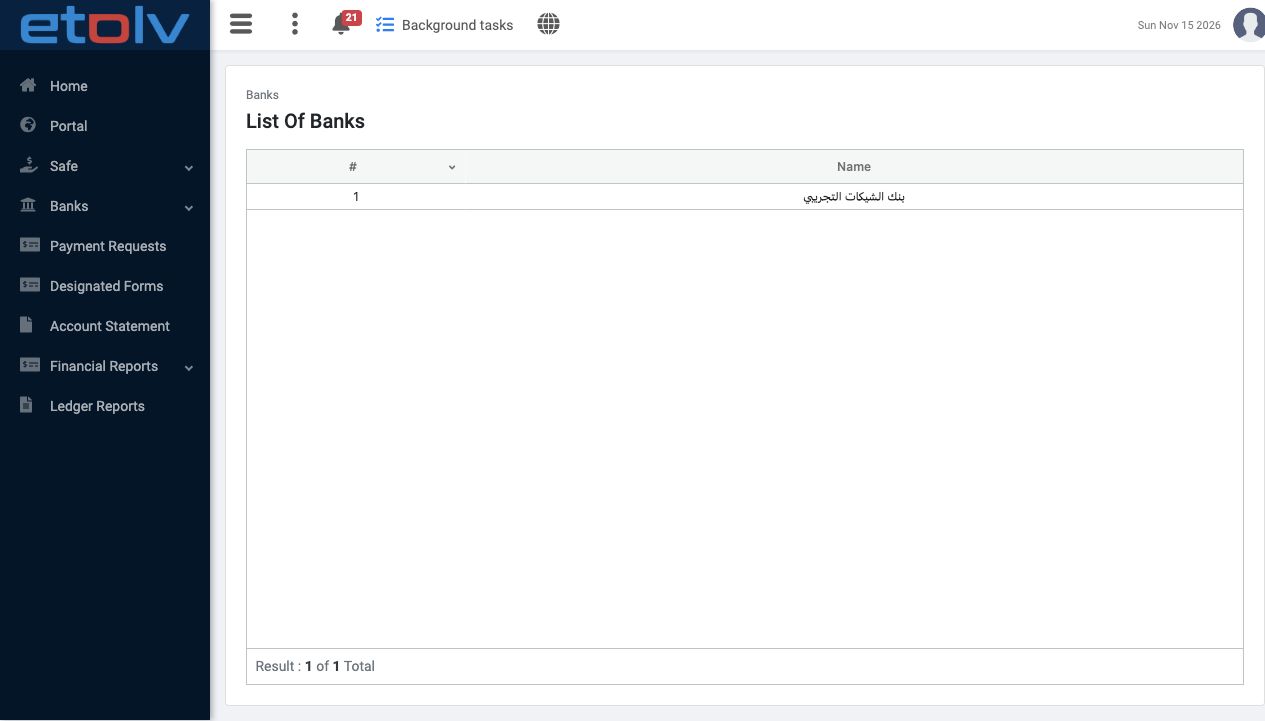
1 Initially, the existing bank was visible, but the user had no Add Bank button before the creation permission was enabled.
Initially, the existing bank was visible, but the user had no Add Bank button before the creation permission was enabled.

Enable adding a bank

In Management → Roles, open the role permissions and enable Add Bank under Accounting. Save and verify the selection, then sign in again as the user.
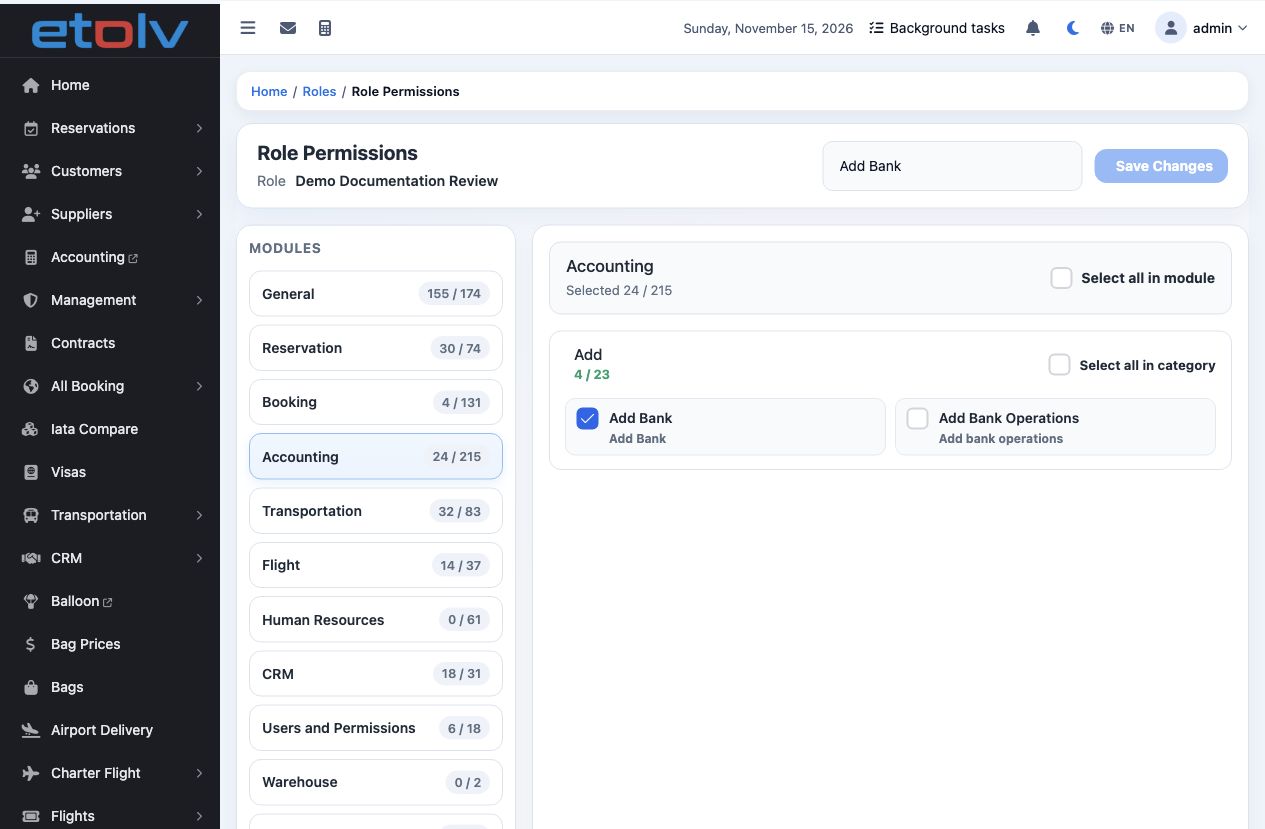
2 Add Bank is selected for the demo role.
Add Bank is selected for the demo role.
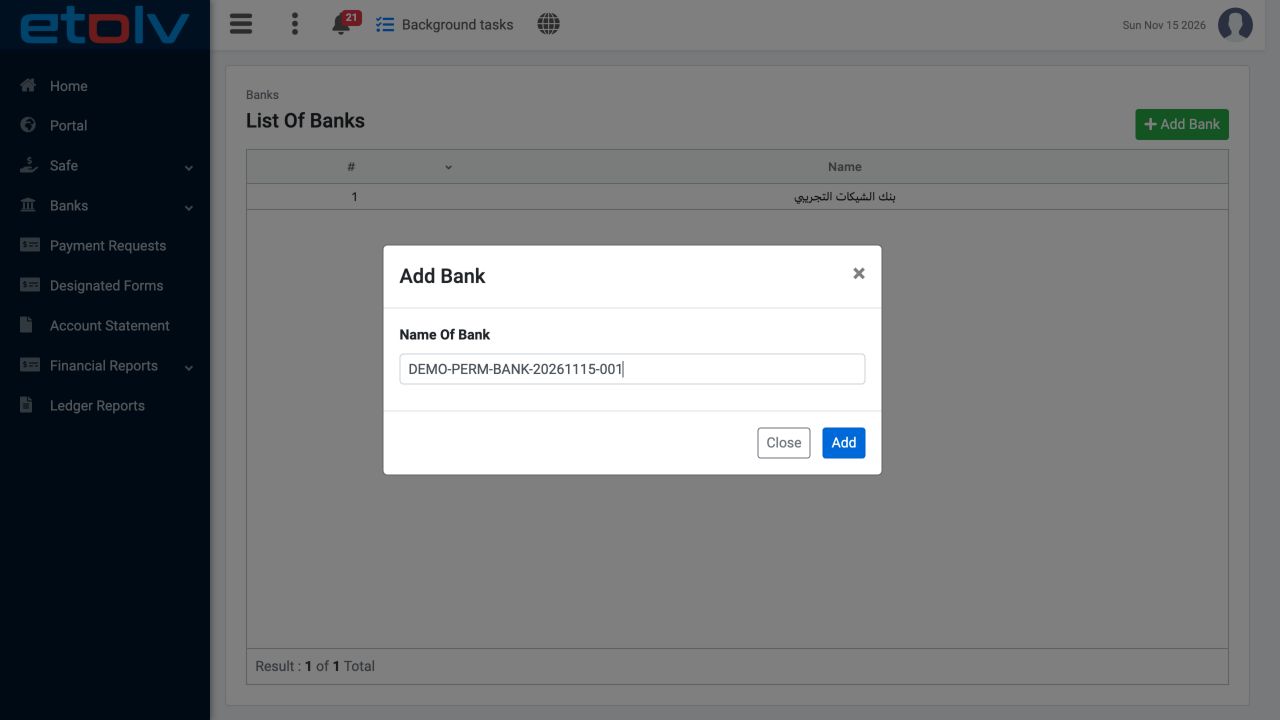
3 Choose Add Bank, enter the bank name, then select Add. The example uses DEMO-PERM-BANK-20261115-001.
Choose Add Bank, enter the bank name, then select Add. The example uses DEMO-PERM-BANK-20261115-001.

Verify the saved bank

Reload the bank directory after adding the name. Check the name and row number to verify that it was saved.
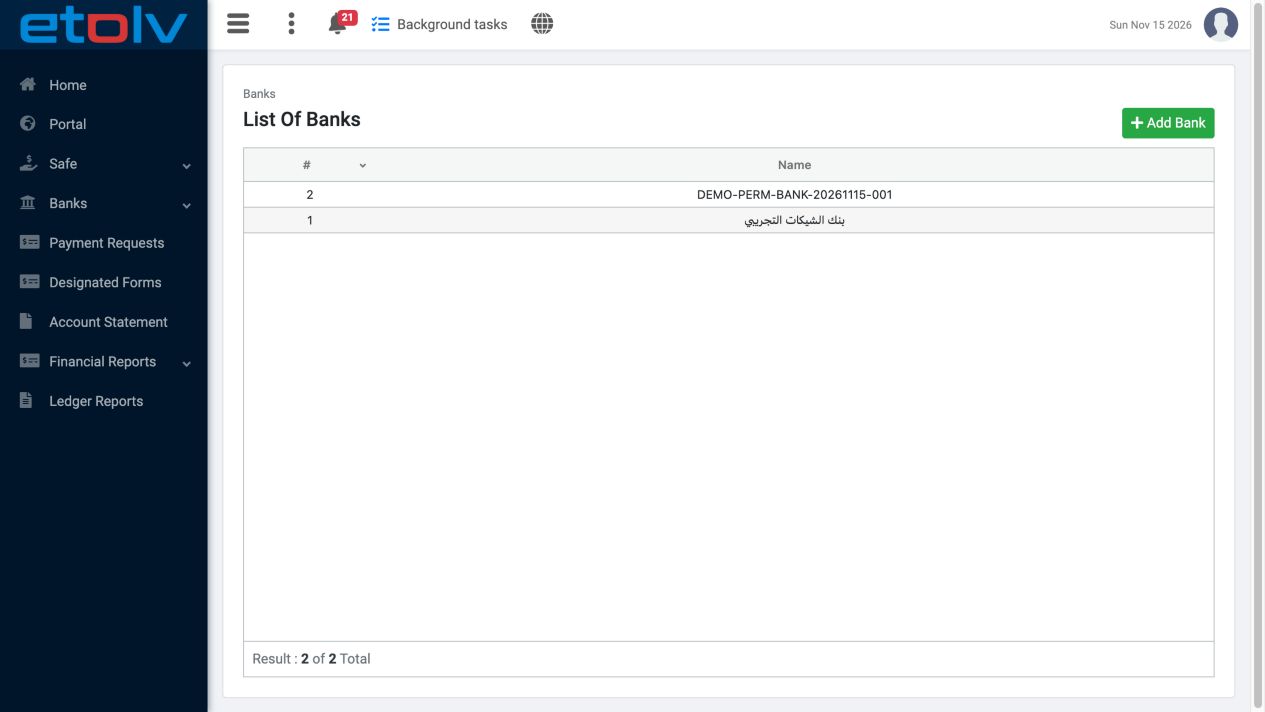
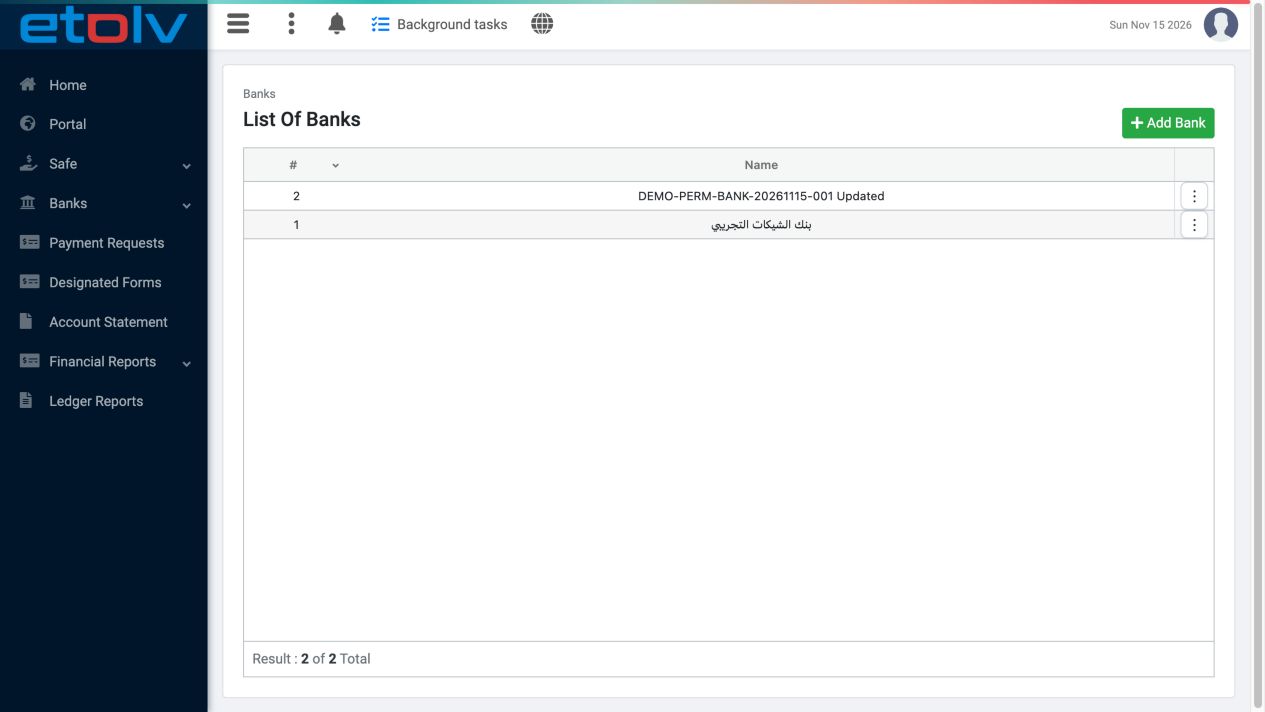
4 The demo bank remains as displayed row 2 after reload. The list contains two banks, including the original bank.
The demo bank remains as displayed row 2 after reload. The list contains two banks, including the original bank.

Permissions needed to edit the bank name

Review both Edit Banks and Edit Bank in the role permissions. In the tested path, Edit Banks exposed the Edit action, while saving also required Edit Bank. Save and recheck the selections after reloading.
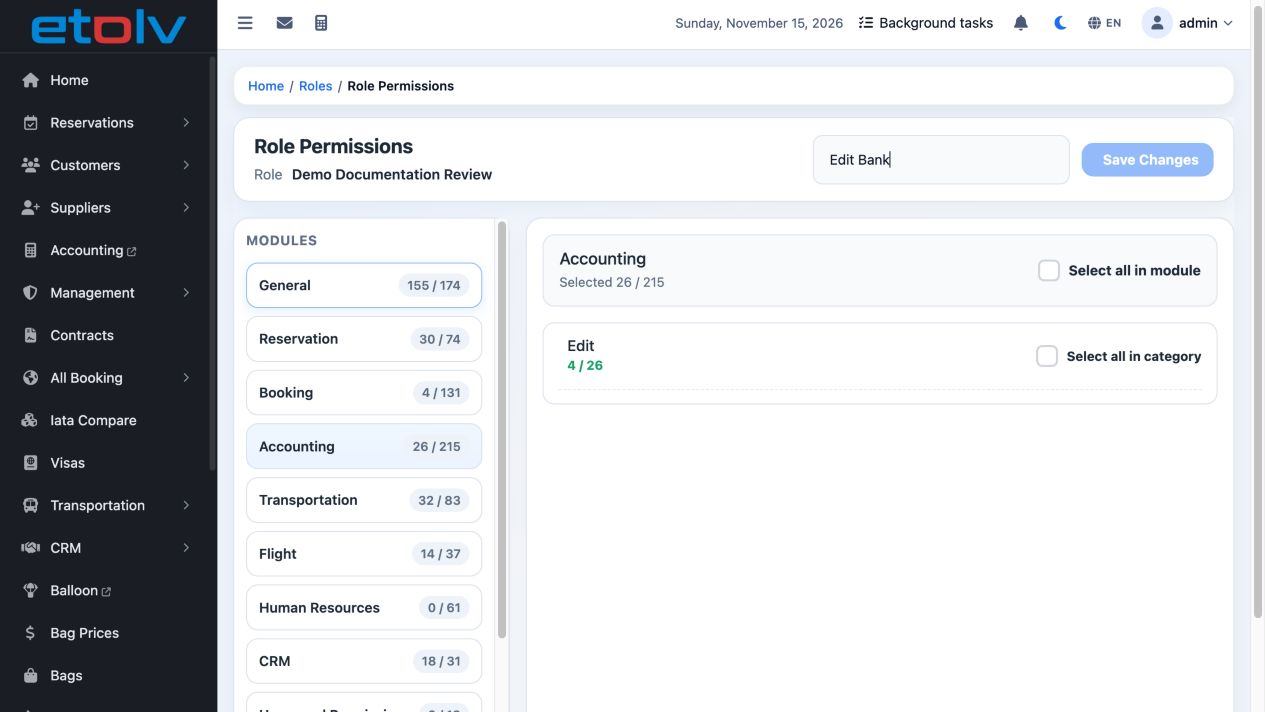
5 The role page is filtered for bank editing permissions. A fresh user sign-in was used for the save attempt.
The role page is filtered for bank editing permissions. A fresh user sign-in was used for the save attempt.

Edit and verify the name

Open the intended bank’s menu and choose Edit. Change the name, save, then reload the list.
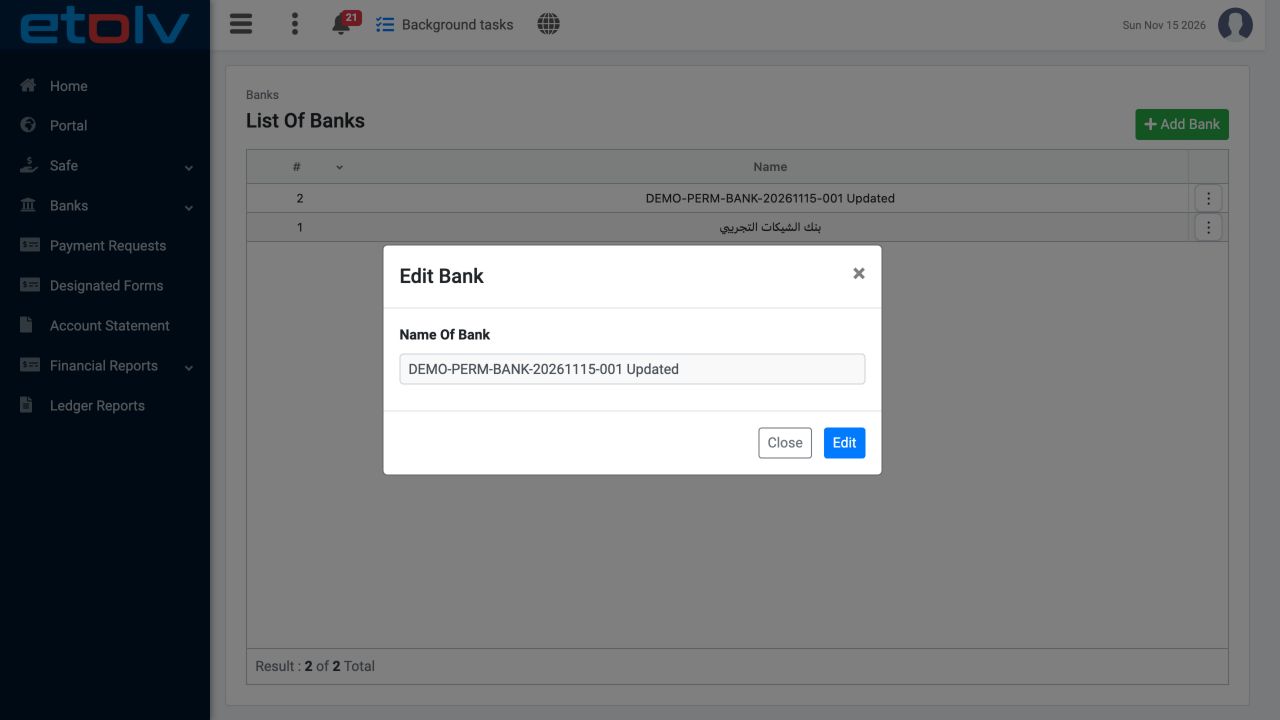
6 Reopening the Edit form shows the saved name ending in Updated.
Reopening the Edit form shows the saved name ending in Updated.
7 The changed name remained after saving and reloading. The original bank was retained unchanged.
The changed name remained after saving and reloading. The original bank was retained unchanged.

Cancel the deletion confirmation

With Delete Banks enabled, choose Delete from the intended bank’s menu. Review the message and select Cancel to keep the bank.
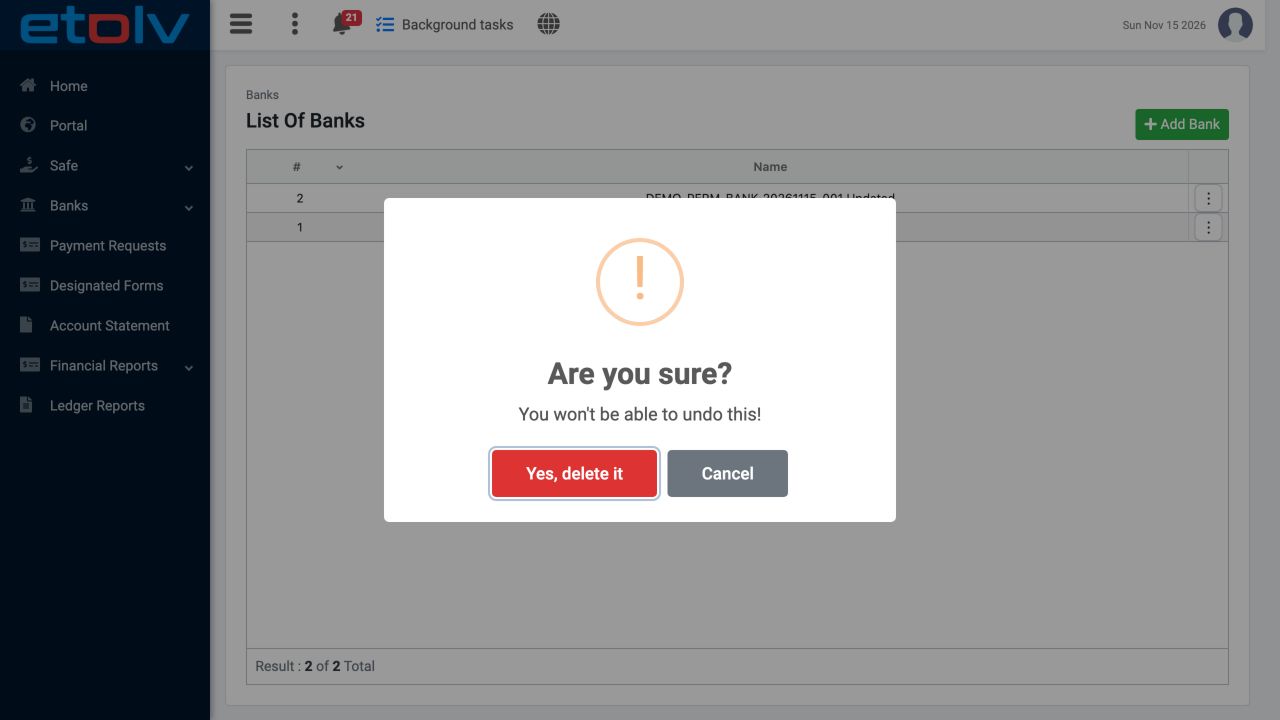
8 The dialog warns that deletion cannot be undone. Cancel was selected in this example; no bank was deleted.
The dialog warns that deletion cannot be undone. Cancel was selected in this example; no bank was deleted.
9 Both banks remain after cancellation. Opening and cancelling the confirmation does not demonstrate actual deletion.
Both banks remain after cancellation. Opening and cancelling the confirmation does not demonstrate actual deletion.

Open the bank’s Accounts page

Enable View Bank Accounts for the role and save, then sign in again as the user. In the intended bank’s menu, choose Accounts.
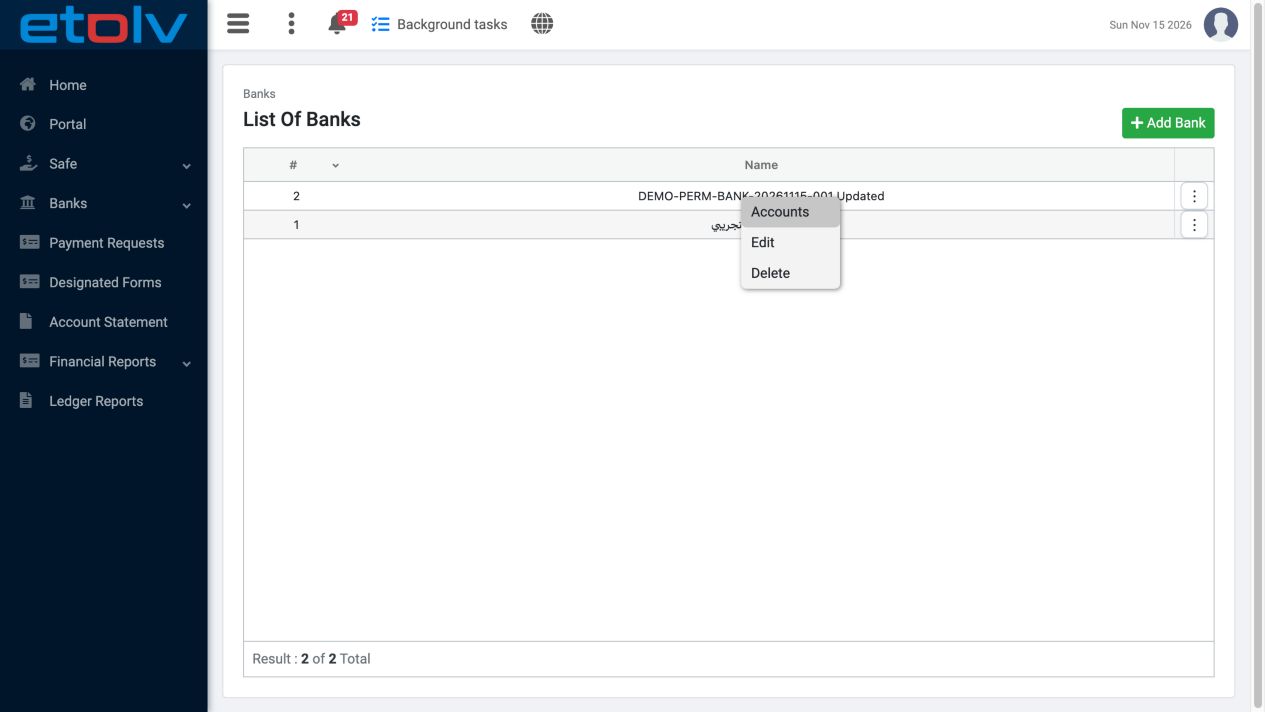
10 Accounts appeared in the demo bank’s menu and opened that bank’s Accounts page. This example demonstrates entry to the page only; it does no...
Accounts appeared in the demo bank’s menu and opened that bank’s Accounts page. This example demonstrates entry to the page only; it does not demonstrate creating or editing a bank account.

Sign in to record the lessons you have read. Sign in