Skip to content
Trio Travel guide

Flight booking permissions and use

On this page
  1. Prepare the sales officer
  2. Flight creation form
  3. Edit and deletion confirmation
  4. Confirm and monitor the result
  5. Add an ADM transaction
  6. Review the resulting journals

This guide covers viewing, adding, editing, deleting and confirming flight bookings, preparing the sales officer and reviewing journal entries. Flight Booking is separate from the flight service inside a Booking file.
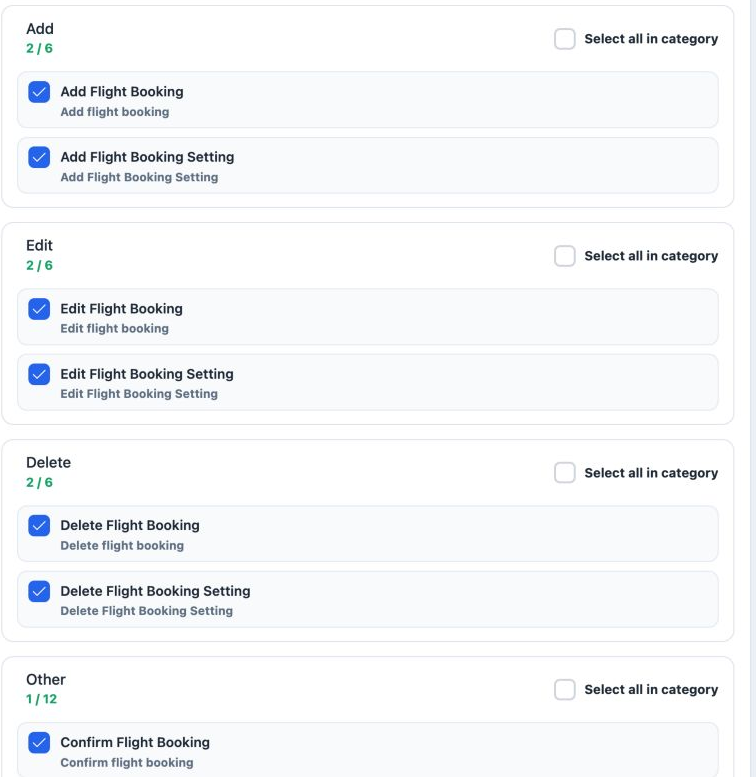
1 Open Management, Roles, then Permissions for the intended role. Choose Flight and search for flight booking. View permits reading, Add creat...
Open Management, Roles, then Permissions for the intended role. Choose Flight and search for flight booking. View permits reading, Add creation, Edit changes, Delete deletion and Confirm confirmation. Save Changes saves the selection. Choose the Flight Booking permissions; cards ending in Setting belong to the separate settings screen.

Permission to view journal entries is managed under Accounting permissions, separately from these five permissions.

Prepare the sales officer
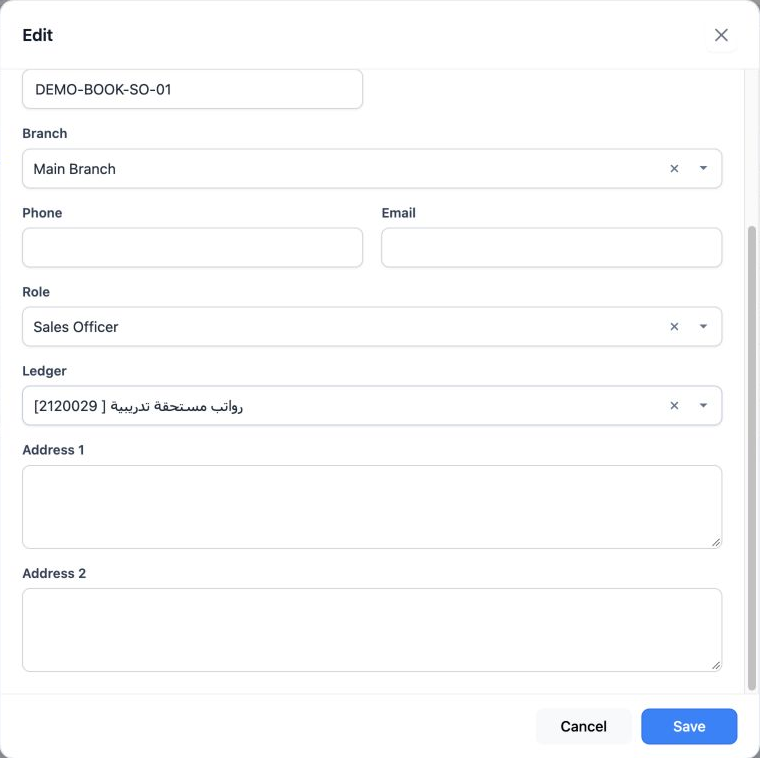
2 Open Settings then Employees. Choose the sales employee and Edit. Set Role to Sales Officer, choose the employee’s Ledger and Save. The exam...
Open Settings then Employees. Choose the sales employee and Edit. Set Role to Sales Officer, choose the employee’s Ledger and Save. The example uses training account 2120029, “رواتب مستحقة تدريبية”. The accountant selects the account appropriate to the company’s policy.

The employee’s role in this definition determines the operational use. Booking uses Operator for its operator list; do not confuse it with Sales Officer. If posting reports that the sales officer has no ledger account, review Ledger in the employee definition before retrying.

Flight creation form

Open Flight Booking and select Add. Choose Airline, the route type under Destinations, both airports and Departure date from the calendar. Complete Customer, Supplier, Currency, Cost Currency, Branch and Sales Officer.
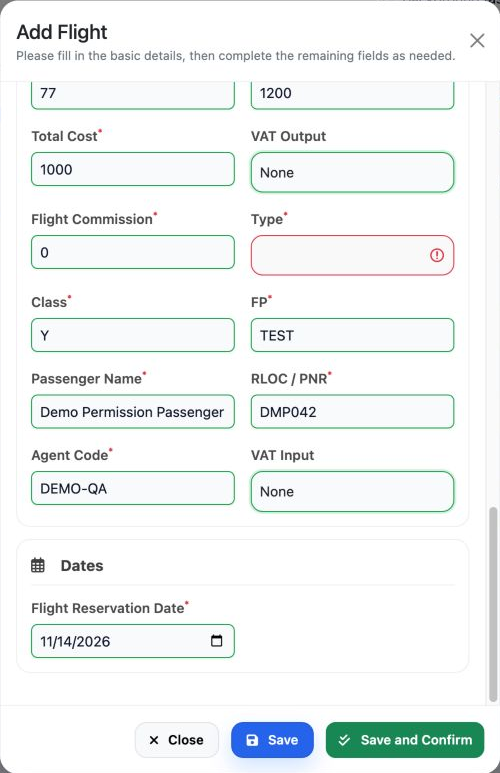
3 The image shows Finance in a training draft: Total Cost 1000, Flight Commission 0, passenger name, PNR and reservation date. Type is require...
The image shows Finance in a training draft: Total Cost 1000, Flight Commission 0, passenger name, PNR and reservation date. Type is required and outlined in red because it has not yet been selected; choose the appropriate type before saving.

Choose Source from Flight Booking Setting to select the accounting mapping. Complete Voucher, ticket and original ticket numbers, AL, Price, Total Cost, Flight Commission, Type, Class, FP, passenger name, RLOC / PNR, Agent Code and reservation date. VAT Input and VAT Output options are available. Complete the required fields before Save, or use Save and Confirm to request saving and confirmation.

Edit and deletion confirmation
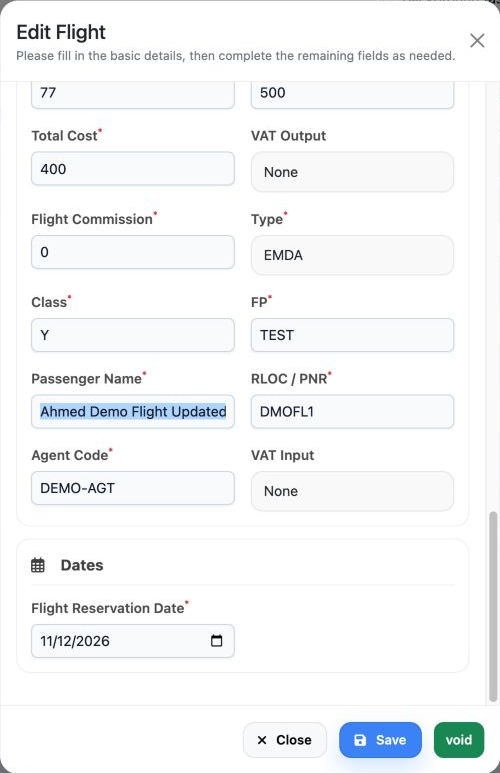
4 Choose Edit from the row menu and wait for the data to load. Change the intended field, such as Passenger Name, review financial values and...
Choose Edit from the row menu and wait for the data to load. Change the intended field, such as Passenger Name, review financial values and required fields, then Save. Close closes the form without saving its changes.
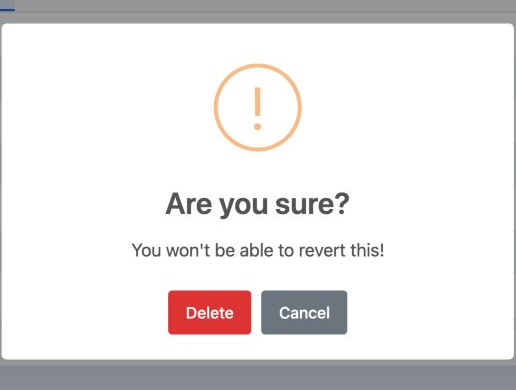
5 Choose Delete from the intended record’s menu. The message warns that the action cannot be undone. Cancel keeps the record; that is the opti...
Choose Delete from the intended record’s menu. The message warns that the action cannot be undone. Cancel keeps the record; that is the option used in this example.

Confirm and monitor the result

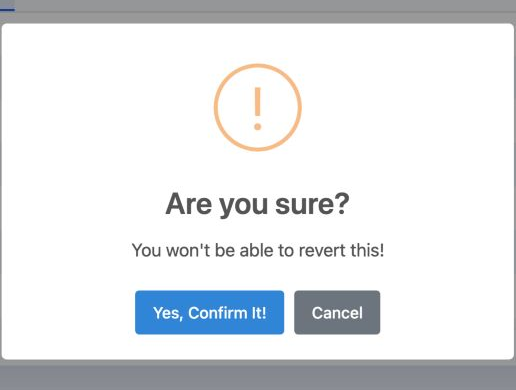
6 Choose Confirm from the record menu and review the message. Yes, Confirm It! submits confirmation; Cancel closes the message without executi...
Choose Confirm from the record menu and review the message. Yes, Confirm It! submits confirmation; Cancel closes the message without executing it.
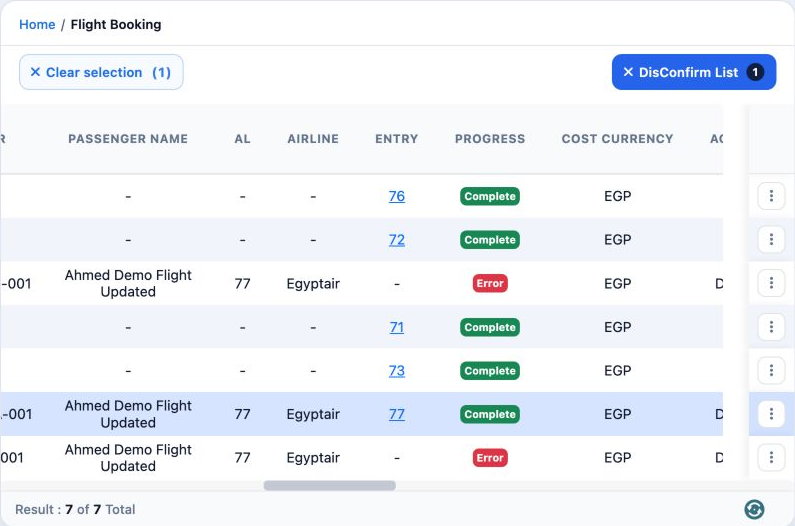
7 Monitor Progress and Entry. In progress means processing is underway. In this example, after completing the sales officer’s Ledger and confi...
Monitor Progress and Entry. In progress means processing is underway. In this example, after completing the sales officer’s Ledger and confirming the same EMDA record again, Complete and journal entry 77 appeared. Open the journal entry to review its accounts.

Add an ADM transaction

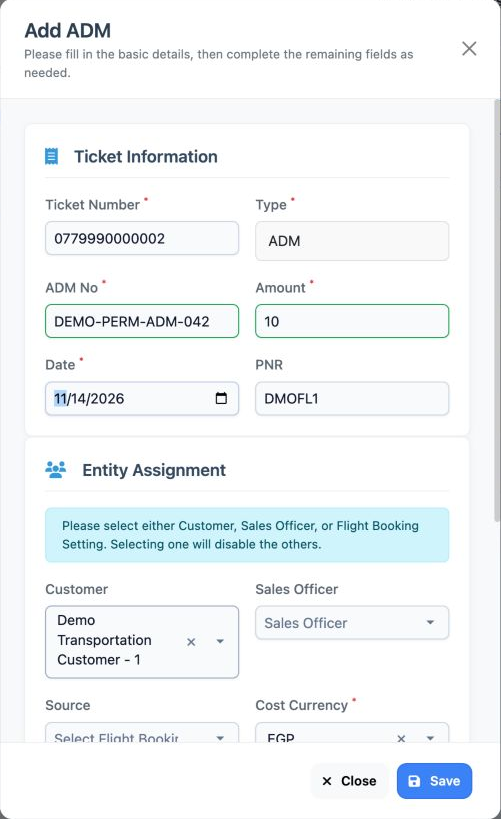
8 Choose ADM from the ticket menu. Review Ticket Number, Type and PNR, then enter ADM No, Amount and Date. The example uses DEMO-PERM-ADM-042...
Choose ADM from the ticket menu. Review Ticket Number, Type and PNR, then enter ADM No, Amount and Date. The example uses DEMO-PERM-ADM-042 and EGP 10. Entity Assignment requires Customer, Sales Officer or Source; selecting one disables the other two. Select the currency, enter Reason further down the form, and Save.

Saving this example created record 7 with Complete status and journal J-76. Review Entry and the journal after saving to verify the accounting effect.

Review the resulting journals
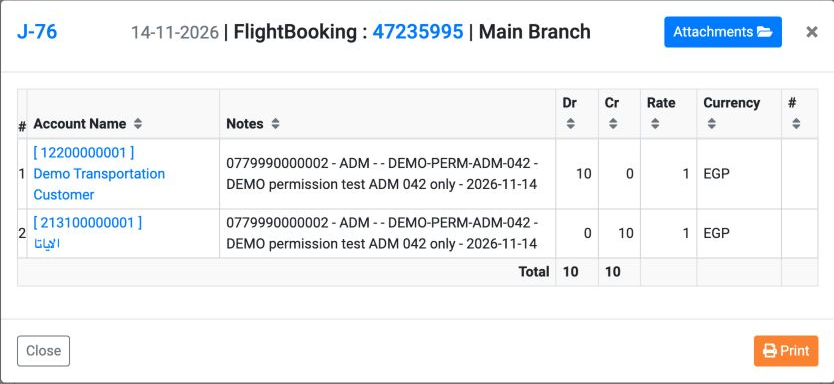
9 ADM journal J-76 debits customer 12200000001 by 10 and credits IATA account 213100000001 by 10, in EGP at rate 1. Total debits and credits b...
ADM journal J-76 debits customer 12200000001 by 10 and credits IATA account 213100000001 by 10, in EGP at rate 1. Total debits and credits both equal 10.
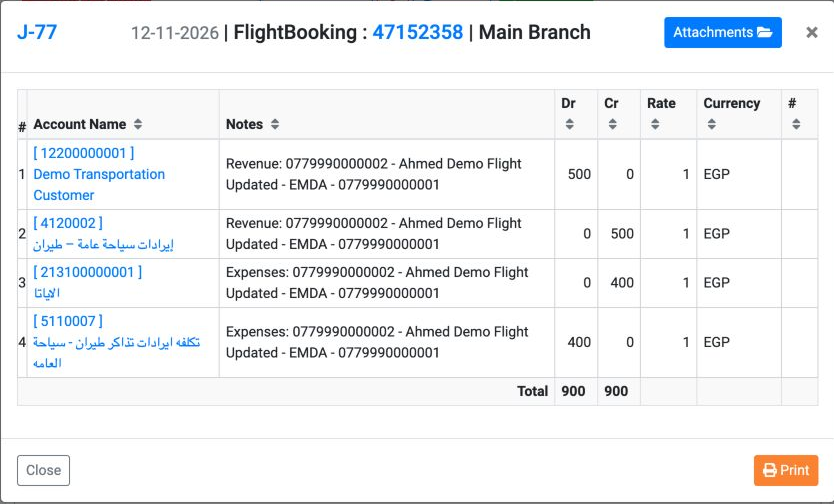
10 EMDA journal J-77 debits the customer by 500 and credits flight revenue 4120002 by 500. It debits flight cost 5110007 by 400 and credits the...
EMDA journal J-77 debits the customer by 500 and credits flight revenue 4120002 by 500. It debits flight cost 5110007 by 400 and credits the IATA account by 400. Total debits and credits both equal 900.

Sign in to record the lessons you have read. Sign in