Skip to content
Trio Travel guide

Charter trip permissions

On this page
  1. Add a trip
  2. Seats and saving the trip
  3. Edit and search

This guide covers opening Charters and adding and editing a charter trip. Open Charter Flight, then Charters, to view the trip definitions.
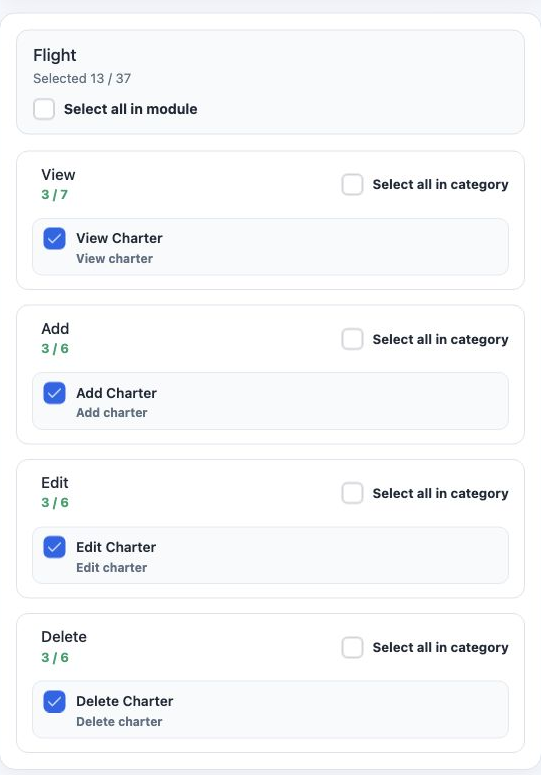
1 Under Management, then Roles, open Permissions for the intended role. Select Flight and search for charter. The group lists View Charter for...
Under Management, then Roles, open Permissions for the intended role. Select Flight and search for charter. The group lists View Charter for reading, Add Charter for creation, Edit Charter for changes and Delete Charter by its delete label. Select Save Changes to save the permissions.

The list requires view permission. Grant the writing permissions appropriate to the employee’s duties. After saving, sign in again to load the updated permissions.

Add a trip
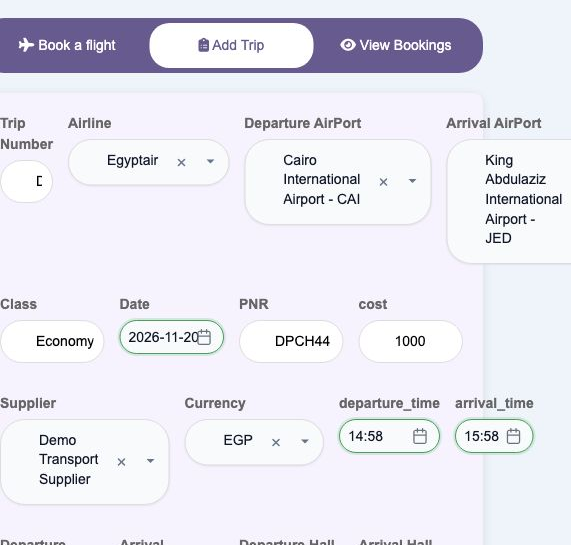
2 From Charters, select + to open Add Trip. Enter Trip Number and select Airline, Departure AirPort and Arrival AirPort. Enter Class, Date and...
From Charters, select + to open Add Trip. Enter Trip Number and select Airline, Departure AirPort and Arrival AirPort. Enter Class, Date and the booking reference under PNR.

Enter cost, then select Supplier and Currency. Set departure_time and arrival_time. Airline, airport, supplier and currency records must be available before selecting them in the form.

Complete Departure Terminal, Arrival Terminal, Departure Hall and Arrival Hall. Cabin Bag records the cabin baggage allowance; Baggage allowance records the checked baggage allowance. Airline Website Url accepts the airline website link.

Seats and saving the trip
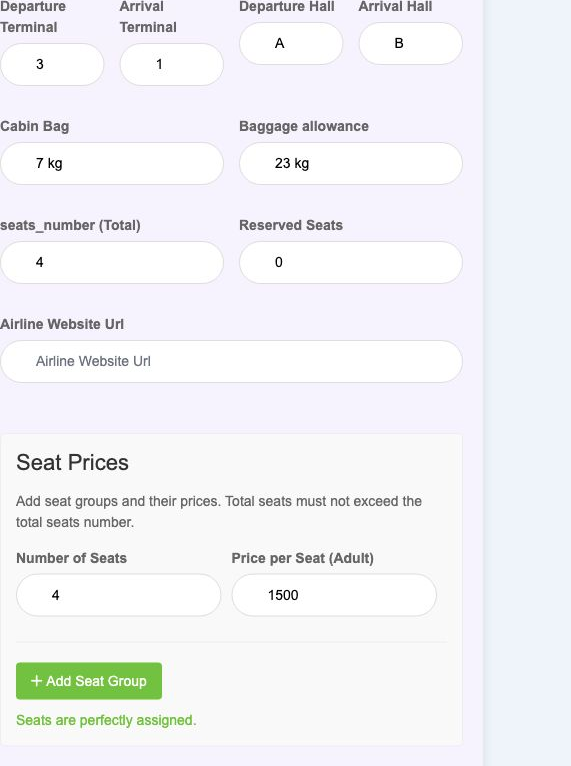
3 Set seats_number (Total) and Reserved Seats. Under Seat Prices, enter Number of Seats and Price per Seat (Adult) for each group. Use + Add S...
Set seats_number (Total) and Reserved Seats. Under Seat Prices, enter Number of Seats and Price per Seat (Adult) for each group. Use + Add Seat Group for another group. The form states that the seat-group total must not exceed the total seat count.

Bags Content accepts formatted baggage information. Review the fields and select Add Trip at the bottom of the form. Return to Charters and verify that the saved trip number appears.
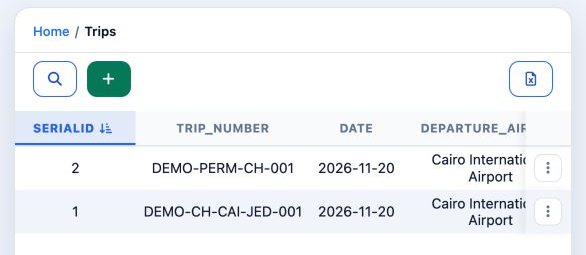
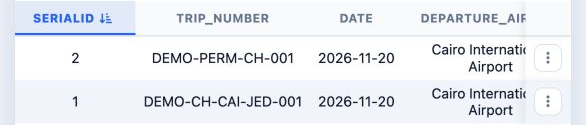
4 The saved trip DEMO-PERM-CH-001 appears in the list. Columns include the number, date, airports, times, branch, class, cost, currencies, air...
The saved trip DEMO-PERM-CH-001 appears in the list. Columns include the number, date, airports, times, branch, class, cost, currencies, airline, PNR and seat information. Scroll horizontally to read the remaining columns.

Edit and search

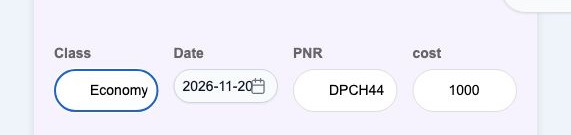
5 Open the row menu and choose Edit. Change Class from Economy to Economy QA, save, then verify the value after refreshing the list. The image...
Open the row menu and choose Edit. Change Class from Economy to Economy QA, save, then verify the value after refreshing the list. The image shows the previous Economy value before entering the change.
6 After saving the change, the list returned and DEMO-PERM-CH-001 remained present. Reopen Edit to review Class.
After saving the change, the list returned and DEMO-PERM-CH-001 remained present. Reopen Edit to review Class.

After saving, reopen Edit for the same trip to read the stored value. To correct a changed field, enter the intended value and save again. The example restored Class to Economy after testing the change.
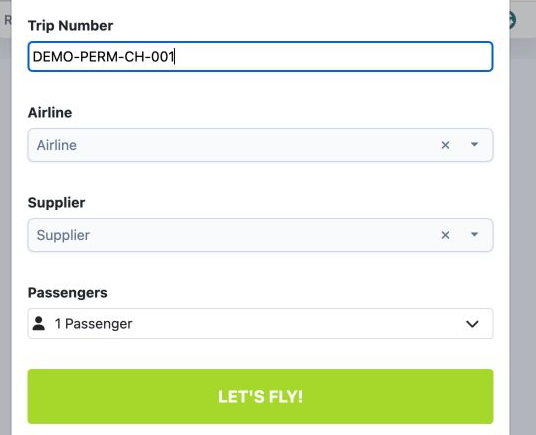
7 Select the list’s magnifying-glass icon to search. Enter Trip Number and select LET’S FLY! at the bottom of the form. Searching for the trai...
Select the list’s magnifying-glass icon to search. Enter Trip Number and select LET’S FLY! at the bottom of the form. Searching for the training trip returned one row. Other available filters include airports, dates, airline, supplier and passenger count.

Clear resets the filters and automatically refreshes the list. Both rows returned after clearing the search in this example.

The final list contains the original trip and the new training trip. The original trip’s details, including remaining seats and seat prices, were preserved.

Sign in to record the lessons you have read. Sign in