Skip to content
Trio Travel guide

Role Permissions

On this page
  1. 1 Open role permissions
  2. 2 Search within a module
  3. 3 Select actions and save changes

Review role permissions by module and action category and use search to find a permission.

1 Open role permissions
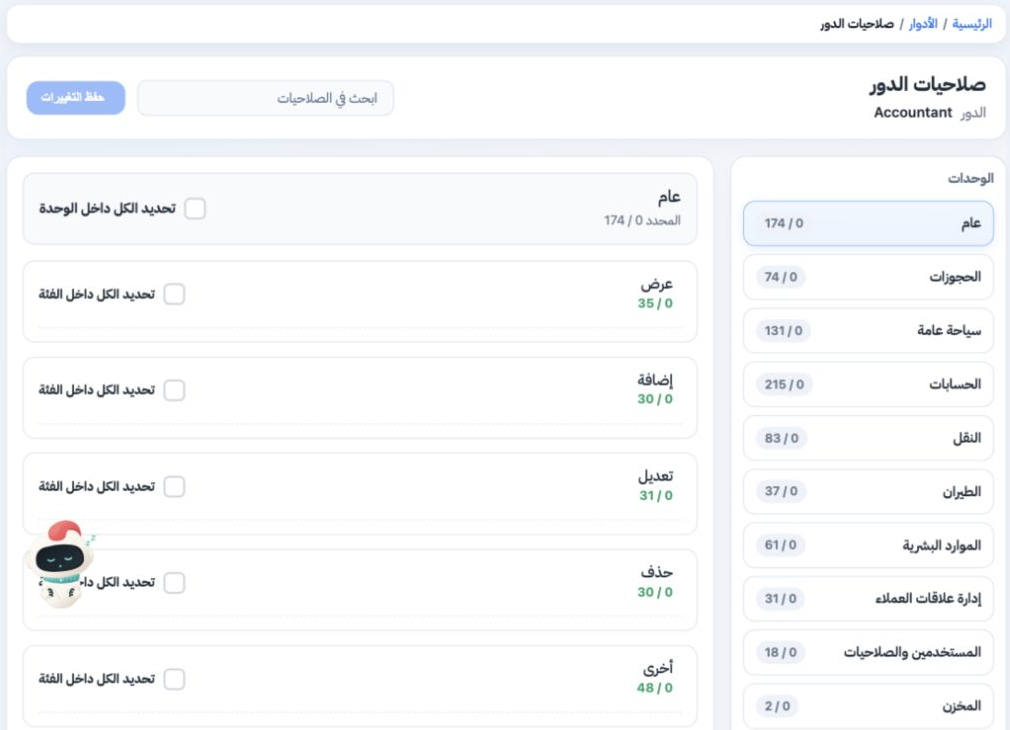
1 Open Users and Permissions, then Roles (المهام). Choose Permissions from the intended role’s row menu. Verify the role name at the top, then...
Open Users and Permissions, then Roles (المهام). Choose Permissions from the intended role’s row menu. Verify the role name at the top, then select a module. Its permissions are grouped into View, Add, Edit, Delete and Other categories as applicable.

2 Search within a module

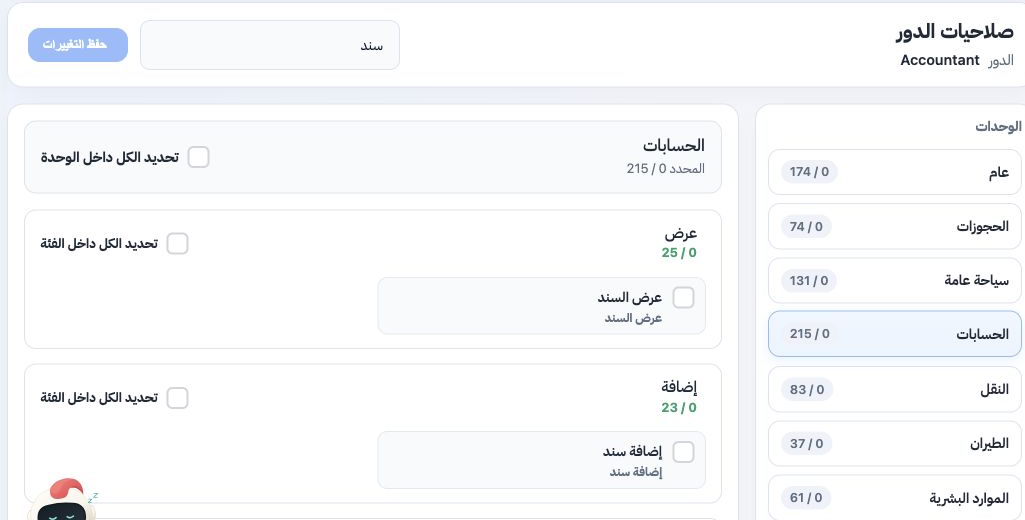
2 Select Accounting, then type سند in Search Permissions. Categories show matching permissions within the selected module. This example includ...
Select Accounting, then type سند in Search Permissions. Categories show matching permissions within the selected module. This example includes voucher view, add and edit permissions. Select another module to search there. Clear the query to show all permissions in the selected module.

3 Select actions and save changes

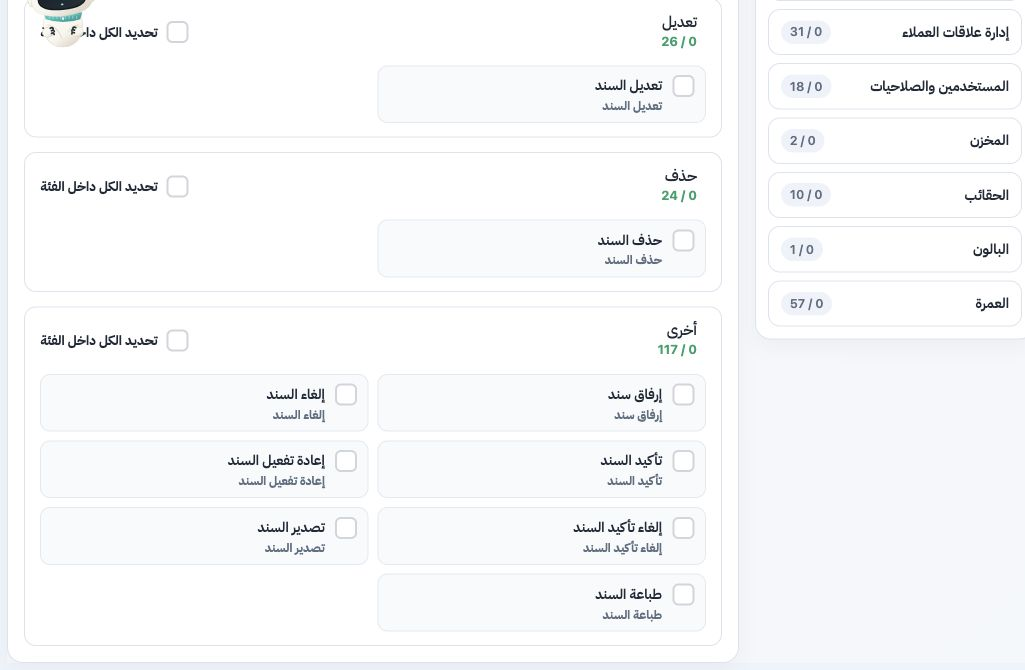
3 Expand the category and review the intended action before selecting its checkbox. Other includes voucher confirmation, reversal of confirmat...
Expand the category and review the intended action before selecting its checkbox. Other includes voucher confirmation, reversal of confirmation, printing and export; these are separate from Add permission. The screen exposes Select All within Category and Select All within Module. Review the choices and use Save Changes to apply the role update.

Sign in to record the lessons you have read. Sign in