Skip to content
Trio Travel guide

Analytical account permissions

On this page
  1. Show the analytical accounts menu
  2. Add an analytical account
  3. Edit and verify the name
  4. Cancel the deletion confirmation
  5. Export the list to Excel

These pages explain adding an analytical account, changing its name and reviewing its deletion confirmation. The permissions use the term Cost under Accounting.
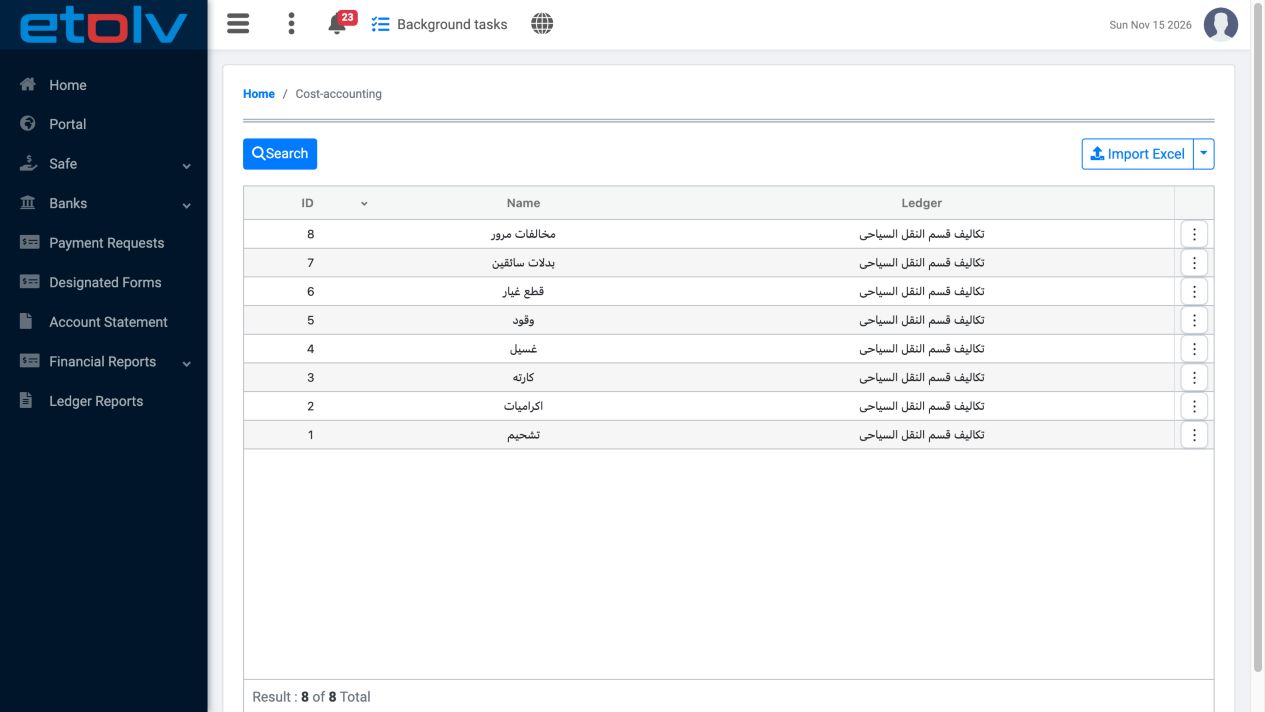
1 The direct page displayed eight existing records before View Cost was enabled. The Add form and Export button were absent.
The direct page displayed eight existing records before View Cost was enabled. The Add form and Export button were absent.

Show the analytical accounts menu

For the normal menu entry, enable Account Setting and View Cost for the role, save and verify both selections. Sign in again, then open Settings and Cost-accounting.
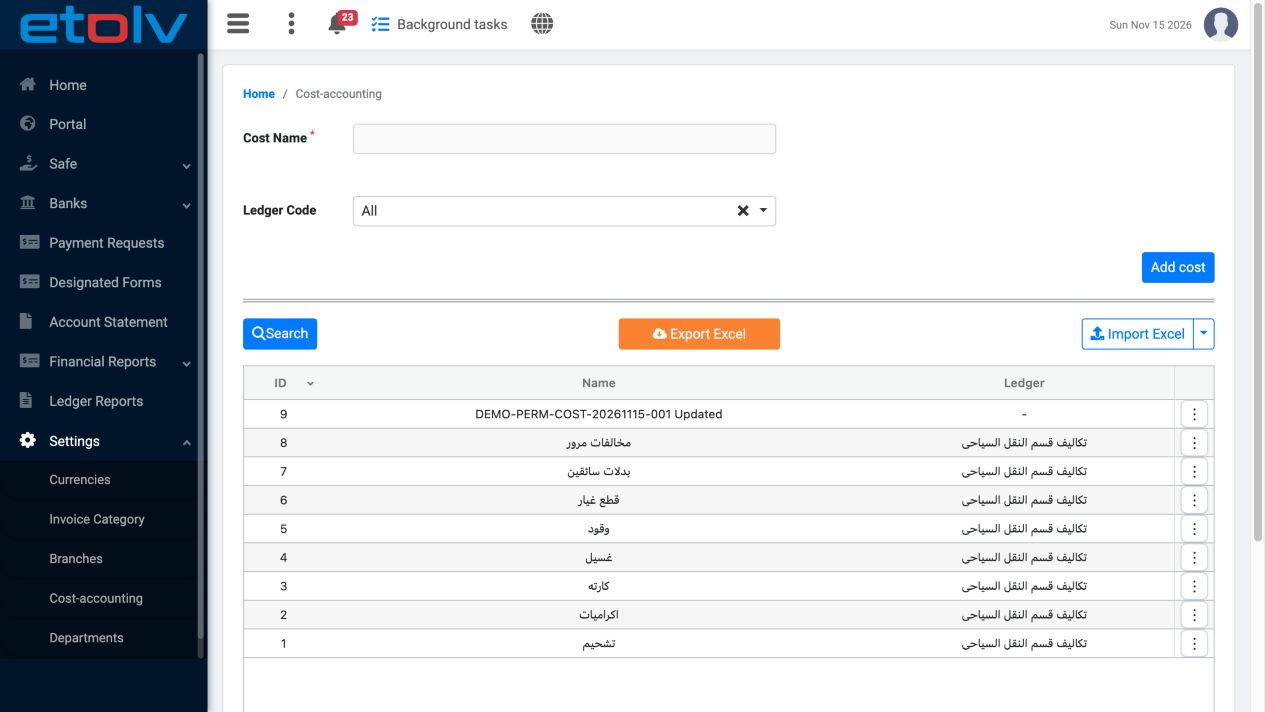
2 Settings and its Cost-accounting entry appeared after Account Setting was enabled while View Cost remained enabled.
Settings and its Cost-accounting entry appeared after Account Setting was enabled while View Cost remained enabled.

Add an analytical account

Enable Add Cost in the role permissions, save and verify the selection after reloading. Sign in again as the user. Enter the name and choose Add cost.
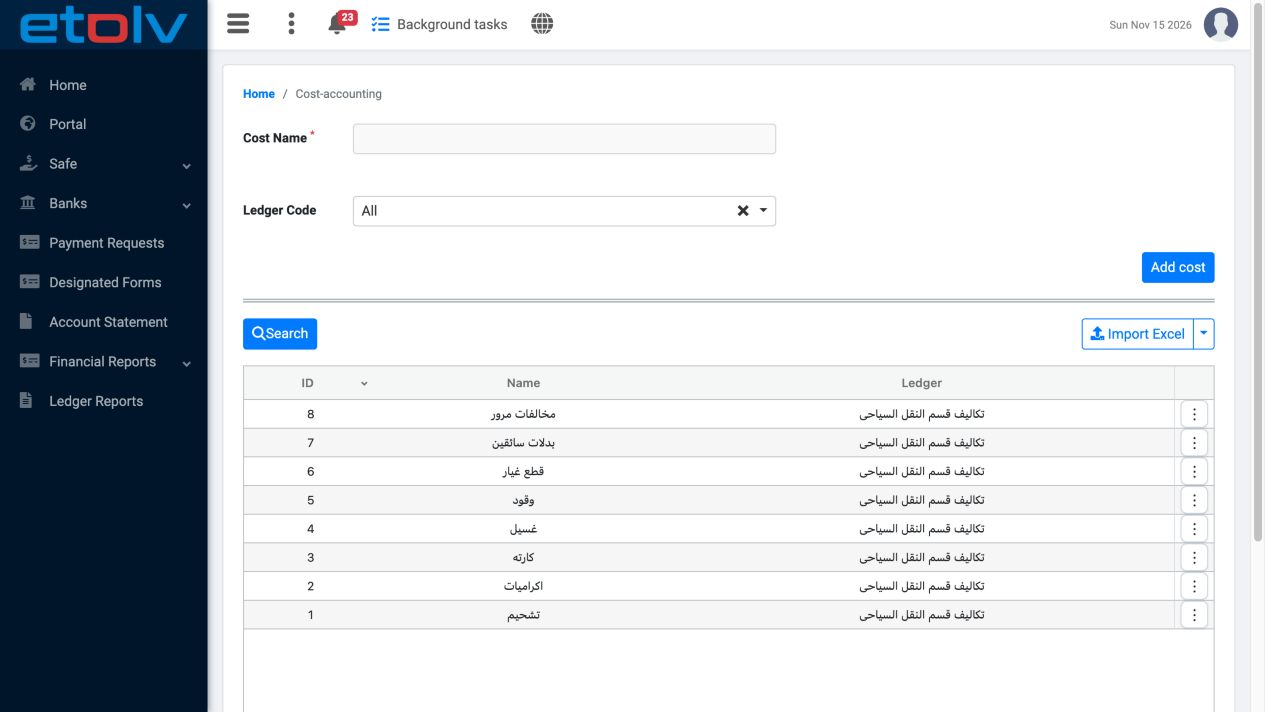
3 The Cost Name field and Add cost button are available after enabling creation. In this example, Ledger Code was left at All with no ledger s...
The Cost Name field and Add cost button are available after enabling creation. In this example, Ledger Code was left at All with no ledger selected.
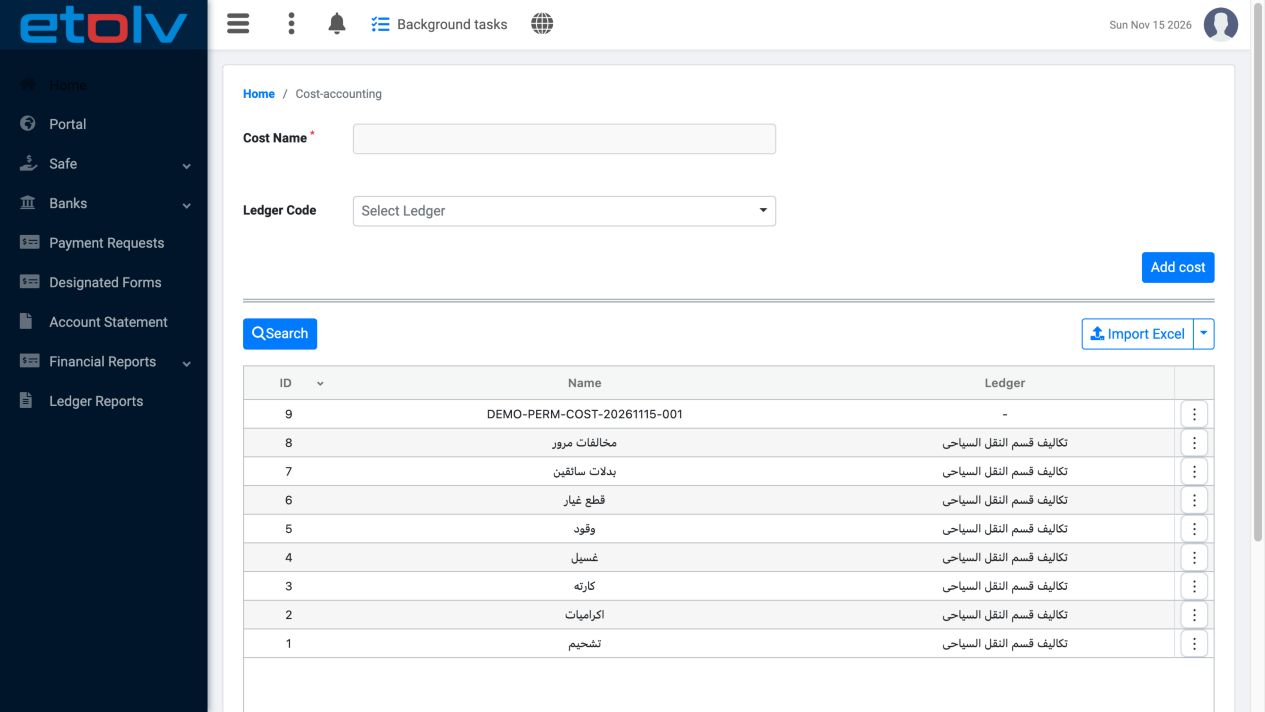
4 The new record remains as displayed ID 9 after reload. The list now contains nine records.
The new record remains as displayed ID 9 after reload. The list now contains nine records.

Edit and verify the name

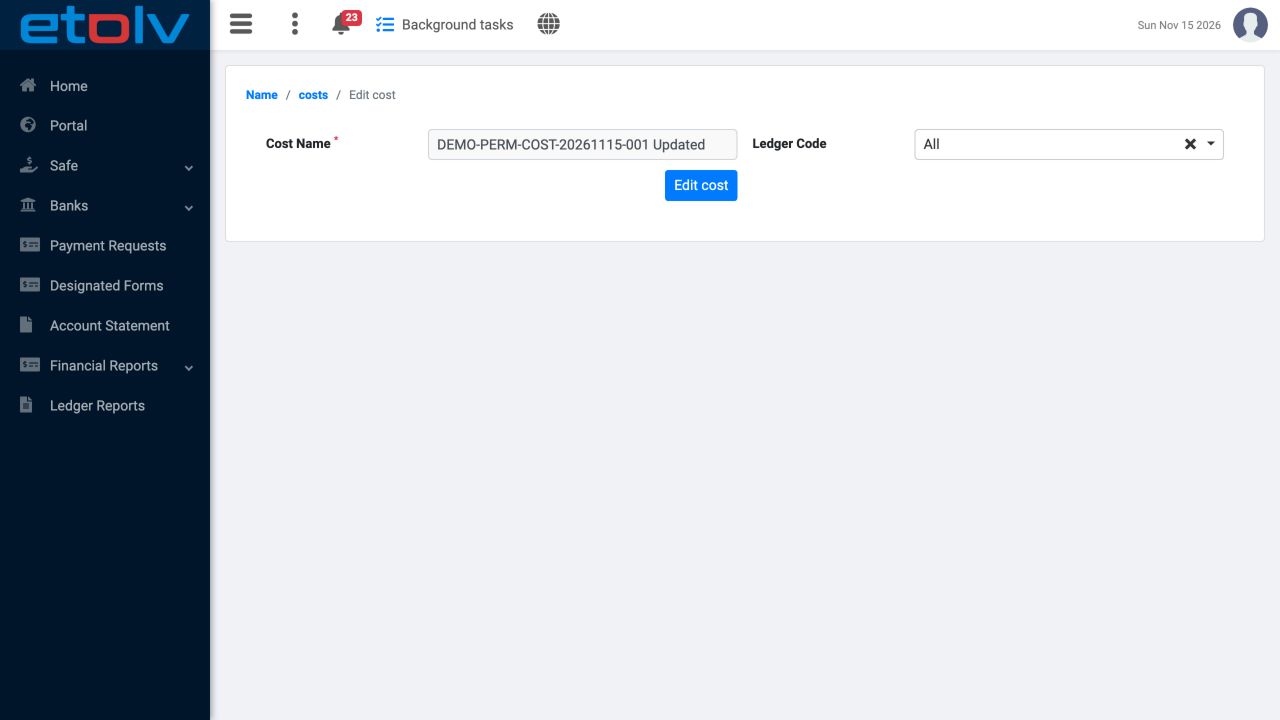
Enable and save Edit Cost, then sign in again as the user. Choose Edit from the record actions, change the name and save. Reopen the record to verify the value.
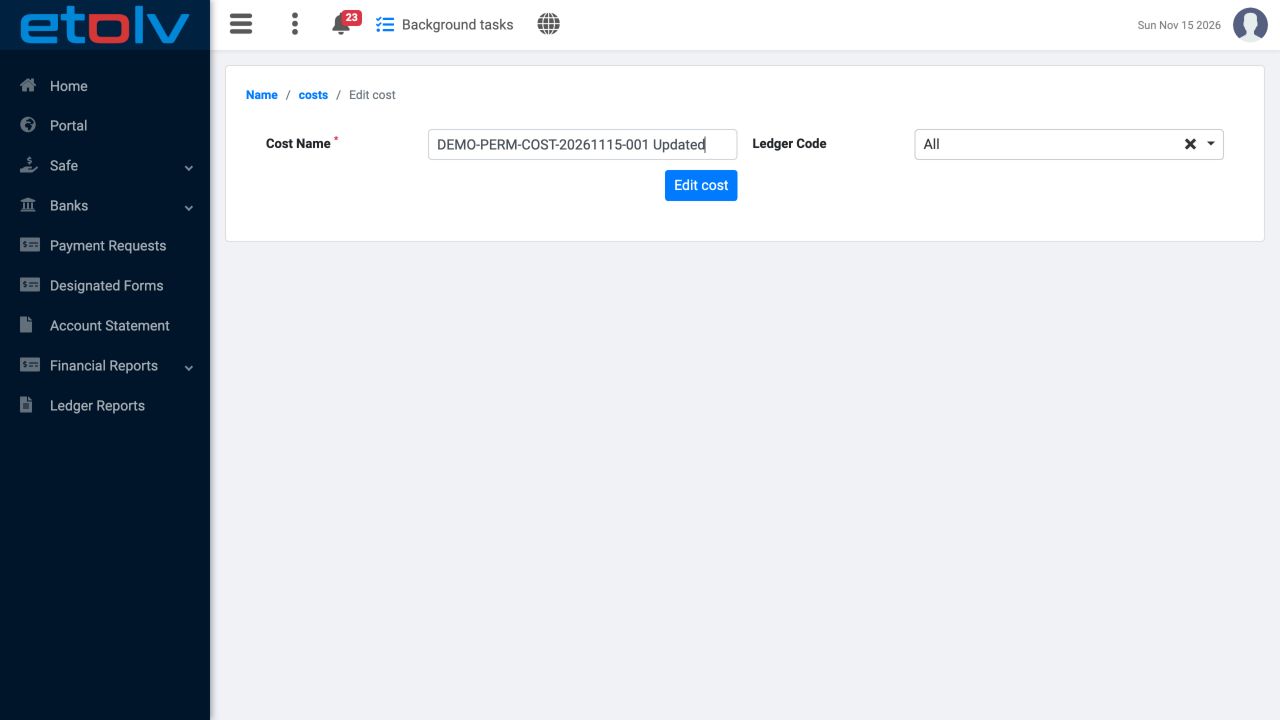
5 Updated was appended to the name while Ledger Code remained All.
Updated was appended to the name while Ledger Code remained All.
6 The reopened form displays the saved Updated name after reload.
The reopened form displays the saved Updated name after reload.

Cancel the deletion confirmation

After enabling Delete Cost, choose Delete from the intended record’s actions. Review the message and choose Cancel to keep the record.
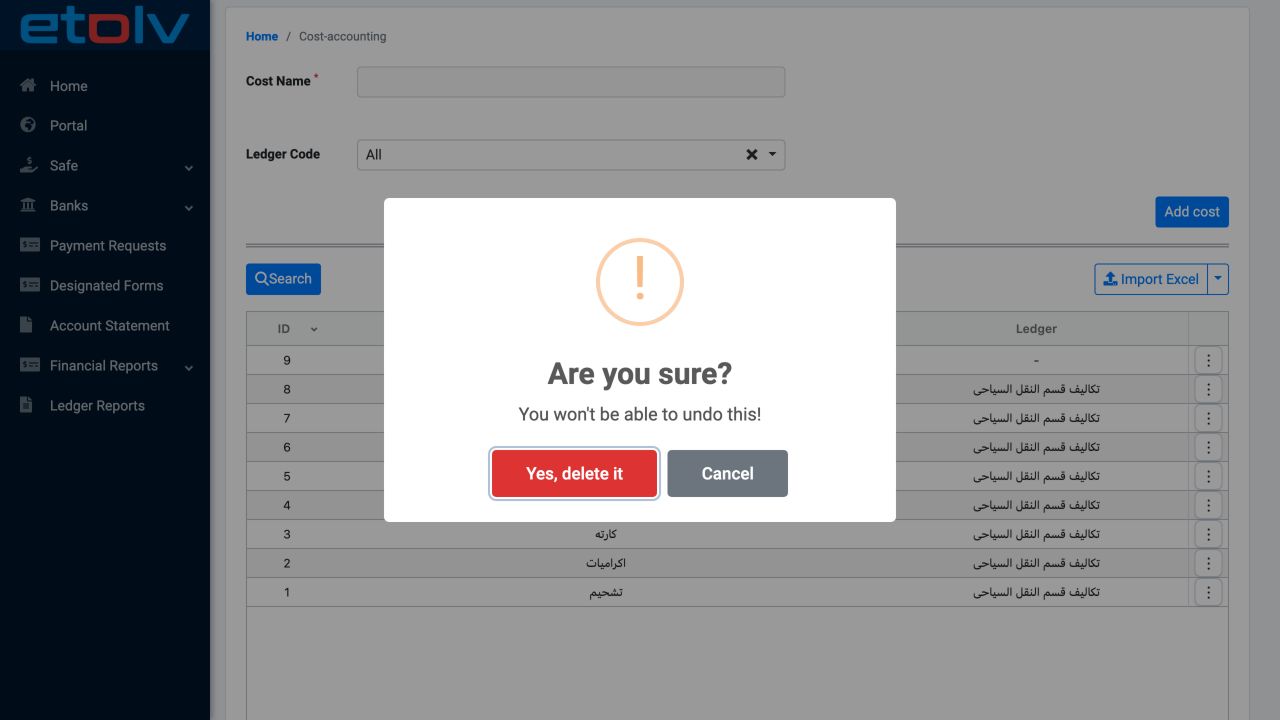
7 The dialog warns that deletion cannot be undone. Cancel was selected in this example; no record was deleted.
The dialog warns that deletion cannot be undone. Cancel was selected in this example; no record was deleted.
8 The final list retains the training record with its Updated name and all eight original records.
The final list retains the training record with its Updated name and all eight original records.

Export the list to Excel

Enable and save Export Cost, then sign in again as the user. Choose Export Excel and open the downloaded workbook to review the records.
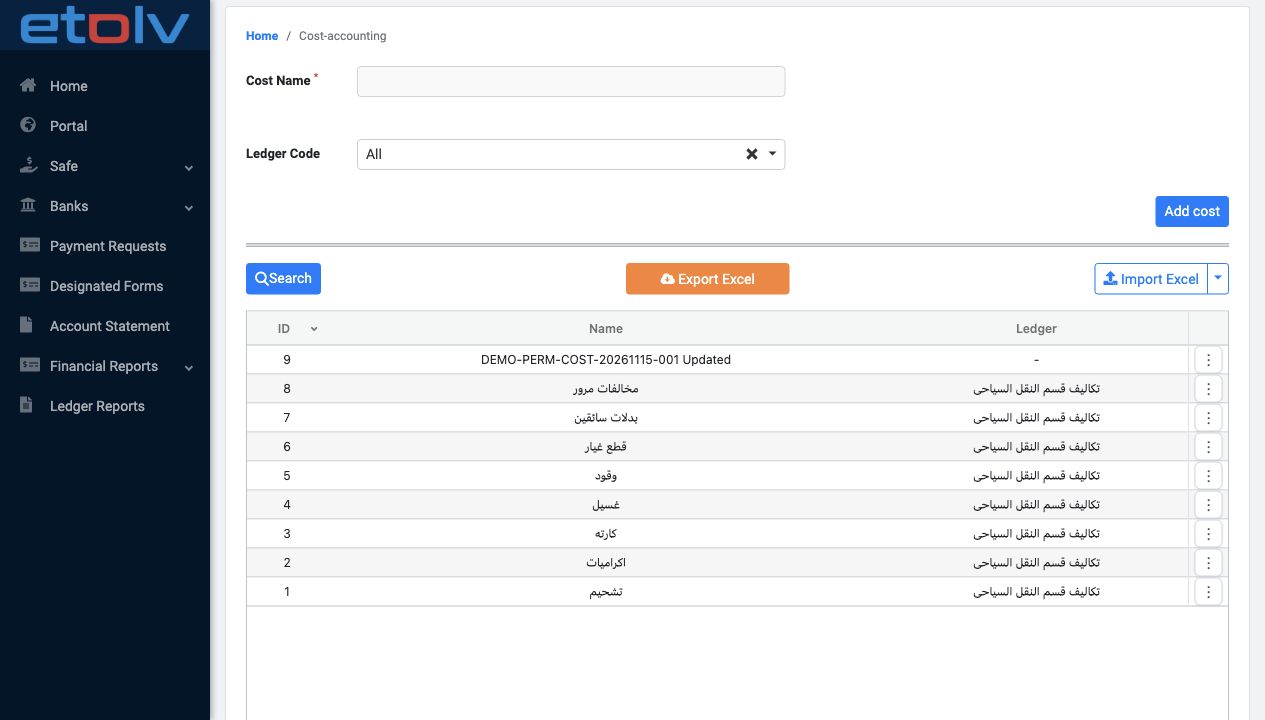
9 Export Excel is visible. The downloaded workbook contains nine records and the columns ID, Name and Code. Code is blank in all nine records;...
Export Excel is visible. The downloaded workbook contains nine records and the columns ID, Name and Code. Code is blank in all nine records; this export does not include Ledger.

Sign in to record the lessons you have read. Sign in