Skip to content
Trio Travel guide

Promoter commission rule permissions

On this page
  1. Reservations rules
  2. Booking rules and file types
  3. Flights rules and saving
  4. Edit and search
  5. Delete a rule

This guide covers configuring a promoter’s commission rules and the permissions to view, add, edit and delete them. Create the promoter first, then open its row menu and select Commissions.
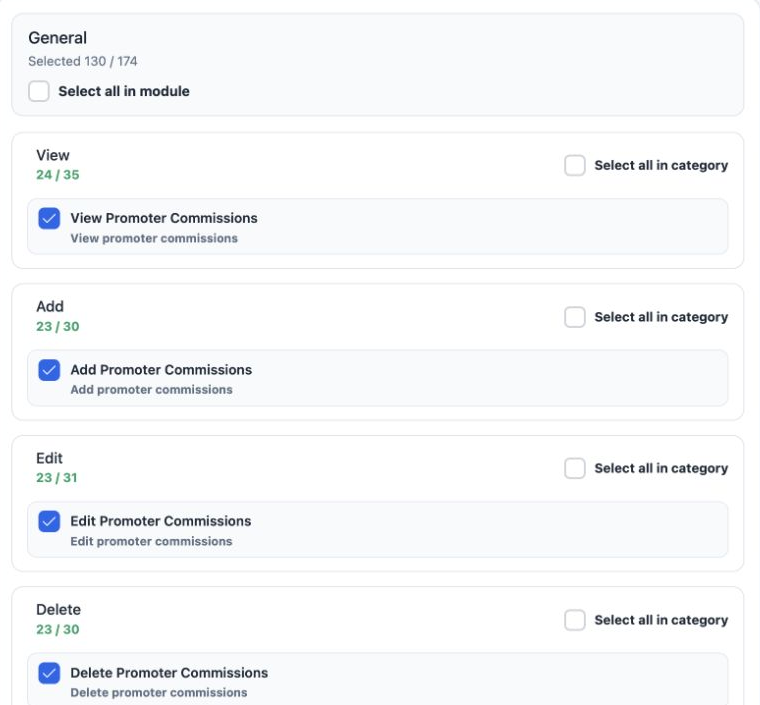
1 Search for Promoter Commissions under General in Role Permissions. Enable View to read rules, Add to create them, Edit to change them and De...
Search for Promoter Commissions under General in Role Permissions. Enable View to read rules, Add to create them, Edit to change them and Delete to remove them, then save. Access to the promoter register is also needed to open its row menu.

Rules are listed by module, file type and service. This guide focuses on setting up and maintaining those rules.

Reservations rules
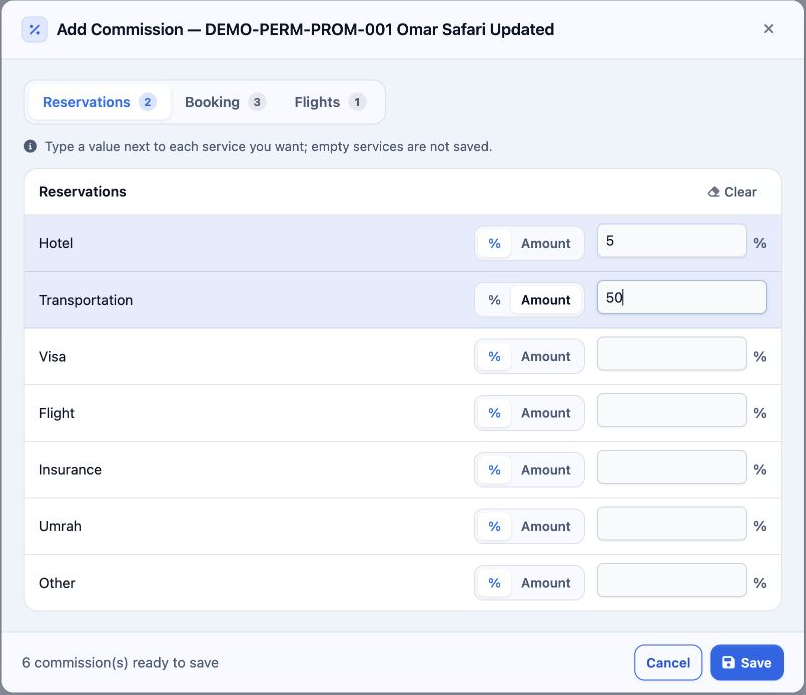
2 Select Add and open Reservations. Choose % for a percentage or Amount for a numeric amount, then enter the value beside the service. The exa...
Select Add and open Reservations. Choose % for a percentage or Amount for a numeric amount, then enter the value beside the service. The example uses Hotel at 5% and Transportation at Amount 50. Leave services you do not need blank.

The services shown here are Hotel, Transportation, Visa, Flight, Insurance, Umrah and Other. Counters show the number of prepared rules for each module and the total at the bottom of the form.

Booking rules and file types
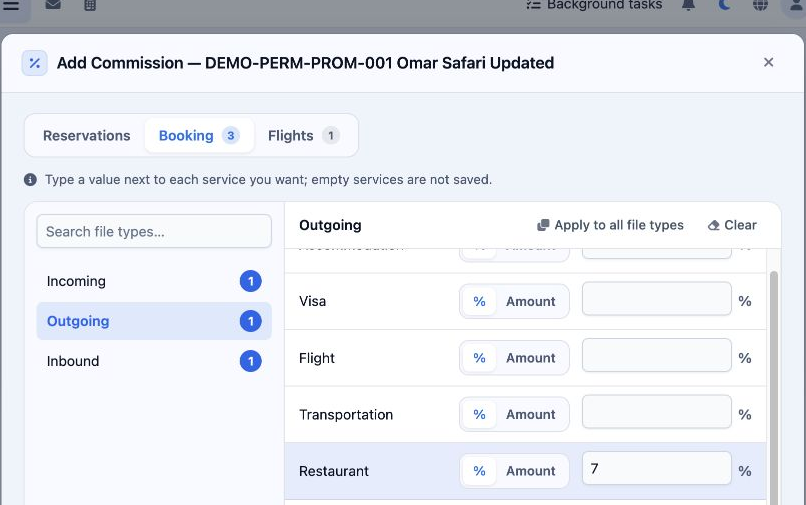
3 In Booking, choose a file type from the side list, then enter the service commission. In this example, Restaurant at 7% was copied to Incomi...
In Booking, choose a file type from the side list, then enter the service commission. In this example, Restaurant at 7% was copied to Incoming, Outgoing and Inbound. Use Search file types to locate a file type.
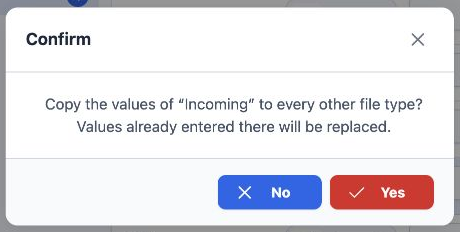
4 Select Apply to all file types to copy the current values. The confirmation explains that existing values in the other types will be replace...
Select Apply to all file types to copy the current values. The confirmation explains that existing values in the other types will be replaced. Choose Yes to copy or No to return. Clear inside Booking empties the selected file type’s draft values.

Flights rules and saving

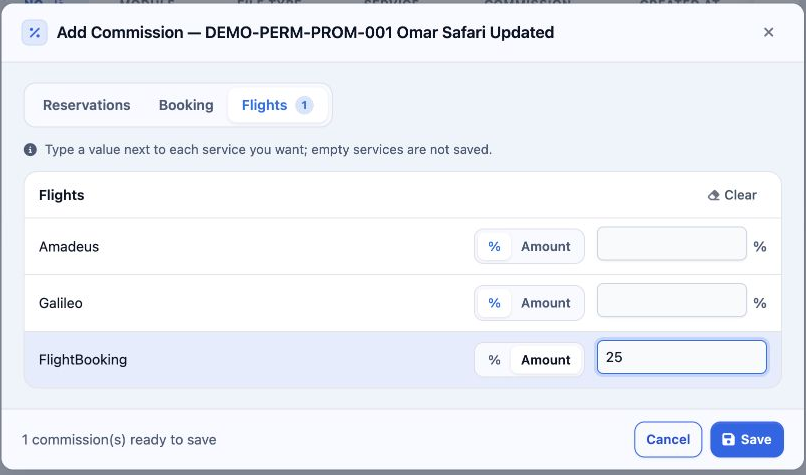
5 Flights shows Amadeus, Galileo and FlightBooking. Choose the type and value for the required service; the example uses FlightBooking at Amou...
Flights shows Amadeus, Galileo and FlightBooking. Choose the type and value for the required service; the example uses FlightBooking at Amount 25. Clear empties this tab’s draft values. When all tabs are ready, select Save.
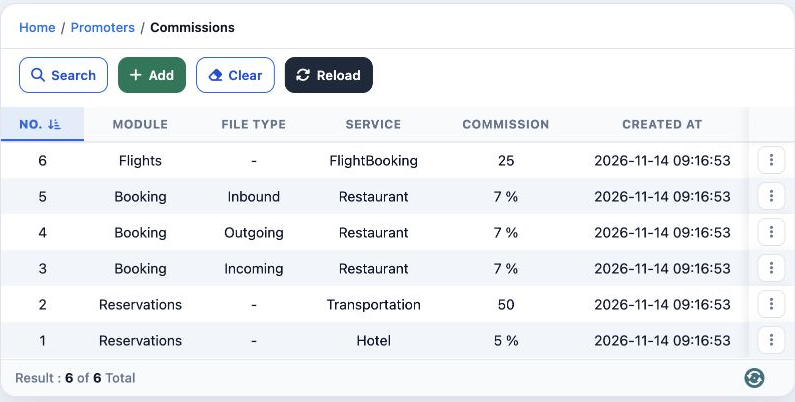
6 Saving created six rules: two for Reservations, three for Booking and one for Flights. The register shows the record number, module, file ty...
Saving created six rules: two for Reservations, three for Booking and one for Flights. The register shows the record number, module, file type, service, commission and creation date.

Edit and search

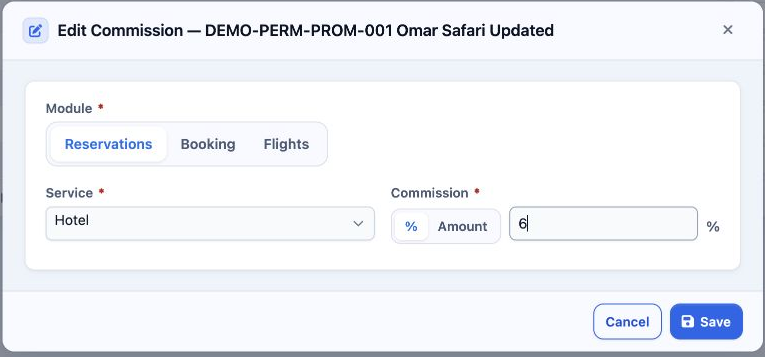
7 Open a rule’s menu and choose Edit Commission. Review the module, service, commission type and value, then save. The Hotel rule was changed...
Open a rule’s menu and choose Edit Commission. Review the module, service, commission type and value, then save. The Hotel rule was changed from 5% to 6%, and the new value appeared in the register.
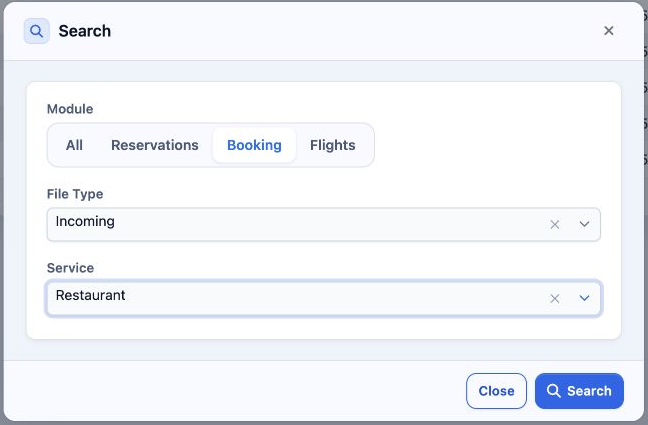
8 In Search, choose the module and service. Choosing Booking also displays the File Type filter. Searching for Booking, Incoming and Restauran...
In Search, choose the module and service. Choosing Booking also displays the File Type filter. Searching for Booking, Incoming and Restaurant returned one rule. Clear on the register toolbar removes filters; Reload refreshes the saved rules.

Delete a rule

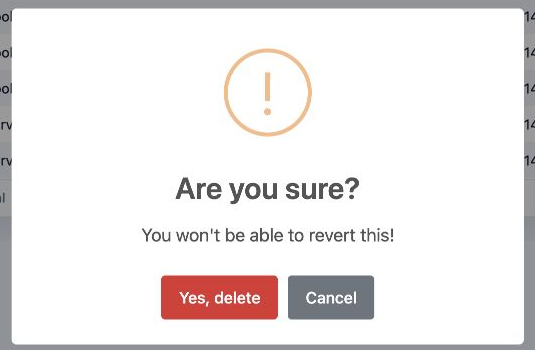
9 Open the intended rule’s menu and choose Delete. Cancel keeps the rule; Yes, delete confirms deletion. This example uses rule 6 for Flights...
Open the intended rule’s menu and choose Delete. Cancel keeps the rule; Yes, delete confirms deletion. This example uses rule 6 for Flights and FlightBooking at 25.
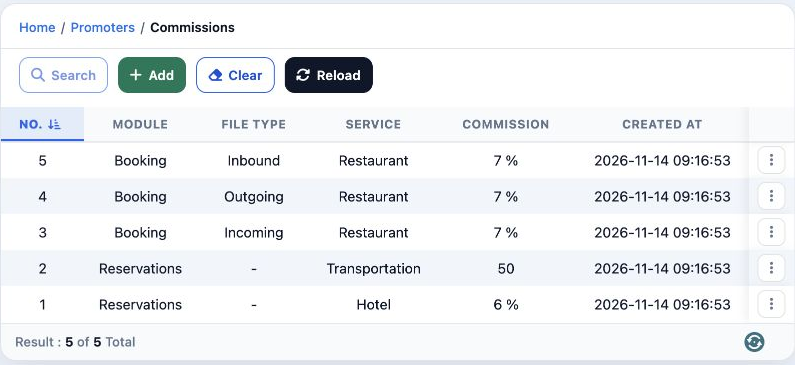
10 After deleting the flight rule and refreshing the page, five rules remain: Hotel at 6%, Transportation at 50, and Restaurant at 7% for each...
After deleting the flight rule and refreshing the page, five rules remain: Hotel at 6%, Transportation at 50, and Restaurant at 7% for each of the three Booking file types.

Sign in to record the lessons you have read. Sign in