The inquiry and its prerequisites
On this page
An inquiry records a potential customer's travel needs, trip details and budget for follow-up. Open CRM, then Inquiry. Choose an existing CRM contact and an appropriate inquiry status. Define statuses in Inquiry Status under settings; the Inquiry Status guide explains their setup and editing.
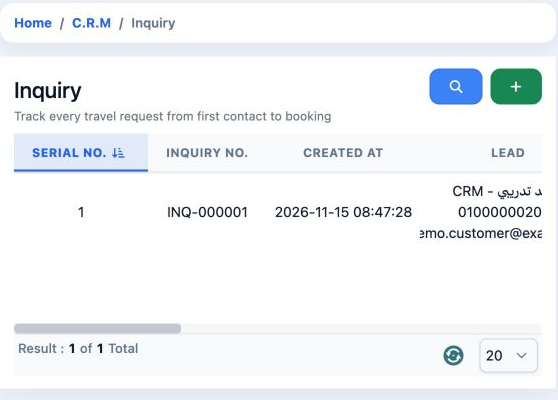
Contact and follow-up status
Select + to open Add inquiry. Search Contacts and select a result. Reading contacts requires View Lead. Choose Inquiry status, then set Priority and Interested in when needed. The example uses High and leaves the interest field empty.
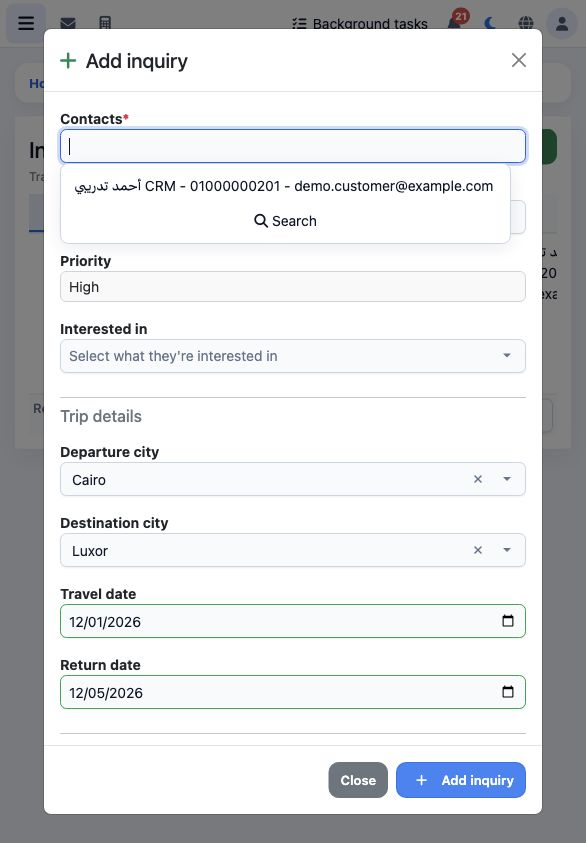
Contacts and Inquiry status are required. The example uses مفتوح - تدريب عروض الأسعار.
Trip details and budget
Choose Departure city and Destination city. The example uses Cairo and Luxor, with Travel date on 1 December 2026 and Return date on 5 December 2026. Enter Adults, Children and Infants. The example has two adults, one child and no infants.
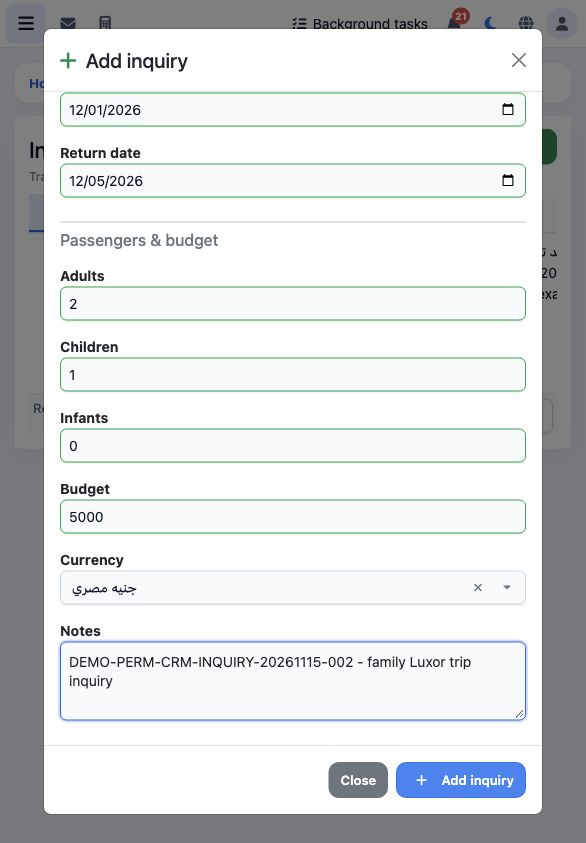
Enter Budget and its Currency, then add follow-up information in Notes. The example budget is 5,000 Egyptian pounds. Select Add inquiry to save, or Close or × to close the form.
Save and read the list columns
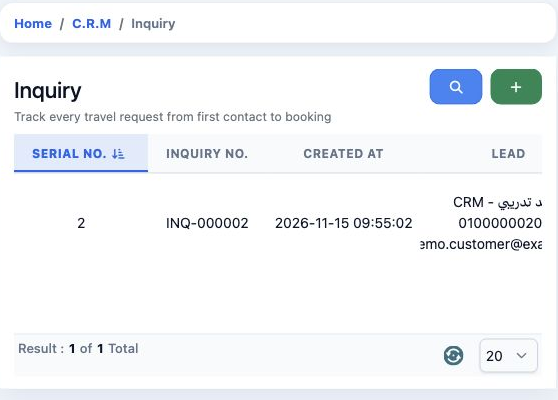
After Add inquiry, INQ-000002 appears with owner demo_approval_15000 and the total becomes two. Use horizontal scrolling to review the remaining columns.
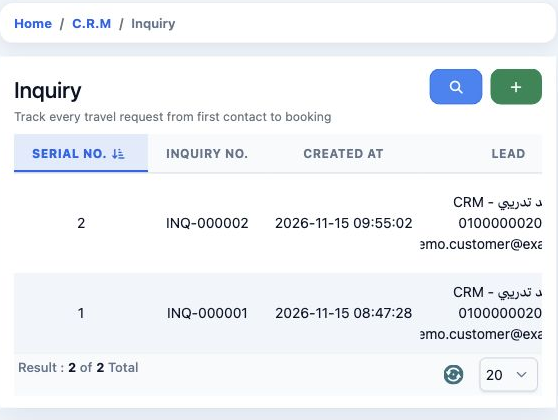
Serial no. is the serial number; Inquiry no. identifies the inquiry; Created at is its creation time. Lead is the contact, Inquiry status is the follow-up status, and Owner identifies the inquiry owner.
Priority is the follow-up priority, Interested in the interest area, Destination city the destination, Travel date the planned departure date, Budget the budget amount, and Notes the notes. The row menu opens its actions.
Save and edit notes
Saving creates inquiry INQ-000002 and brings the list total to two. To edit, open your inquiry's menu and choose Edit. Update Notes, then select Edit inquiry. Reopen the record to review the saved value.
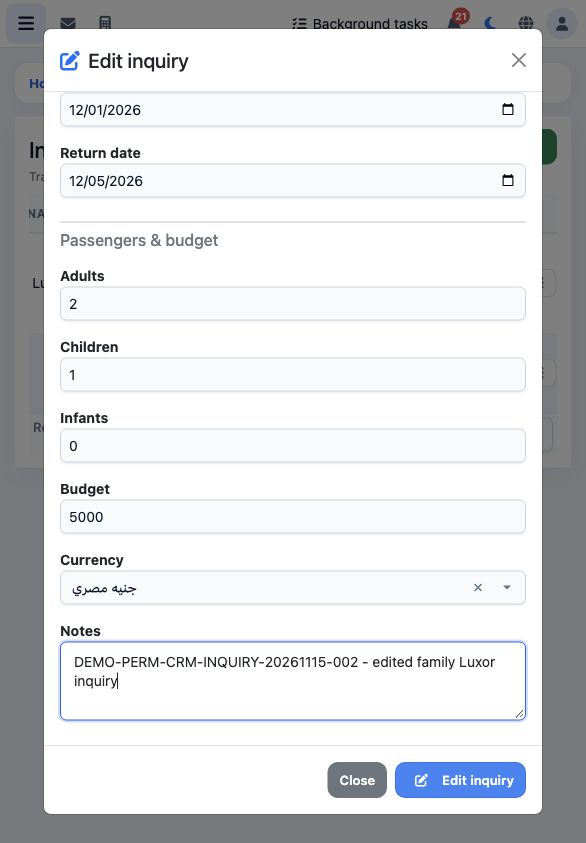
Reopening confirms DEMO-PERM-CRM-INQUIRY-20261115-002 - edited family Luxor inquiry. The dates, passenger counts and budget retain their values.
Search inquiries
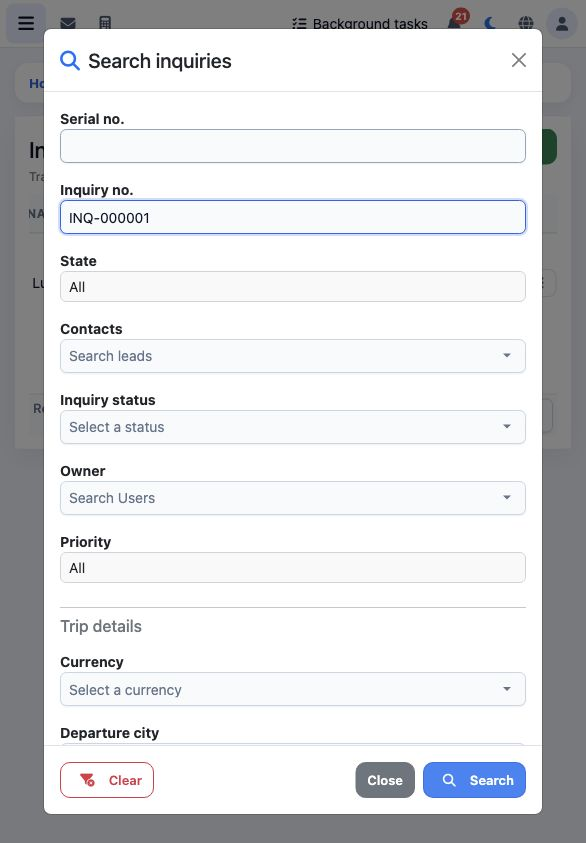
Open the search icon, enter Inquiry no. and select Search. The form also provides Serial no., State, Contacts, Inquiry status, Owner, Priority and Currency filters. Clear resets the filters; Close or × closes the panel.
Show only my inquiries
With View Only My Inquiries enabled, the example list shows the user’s own INQ-000002 only. Searching for the other owner’s INQ-000001 returns no result.
Review and cancel deletion
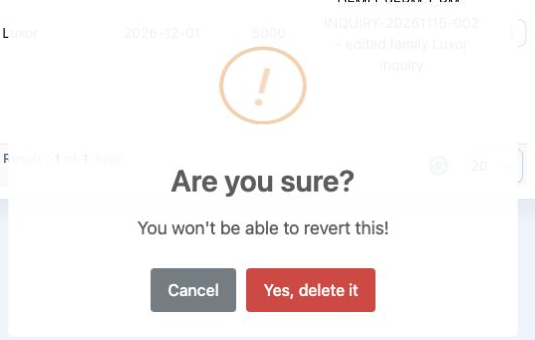
Open your inquiry’s menu and choose Delete to display the confirmation. The dialog asks Are you sure? and warns that the action cannot be undone.
The final list retains both inquiries after restoring normal visibility.
Sign in to record the lessons you have read. Sign in