Skip to content
Trio Travel guide

Lead activity permissions

On this page
  1. Open a lead activity
  2. Add a follow-up task
  3. Update the subject and status
  4. Search and review the result
  5. Review deletion confirmation

Open a lead activity

Create a follow-up task, update its subject and status, find it, and review its deletion confirmation. Available actions depend on your assigned permissions.
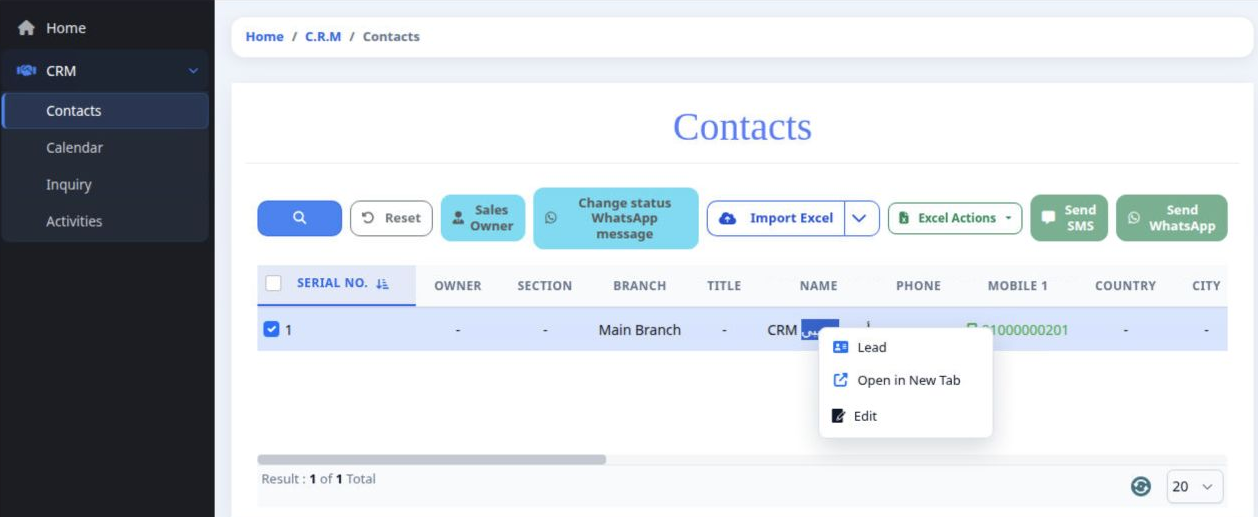
1 Open CRM then Contacts. Select the lead, right-click its row, and choose Lead to open its record.
Open CRM then Contacts. Select the lead, right-click its row, and choose Lead to open its record.

View Activity allows activity review. Add Activity allows a new activity to be saved. Edit Activity allows subject and status changes. Delete Activity exposes the activity deletion action.

Inside the lead record, use Tasks to add a task and Activities to review saved activities.

Add a follow-up task
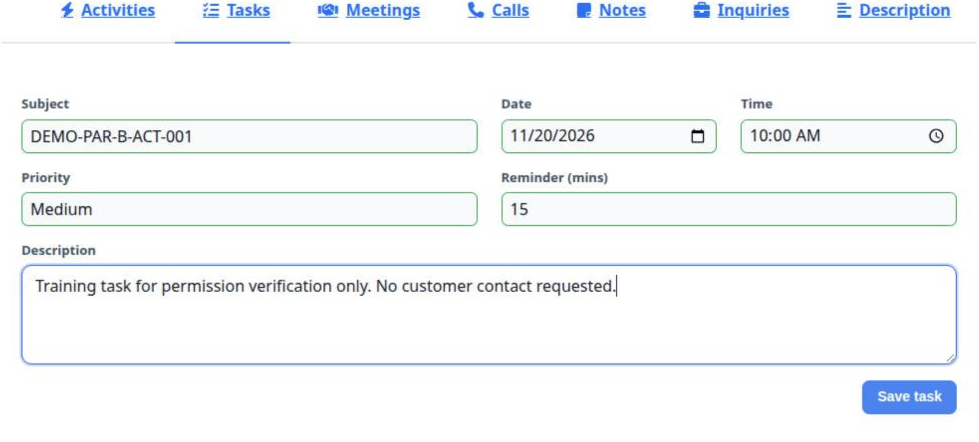
2 In Tasks, enter Subject, Date, Time, Priority, Reminder in minutes, and Description. Select Save task. The example uses Medium priority and...
In Tasks, enter Subject, Date, Time, Priority, Reminder in minutes, and Description. Select Save task. The example uses Medium priority and a 15-minute reminder.

Subject is the task title. Date and Time specify its appointment. Priority describes its importance, and Description records the follow-up details.
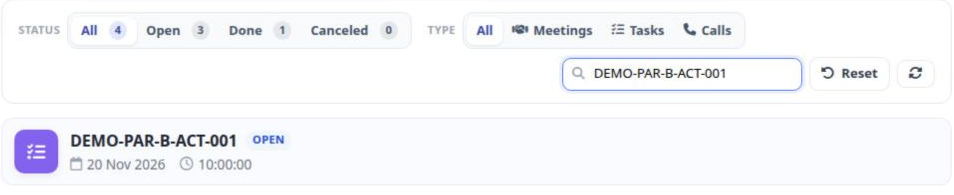
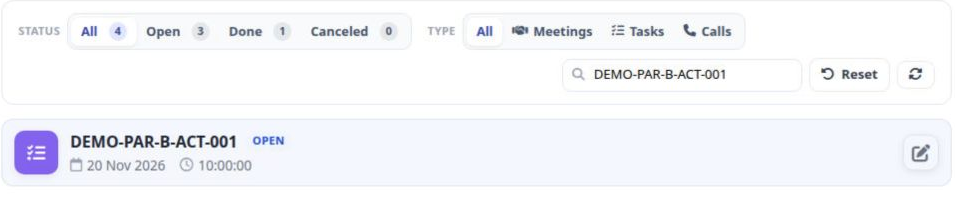
3 Open Activities after saving. The task appears as Open with its date and time. This example is scheduled for 20 November 2026 at 10 AM.
Open Activities after saving. The task appears as Open with its date and time. This example is scheduled for 20 November 2026 at 10 AM.

Update the subject and status

4 Select the task card in Activities, then select its activity pencil icon.
Select the task card in Activities, then select its activity pencil icon.
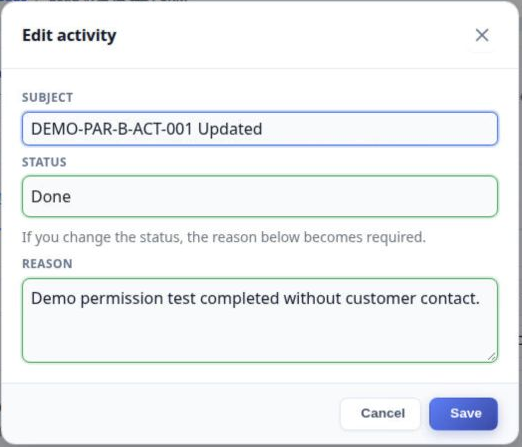
5 In Edit activity, change Subject or Status. Status options are Open, Done and Canceled. When changing status, enter a Reason, then select Sa...
In Edit activity, change Subject or Status. Status options are Open, Done and Canceled. When changing status, enter a Reason, then select Save.

In this example, Updated was added to the subject and the status became Done.

Search and review the result
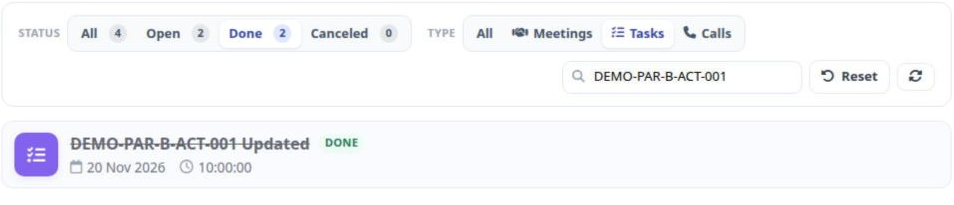
6 Enter part of the subject in Search activities. Select Done for completed activities and Tasks for tasks. After page refresh, the task retai...
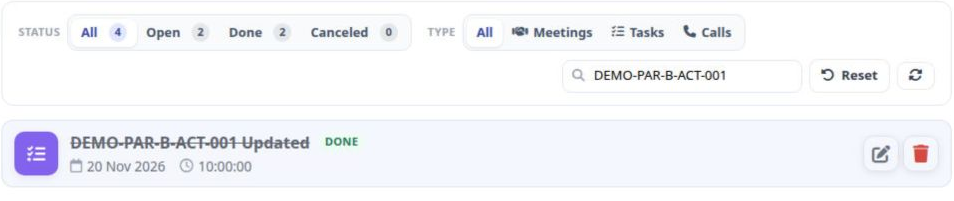
Enter part of the subject in Search activities. Select Done for completed activities and Tasks for tasks. After page refresh, the task retains its updated subject and Done status.

Status filters are All, Open, Done and Canceled. Type filters are All, Meetings, Tasks and Calls. The counters show the lead activities by status.
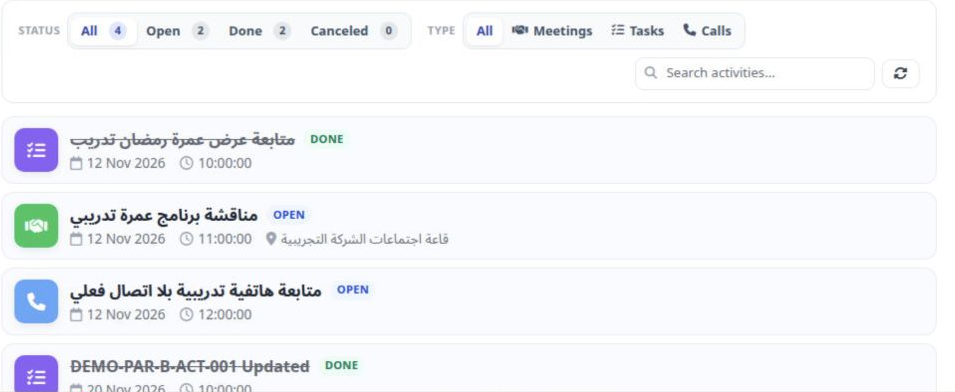
7 Select Reset to clear the search and filters. The example contains four activities: two Open and two Done.
Select Reset to clear the search and filters. The example contains four activities: two Open and two Done.

Review deletion confirmation

8 With Delete Activity permission, select the card and then its trash icon. Check that the selected card is the intended activity.
With Delete Activity permission, select the card and then its trash icon. Check that the selected card is the intended activity.
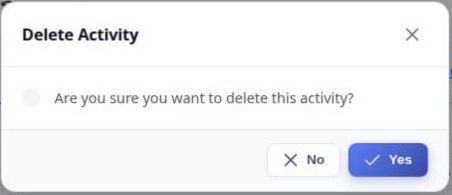
9 Delete Activity opens a confirmation dialog. Select No to return without deleting. In this example, No was selected and the updated task rem...
Delete Activity opens a confirmation dialog. Select No to return without deleting. In this example, No was selected and the updated task remained Done.

Opening the confirmation dialog does not delete the activity; it lets you review the action before deciding.

Sign in to record the lessons you have read. Sign in