Skip to content
Trio Travel guide

Promoter setup permissions

On this page
  1. Configure the role
  2. Add a promoter
  3. Edit and search
  4. Delete and verify

This guide explains permissions to view, add, edit and delete promoters. A promoter record contains a name and a linked ledger account.

Configure the role
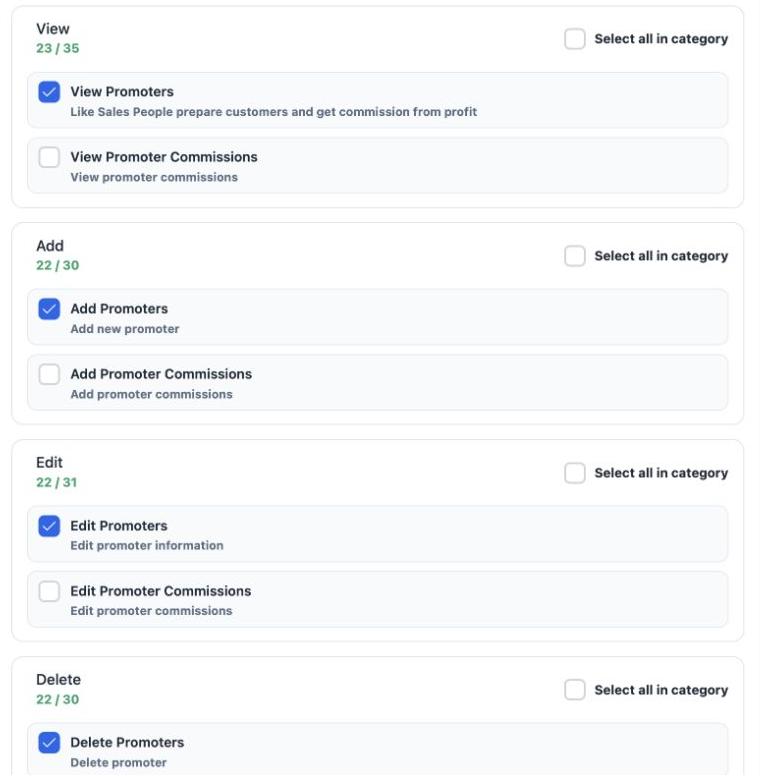
1 In Role Permissions, search for Promoter under General. View Promoters opens the register for reading. Enable Add Promoters to create record...
In Role Permissions, search for Promoter under General. View Promoters opens the register for reading. Enable Add Promoters to create records, Edit Promoters to change them, and Delete Promoters to delete them. Save the changes.

The adjacent Promoter Commissions permissions relate to commissions and are separate from promoter setup permissions.

Add a promoter
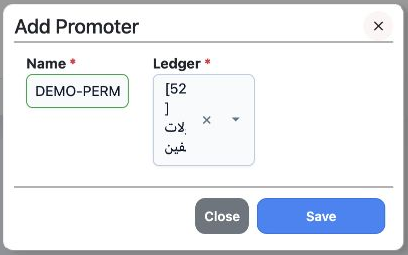
2 Open Settings then Promoters and select Add. Enter the name in Name and select the promoter’s approved account in Ledger. Both fields are re...
Open Settings then Promoters and select Add. Enter the name in Name and select the promoter’s approved account in Ledger. Both fields are required. Select Save to save, or Close to return.
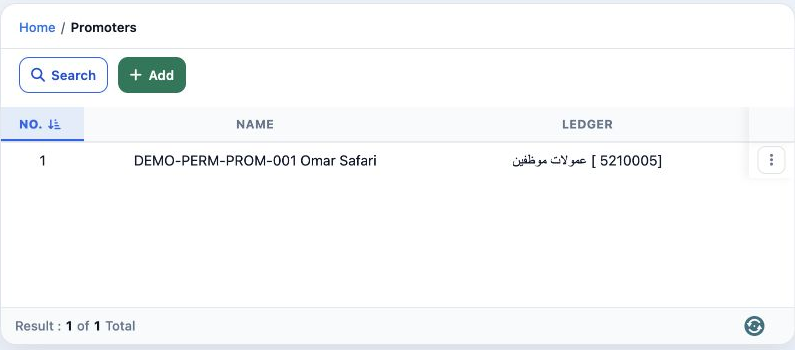
3 After saving, the register shows the record number, name and ledger. The example displays DEMO-PERM-PROM-001 Omar Safari and training accoun...
After saving, the register shows the record number, name and ledger. The example displays DEMO-PERM-PROM-001 Omar Safari and training account 5210005.

Edit and search

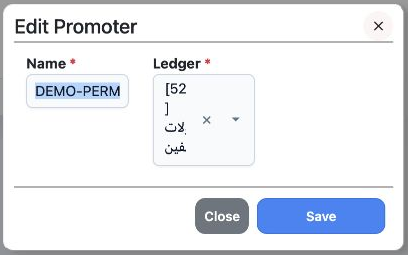
4 Open the three-dot menu on the promoter row and choose Edit Promoter. Update the name or ledger as needed, then select Save.
Open the three-dot menu on the promoter row and choose Edit Promoter. Update the name or ledger as needed, then select Save.
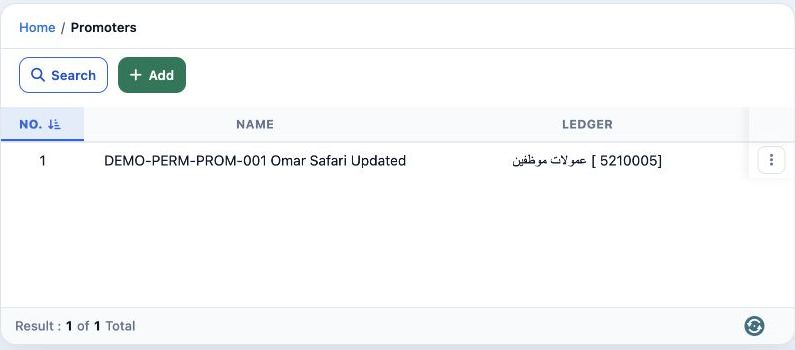
5 After saving, the register shows DEMO-PERM-PROM-001 Omar Safari Updated. To search, select Search, enter a name or part of it in Promoter Na...
After saving, the register shows DEMO-PERM-PROM-001 Omar Safari Updated. To search, select Search, enter a name or part of it in Promoter Name and select the blue search button.

To display all promoters again, clear the name filter and search again.

Delete and verify
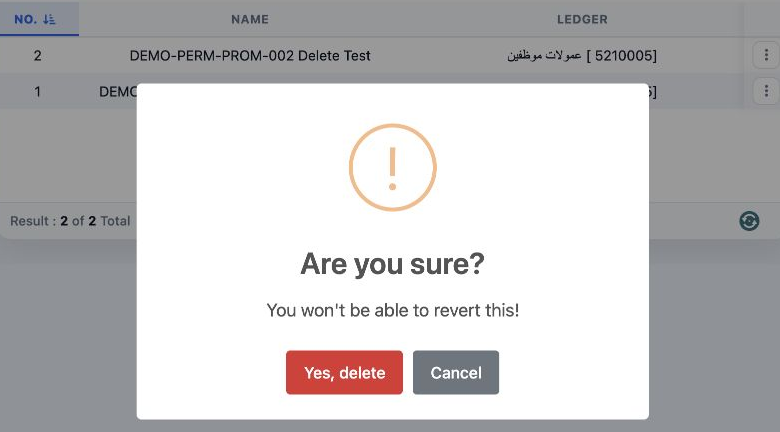
6 Open the menu on the intended promoter row and choose Delete. Cancel keeps the record; Yes, delete confirms deletion. This example uses the...
Open the menu on the intended promoter row and choose Delete. Cancel keeps the record; Yes, delete confirms deletion. This example uses the separate DEMO-PERM-PROM-002 Delete Test record.
7 After deleting the second test record and refreshing the page, the first promoter remains with the updated name. Review the register and act...
After deleting the second test record and refreshing the page, the first promoter remains with the updated name. Review the register and active search filters to confirm the result.

Sign in to record the lessons you have read. Sign in