Skip to content
Trio Travel guide

CRM quotation template permissions

On this page
  1. Setting quotation template permissions
  2. Opening the list and searching for a template
  3. Adding a template and itinerary
  4. Completing service items and saving the template
  5. Editing the template and checking the saved change
  6. Reviewing deletion confirmation and cancelling

Setting quotation template permissions

Quotation templates prepare reusable service items for a quotation. This guide explains template access, creation and editing, and how to review a deletion confirmation.

Open CRM in role permissions. Select View Quotation Template to access Templates, Add Quotation Template to save a new template, and Edit Quotation Template to save changes. Delete Quotation Template concerns template deletion. Save the role changes, then sign in again as the user assigned to that role.
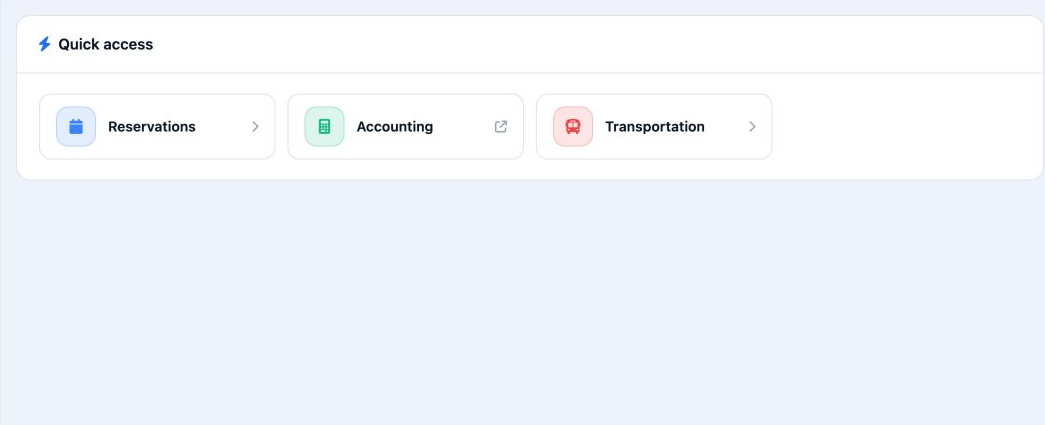
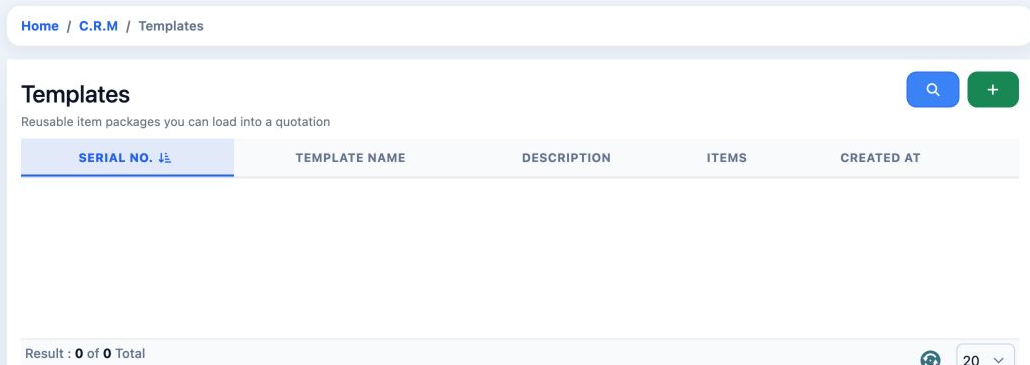
1 Before View was enabled, the Templates link returned the user to Home.
Before View was enabled, the Templates link returned the user to Home.
2 After View Quotation Template was enabled, its direct link opened Templates.
After View Quotation Template was enabled, its direct link opened Templates.

Opening the list and searching for a template

To display the CRM menu, review View CRM alongside template viewing permission in the role. After saving permissions and signing in again, open CRM, then Templates. The list shows the serial, template name, description, item count and creation date.
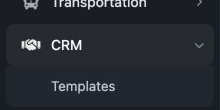
3 Templates appears beneath CRM in the sidebar.
Templates appears beneath CRM in the sidebar.
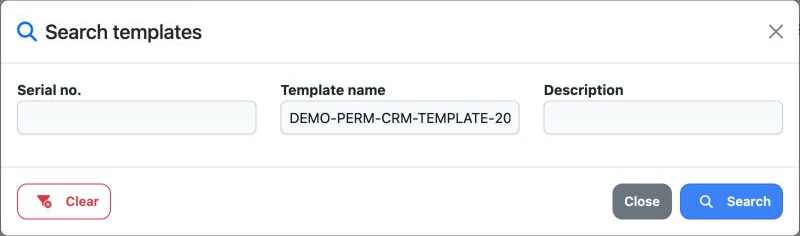
4 Click the magnifier, enter the template name in Template name and choose Search. The form also offers Serial no. and Description.
Click the magnifier, enter the template name in Template name and choose Search. The form also offers Serial no. and Description.
5 Searching for the example name returned one template. Use Clear in the search form to remove the filters and return to the list.
Searching for the example name returned one template. Use Clear in the search form to remove the filters and return to the list.

Adding a template and itinerary

Open Templates and click +. Enter a Template name that identifies it and a Description of its purpose. Choose Add day, then enter the Day and its activities in Description. Add further days to prepare the itinerary.
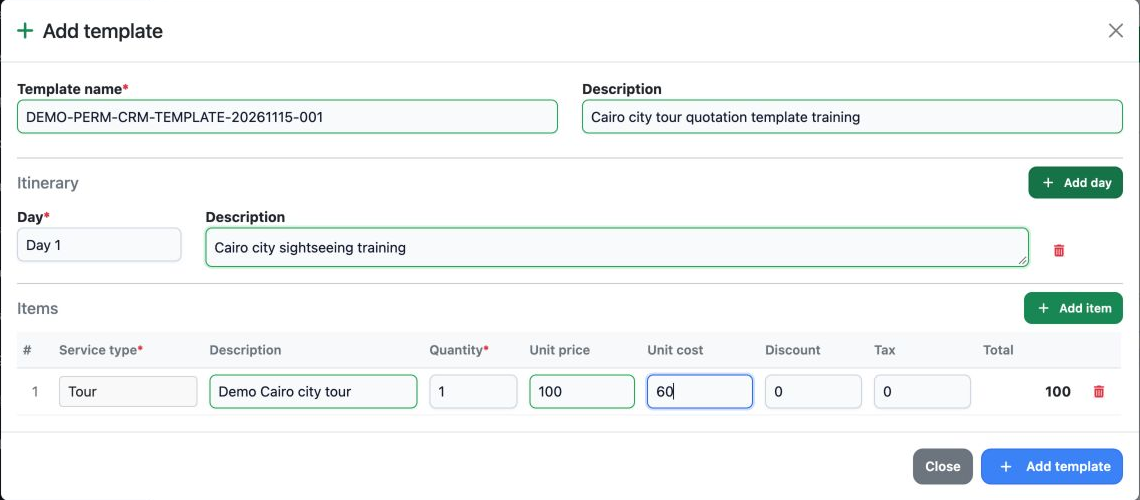
6 The form shows the template name, header description, itinerary day and service items.
The form shows the template name, header description, itinerary day and service items.

The example is DEMO-PERM-CRM-TEMPLATE-20261115-001, with Day 1 for Cairo sightseeing. Use names and descriptions that help the team choose the right template.

The bin beside a day removes it from the form. Close closes the form. Review its days and items before using the save button.

Completing service items and saving the template

7 The item is Tour, with quantity 1, unit price 100, unit cost 60, discount 0 and tax 0. Its displayed total is 100.
The item is Tour, with quantity 1, unit price 100, unit cost 60, discount 0 and tax 0. Its displayed total is 100.

Service type identifies the service, such as Tour. Description identifies the item in the template. Quantity is the number of service units. Unit price is the selling price per unit. Unit cost is the cost per unit.

Discount is the item discount. Tax holds the item tax; it is 0 in this example. Total is the amount displayed by the form. Check it after changing values.

Use Add item for another item and its bin to remove it from the form. When creating a new template, click Add template after checking its details.
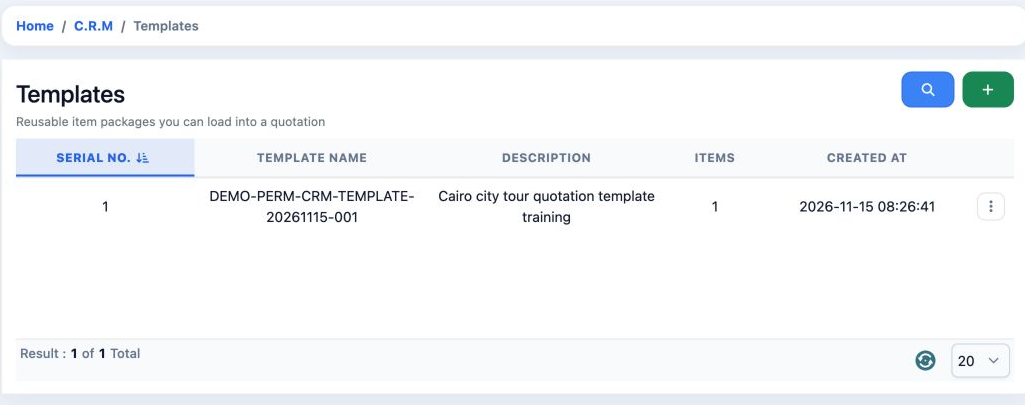
8 After the addition was saved, the template appeared as serial 1 with one service item.
After the addition was saved, the template appeared as serial 1 with one service item.

Editing the template and checking the saved change

Choose Edit from the template row menu. Review the name, description, items and itinerary, make your changes, then click Edit template to save.
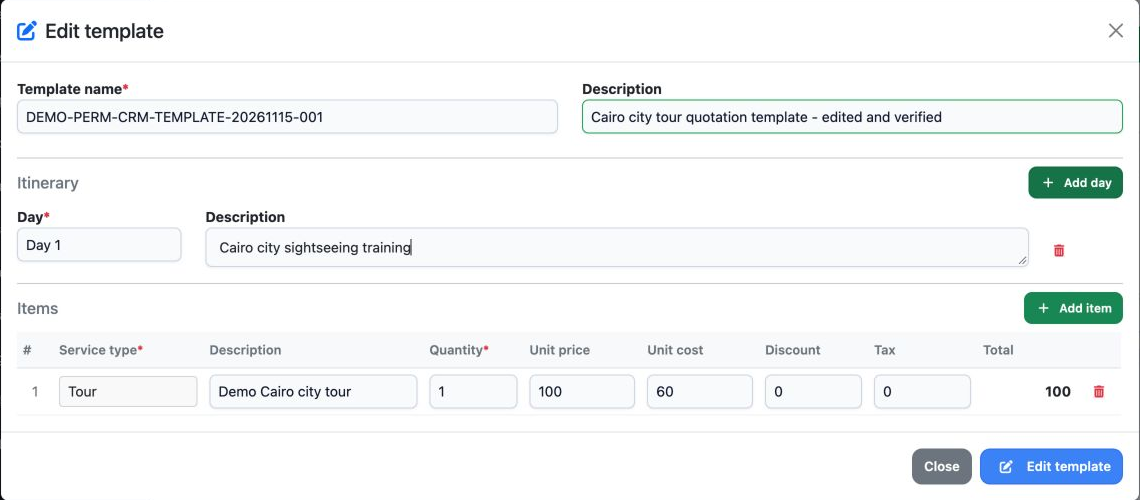
9 The description was changed to Cairo city tour quotation template - edited and verified. The form also shows the service item and an itinera...
The description was changed to Cairo city tour quotation template - edited and verified. The form also shows the service item and an itinerary day before saving.
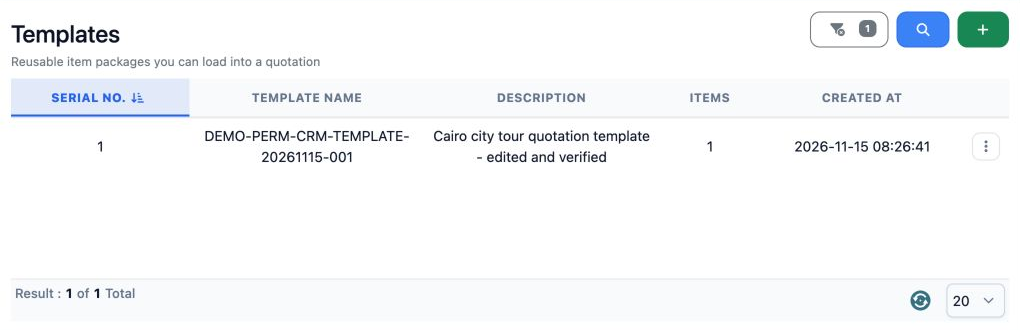
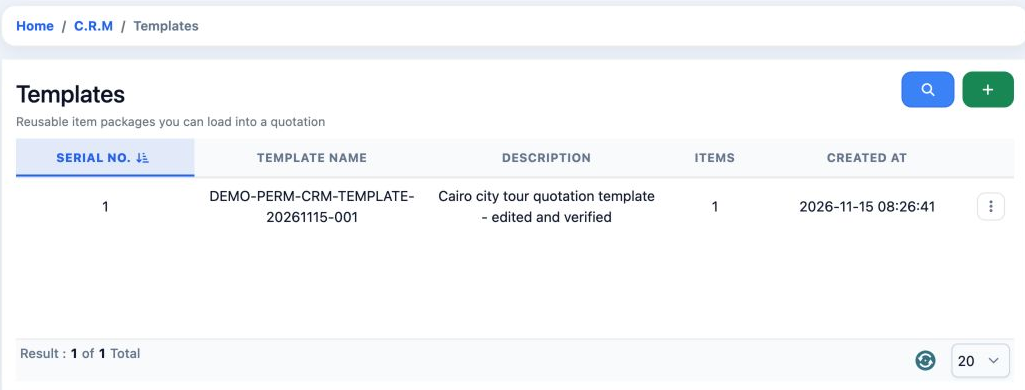
10 After saving and reloading the list, the same template showed the updated description. Check its description and serial after each edit.
After saving and reloading the list, the same template showed the updated description. Check its description and serial after each edit.

Reviewing deletion confirmation and cancelling
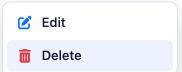
11 Open the template row menu. It shows Edit to change the template and Delete to request deletion.
Open the template row menu. It shows Edit to change the template and Delete to request deletion.

After choosing Delete, review the irreversible-deletion warning. To keep the template, choose Cancel in the confirmation dialog.
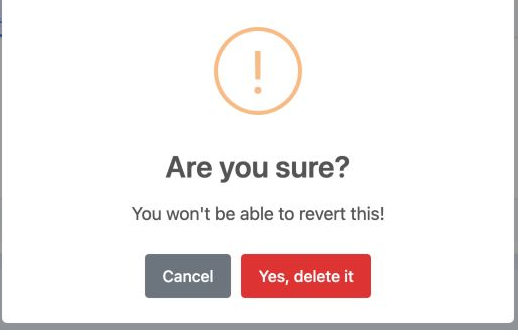
12 The dialog warns that deletion cannot be undone. Choose Cancel to retain the template.
The dialog warns that deletion cannot be undone. Choose Cancel to retain the template.
13 After the deletion request was cancelled, serial 1 remained in the list with its updated description and one item.
After the deletion request was cancelled, serial 1 remained in the list with its updated description and one item.

Sign in to record the lessons you have read. Sign in