Skip to content
Trio Travel guide

Booking Transport Service

On this page
  1. 1 Review the supplier price list
  2. 2 Add the transport service
  3. 3 Cost route and selling price
  4. 4 Review per person pricing
  5. 5 Date notes and saving
  6. 6 Edit the transport service
  7. 7 Review deletion confirmation
  8. 8 Lock the file
  9. 9 Cost and additional expense entry
  10. 10 Transport revenue entry
  11. 11 Match profit and remaining balance

1 Review the supplier price list
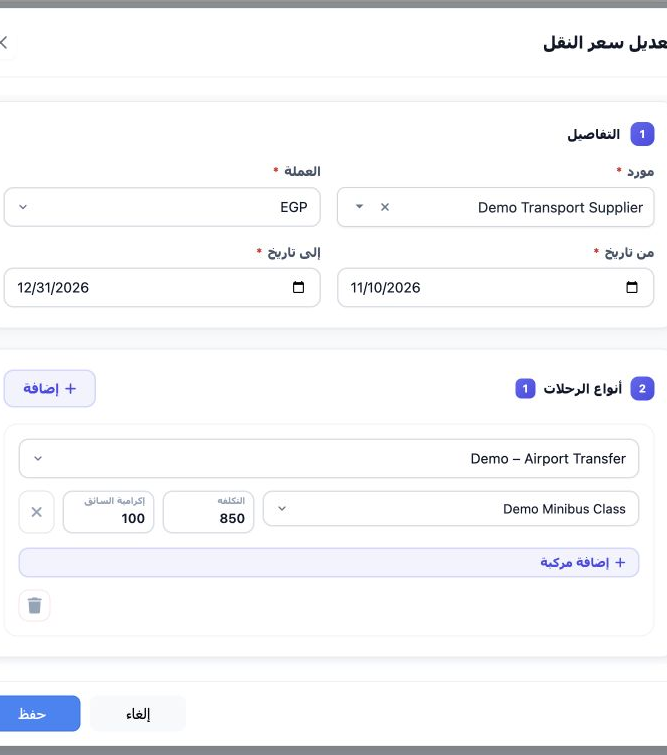
1 Open Settings → Transportation Prices. Use + for a new list, or right-click a saved row and choose Edit to review it. The list includes supp...
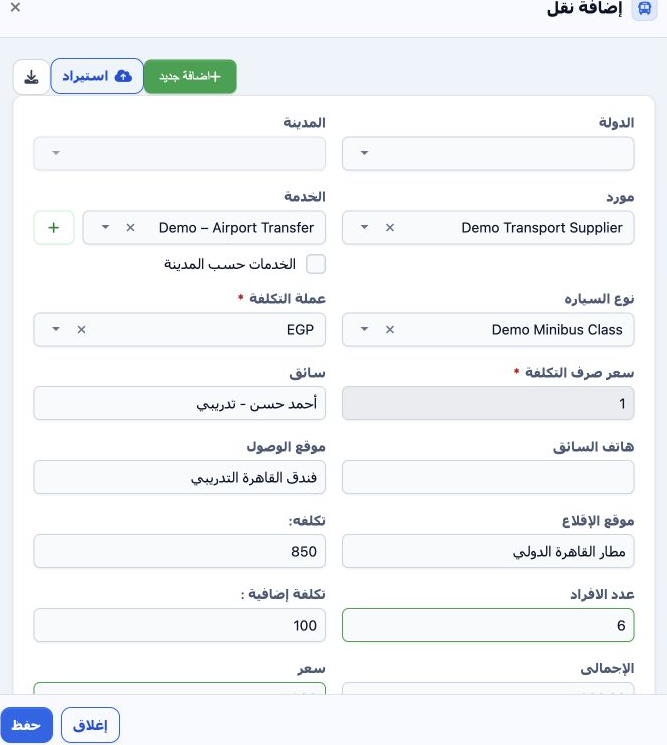
Open Settings → Transportation Prices. Use + for a new list, or right-click a saved row and choose Edit to review it. The list includes supplier, currency, validity dates, trip type, vehicle class, cost and driver tip. The existing Demo Transport Supplier list in EGP is valid 10 November–31 December 2026. Demo – Airport Transfer with Demo Minibus Class has cost 850 and driver tip 100. The review was closed with Cancel without changing the list.

2 Add the transport service

2 Open the Booking file and select Add Transport. This example uses نقل وفد القاهرة التدريبي, file 202611000007, internal code 47138792, Incom...
Open the Booking file and select Add Transport. This example uses نقل وفد القاهرة التدريبي, file 202611000007, internal code 47138792, Incoming, EGP, six adults, 20–22 November 2026. Choose the supplier, service and vehicle class matching the price list. Country, city and Services by City are available for geographical selection; these remained unselected in this example.

3 Cost route and selling price

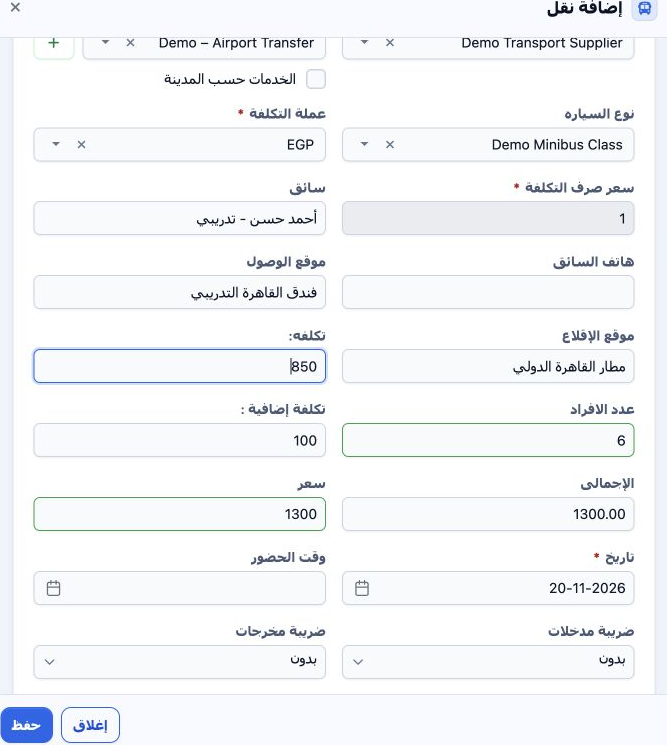
3 After selecting supplier, service and class, cost 850, additional cost 100 and EGP were retrieved automatically. Review rate 1 and enter six...
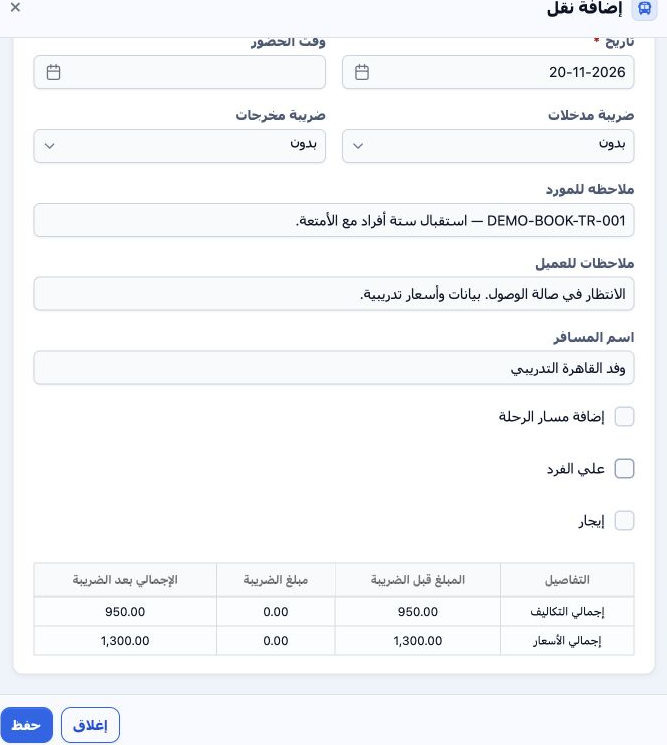
After selecting supplier, service and class, cost 850, additional cost 100 and EGP were retrieved automatically. Review rate 1 and enter six persons. Complete driver and phone when available, plus departure and arrival locations. The example uses Cairo International Airport, a training Cairo hotel and a fictional driver. Entering 1,300 in Price with Per Person off produced service cost 950 and selling total 1,300.

4 Review per person pricing

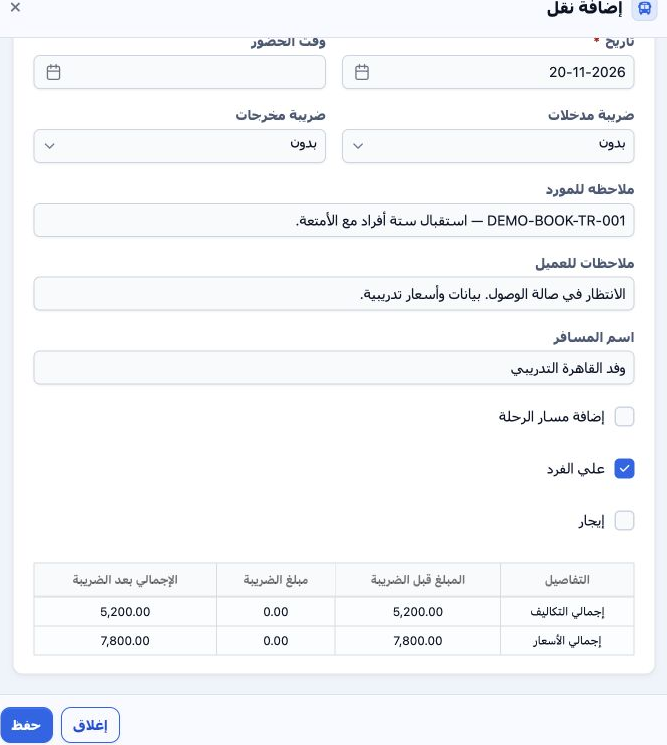
4 With Per Person enabled for six persons, the form showed total cost 5,200: 850 per person plus the additional 100 once. Selling total became...
With Per Person enabled for six persons, the form showed total cost 5,200: 850 per person plus the additional 100 once. Selling total became 7,800, based on 1,300 per person. Review the summary and choose the basis matching your agreement. The option was turned off before saving this example, which retained cost 950 and sale 1,300 for the vehicle service as a whole.

5 Date notes and saving

5 Review the date and enter pickup time when available. Add supplier notes, customer notes and passenger name. This example uses 20 November,...
Review the date and enter pickup time when available. Add supplier notes, customer notes and passenger name. This example uses 20 November, a note to receive six travelers with luggage and the training group name. Review taxes and the cost/sale summary, then Save. Both taxes remained None; Per Person, Rental and Add Itinerary remained off. The saved service reference is 47138986.

6 Edit the transport service

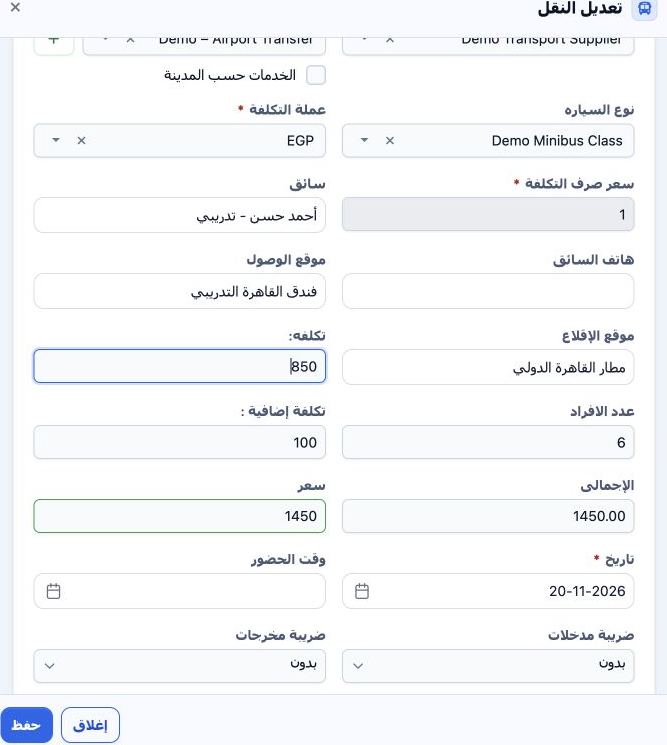
6 Choose Actions → Edit on the transport row. Change the required fields, Save and review the row. Selling price changed from 1,300 to 1,450 a...
Choose Actions → Edit on the transport row. Change the required fields, Save and review the row. Selling price changed from 1,300 to 1,450 and the customer note was updated to specify arrival hall 3. The saved row showed sale 1,450, with base cost 850 and additional cost 100 unchanged, total 950.

7 Review deletion confirmation

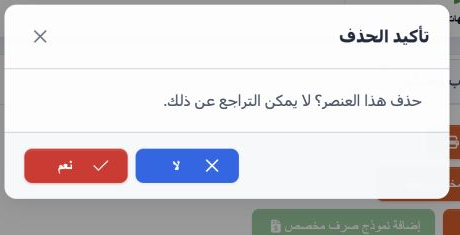
7 Choose Actions → Delete. The message states that deletion cannot be undone. Select No to cancel or Yes to confirm removal of the intended it...
Choose Actions → Delete. The message states that deletion cannot be undone. Select No to cancel or Yes to confirm removal of the intended item. No was selected here, preserving the transport service for locking and journal review.

8 Lock the file

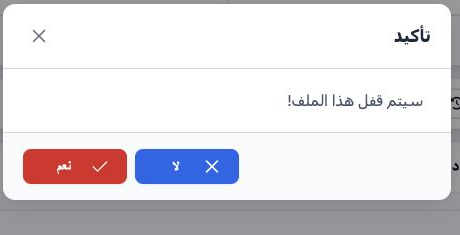
8 After reviewing the service, select Lock and confirm Yes. The row accounting status became Confirmed and Unlock appeared. Open Accounting →...
After reviewing the service, select Lock and confirm Yes. The row accounting status became Confirmed and Unlock appeared. Open Accounting → Journal Entries and search Relative# 47138792 to review the cost and revenue entries.

9 Cost and additional expense entry

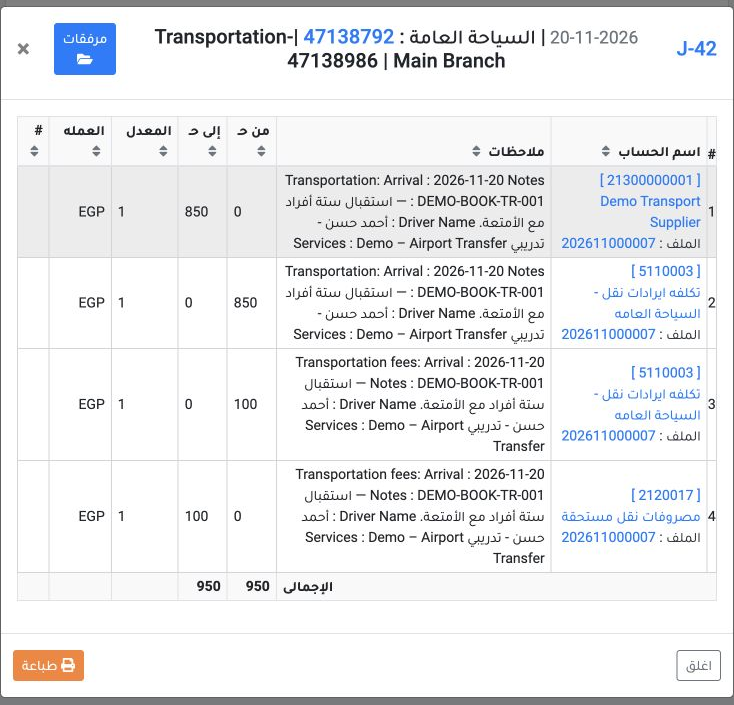
9 Right-click J-42 and select View. Dated 20 November, source Transportation, it references service 47138986. Cost account 5110003 is debited...
Right-click J-42 and select View. Dated 20 November, source Transportation, it references service 47138986. Cost account 5110003 is debited 850 against credit 850 to supplier 21300000001. A further debit 100 to 5110003 is offset by credit 100 to accrued transport expenses account 2120017. Both totals are 950 EGP. In this example, do not include the additional 100 in the supplier balance when reconciling.

10 Transport revenue entry

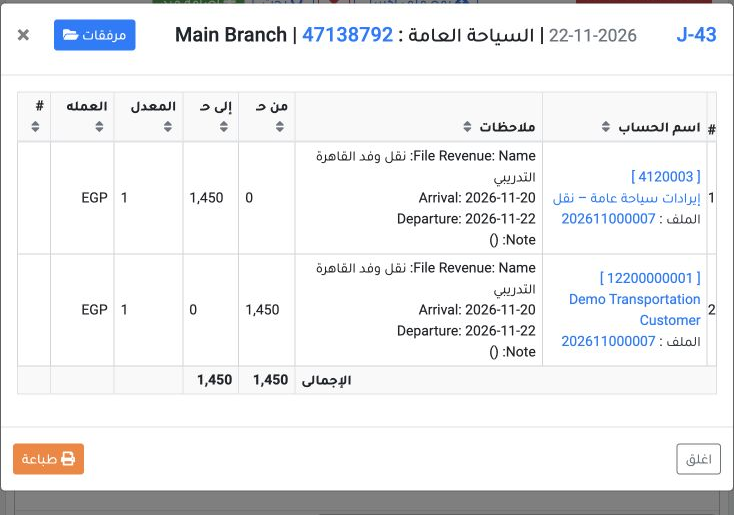
10 View J-43 for the same file reference. Dated 22 November, source Booking Revenue, it debits 1,450 EGP to Demo Transportation Customer accoun...
View J-43 for the same file reference. Dated 22 November, source Booking Revenue, it debits 1,450 EGP to Demo Transportation Customer account 12200000001 and credits 1,450 to transport-revenue account 4120003. Check the file number in the narrative and equal totals.

11 Match profit and remaining balance
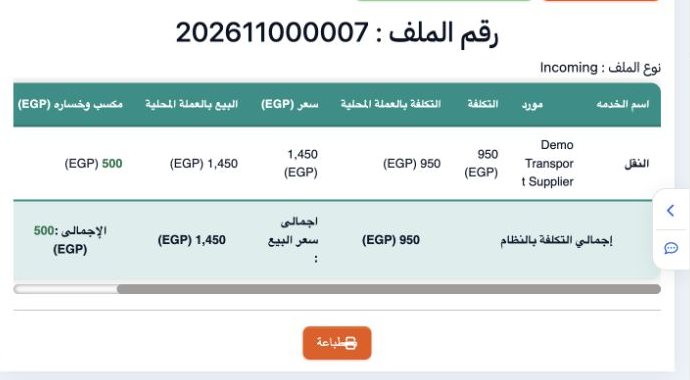
11 Open Profit and Loss. Cost is 950, sale 1,450 and profit 500 EGP. The displayed 52.63% is calculated on cost. Customer remaining is still 1,...
Open Profit and Loss. Cost is 950, sale 1,450 and profit 500 EGP. The displayed 52.63% is calculated on cost. Customer remaining is still 1,450 because no payment was recorded. Locking the file and confirming journals do not mean that the amount has been collected.

Sign in to record the lessons you have read. Sign in