Skip to content
Trio Travel guide

Extra Services in General Tourism

On this page
  1. Open the General Tourism file
  2. Add the service
  3. Edit the service
  4. Delete the service
  5. Lock the file and review its entries
  6. File revenue entry
  7. Post the converted invoice
  8. Unlock the file after posting its invoice
  9. Journal entries after unlocking
  10. Verify the remaining invoice entry

Open the General Tourism file

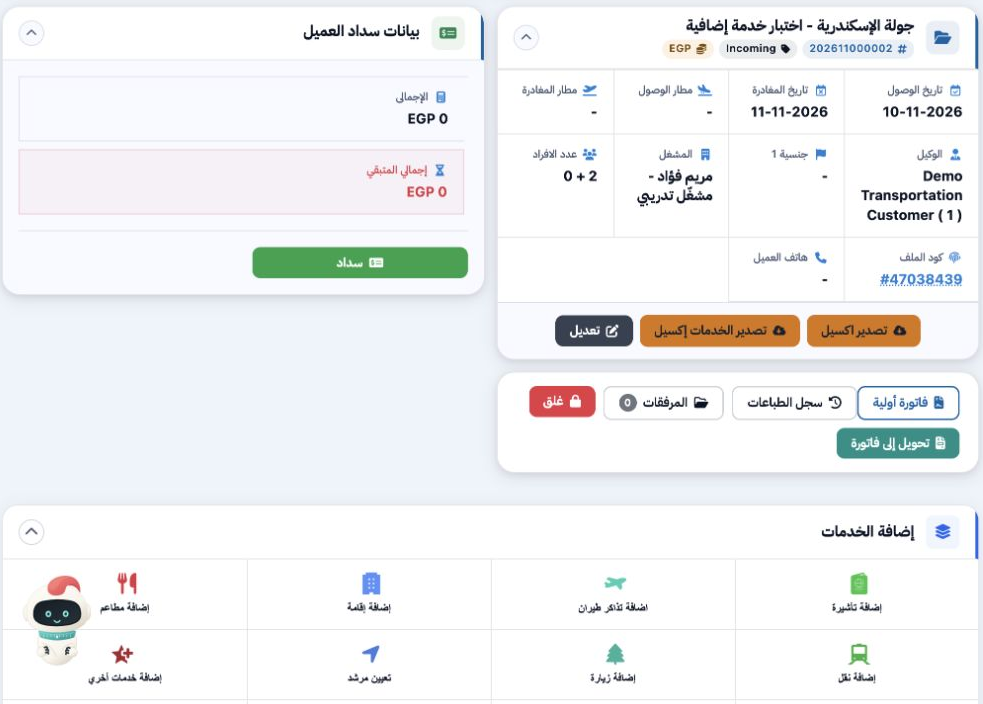
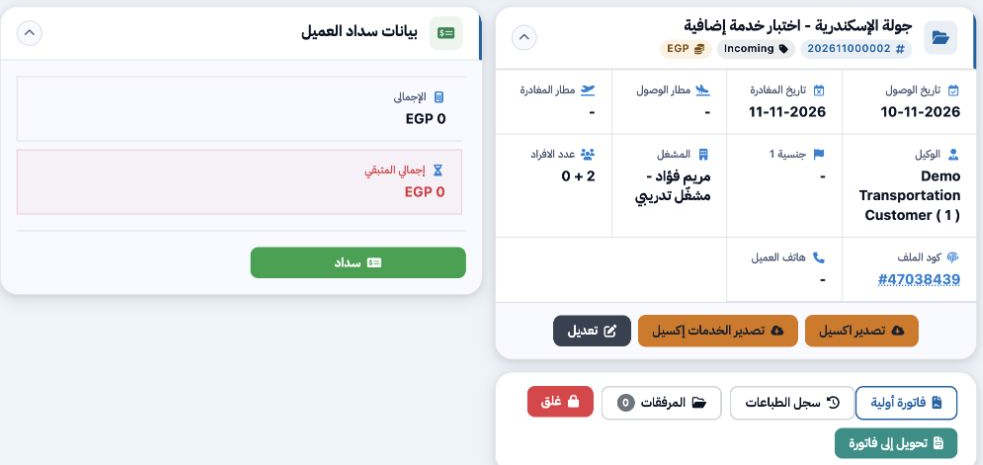
1 In Portal → General Tourism → Files, open the file number. An Incoming file can be opened for an individual or a group. This example uses fi...
In Portal → General Tourism → Files, open the file number. An Incoming file can be opened for an individual or a group. This example uses file 202611000002 for two adults. In the services panel, choose Add Other Services.

Add the service

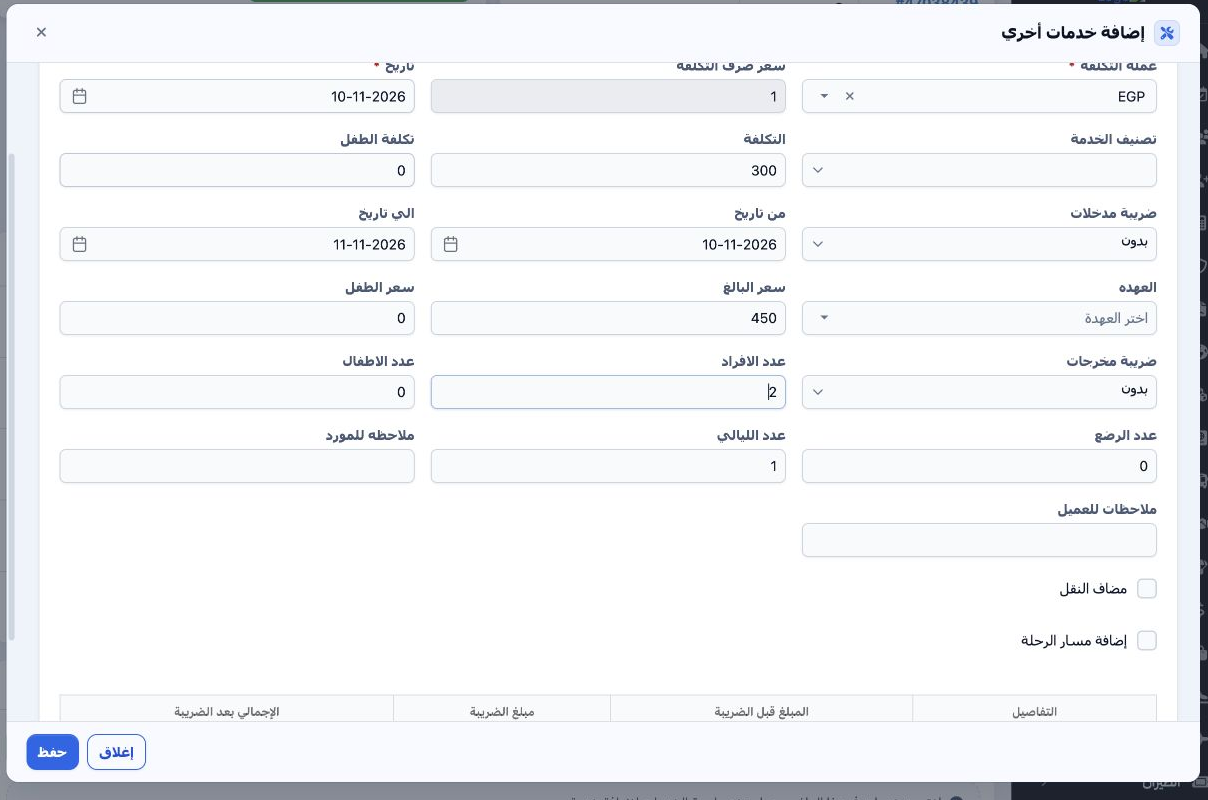
2 Select the saved service definition, supplier, cost currency and date. Review the cost, enter the adult price, headcount and customer notes,...
Select the saved service definition, supplier, cost currency and date. Review the cost, enter the adult price, headcount and customer notes, then save. EGP 450 for each adult gave EGP 900 in sales and EGP 600 in total cost.

Edit the service

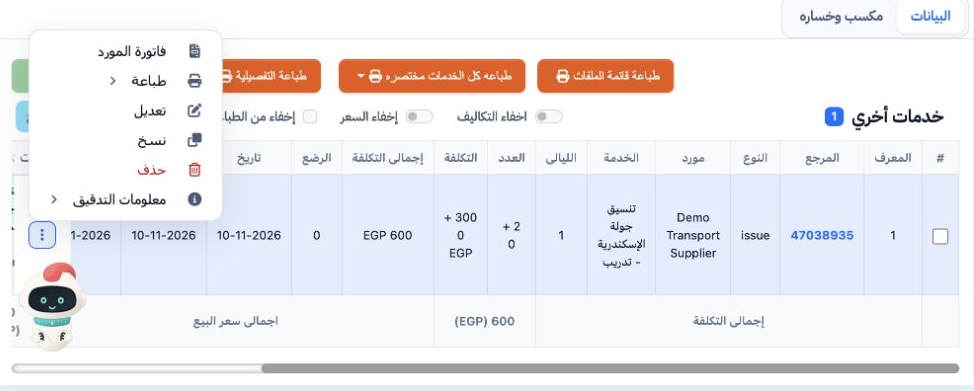
3 In Other Services, open Actions → Edit on the target row. The example line ID is 47038935.
In Other Services, open Actions → Edit on the target row. The example line ID is 47038935.
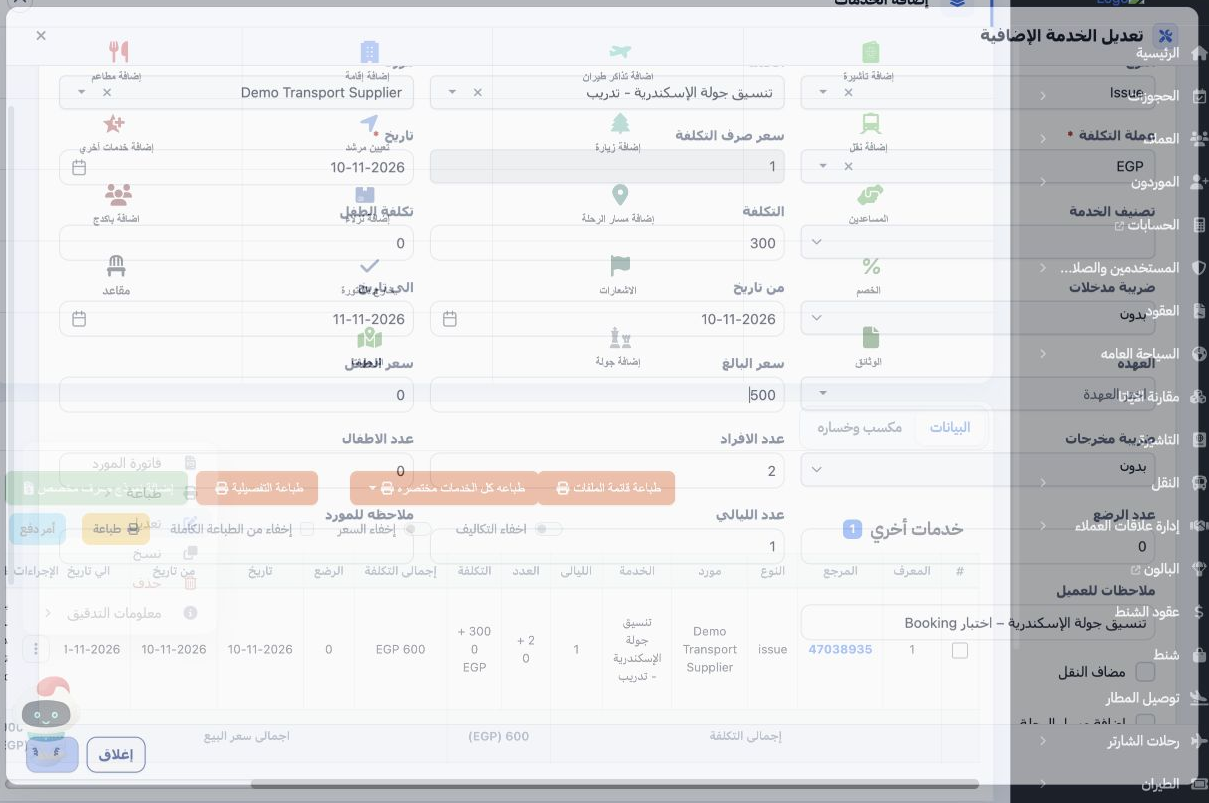
4 Change the notes or price and save. After raising the adult price to EGP 500 and refreshing, the register showed EGP 1,000 in sales and EGP...
Change the notes or price and save. After raising the adult price to EGP 500 and refreshing, the register showed EGP 1,000 in sales and EGP 600 in cost.

Delete the service

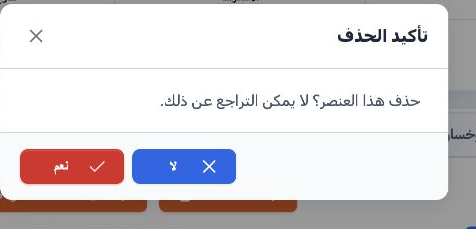
5 Choose Actions → Delete on the service row. Check the selected line before choosing Yes, because deletion is permanent.
Choose Actions → Delete on the service row. Check the selected line before choosing Yes, because deletion is permanent.
6 Refresh the file and check that the line has disappeared. After removing the only service in this example, the file total returned to zero.
Refresh the file and check that the line has disappeared. After removing the only service in this example, the file total returned to zero.

Lock the file and review its entries
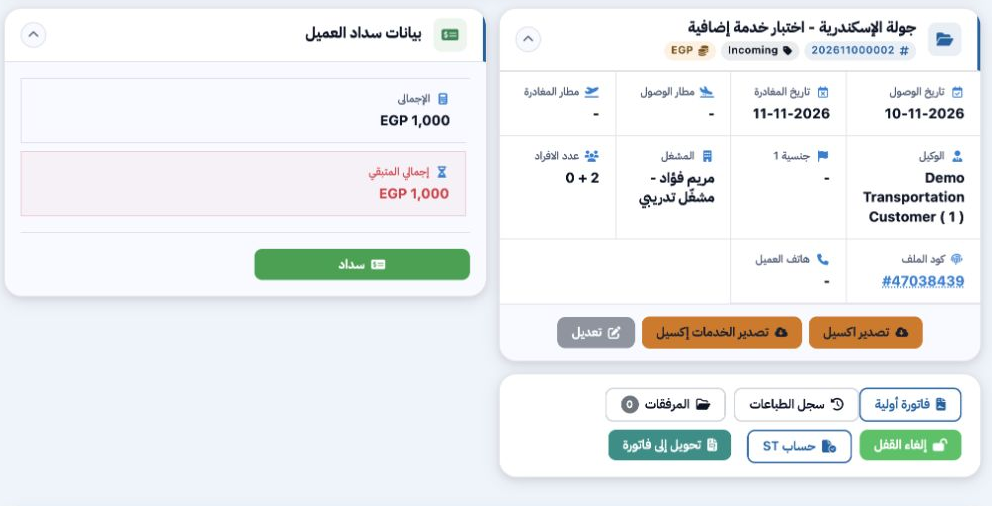
7 A separate accounting test used a line with EGP 1,000 in sales and EGP 600 in cost. Choose Lock and confirm. Unlock appears and the service...
A separate accounting test used a line with EGP 1,000 in sales and EGP 600 in cost. Choose Lock and confirm. Unlock appears and the service line becomes Confirmed.
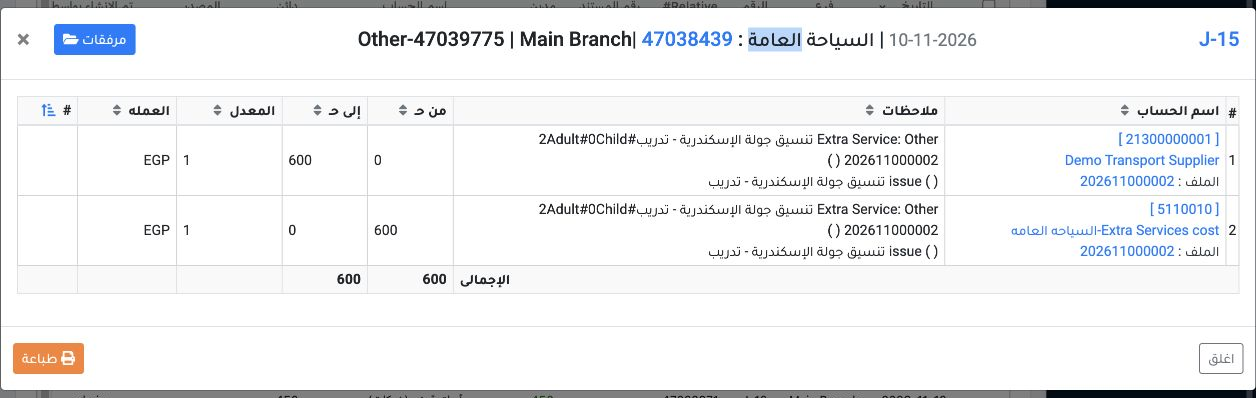
8 In Journal Entries, J-15 records the service cost. It debits Extra Services Cost (5110010) and credits the supplier (21300000001) for EGP 60...
In Journal Entries, J-15 records the service cost. It debits Extra Services Cost (5110010) and credits the supplier (21300000001) for EGP 600.

File revenue entry

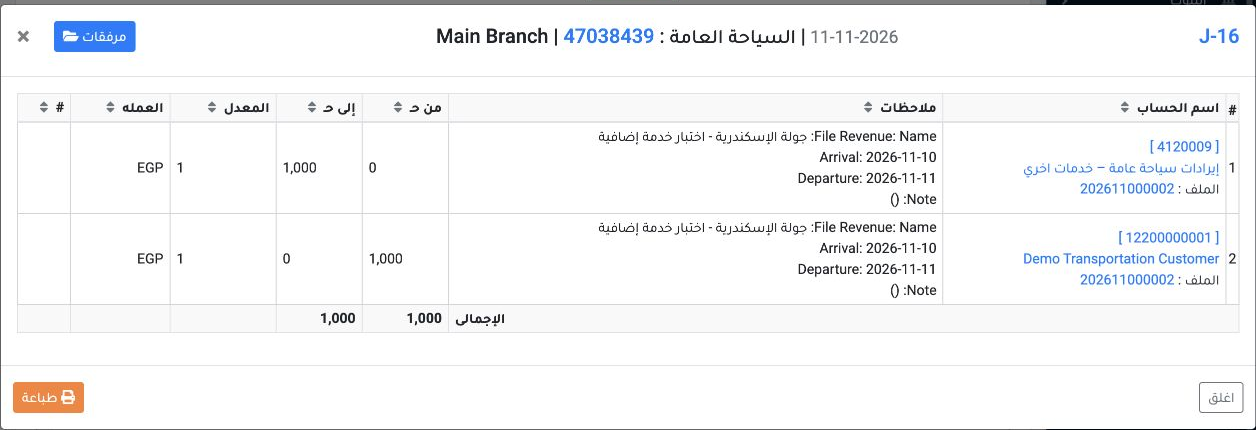
9 Locking also produced J-16 under file reference 47038439. It debits the customer (12200000001) and credits General Tourism Other Services Re...
Locking also produced J-16 under file reference 47038439. It debits the customer (12200000001) and credits General Tourism Other Services Revenue (4120009) for EGP 1,000.
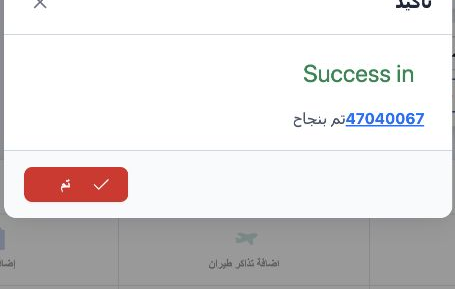
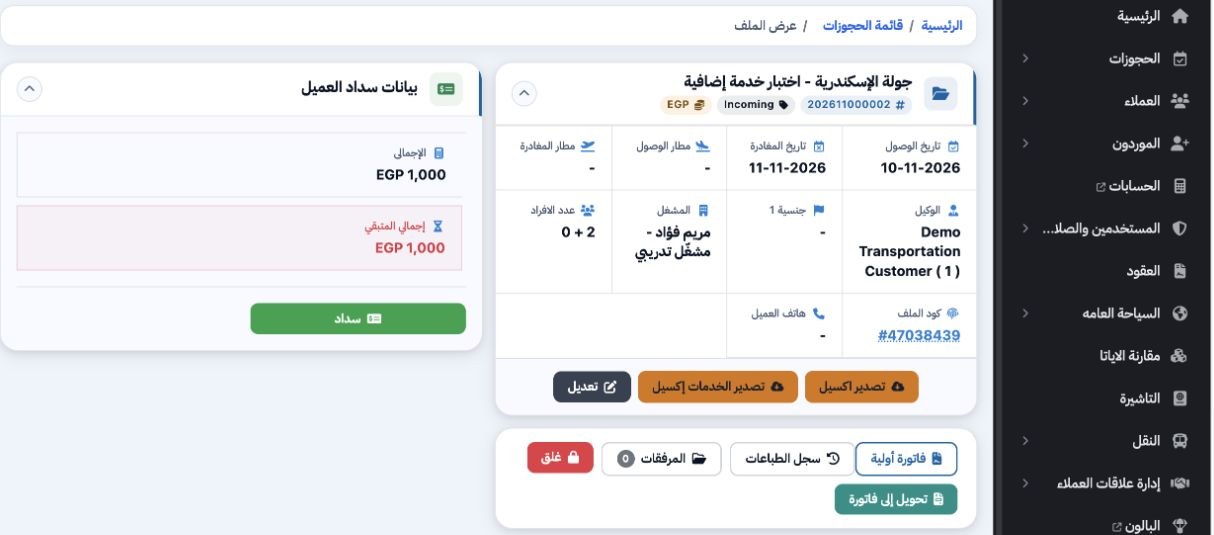
10 In the file, choose Convert to Invoice and confirm. Sales invoice i - 4 / 2026 appeared as Unconfirmed, with its journal field blank at conv...
In the file, choose Convert to Invoice and confirm. Sales invoice i - 4 / 2026 appeared as Unconfirmed, with its journal field blank at conversion.

Post the converted invoice

11 In Sales Invoices, choose Post from the invoice row menu and confirm. After processing, journal link 17 appeared.
In Sales Invoices, choose Post from the invoice row menu and confirm. After processing, journal link 17 appeared.
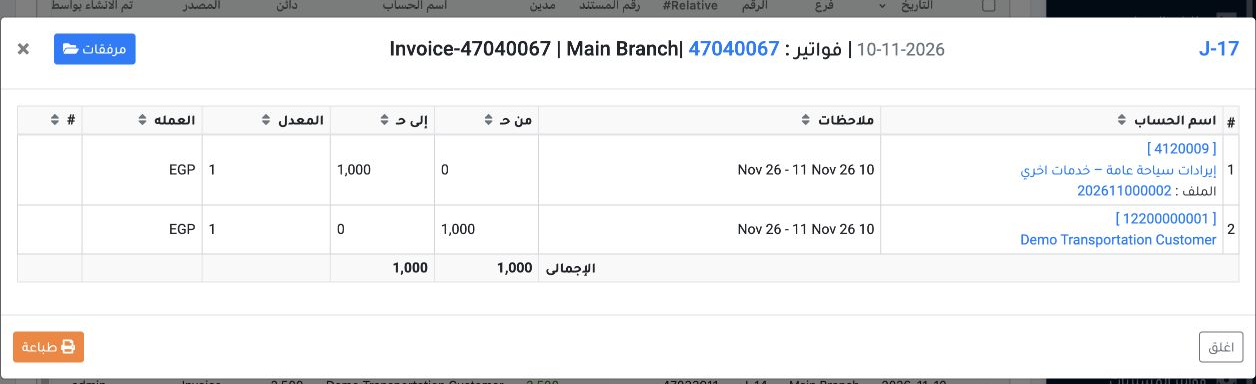
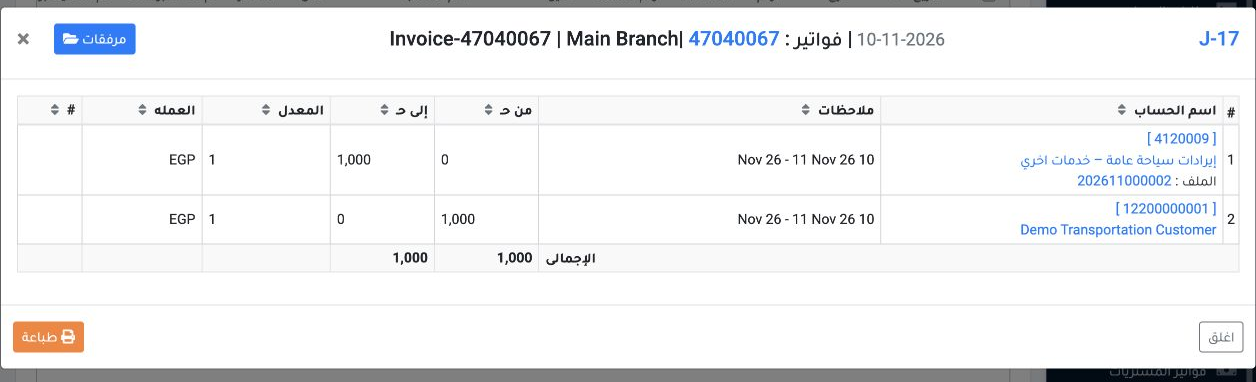
12 J-17 debits the customer (12200000001) and credits revenue (4120009) for EGP 1,000. J-16 remained visible with the same accounts and amount...
J-17 debits the customer (12200000001) and credits revenue (4120009) for EGP 1,000. J-16 remained visible with the same accounts and amount in this test.

Unlock the file after posting its invoice
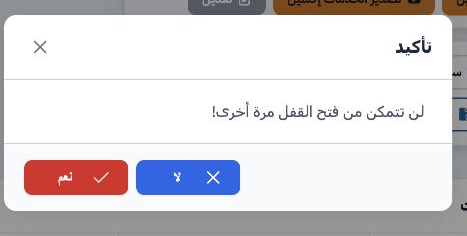
13 Open file 202611000002 and choose Unlock. Review the confirmation message, then choose Yes.
Open file 202611000002 and choose Unlock. Review the confirmation message, then choose Yes.
14 After refreshing, Lock was available again and the service line became Unconfirmed. The line still linked to invoice 4.
After refreshing, Lock was available again and the service line became Unconfirmed. The line still linked to invoice 4.

Journal entries after unlocking

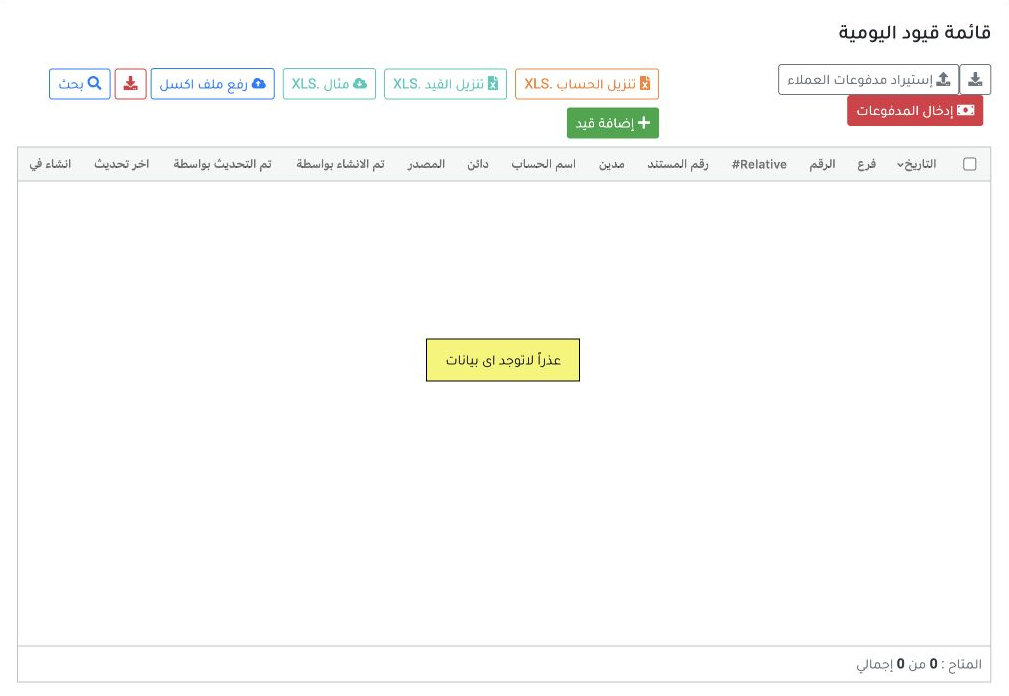
15 In Journal Entries → Search, enter file code 47038439 in Relative#. The search returned zero entries. The EGP 600 cost entry J-15 and the EG...
In Journal Entries → Search, enter file code 47038439 in Relative#. The search returned zero entries. The EGP 600 cost entry J-15 and the EGP 1,000 lock revenue entry J-16 disappeared from the register.

Verify the remaining invoice entry

16 In Sales Invoices, i - 4 / 2026 remained Confirmed and Unpaid, with a link to entry 17.
In Sales Invoices, i - 4 / 2026 remained Confirmed and Unpaid, with a link to entry 17.
17 J-17 still debits the customer (12200000001) and credits revenue (4120009) for EGP 1,000. The duplicate revenue was gone in this example. Of...
J-17 still debits the customer (12200000001) and credits revenue (4120009) for EGP 1,000. The duplicate revenue was gone in this example. Of the three entries, only the invoice entry remained.

Sign in to record the lessons you have read. Sign in