Skip to content
Trio Travel guide

Payments from a Booking file

On this page
  1. Set up payment methods and record a bank payment
  2. Record a cash receipt and a cash refund
  3. Post the bank payment
  4. Assign a treasury and confirm the cash receipt
  5. Review the refund and the file balance
  6. Retry the cash refund order
  7. Verify the posting result
  8. Resolve “Select the treasury first”
  9. Confirm the disbursement voucher and verify its entry
  10. Confirm the disbursement voucher for refund order 5
  11. Reconcile the customer account
  12. Reconcile treasury and the Booking balance
  13. Collect the remaining balance in cash
  14. Verify the receipt journal entry
  15. Check the file balance and the invoice status
  16. Check allocation of Booking payments to an invoice
  17. What the invoice Payment menu opens

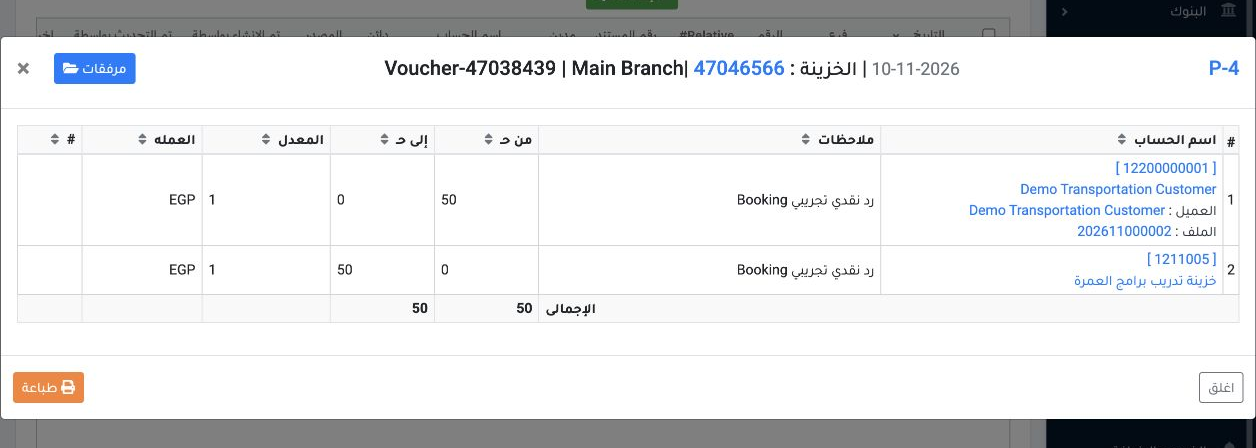
Refund order 4 is now posted as disbursement voucher P-3 and journal entry P-4. The last two pages show the recovery and posting steps.

Set up payment methods and record a bank payment
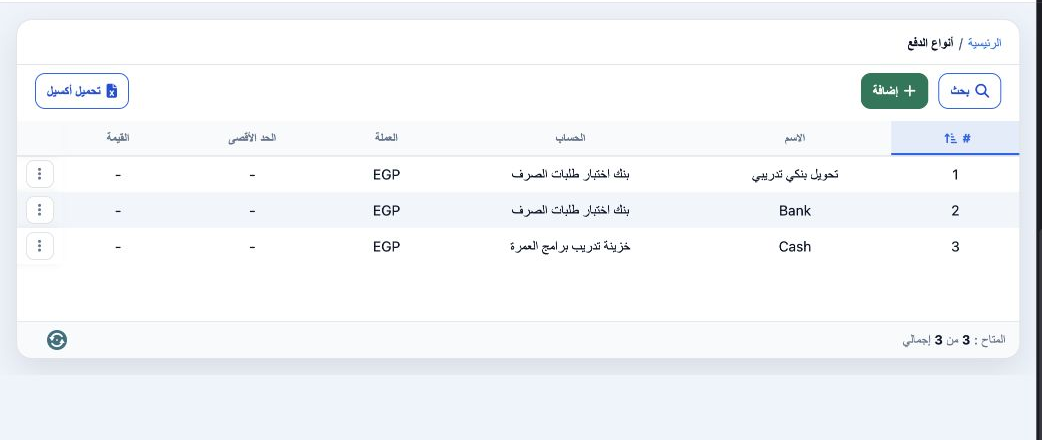
1 In Portal Settings, open Payment Methods. Check that the methods are spelled Bank and Cash, and that the bank ledger is marked as a bank in...
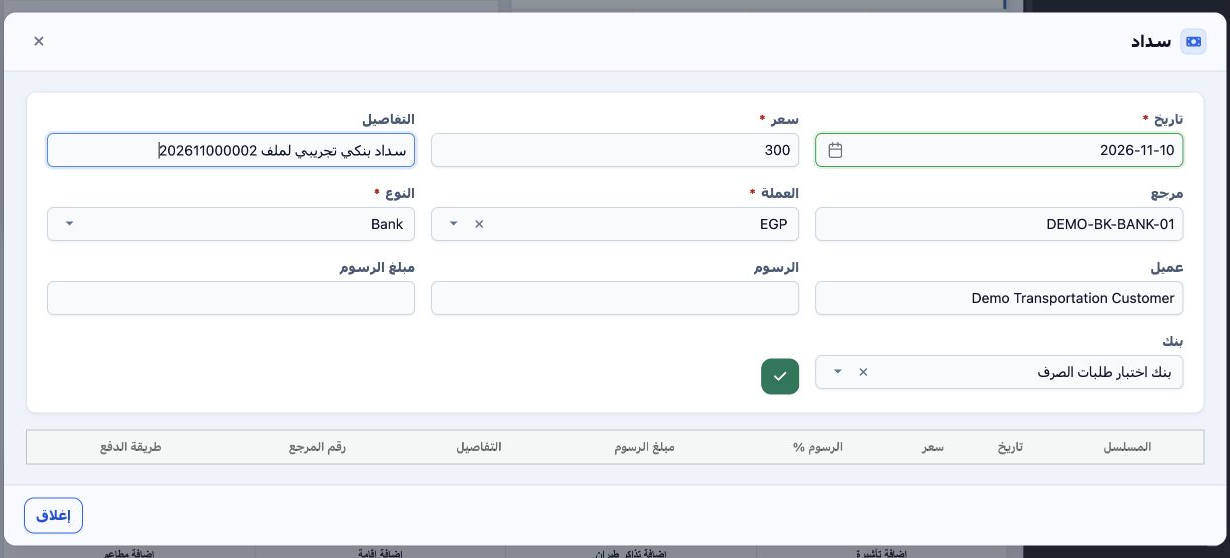
In Portal Settings, open Payment Methods. Check that the methods are spelled Bank and Cash, and that the bank ledger is marked as a bank in the chart of accounts.
2 Open general tourism file 202611000002 and select Payment. Choose Bank and select the test bank account. Enter the date, EGP 300 and the det...
Open general tourism file 202611000002 and select Payment. Choose Bank and select the test bank account. Enter the date, EGP 300 and the details, then select the check mark to save.

Record a cash receipt and a cash refund
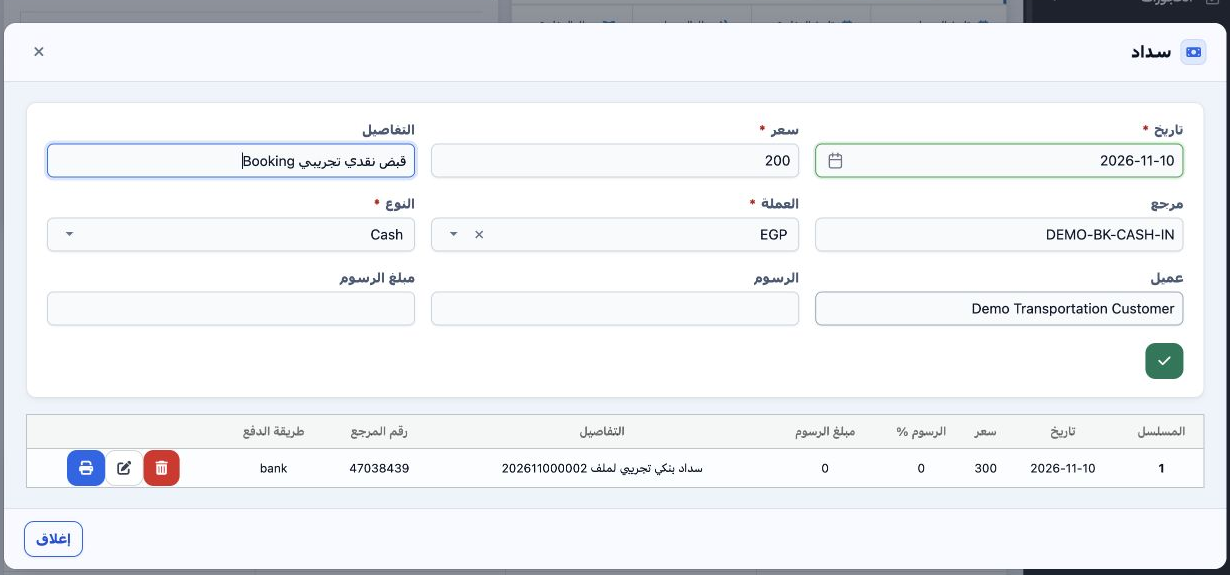
3 In Payment, select Cash and enter positive EGP 200 to record money received from the customer. Save using the check mark.
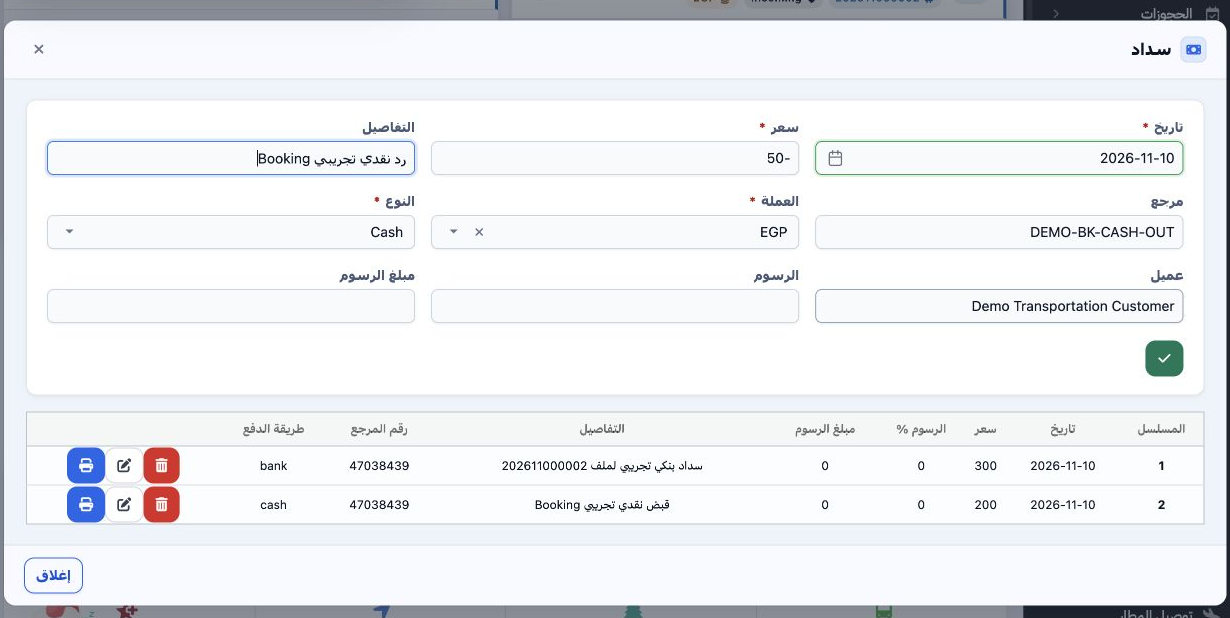
In Payment, select Cash and enter positive EGP 200 to record money received from the customer. Save using the check mark.
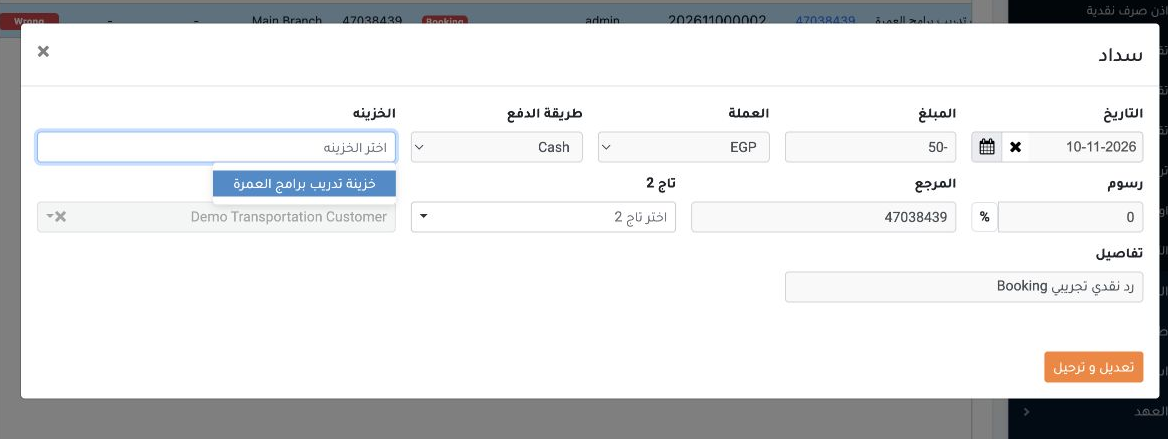
4 To record a partial refund to the customer, select Cash and enter EGP −50. Save the line and check the posting result in Accounting.
To record a partial refund to the customer, select Cash and enter EGP −50. Save the line and check the posting result in Accounting.

Post the bank payment

5 In Accounting, open Treasury → Payment Orders. Match the file number and amount. Right-click the Bank order and select Post to Final Account...
In Accounting, open Treasury → Payment Orders. Match the file number and amount. Right-click the Bank order and select Post to Final Accounts.
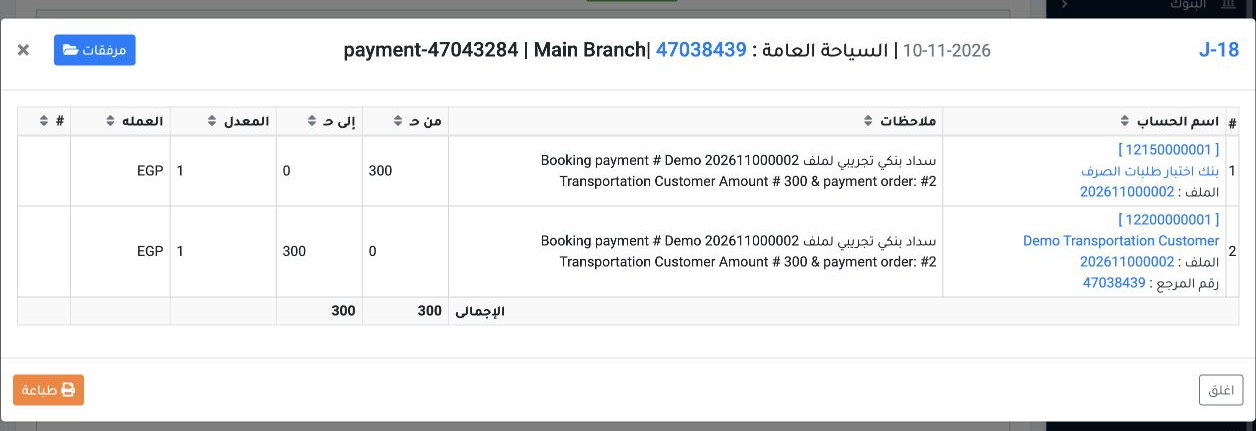
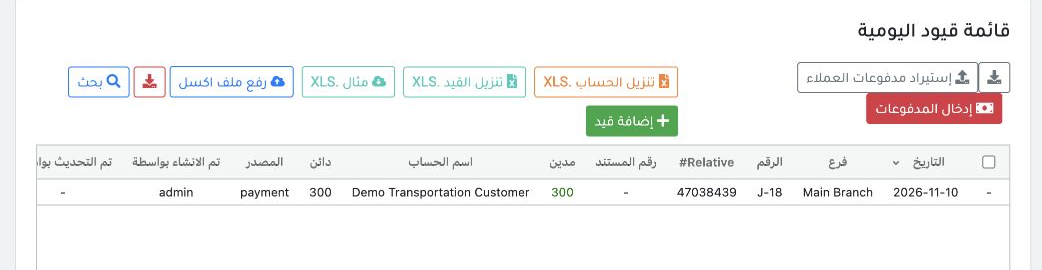
6 In this test, payment order 2 was confirmed and created J-18. Debit bank 12150000001 and credit customer 12200000001, EGP 300 each. No separ...
In this test, payment order 2 was confirmed and created J-18. Debit bank 12150000001 and credit customer 12200000001, EGP 300 each. No separate bank receipt was found for this payment.

Assign a treasury and confirm the cash receipt
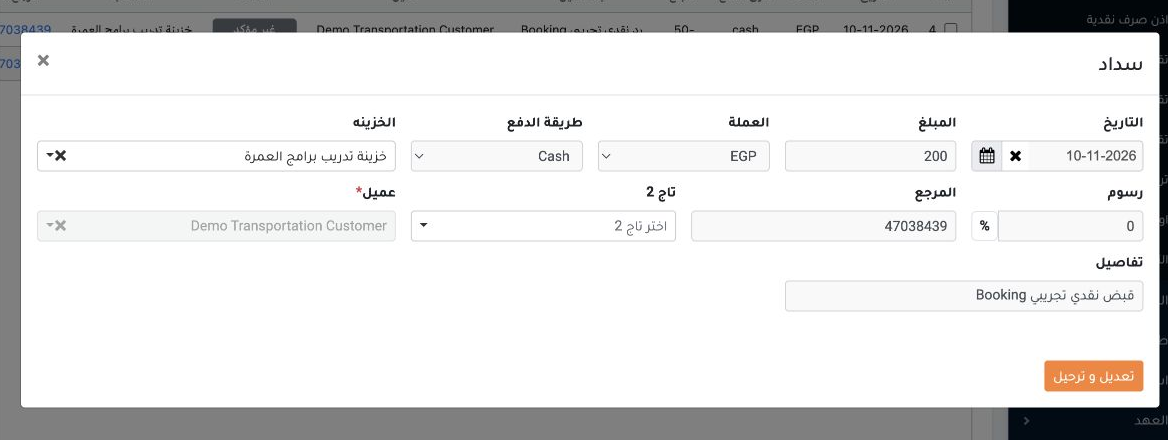
7 On the EGP 200 Cash order, choose Edit. Select the receiving treasury explicitly in the Treasury field, then select Edit and Post.
On the EGP 200 Cash order, choose Edit. Select the receiving treasury explicitly in the Treasury field, then select Edit and Post.
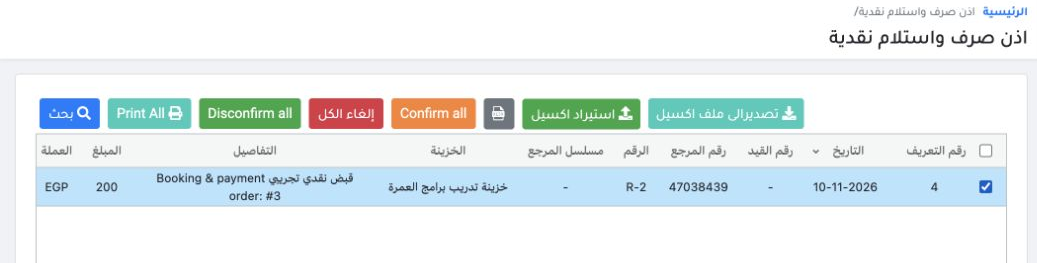
8 Open the generated receipt R-2. Select only its row, then choose Confirm all and confirm the action. Check the voucher status after posting...
Open the generated receipt R-2. Select only its row, then choose Confirm all and confirm the action. Check the voucher status after posting finishes.
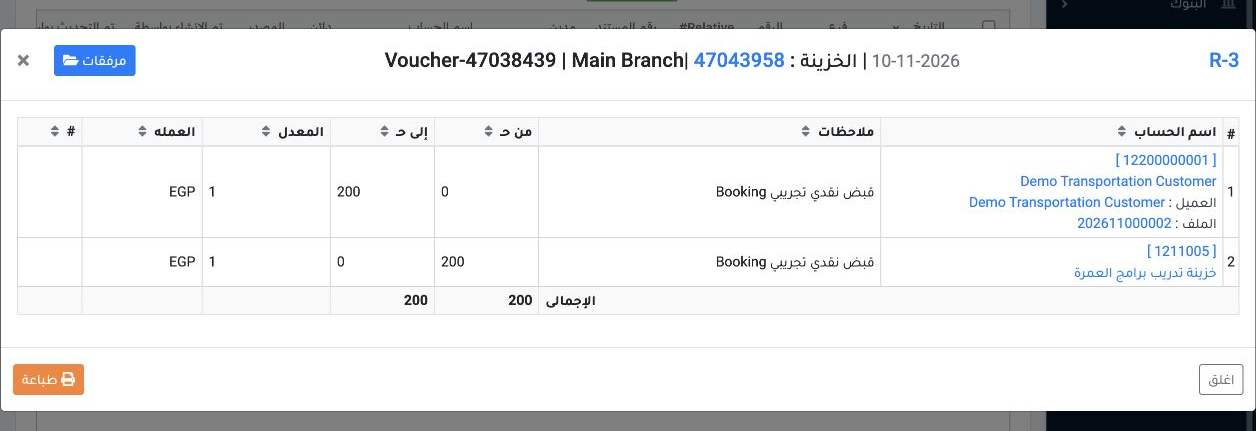
9 Confirming the receipt created R-3: debit treasury 1211005 and credit customer 12200000001, EGP 200 each.
Confirming the receipt created R-3: debit treasury 1211005 and credit customer 12200000001, EGP 200 each.

Review the refund and the file balance
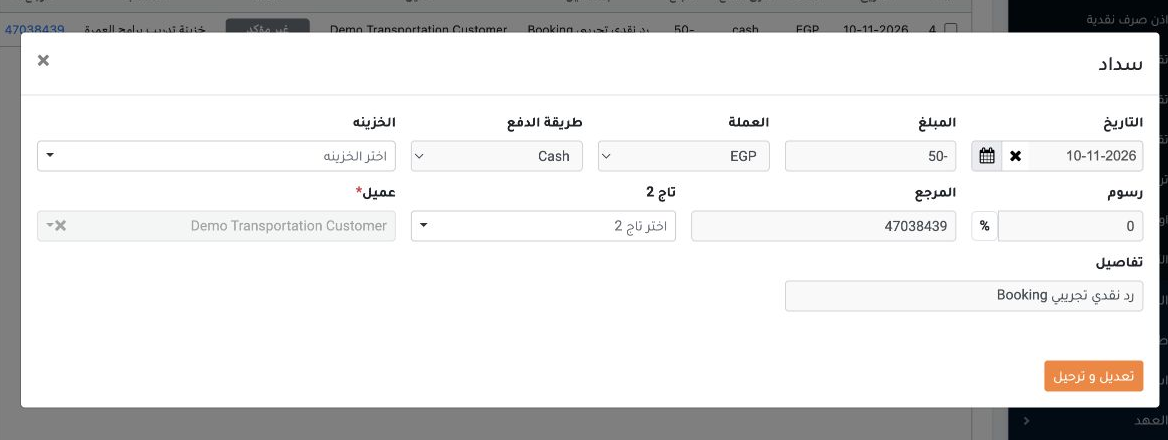
10 On the EGP −50 Cash order, choose Edit, select the treasury and select Edit and Post.
On the EGP −50 Cash order, choose Edit, select the treasury and select Edit and Post.
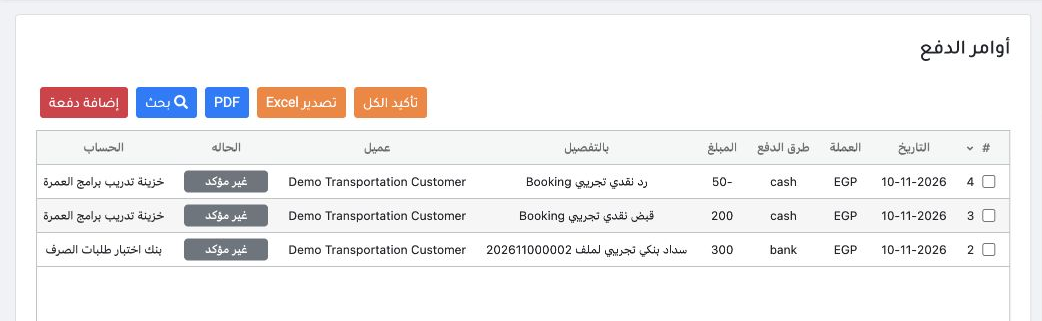
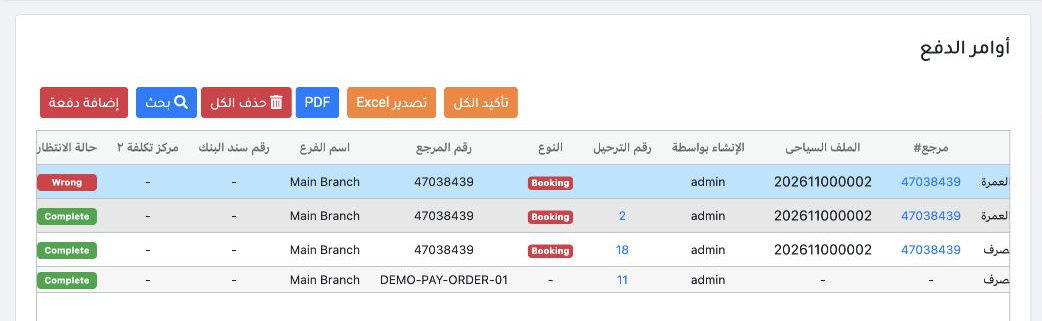
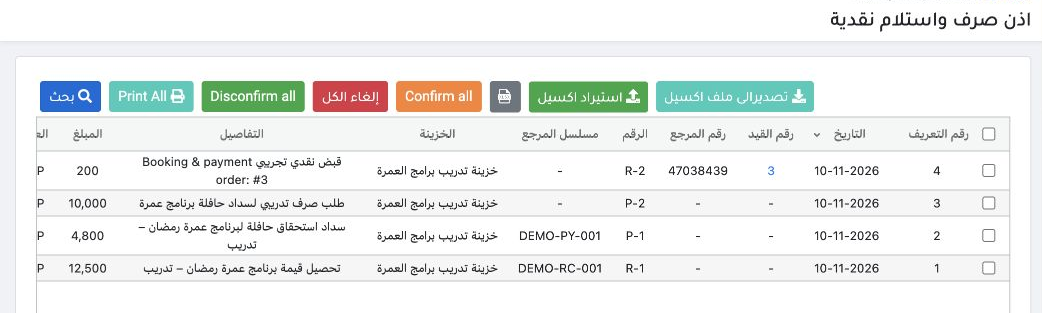
11 To review the outcome, select Search → Confirmation status → All. Refund order 4 remained unconfirmed and showed Wrong. No disbursement vouc...
To review the outcome, select Search → Confirmation status → All. Refund order 4 remained unconfirmed and showed Wrong. No disbursement voucher or posted entry was found for it in this test.
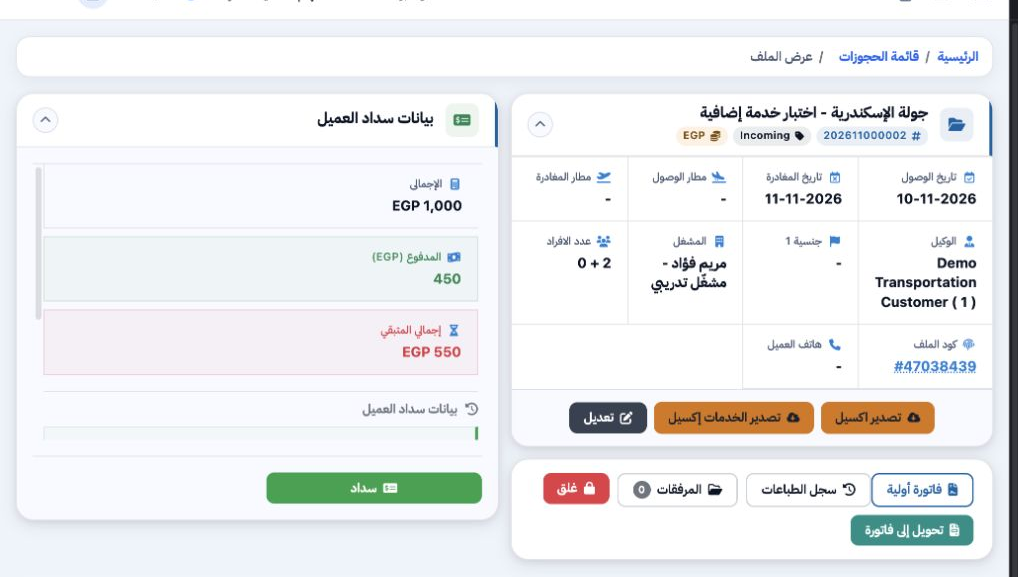
12 The file displayed EGP 450 paid and EGP 550 outstanding. That balance includes the recorded refund line; check its Accounting status before...
The file displayed EGP 450 paid and EGP 550 outstanding. That balance includes the recorded refund line; check its Accounting status before treating the refund as posted.

Retry the cash refund order

13 Under Accounting → Settings → Treasuries, check the ledger, branch and currency. The training treasury is configured for Main Branch and EGP...
Under Accounting → Settings → Treasuries, check the ledger, branch and currency. The training treasury is configured for Main Branch and EGP.
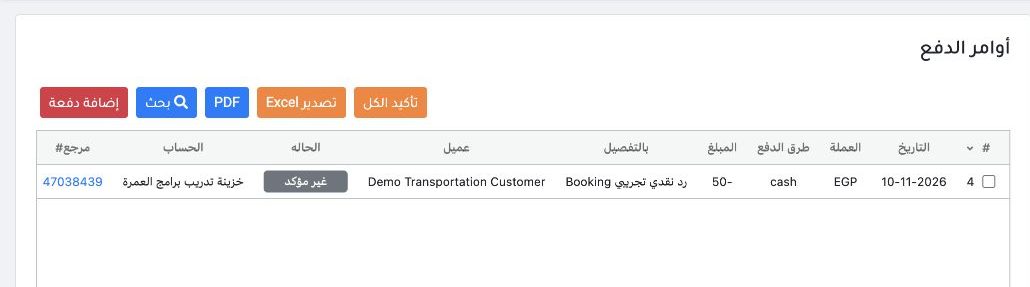
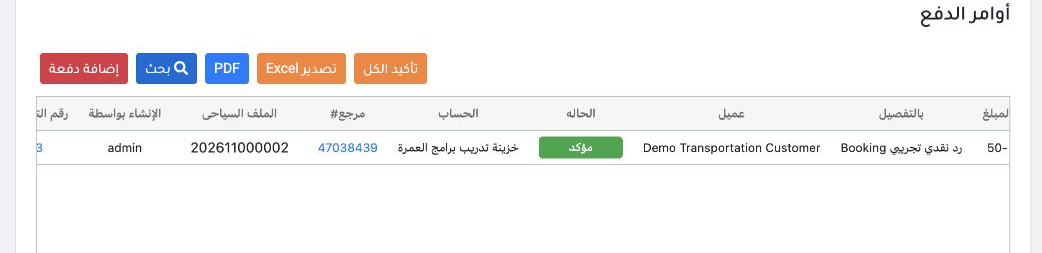
14 Under Treasury → Payment Orders, edit order 4. Select the training treasury, then choose Edit and Post.
Under Treasury → Payment Orders, edit order 4. Select the training treasury, then choose Edit and Post.
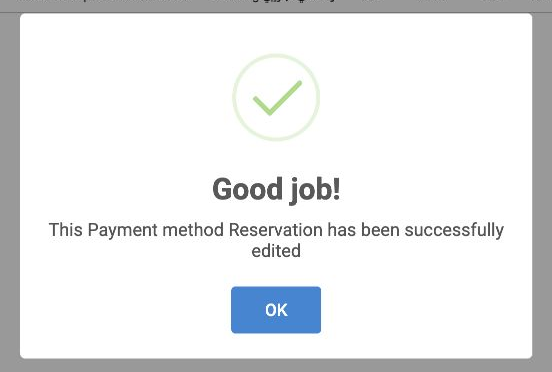
15 This message confirms the edit was saved. Close it and check the order status in the list.
This message confirms the edit was saved. Close it and check the order status in the list.

Verify the posting result

16 Refund order 4 for EGP −50 remained unconfirmed with queue status Wrong.
Refund order 4 for EGP −50 remained unconfirmed with queue status Wrong.
17 Under Treasury → Post to Final Accounts, show all confirmation statuses. The list contains receipt R-2 for EGP 200. No disbursement voucher...
Under Treasury → Post to Final Accounts, show all confirmation statuses. The list contains receipt R-2 for EGP 200. No disbursement voucher appeared for the refund.
18 In Journal Entries, searching Relative# for 47038439 returned bank entry J-18 only. There was no refund entry whose debit and credit could b...
In Journal Entries, searching Relative# for 47038439 returned bank entry J-18 only. There was no refund entry whose debit and credit could be verified.

Resolve “Select the treasury first”
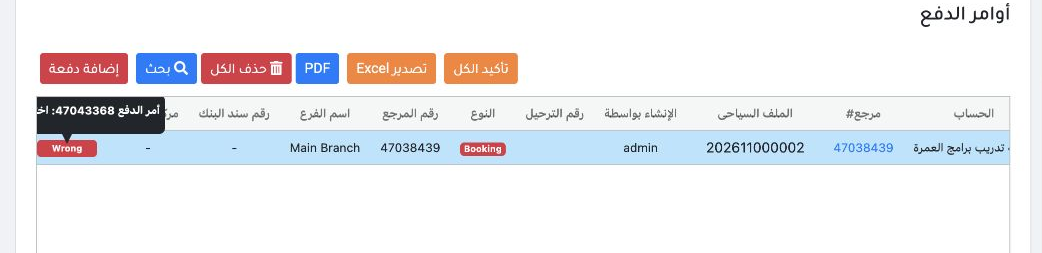
19 Under Treasury → Payment Orders, click Wrong on order 4. The posting message reads “Payment order 47043368: Select the treasury first.”
Under Treasury → Payment Orders, click Wrong on order 4. The posting message reads “Payment order 47043368: Select the treasury first.”
20 Edit the same order. Change the payment method to Bank, then back to Cash before saving. Select the training treasury and choose Edit and Po...
Edit the same order. Change the payment method to Bank, then back to Cash before saving. Select the training treasury and choose Edit and Post.
21 Search for serial 4 with confirmation status set to All. Check that the order is Confirmed and its queue status is Complete.
Search for serial 4 with confirmation status set to All. Check that the order is Confirmed and its queue status is Complete.

Confirm the disbursement voucher and verify its entry
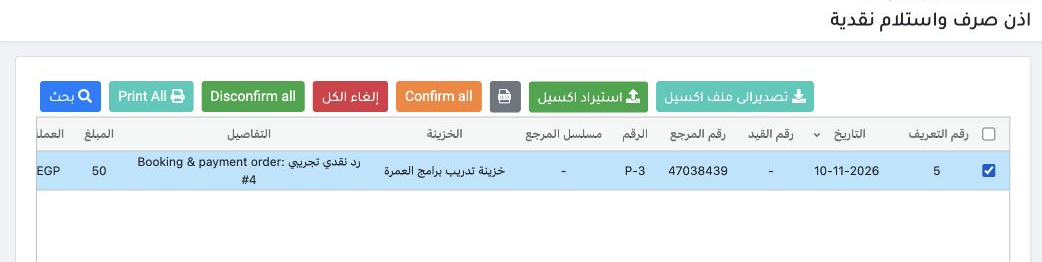
22 Open disbursement voucher P-3 for order 4. The voucher amount is EGP 50. Select only this voucher, then choose Confirm all and confirm posti...
Open disbursement voucher P-3 for order 4. The voucher amount is EGP 50. Select only this voucher, then choose Confirm all and confirm posting.
23 After posting P-3, open the journal link on its row. Entry P-4 debits customer 12200000001 and credits treasury 1211005, EGP 50 on each side...
After posting P-3, open the journal link on its row. Entry P-4 debits customer 12200000001 and credits treasury 1211005, EGP 50 on each side.

Confirm the disbursement voucher for refund order 5

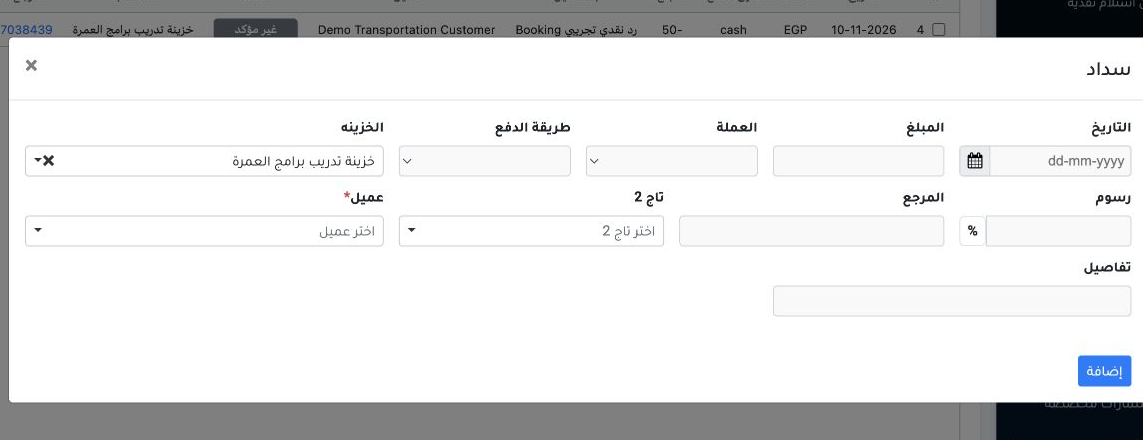
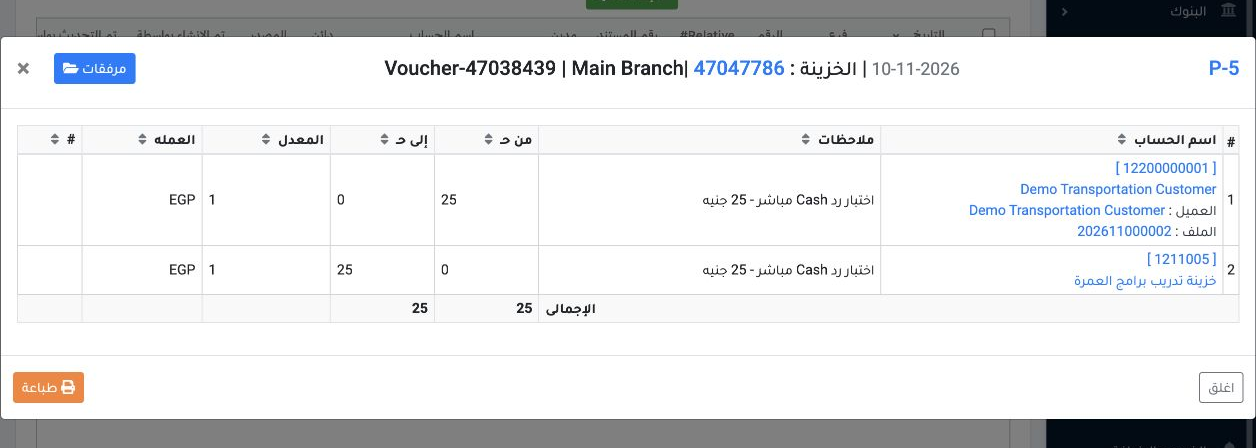
In Booking file 202611000002, refund order 5 created disbursement voucher P-4 for EGP 25 after the treasury was selected directly with Cash.
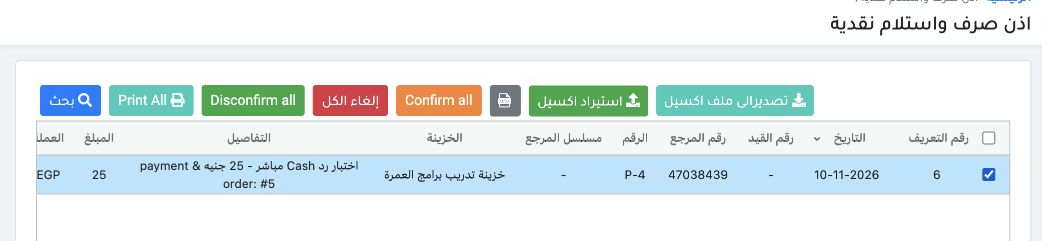
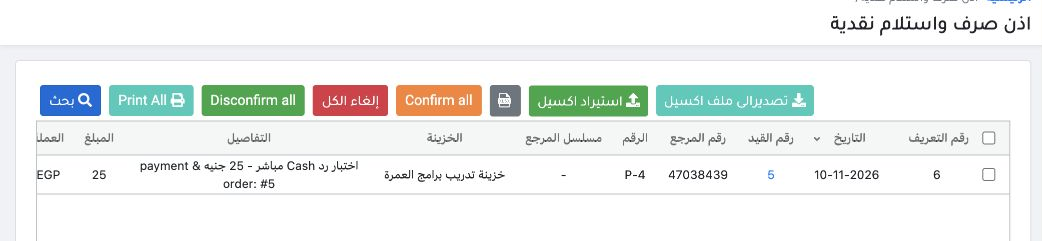
24 Open disbursement voucher P-4 for refund order 5. Select only this row, choose Confirm all, then approve the confirmation.
Open disbursement voucher P-4 for refund order 5. Select only this row, choose Confirm all, then approve the confirmation.
25 Once posting finishes, the voucher shows Confirmed and Posted. If it disappears from the list, set confirmation status to All, then open the...
Once posting finishes, the voucher shows Confirmed and Posted. If it disappears from the list, set confirmation status to All, then open the journal number 5 on the voucher row.
26 Entry P-5 debits customer 12200000001 and credits treasury 1211005, EGP 25 each.
Entry P-5 debits customer 12200000001 and credits treasury 1211005, EGP 25 each.

Reconcile the customer account

27 In entry P-5, click customer account 12200000001 to open its statement. To show the full statement, clear Related Account in Search. Use Mai...
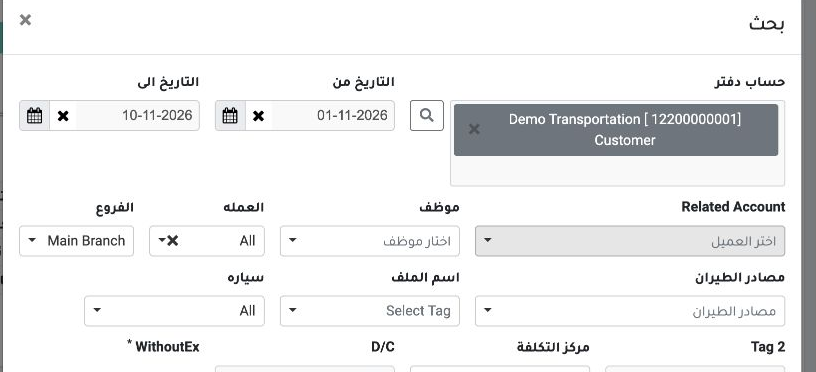
In entry P-5, click customer account 12200000001 to open its statement. To show the full statement, clear Related Account in Search. Use Main Branch and 1–10 November 2026.
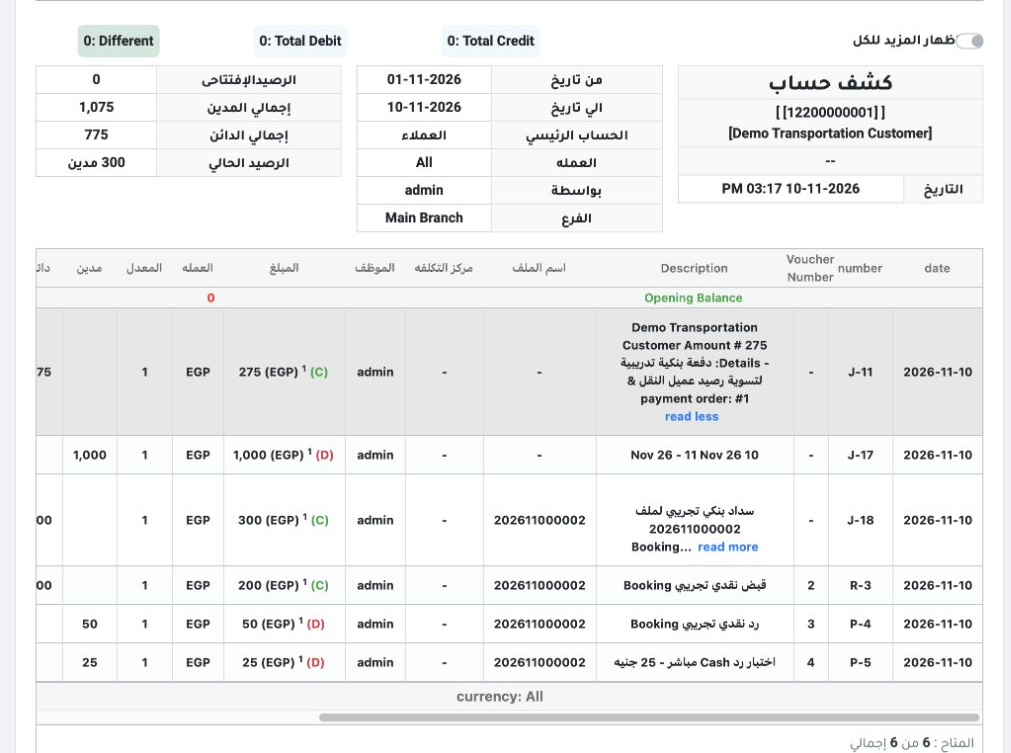
28 Match invoice entry J-17 (EGP 1,000 debit), payments J-18 and R-3 (EGP 300 and 200 credit), and refunds P-4 and P-5 (EGP 50 and 25 debit). T...
Match invoice entry J-17 (EGP 1,000 debit), payments J-18 and R-3 (EGP 300 and 200 credit), and refunds P-4 and P-5 (EGP 50 and 25 debit). The full customer balance is EGP 300 debit because it also includes the separate EGP 275 payment in J-11.

Reconcile treasury and the Booking balance
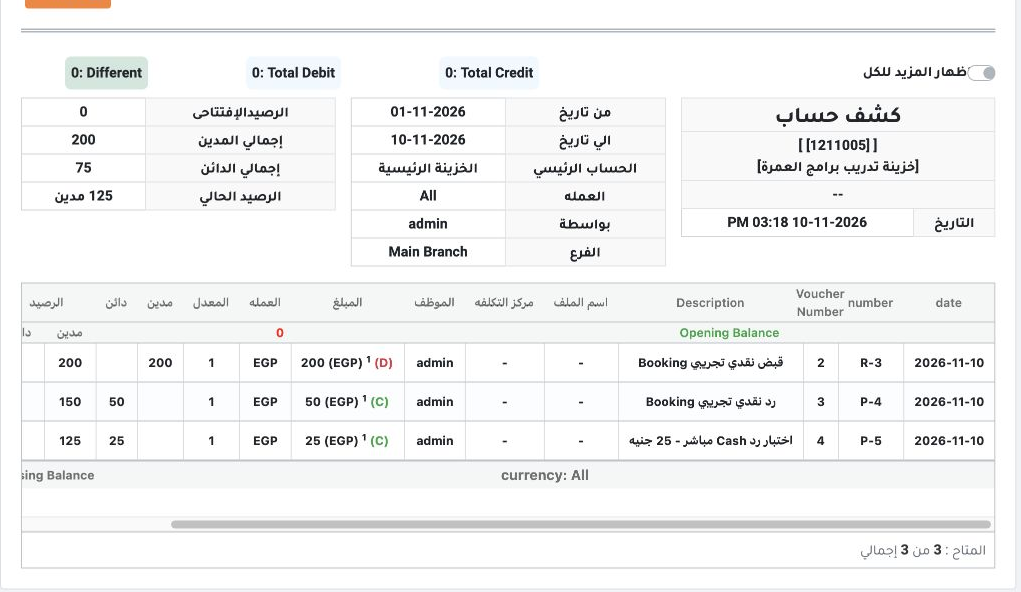
29 From P-5, open treasury account 1211005. R-3 shows EGP 200 debit for the receipt. P-4 and P-5 show EGP 50 and 25 credit for the refunds. The...
From P-5, open treasury account 1211005. R-3 shows EGP 200 debit for the receipt. P-4 and P-5 show EGP 50 and 25 credit for the refunds. The file’s net treasury movement is EGP 125 debit.
30 In Customer Payment Details for file 202611000002, add the EGP 300 bank payment to the EGP 125 net cash. This matches EGP 425 paid and EGP 5...
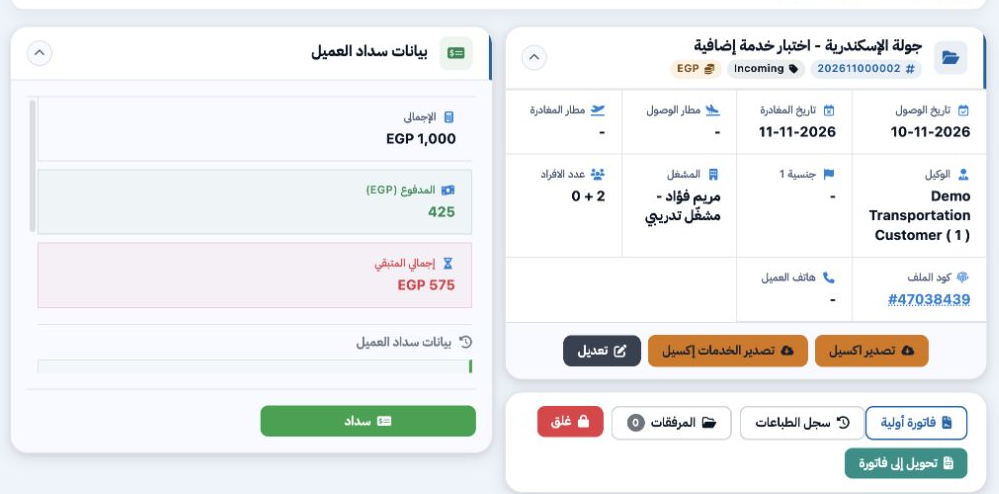
In Customer Payment Details for file 202611000002, add the EGP 300 bank payment to the EGP 125 net cash. This matches EGP 425 paid and EGP 575 outstanding on the EGP 1,000 total.

Collect the remaining balance in cash
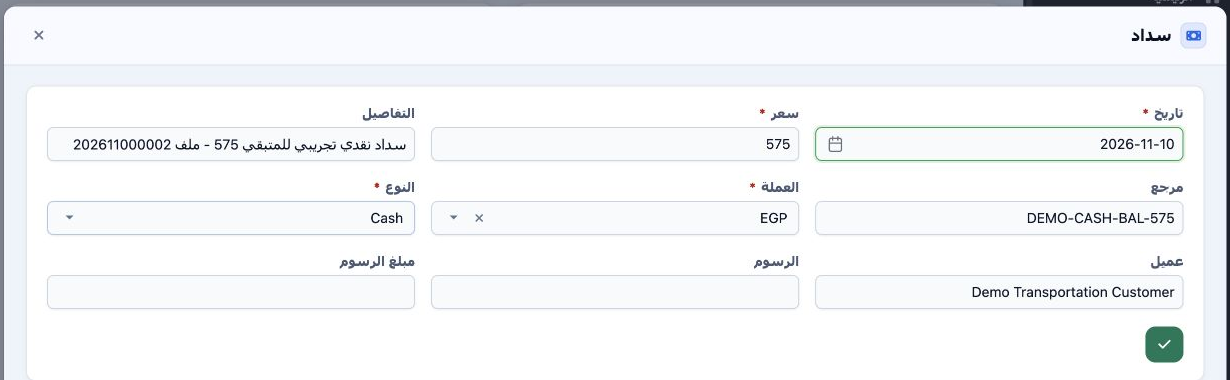
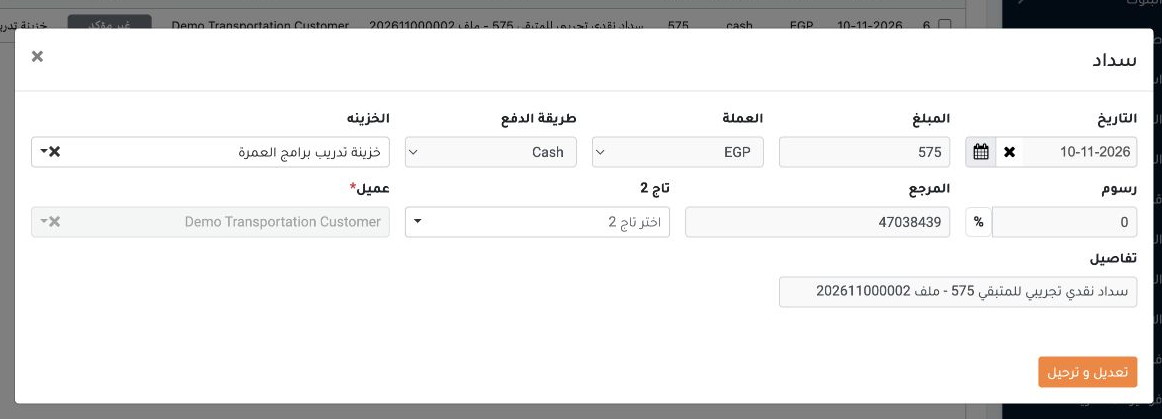
31 In Booking file 202611000002, open Payment and select Cash. Enter the positive balance of EGP 575 and save.
In Booking file 202611000002, open Payment and select Cash. Enter the positive balance of EGP 575 and save.
32 Under Treasury → Payment Orders, edit order 6. Select the training treasury, then choose Edit and Post.
Under Treasury → Payment Orders, edit order 6. Select the training treasury, then choose Edit and Post.
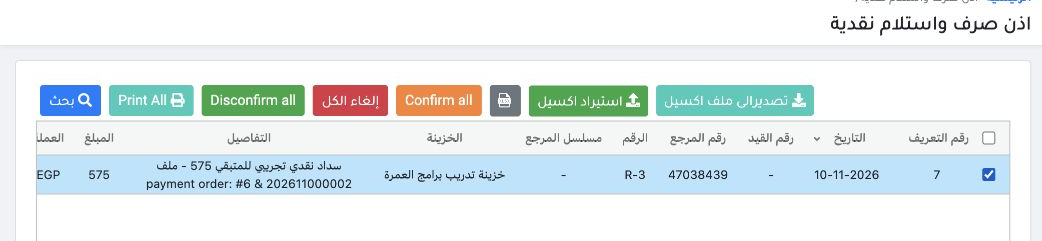
33 Open receipt voucher R-3 for order 6. Select only its row, choose Confirm all and confirm posting.
Open receipt voucher R-3 for order 6. Select only its row, choose Confirm all and confirm posting.

Verify the receipt journal entry

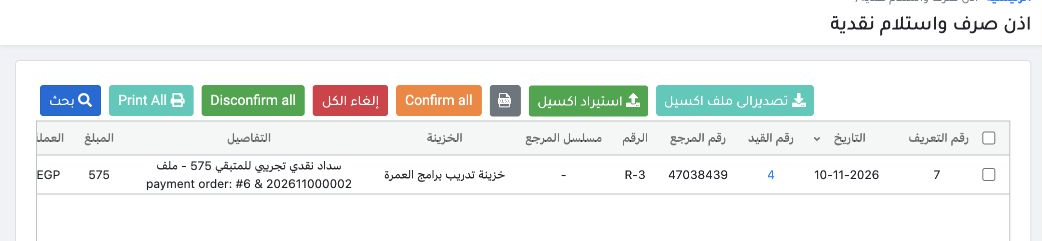
34 Once posting completes, voucher R-3 shows Confirmed and Posted. Open journal number 4 on its row.
Once posting completes, voucher R-3 shows Confirmed and Posted. Open journal number 4 on its row.
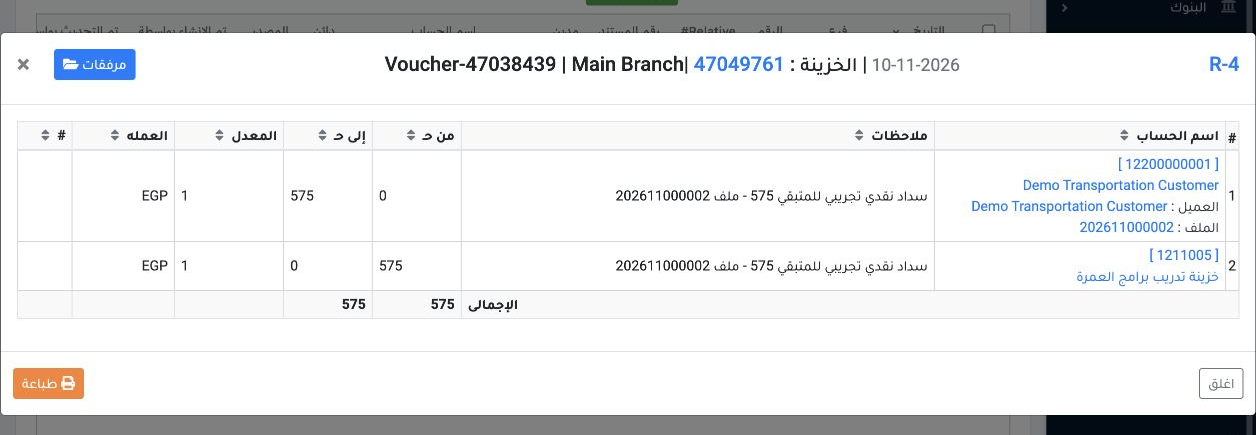
35 Entry R-4 debits treasury 1211005 and credits customer 12200000001, EGP 575 each.
Entry R-4 debits treasury 1211005 and credits customer 12200000001, EGP 575 each.

Check the file balance and the invoice status
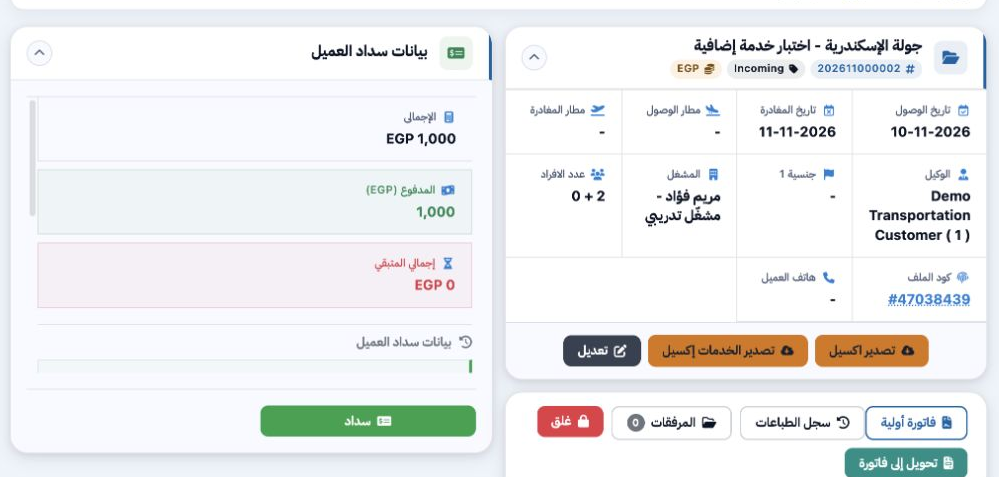
36 Refresh the Booking file. After adding EGP 575 to EGP 425, the file shows EGP 1,000 paid and EGP 0 outstanding.
Refresh the Booking file. After adding EGP 575 to EGP 425, the file shows EGP 1,000 paid and EGP 0 outstanding.
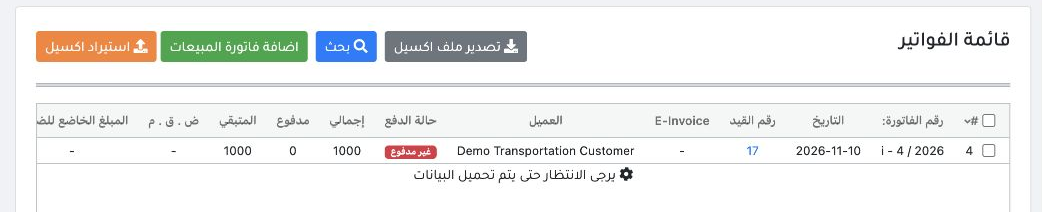
37 Check Payment Status in Sales Invoices. After the receipt posted, invoice i-4/2026 still showed posting status Confirmed and payment status...
Check Payment Status in Sales Invoices. After the receipt posted, invoice i-4/2026 still showed posting status Confirmed and payment status Unpaid, with EGP 0 paid and EGP 1,000 outstanding.

Check allocation of Booking payments to an invoice

Start from Payment inside Booking. The movement appears under Treasury → Payment Orders, the customer’s payment orders. In this example, posting the bank transfer created J-18, and processing Cash created a treasury voucher.
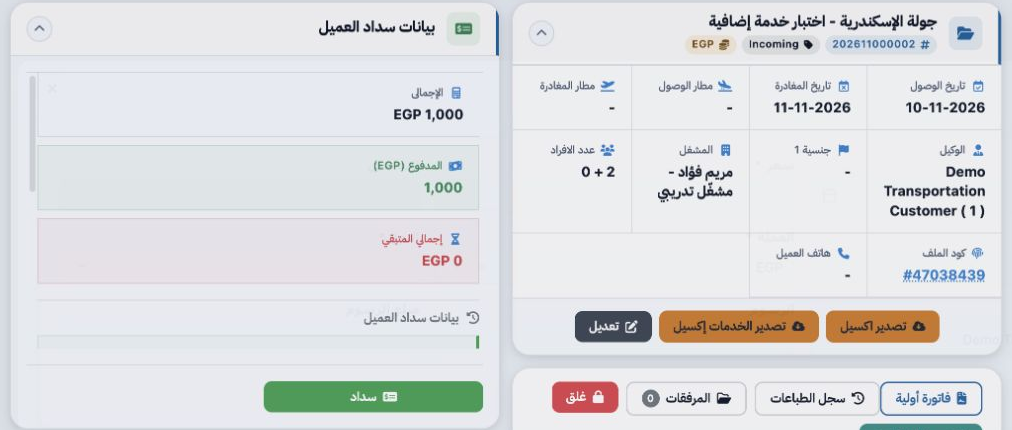
38 Check the net payments for file 202611000002. The file showed EGP 1,000 paid and EGP 0 outstanding, matching the posted entries.
Check the net payments for file 202611000002. The file showed EGP 1,000 paid and EGP 0 outstanding, matching the posted entries.
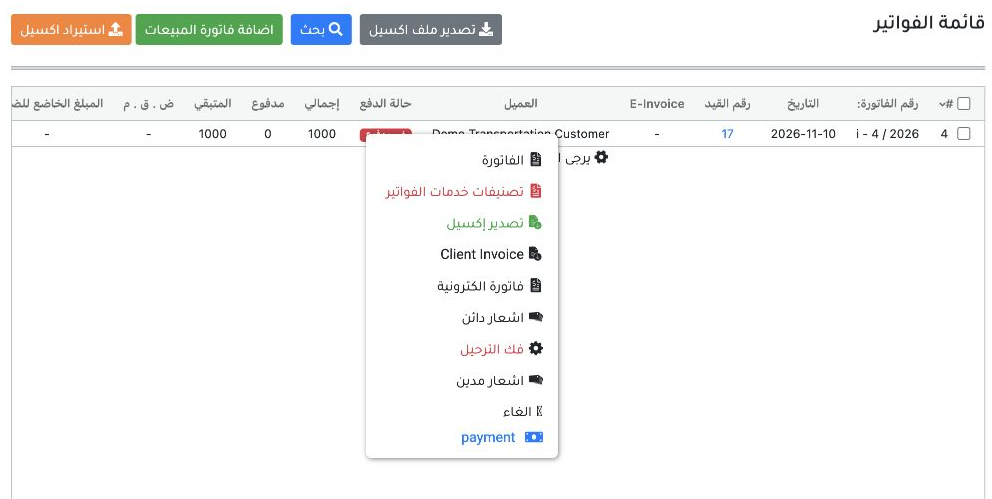
39 In Sales Invoices, open the row menu for i-4/2026. Payment was available, but selecting it did not open a screen to allocate existing paymen...
In Sales Invoices, open the row menu for i-4/2026. Payment was available, but selecting it did not open a screen to allocate existing payments.
40 The invoice remained Unpaid, with EGP 0 paid and EGP 1,000 outstanding. No allocation was completed and no new receipt was recorded.
The invoice remained Unpaid, with EGP 0 paid and EGP 1,000 outstanding. No allocation was completed and no new receipt was recorded.

What the invoice Payment menu opens
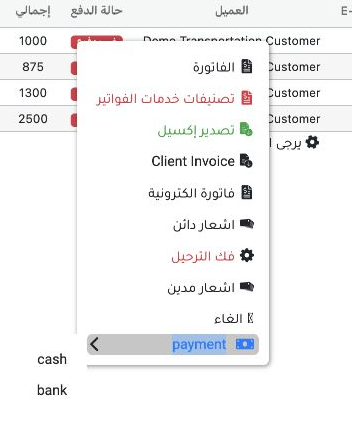
41 In the row menu for invoice i-4/2026, open the Payment submenu. It contains Cash and Bank.
In the row menu for invoice i-4/2026, open the Payment submenu. It contains Cash and Bank.
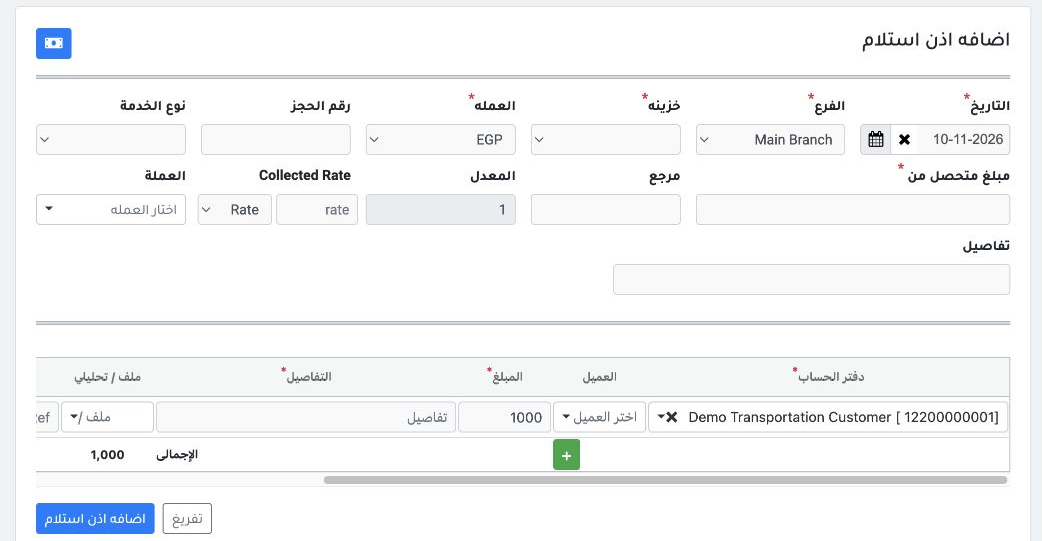
42 Cash opens a new receipt form with EGP 1,000 prefilled for the invoice.
Cash opens a new receipt form with EGP 1,000 prefilled for the invoice.
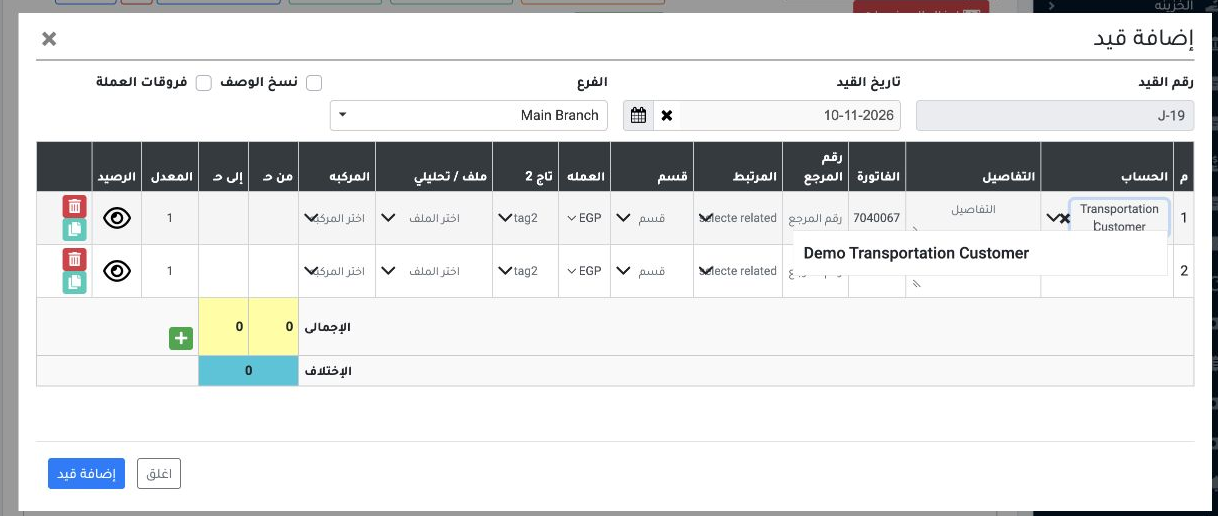
43 Bank opens a new journal entry with the invoice reference. Neither form offered a selection of existing payment orders. Neither form was sav...
Bank opens a new journal entry with the invoice reference. Neither form offered a selection of existing payment orders. Neither form was saved.

After refreshing the list, the invoice remained Unpaid, with EGP 0 paid and EGP 1,000 outstanding.

Sign in to record the lessons you have read. Sign in