Skip to content
Trio Travel guide

Booking Seats Service

On this page
  1. 1 Add the Seats service
  2. 2 Quantity, prices and passenger names
  3. 3 Edit the service
  4. 4 Copy and review the form
  5. 5 Audit information
  6. 6 Deletion confirmation
  7. 7 Supplier Invoice option
  8. 8 Lock the file
  9. 9 Check the confirmed status
  10. 10 Seats cost journal
  11. 11 File revenue journal
  12. 12 Reconcile cost, sales and profit

1 Add the Seats service
1 Open a Booking file and select Seats. The example uses training file 202611000013 for four people. Enter the record date, travel and return...
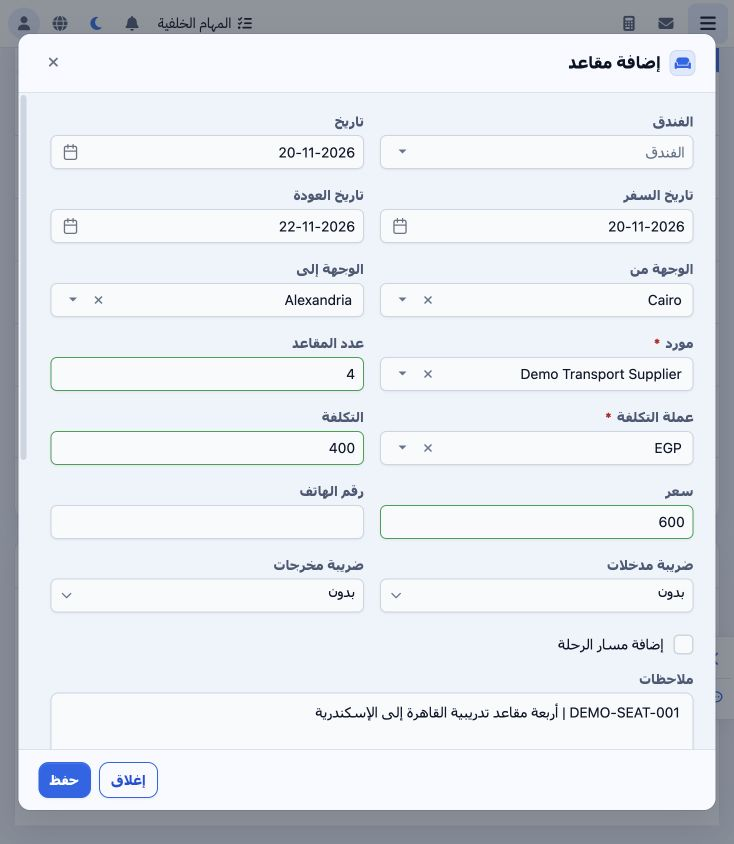
Open a Booking file and select Seats. The example uses training file 202611000013 for four people. Enter the record date, travel and return dates, origin, destination and supplier. A Hotel field is also available. This example uses Cairo to Alexandria, 20–22 November, and Demo Transport Supplier.

2 Quantity, prices and passenger names
2 Enter seat quantity, cost currency, cost per seat and selling price per seat. The initial example calculates 4 × 400 = 1600 cost and 4 × 600...
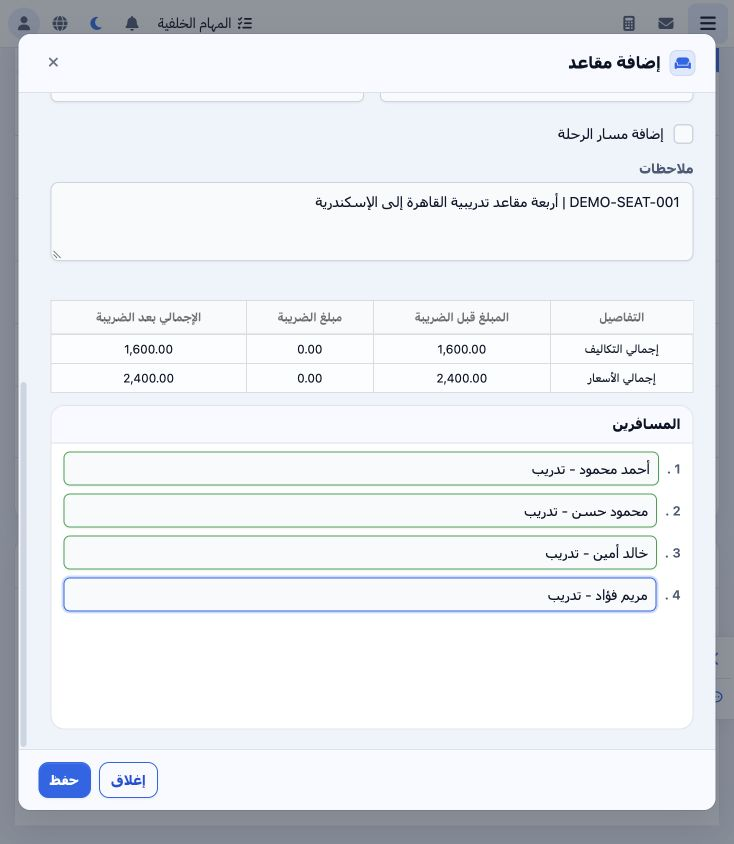
Enter seat quantity, cost currency, cost per seat and selling price per seat. The initial example calculates 4 × 400 = 1600 cost and 4 × 600 = 2400 sales. Review input/output tax, phone and notes. Add Itinerary is left unchecked in this example. Enter the passenger names in the fields generated by the seat quantity, then Save.

3 Edit the service

3 Choose Actions → Edit, update the intended values and Save. The example changes unit cost to 450 and selling price to 650, giving totals of...
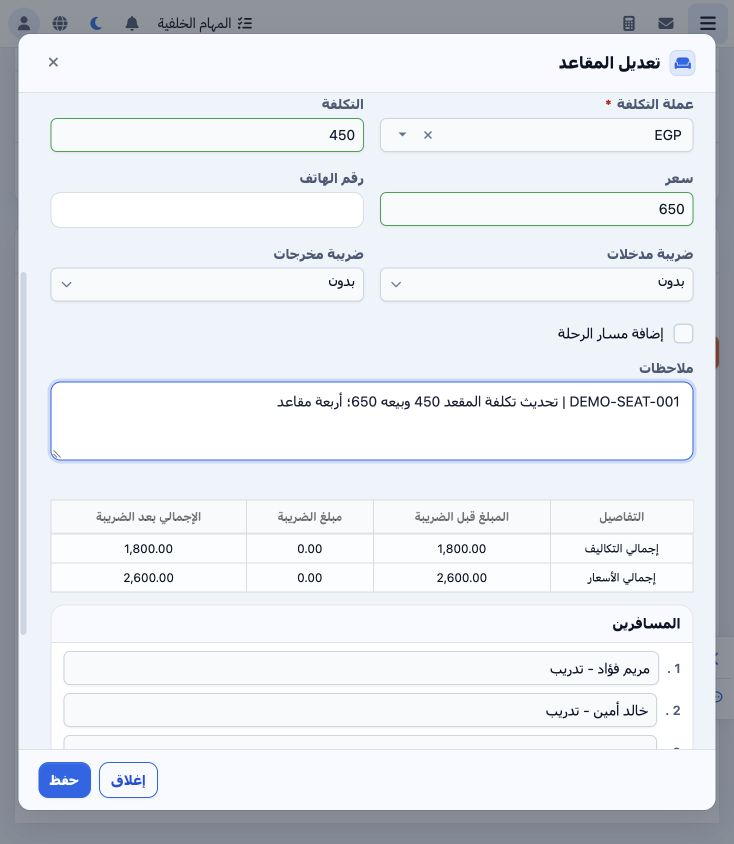
Choose Actions → Edit, update the intended values and Save. The example changes unit cost to 450 and selling price to 650, giving totals of 1800 cost and 2600 sales. Review passenger names and notes before saving, then reopen the item to check the saved values.

4 Copy and review the form

4 Actions → Copy opens a form populated with the item data. Review dates, supplier, quantity, prices and names before saving. Select Close to...
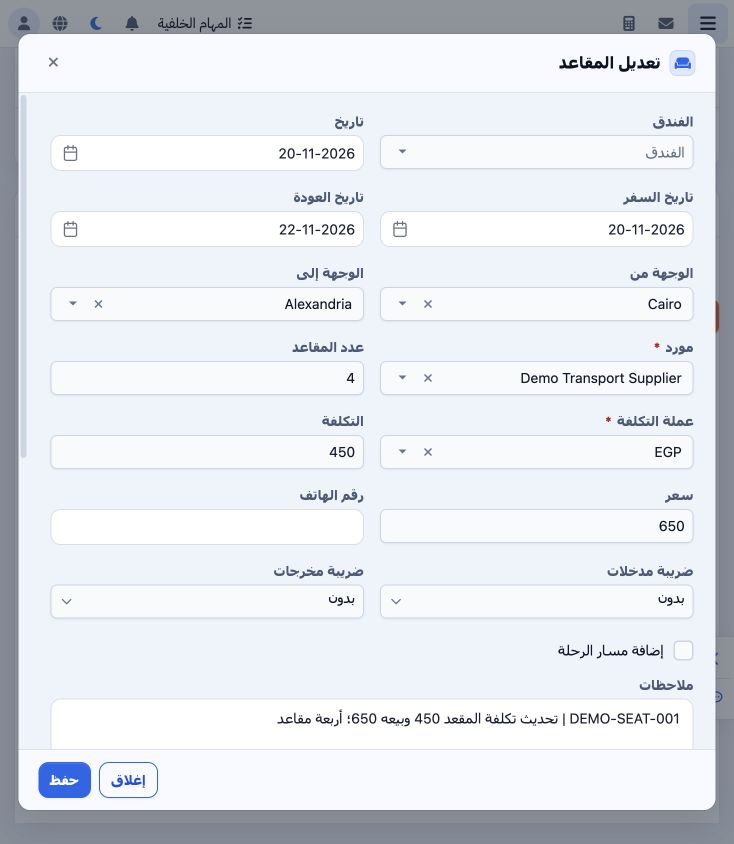
Actions → Copy opens a form populated with the item data. Review dates, supplier, quantity, prices and names before saving. Select Close to leave without saving. The illustration shows the form opened through Copy; the example closes it without creating another item.

5 Audit information

5 Open Actions → Audit Info to view creation and last-update information. The illustration shows the creation and update timestamps for the tr...
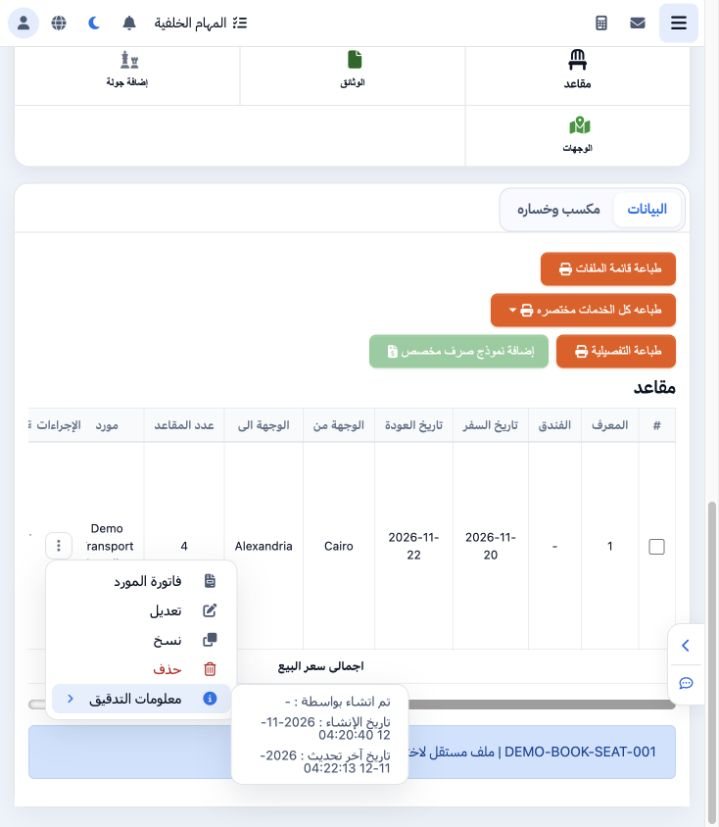
Open Actions → Audit Info to view creation and last-update information. The illustration shows the creation and update timestamps for the training item. Use these details when reviewing the sequence of changes.

6 Deletion confirmation

6 Select Actions → Delete. The warning states that deletion cannot be undone. Verify the intended item and select No to cancel deletion and re...
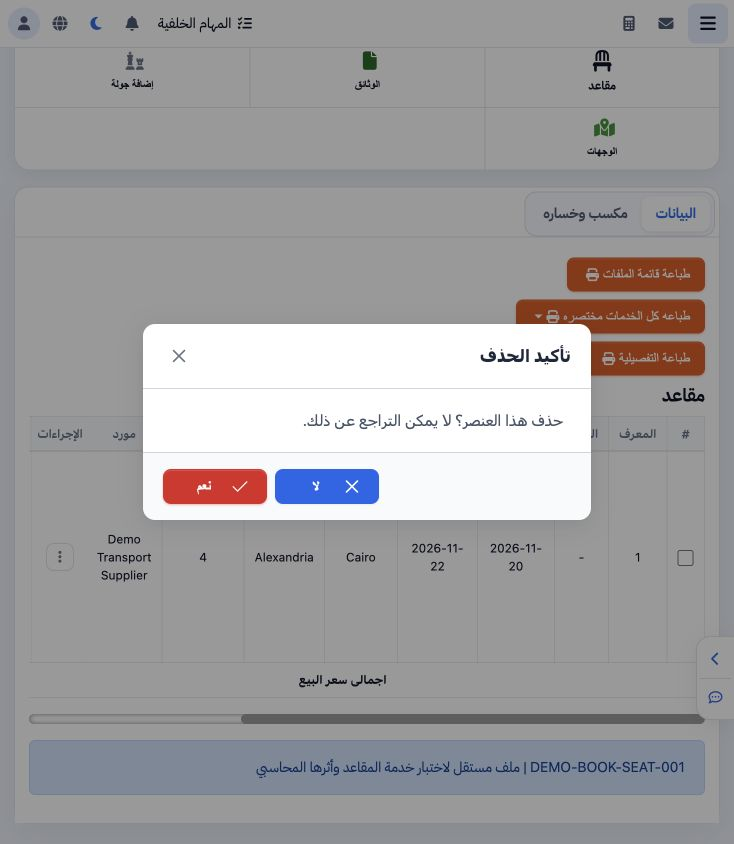
Select Actions → Delete. The warning states that deletion cannot be undone. Verify the intended item and select No to cancel deletion and retain it. The training example retains the item.

7 Supplier Invoice option

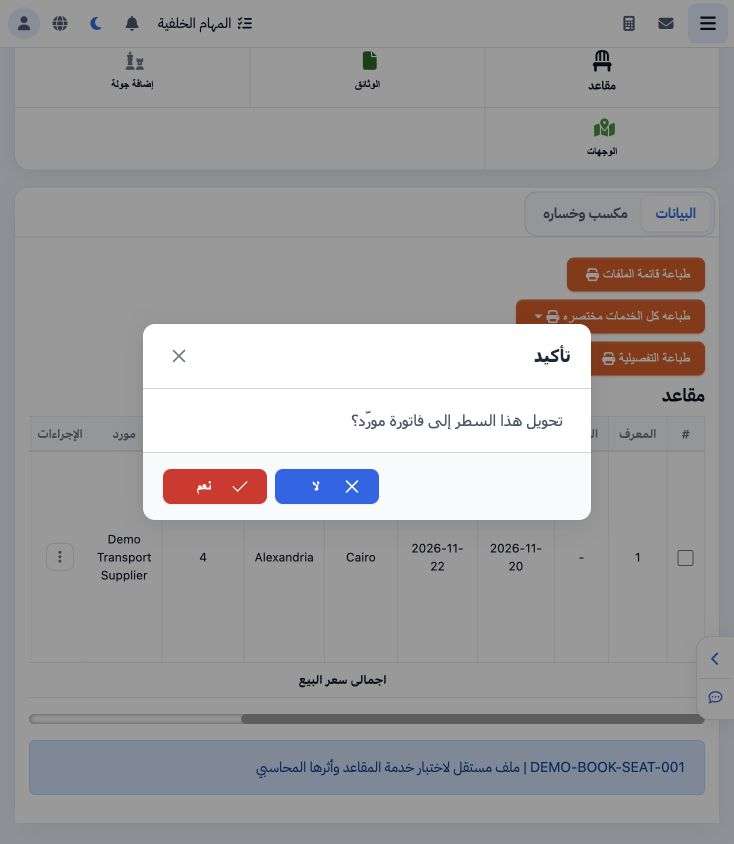
7 Select Actions → Supplier Invoice to open the confirmation asking whether to convert this row into a supplier invoice. Review the item, supp...
Select Actions → Supplier Invoice to open the confirmation asking whether to convert this row into a supplier invoice. Review the item, supplier and amount before confirming. Choose No to return. This example documents the confirmation only; no supplier invoice was created.

8 Lock the file

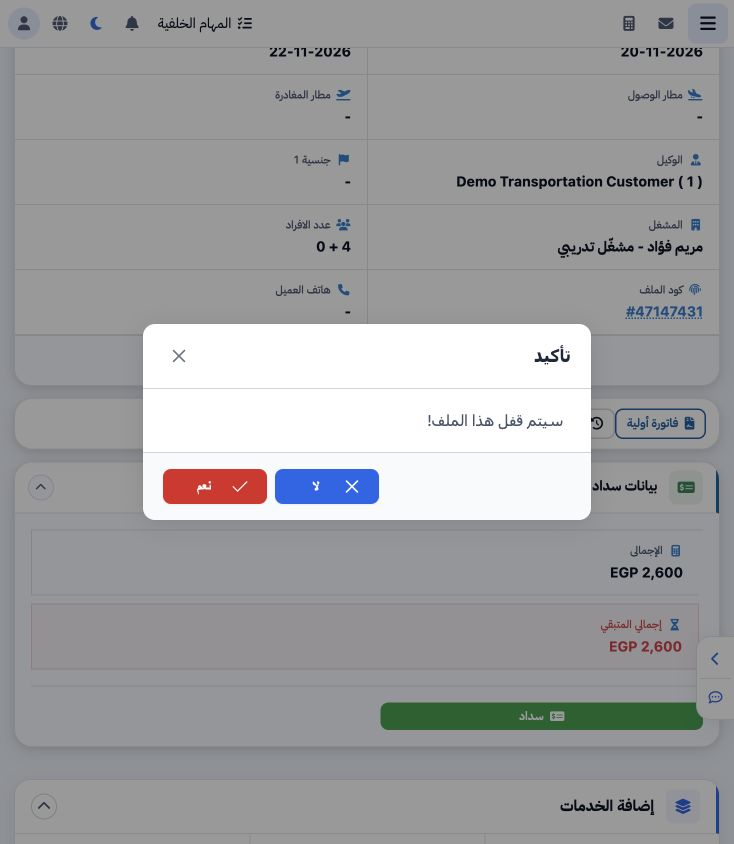
8 After reviewing the service and file data, select Lock in the file header. Review the confirmation and choose Yes. Wait for completion and c...
After reviewing the service and file data, select Lock in the file header. Review the confirmation and choose Yes. Wait for completion and check the item status before attempting another action.

9 Check the confirmed status

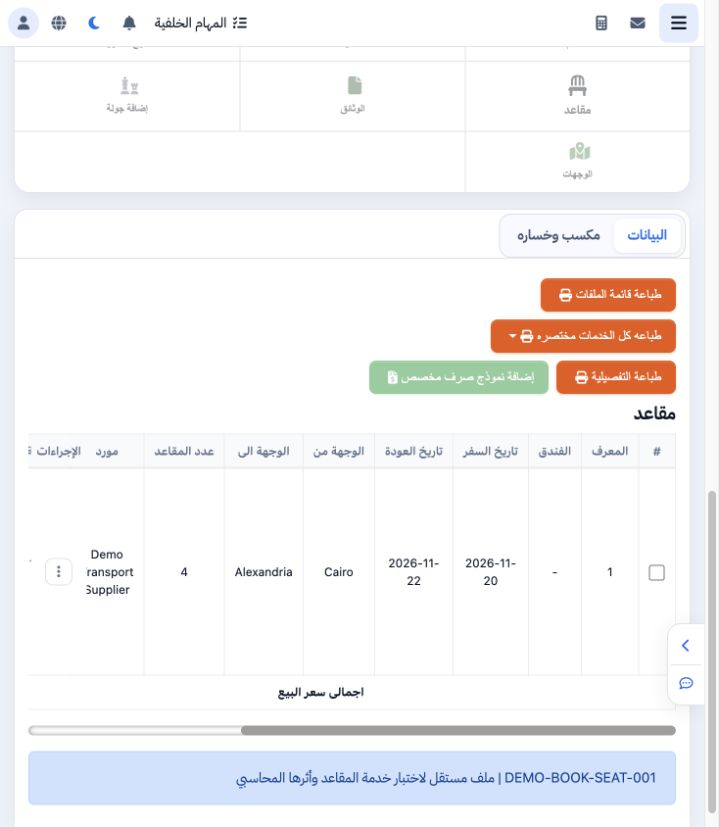
9 After locking, the Seats item is Confirmed and service addition/editing is disabled for the locked file. Review the supplier, quantity and v...
After locking, the Seats item is Confirmed and service addition/editing is disabled for the locked file. Review the supplier, quantity and values, then open the journals to reconcile the accounting effect.

10 Seats cost journal

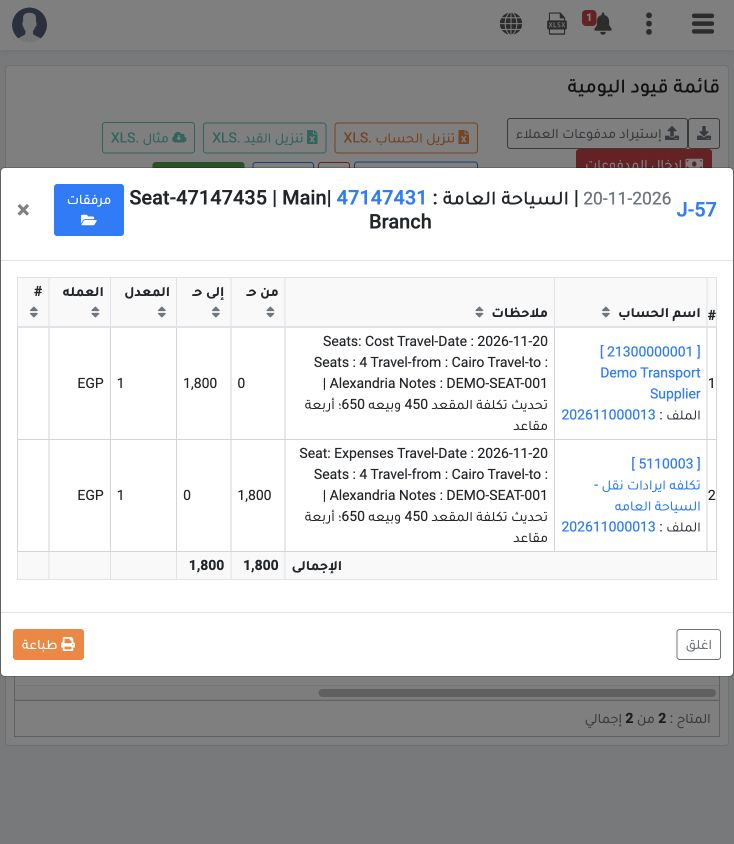
10 Locking created J-57 dated 20 November for Seats item 47147435: debit General Tourism Transportation Cost 5110003 EGP 1800; credit Demo Tran...
Locking created J-57 dated 20 November for Seats item 47147435: debit General Tourism Transportation Cost 5110003 EGP 1800; credit Demo Transport Supplier 21300000001 EGP 1800. The journal balances at exchange rate 1.

11 File revenue journal

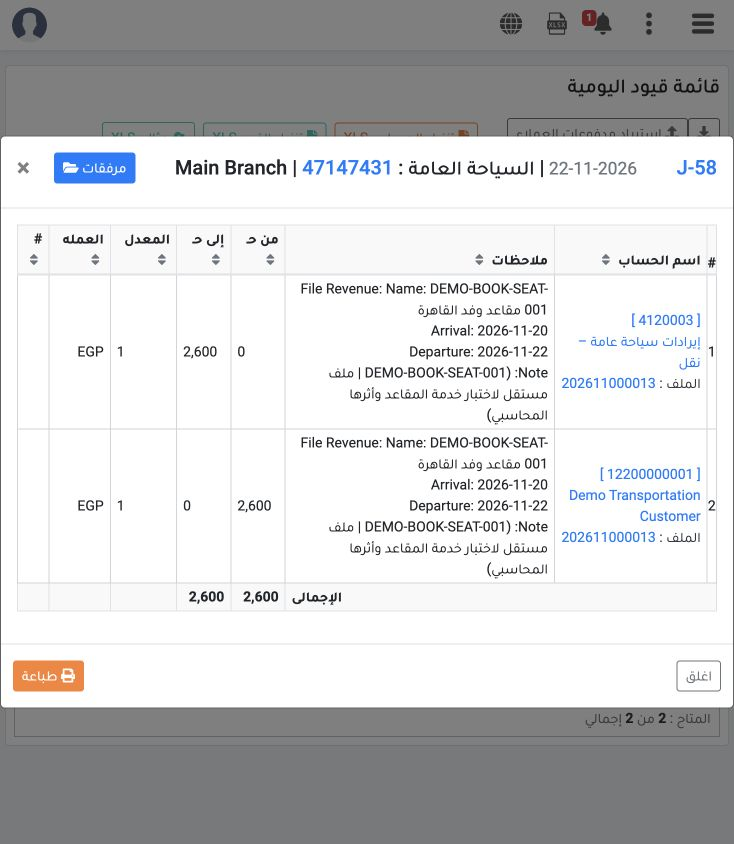
11 Locking also created J-58 dated 22 November: debit Demo Transportation Customer 12200000001 EGP 2600; credit General Tourism Transportation...
Locking also created J-58 dated 22 November: debit Demo Transportation Customer 12200000001 EGP 2600; credit General Tourism Transportation Revenue 4120003 EGP 2600. The balanced journal references file 47147431.

12 Reconcile cost, sales and profit

12 Open Profit and Loss. The example shows EGP 1800 cost, 2600 sales and 800 profit. The displayed 44.44% equals profit divided by cost. Reconc...
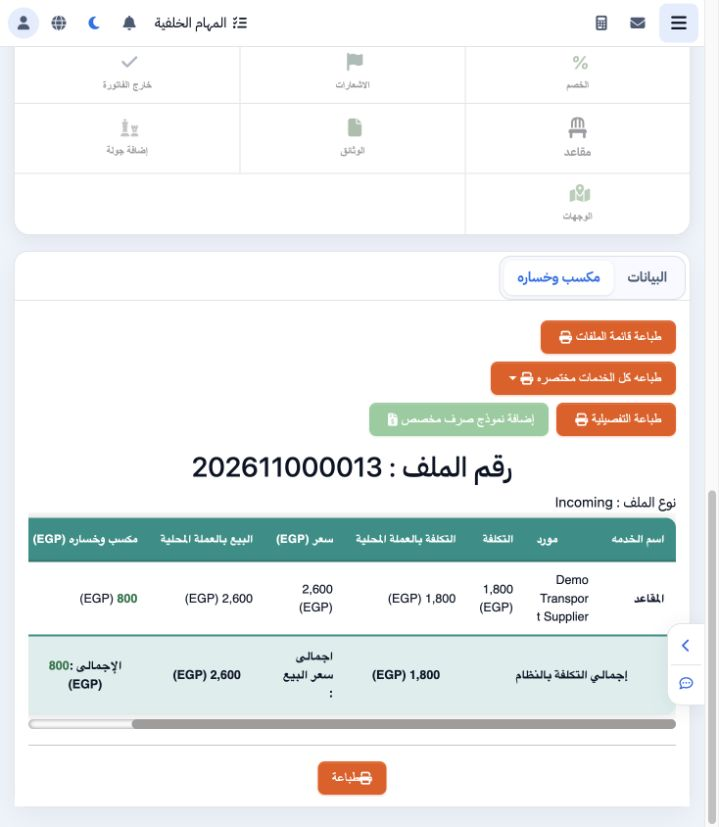
Open Profit and Loss. The example shows EGP 1800 cost, 2600 sales and 800 profit. The displayed 44.44% equals profit divided by cost. Reconcile these values with J-57 and J-58. The customer still owes EGP 2600 because this example records no payment.

Sign in to record the lessons you have read. Sign in