Skip to content
Trio Travel guide

Guests in a Booking File

On this page
  1. 1 Add file guests
  2. 2 Save and import controls
  3. 3 Review saved guests
  4. 4 Edit a guest
  5. 5 Copy a guest
  6. 6 Deletion confirmation
  7. 7 Add itinerary option

1 Add file guests

1 From the Booking file view, select Add Guests, then Add New for each guest. Enter the name, arrival and departure dates, and select a nation...
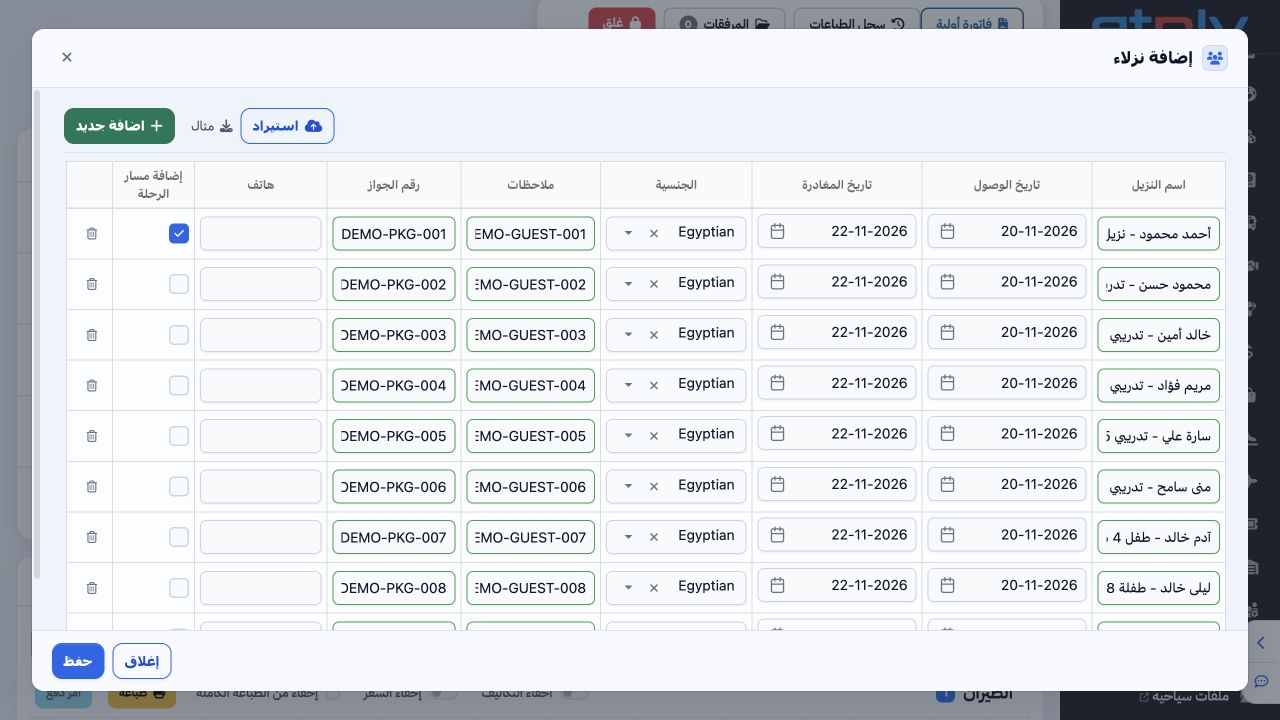
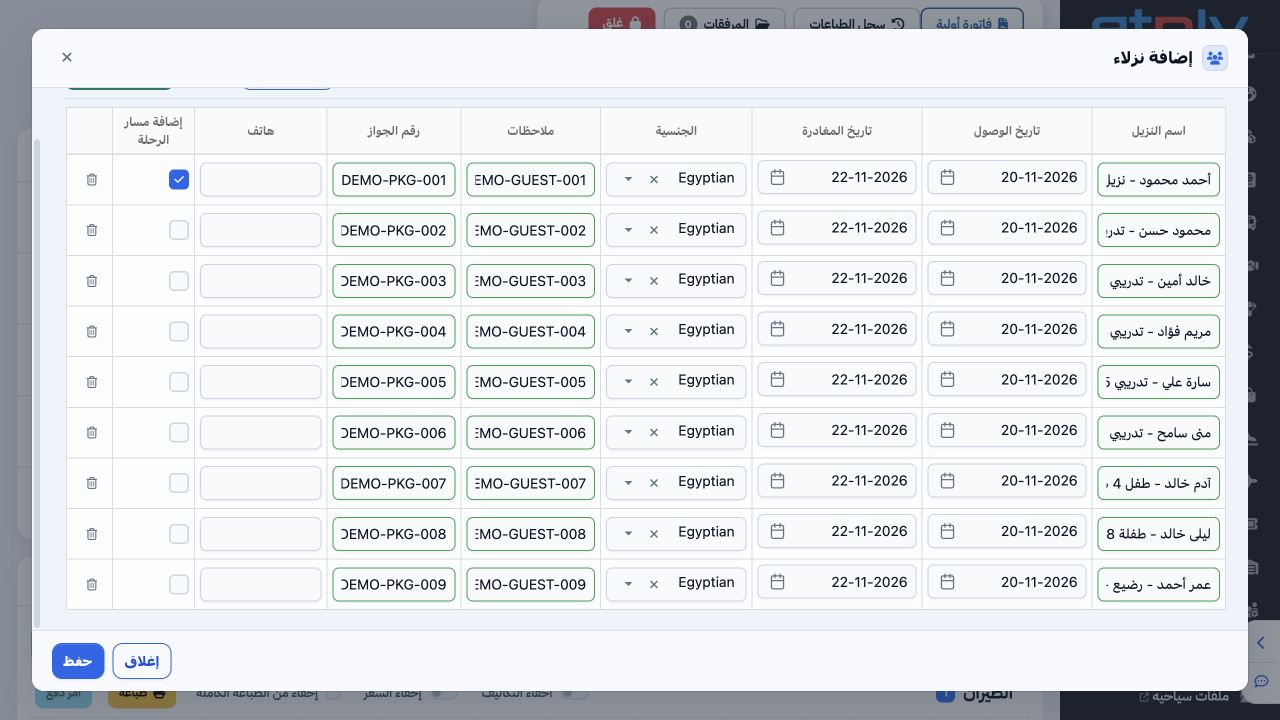
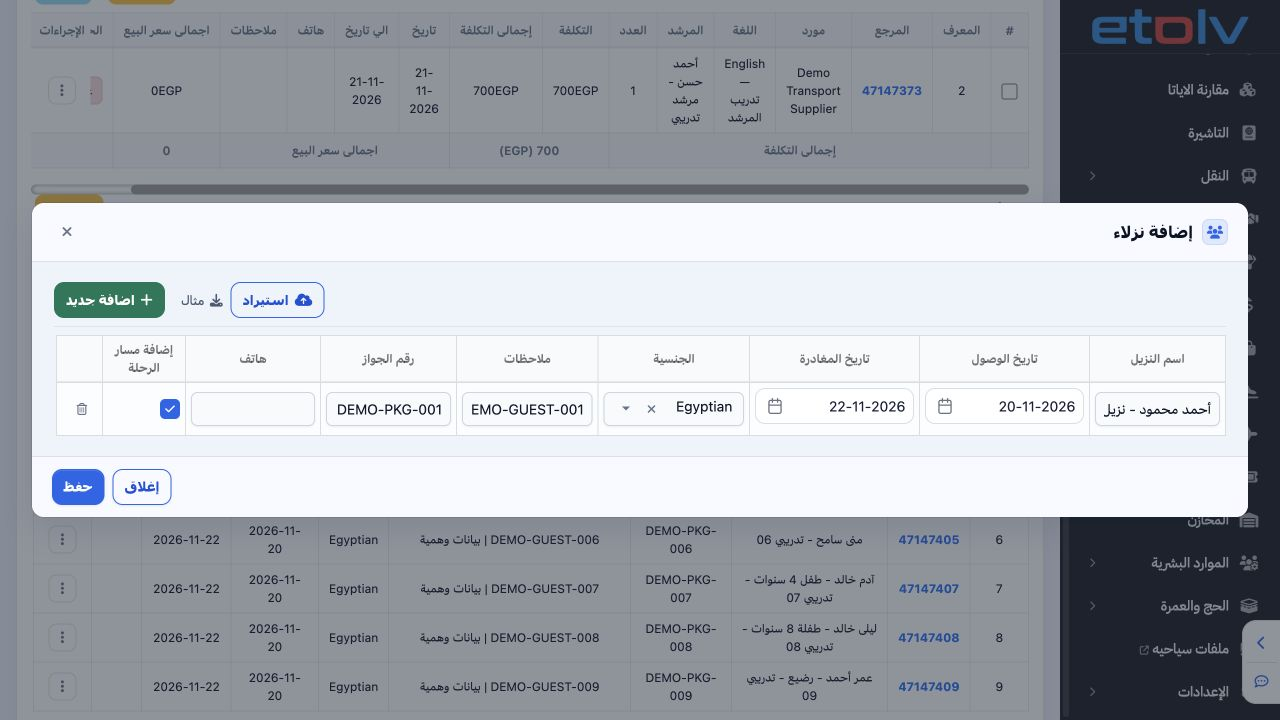
From the Booking file view, select Add Guests, then Add New for each guest. Enter the name, arrival and departure dates, and select a nationality. Add notes, passport number and phone where available. The example inherits 20–22 November 2026 from the file. All displayed identities and passport numbers are fictional training data. The trash button removes a draft row before saving.

2 Save and import controls

2 Review all rows, then Save once and wait for completion. Nine guests were added to file 202611000012. Example provides an Excel template, an...
Review all rows, then Save once and wait for completion. Nine guests were added to file 202611000012. Example provides an Excel template, and Import lets you select an import file. Review template data and the import result before saving; the illustrated example uses manual entry.

3 Review saved guests

3 Open Guests within the file. Review names, passports, nationalities, dates and notes. Each row has a reference and an Actions menu. The firs...
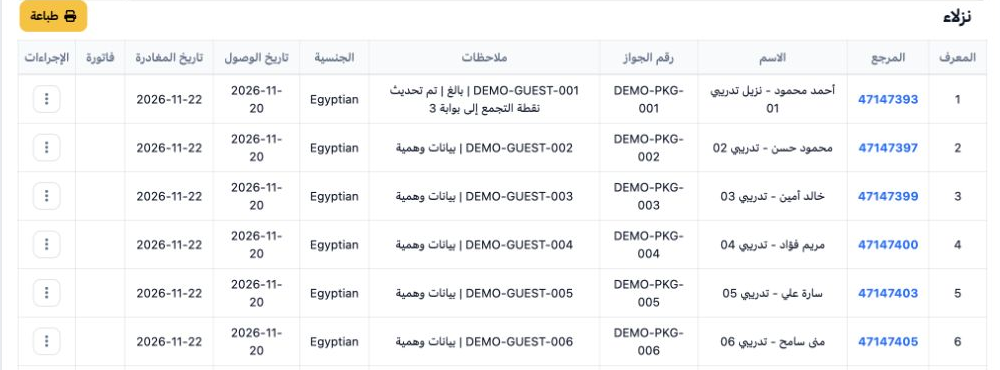
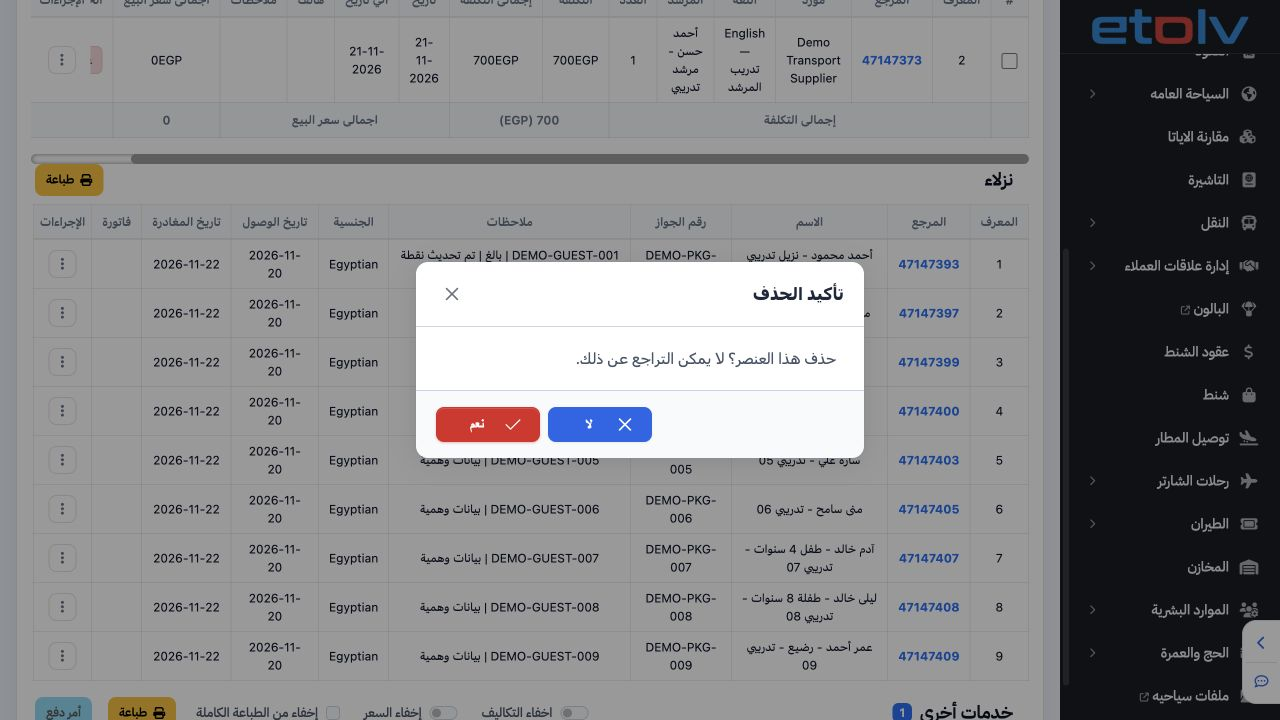
Open Guests within the file. Review names, passports, nationalities, dates and notes. Each row has a reference and an Actions menu. The first training guest reference is 47147393. The section header includes Print for requesting a guest printout.

4 Edit a guest

4 Choose Actions → Edit, change the intended field and Save. Ahmad’s note was changed to meeting point Gate 3, and the updated note appeared i...
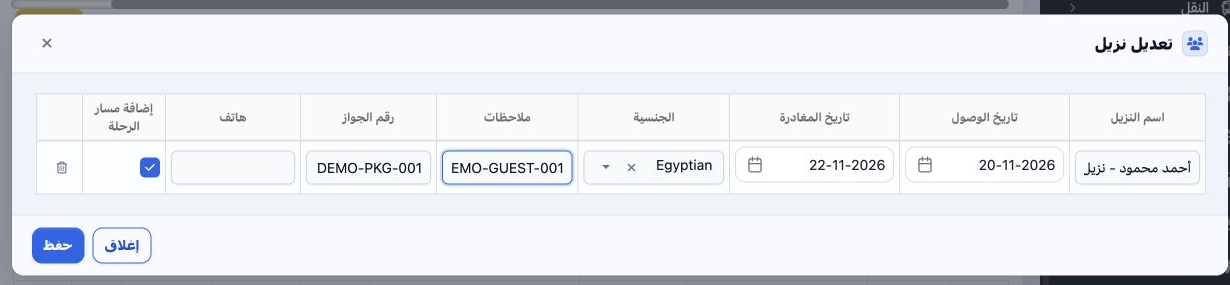
Choose Actions → Edit, change the intended field and Save. Ahmad’s note was changed to meeting point Gate 3, and the updated note appeared in the file list and guest report. Close the form to discard an unsaved change.

5 Copy a guest

5 Actions → Copy opens an Add form populated with the guest’s data. Review the name, passport, dates and itinerary option before saving a copy...
Actions → Copy opens an Add form populated with the guest’s data. Review the name, passport, dates and itinerary option before saving a copy. The example closes the form without creating a duplicate guest.

6 Deletion confirmation

6 Choose Actions → Delete. The confirmation warns that deletion cannot be undone. Select No to keep the guest, as demonstrated. Review the spe...
Choose Actions → Delete. The confirmation warns that deletion cannot be undone. Select No to keep the guest, as demonstrated. Review the specific record before any permanent deletion.

7 Add itinerary option

7 Enabling Add Itinerary for a guest before saving created an additional itinerary row in the example. Row 47147395 carries Ahmad’s name, one...
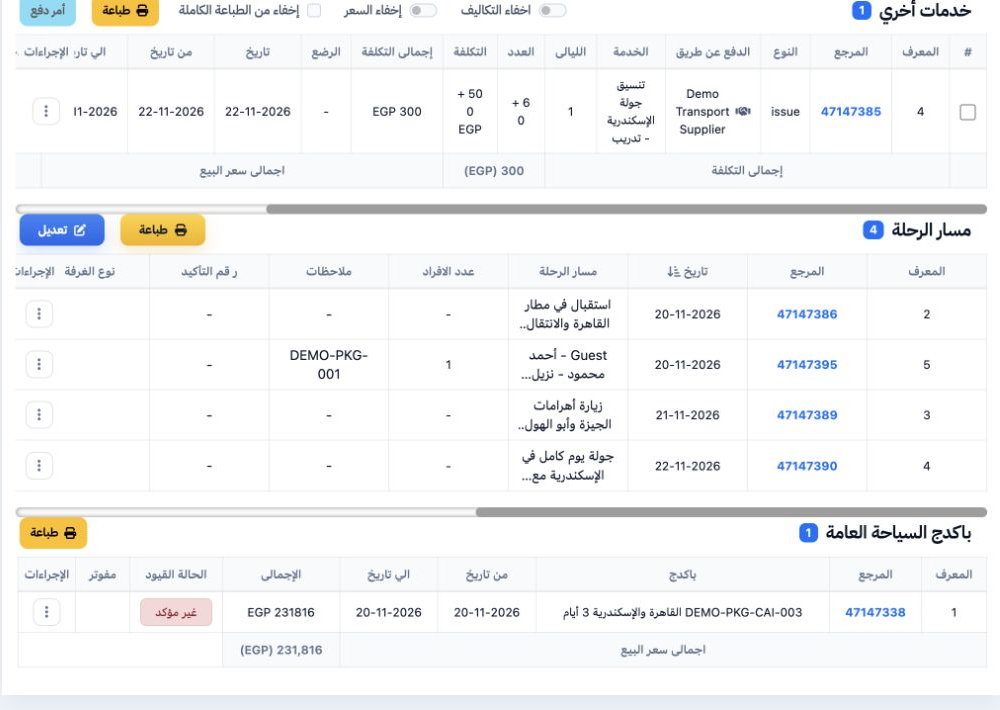
Enabling Add Itinerary for a guest before saving created an additional itinerary row in the example. Row 47147395 carries Ahmad’s name, one passenger, the 20 November arrival date and passport reference. Review its time and movement details after saving.

Sign in to record the lessons you have read. Sign in