Skip to content
Trio Travel guide

Booking Tour Guide Service

On this page
  1. 1 Define the guide
  2. 2 Set the language daily cost
  3. 3 Assign the guide and supplier
  4. 4 Dates and cost calculation
  5. 5 Selling details and saving
  6. 6 Edit the service
  7. 7 Review deletion confirmation
  8. 8 Lock the file
  9. 9 Find the generated entries
  10. 10 Guide cost journal
  11. 11 Guide revenue journal
  12. 12 Profit and remaining balance

1 Define the guide
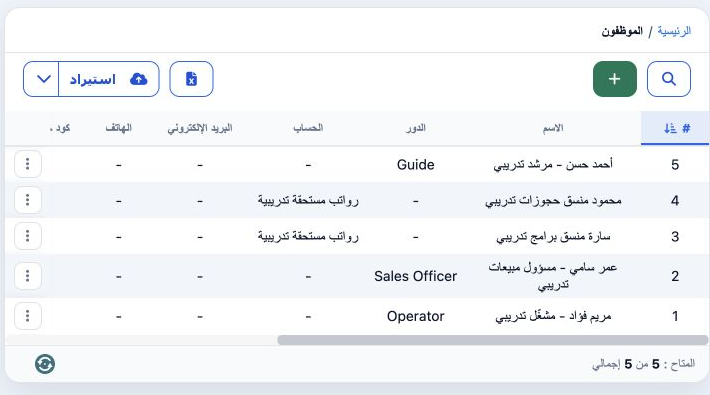
1 Open Settings → Employees, then +. Enter the guide name and code, choose Guide in Role, then Save. The example saved أحمد حسن - مرشد تدريبي,...
Open Settings → Employees, then +. Enter the guide name and code, choose Guide in Role, then Save. The example saved أحمد حسن - مرشد تدريبي, code DEMO-BOOK-GUIDE-01, ID 47146817. He appeared after reopening the service form. The definition also offers branch, phone, email, ledger, addresses and booking-system codes. The assigned guide and service supplier are separate selections.

2 Set the language daily cost

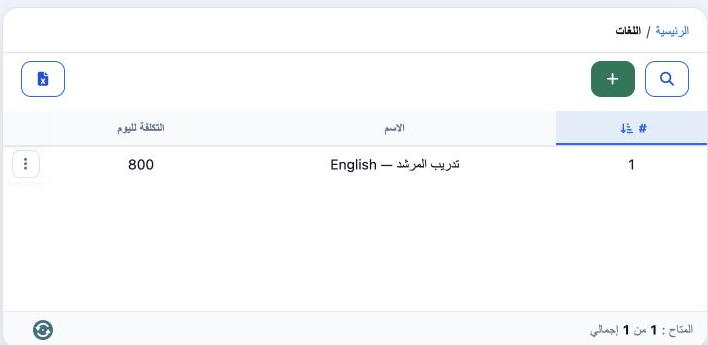
2 Open Settings → Languages, select +, enter Name and Cost per day, then Save. English — تدريب المرشد was saved as serial 1 with daily cost 80...
Open Settings → Languages, select +, enter Name and Cost per day, then Save. English — تدريب المرشد was saved as serial 1 with daily cost 800. Selecting this language in Assign Guide retrieved 800 into Cost. Review the cost currency in the service; this example uses EGP. These are training prices.

3 Assign the guide and supplier

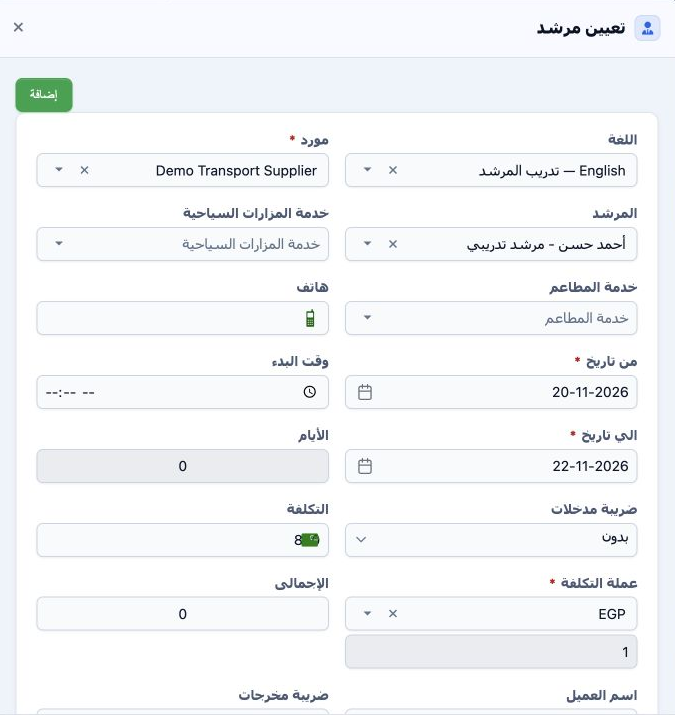
3 Open the Booking file and choose Assign Guide. This example uses file 202611000009, code 47146814, six adults, Incoming, EGP, 20–22 November...
Open the Booking file and choose Assign Guide. This example uses file 202611000009, code 47146814, six adults, Incoming, EGP, 20–22 November 2026. Select the language, Demo Transport Supplier and the training guide. Sightseeing and restaurant service links and a phone field are available; they remained blank here. Add creates another assignment row within the form.

4 Dates and cost calculation

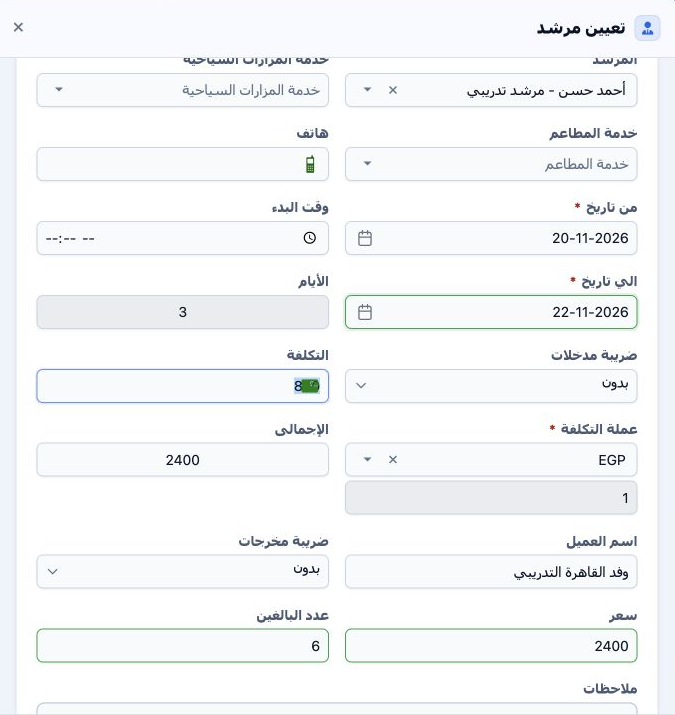
4 Set From Date and To Date and review Days. In this example, reselecting 22 November in the calendar produced 3 days for 20–22 November, incl...
Set From Date and To Date and review Days. In this example, reselecting 22 November in the calendar produced 3 days for 20–22 November, including both endpoints. Days is calculated. Daily cost 800 gives total cost 2,400 in EGP at exchange rate 1. Adults was set to 6; the example cost remained 2,400 and was not multiplied by the passenger count.

5 Selling details and saving

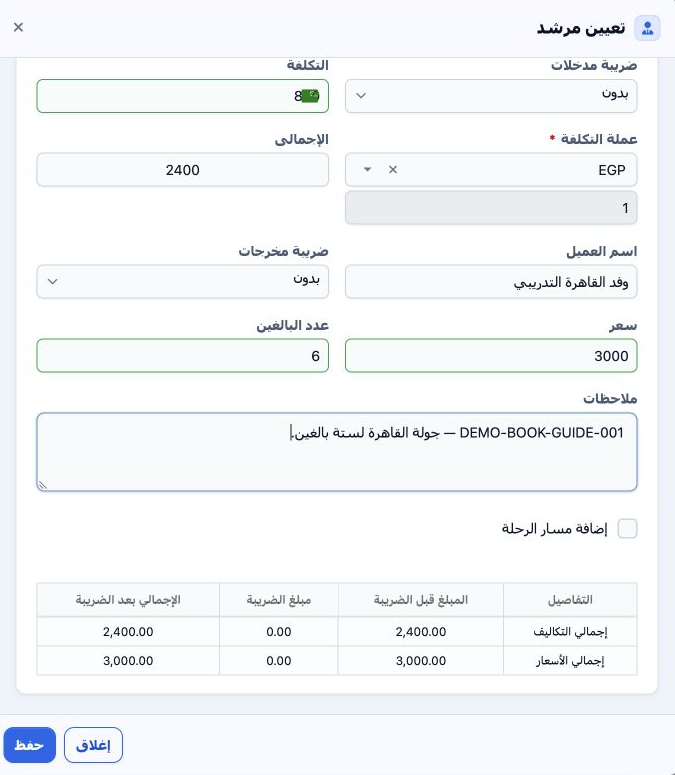
5 Enter Start Time when available; 09:00 was used. Enter the customer or group name and service notes. Enter 3,000 in Price as the selling tot...
Enter Start Time when available; 09:00 was used. Enter the customer or group name and service notes. Enter 3,000 in Price as the selling total and review input/output tax and the summary. Both taxes were None and Add Itinerary remained off. Select Save. Service 47146839 was saved with cost 2,400 and sale 3,000.

6 Edit the service

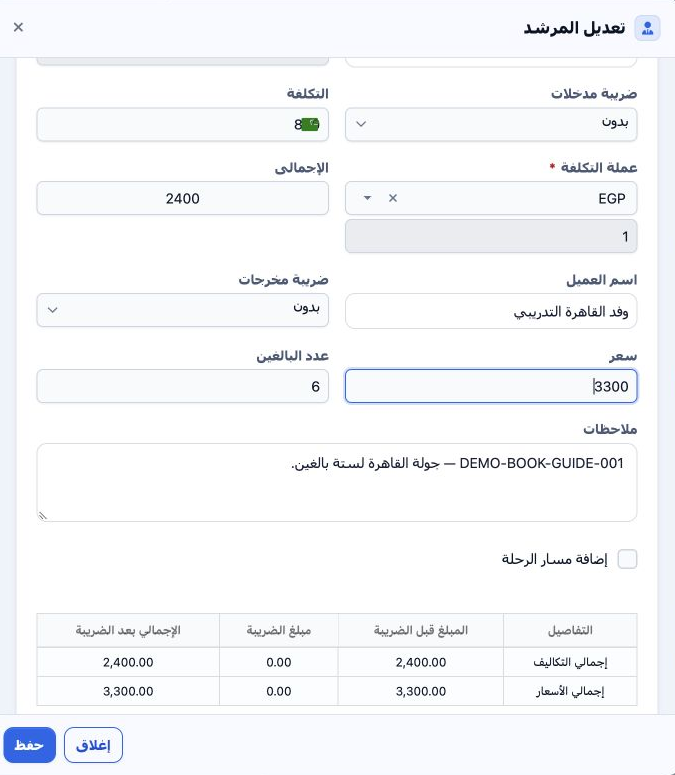
6 On the Guide row, choose Actions → Edit. Change the price or details, Save and review the saved row. The example changed selling total from...
On the Guide row, choose Actions → Edit. Change the price or details, Save and review the saved row. The example changed selling total from 3,000 to 3,300 and updated the note containing DEMO-BOOK-GUIDE-001. The saved row showed sale 3,300, with cost 2,400 and a 3-day period unchanged.

7 Review deletion confirmation

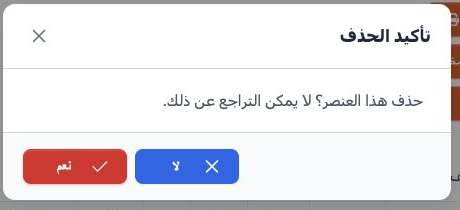
7 Choose Actions → Delete. The message states that deletion cannot be undone. Choose No to cancel or Yes to confirm removal of the intended it...
Choose Actions → Delete. The message states that deletion cannot be undone. Choose No to cancel or Yes to confirm removal of the intended item. No was selected in this test; the service was preserved for locking and journal review.

8 Lock the file

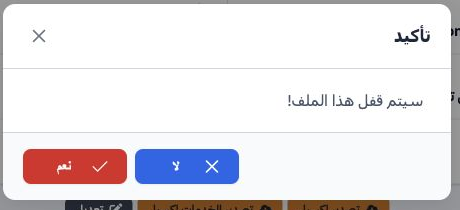
8 Review the service, select Lock and confirm Yes. The Guide row accounting status became Confirmed and Unlock appeared. Service-addition butt...
Review the service, select Lock and confirm Yes. The Guide row accounting status became Confirmed and Unlock appeared. Service-addition buttons became disabled. Review the generated entries in Accounting.

9 Find the generated entries

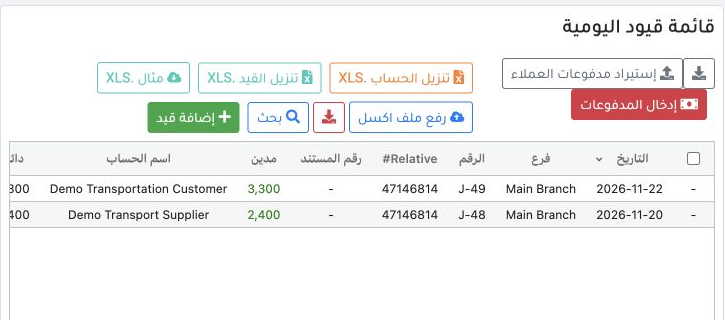
9 Open Accounting → Journal Entries → Search, enter 47146814 in Relative# and run the search. Two entries appear: J-48, source Guide, amount 2...
Open Accounting → Journal Entries → Search, enter 47146814 in Relative# and run the search. Two entries appear: J-48, source Guide, amount 2,400, and J-49, source Booking Revenue, amount 3,300. Right-click an entry and choose View to inspect its lines.

10 Guide cost journal

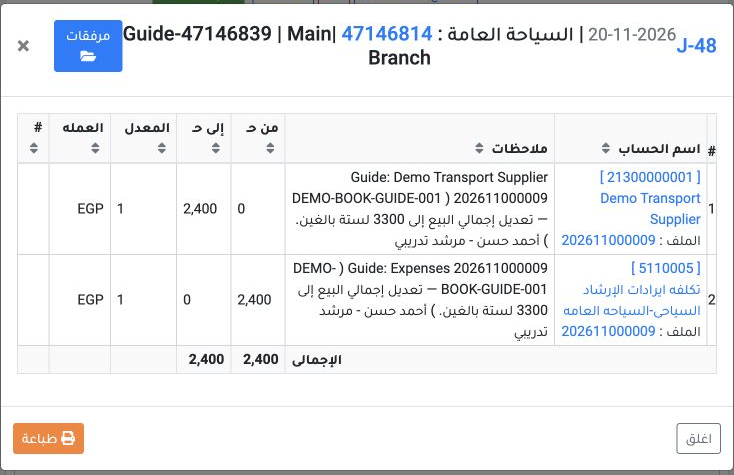
10 View J-48, dated 20 November 2026, source Guide, service reference 47146839. Debit is 2,400 EGP to guide-cost account 5110005; credit is 2,4...
View J-48, dated 20 November 2026, source Guide, service reference 47146839. Debit is 2,400 EGP to guide-cost account 5110005; credit is 2,400 to Demo Transport Supplier account 21300000001. Both sides use EGP at rate 1 and balance. The liability was recorded against the supplier selected in the service.

11 Guide revenue journal

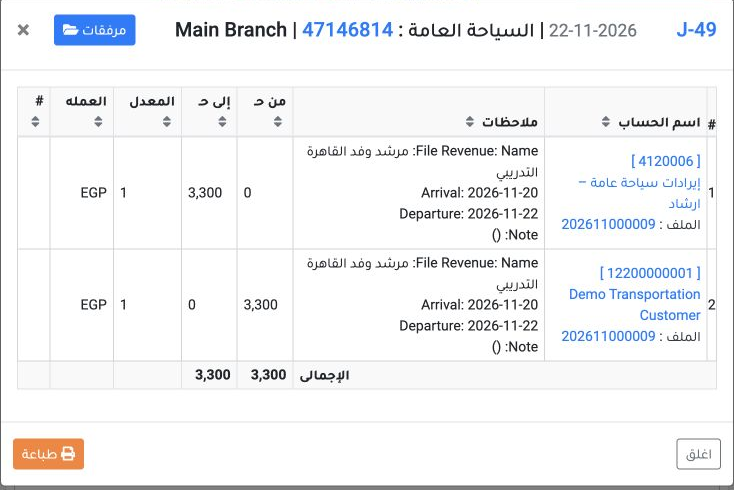
11 View J-49, dated 22 November 2026, source Booking Revenue. Debit is 3,300 EGP to Demo Transportation Customer account 12200000001; credit is...
View J-49, dated 22 November 2026, source Booking Revenue. Debit is 3,300 EGP to Demo Transportation Customer account 12200000001; credit is 3,300 to guide-revenue account 4120006. Review file 202611000009 in the narrative and equal debit/credit totals in EGP at rate 1.

12 Profit and remaining balance

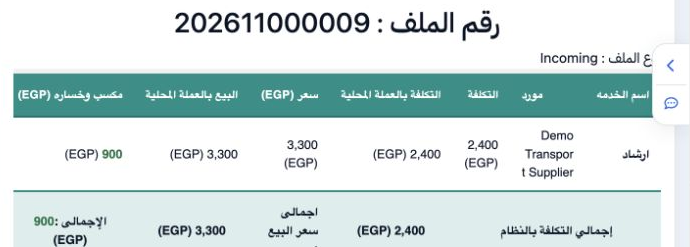
12 Open Profit and Loss. The example shows cost 2,400, sale 3,300 and profit 900 EGP, equal to 37.5% of cost. The customer remaining balance is...
Open Profit and Loss. The example shows cost 2,400, sale 3,300 and profit 900 EGP, equal to 37.5% of cost. The customer remaining balance is 3,300 because no payment was recorded. Locking the file and confirming its entries do not mean that the amount was collected; payment is a separate step.

Sign in to record the lessons you have read. Sign in