Skip to content
Trio Travel guide

Booking Itinerary User Guide

On this page
  1. 1 Prepare accommodation in the file
  2. 2 Add an itinerary movement
  3. 3 Customer and movement references
  4. 4 Transport and operating team
  5. 5 Accommodation time and saving
  6. 6 Edit and verify the itinerary
  7. 7 Review and cancel deletion
  8. 8 Search consolidated itineraries
  9. 9 The movement department workflow

Plan group movements and link them to file services for the movement department. This guide covers adding, editing, reviewing deletion confirmation and searching.

1 Prepare accommodation in the file
1 To link a hotel, first add and save an Accommodation service in the same Booking file, selecting the hotel, rooms and dates. The hotel then...
To link a hotel, first add and save an Accommodation service in the same Booking file, selecting the hotel, rooms and dates. The hotel then becomes available in the itinerary Accommodation field. This example uses file 202611000011 and Cairo Marriott Hotel, three Double rooms for six guests from 20 to 22 November 2026. The hotel became selectable after the accommodation service was saved. Defining a hotel in Settings alone does not populate this field; it must be a service in this file.

2 Add an itinerary movement

2 Open the Booking file, choose Add Itinerary, then Add New. The row initially uses the file arrival date and passenger count; review both for...
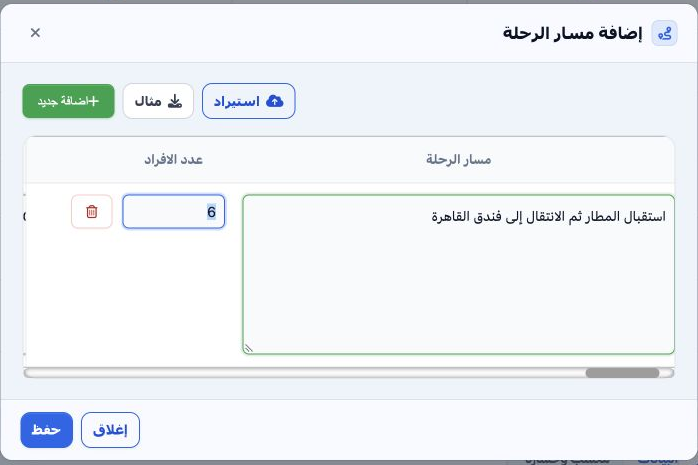
Open the Booking file, choose Add Itinerary, then Add New. The row initially uses the file arrival date and passenger count; review both for each movement. Enter a clear itinerary description, such as airport reception followed by a hotel transfer. The example uses 20 November 2026 and six passengers. Use the horizontal scrollbar to reach the remaining fields. Import and Example controls are also available for file-based entry; Add New creates additional rows.

3 Customer and movement references

3 Complete Remarker, Confirmation Number, Room Type, Customer Name and Customer Phone using the trip details. The example uses DEMO-ITIN-001,...
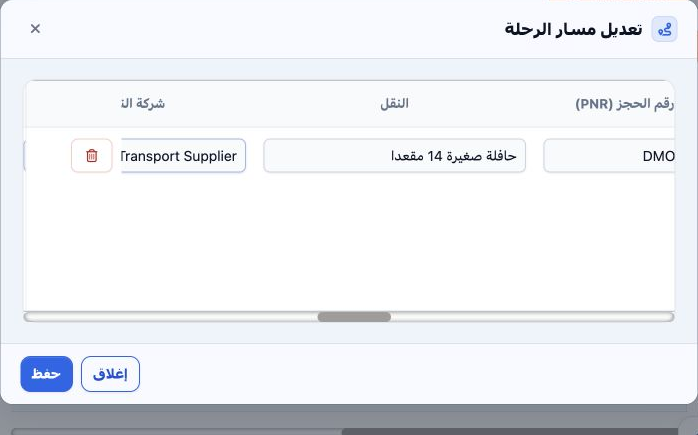
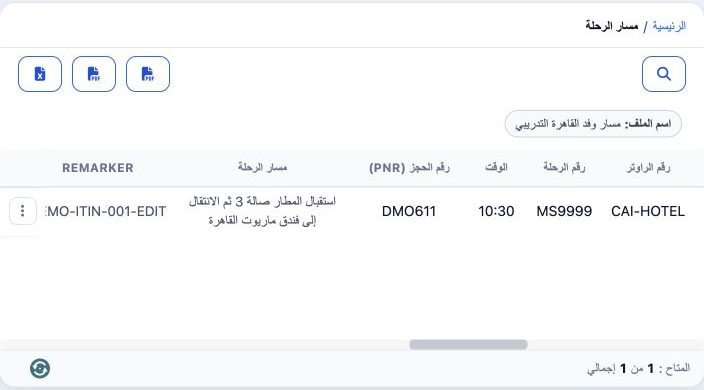
Complete Remarker, Confirmation Number, Room Type, Customer Name and Customer Phone using the trip details. The example uses DEMO-ITIN-001, ITN-CAI-001, Double and the training Cairo group. Enter Router Number, Flight Number and PNR when relevant; the example uses CAI-HOTEL, MS9999 and DMO611. Concierge Service is an available checkbox and remained off. These operational details help the movement team identify the group and its references.

4 Transport and operating team

4 Complete Transportation, Transport Company, Driver Name and Phone, Guide Name and Phone, Tour Operator, Tour Manager and Supplier. This exam...
Complete Transportation, Transport Company, Driver Name and Phone, Guide Name and Phone, Tour Operator, Tour Manager and Supplier. This example uses a 14-seat minibus description, Demo Transport Supplier and fictional training staff. These itinerary fields accept operational text. Review names and phone numbers before saving and make the assignments clear for the movement team. Allocating the representative and guide and requesting transport from the movement department are subsequent operational steps.

5 Accommodation time and saving

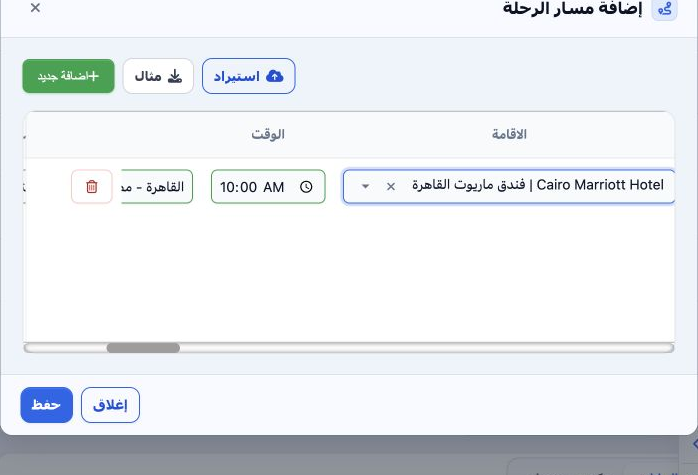
5 Select the hotel in Accommodation; this list contains accommodation services already added to the same file. Enter the movement Time and Loc...
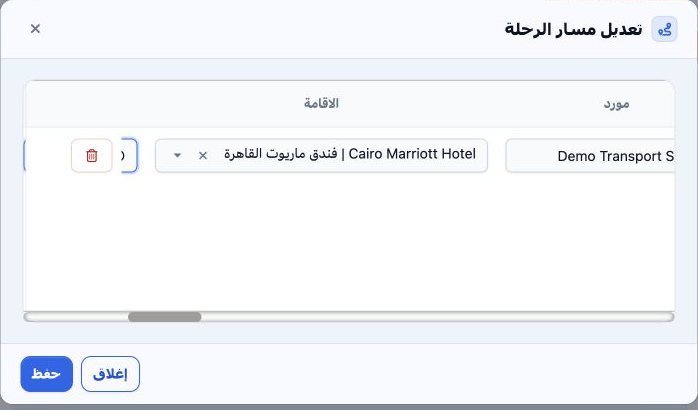
Select the hotel in Accommodation; this list contains accommodation services already added to the same file. Enter the movement Time and Location and City, and complete Tips and Notes as needed. The addition used Cairo, 10:00 and a terminal 3 reception note. Select Save, wait for completion and review the Itinerary section. The item was saved with reference 47147150, and the hotel remained selected when Edit was reopened.

6 Edit and verify the itinerary

6 On the itinerary row inside the file, choose Actions → Edit, update the fields and Save. The example changed the description to terminal 3 r...
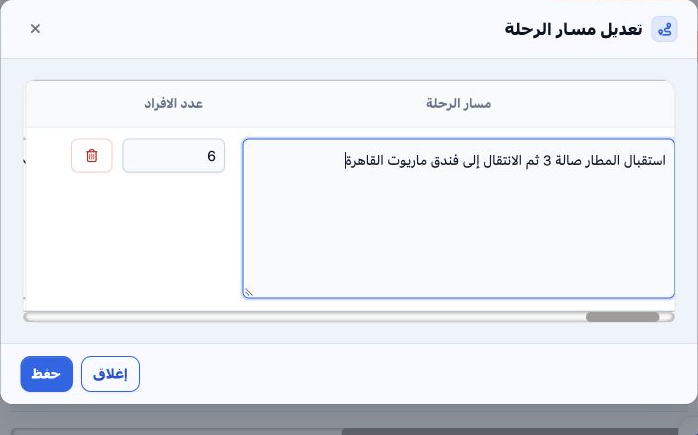
On the itinerary row inside the file, choose Actions → Edit, update the fields and Save. The example changed the description to terminal 3 reception followed by transfer to Cairo Marriott Hotel, Time to 10:30 and Remarker to DEMO-ITIN-001-EDIT. Reference 47147150 and six passengers remained unchanged. The updated values appeared both inside the file and in the consolidated itinerary list. The image shows the updated description and time in that list.

7 Review and cancel deletion

7 Choose Actions → Delete on the itinerary row. The confirmation says the item will be deleted and the action cannot be undone. Choose No to r...
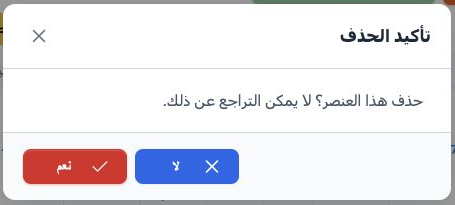
Choose Actions → Delete on the itinerary row. The confirmation says the item will be deleted and the action cannot be undone. Choose No to return without removing it. In this example the confirmation was captured and No was selected. Item 47147150 remained present and subsequently appeared in the consolidated list. Choose Yes only when you intend to remove that specific item.

8 Search consolidated itineraries

8 Open General Tourism → Itinerary and select Search. Enter the file name or select its number, and use date, guide, representative, operator,...
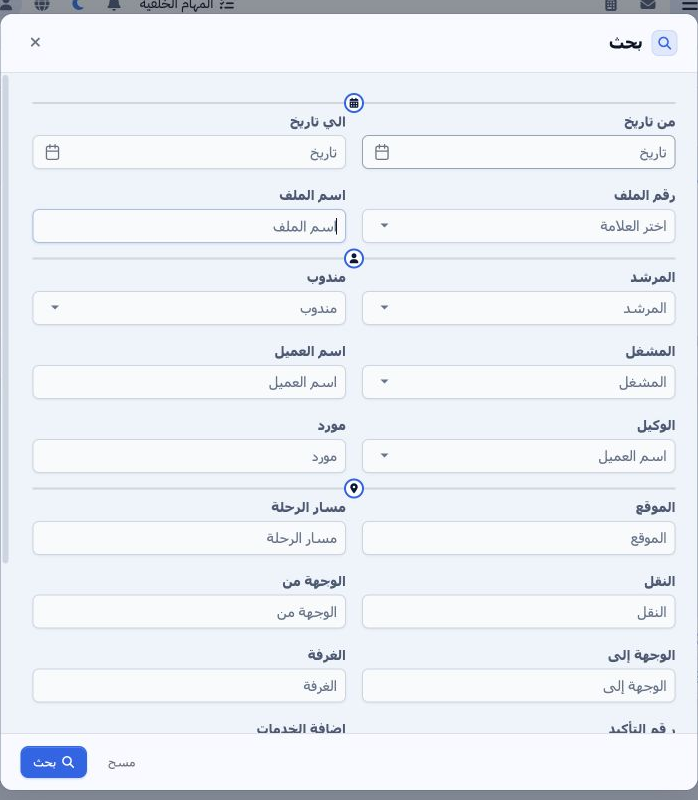
Open General Tourism → Itinerary and select Search. Enter the file name or select its number, and use date, guide, representative, operator, customer and agent filters as needed. Location, itinerary, transportation, origin/destination, room, confirmation and notes fields are also available. Select Search. Searching for مسار وفد القاهرة التدريبي returned one movement for file 202611000011.

9 The movement department workflow

9 This list brings Booking file itineraries together for the movement department and its reports. The linked hotel, file name and notes appear...
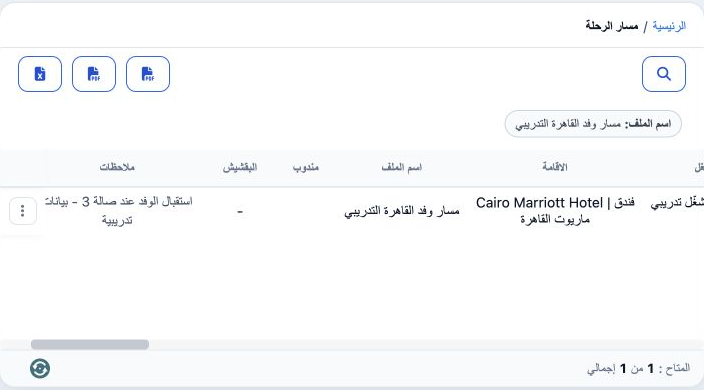
This list brings Booking file itineraries together for the movement department and its reports. The linked hotel, file name and notes appeared here. The movement department allocates representatives and guides and prepares the transport request. That request then goes to the Time Table and from there to a Work Order in Transportation. Review the file number, date, time, passenger count and hotel before continuing this workflow. Click the file number in the list to open the Booking file.

Sign in to record the lessons you have read. Sign in