Skip to content
Trio Travel guide

Booking File Destinations

On this page
  1. 1 Access and basic fields
  2. 2 Destination status
  3. 3 Transportation, visits and notes
  4. 4 Review and edit
  5. 5 Deletion confirmation

1 Access and basic fields

1 In the Booking file view, select Destinations. Enter the date, then select country, city and hotel. Enter the guest or group description, ro...
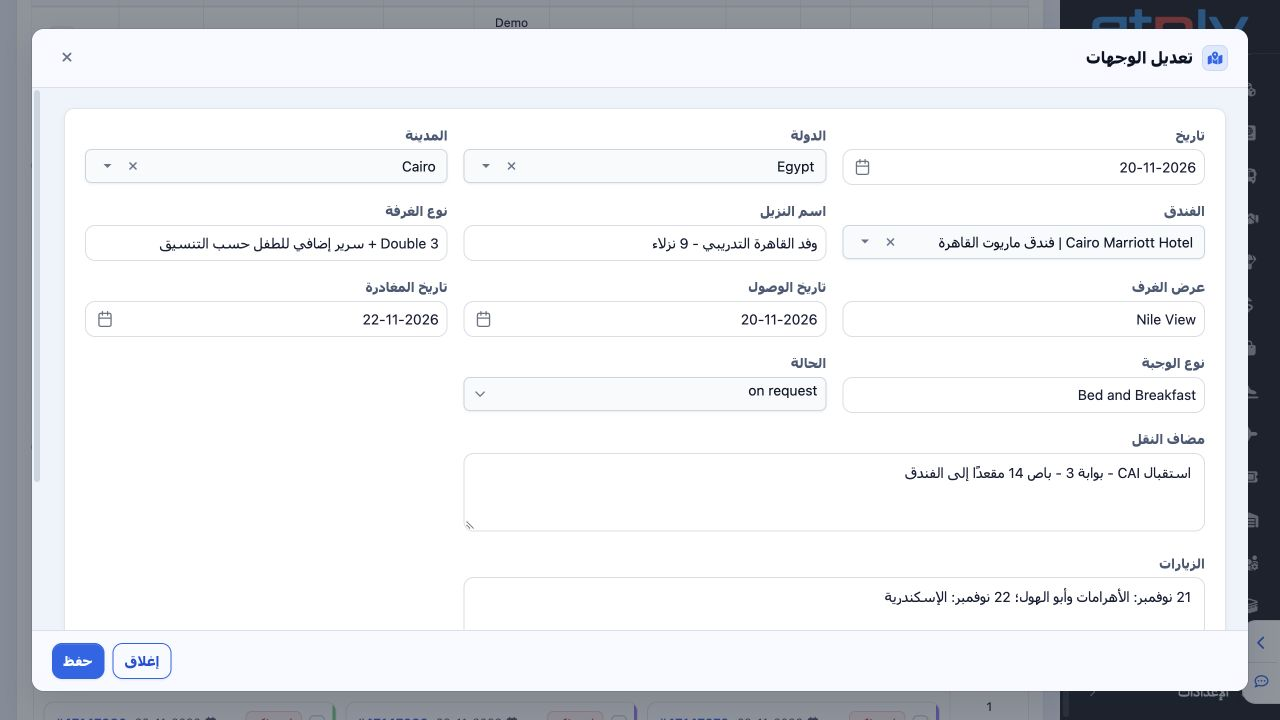
In the Booking file view, select Destinations. Enter the date, then select country, city and hotel. Enter the guest or group description, room type, room view, arrival/departure dates and meal type. The image shows the training destination reopened after saving: Egypt, Cairo, Cairo Marriott Hotel, 20–22 November.

2 Destination status

2 Open Status. Available choices are on request, Confirm, confirm by supplier and Cancelled. Select the status supported by your operational i...
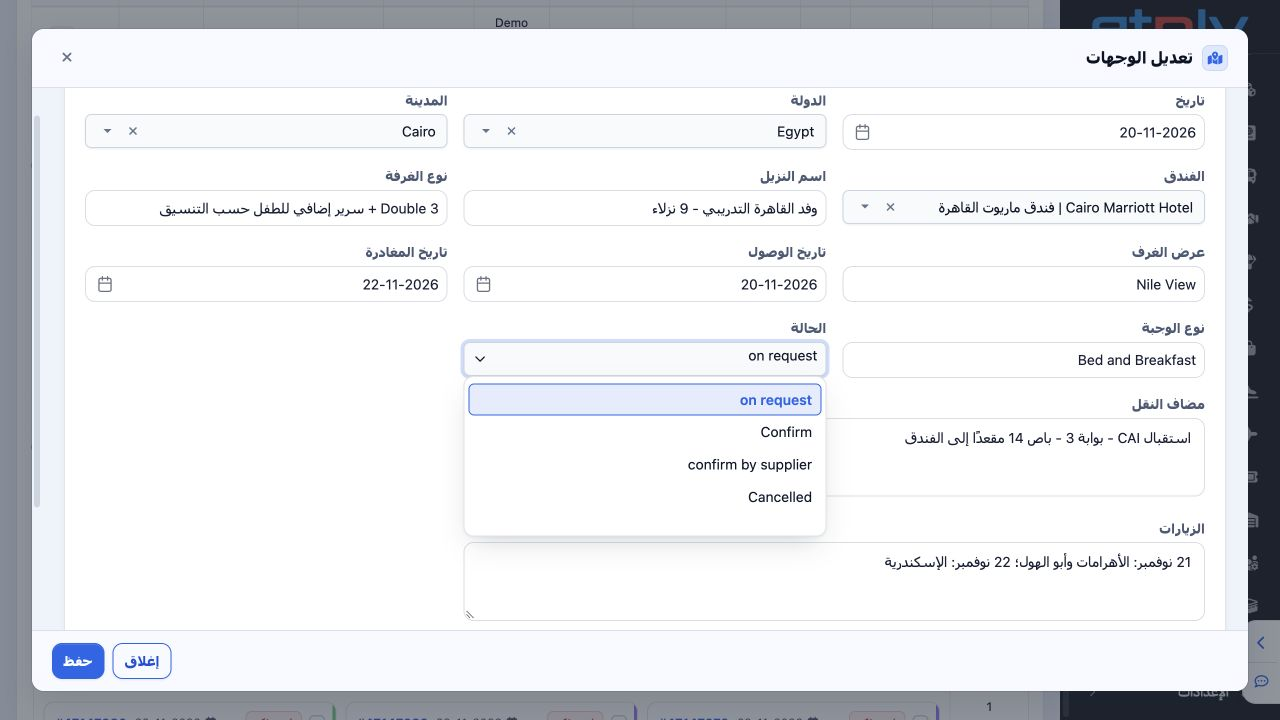
Open Status. Available choices are on request, Confirm, confirm by supplier and Cancelled. Select the status supported by your operational information. The training record uses on request. Review the selection before saving.

3 Transportation, visits and notes

3 Complete Added Transportation with movement and meeting-point details, Visits with the activity plan, and Notes. The example uses CAI Gate 3...
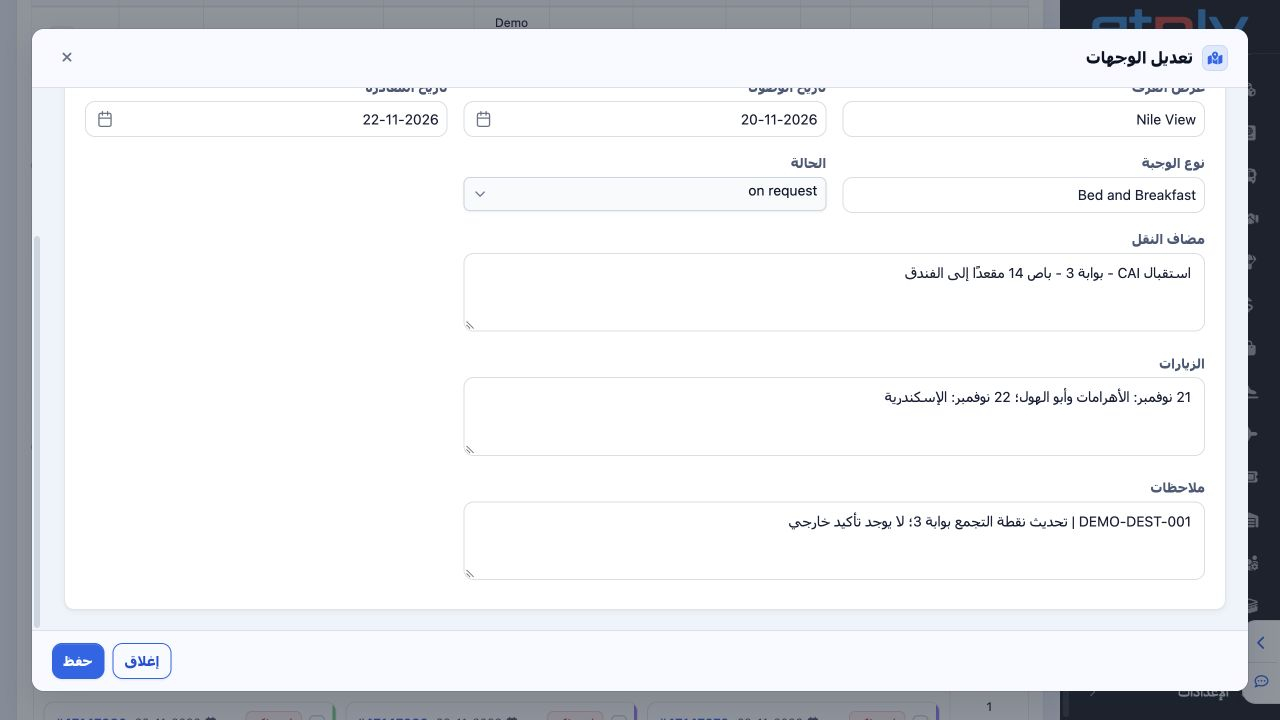
Complete Added Transportation with movement and meeting-point details, Visits with the activity plan, and Notes. The example uses CAI Gate 3 pickup by a 14-seat bus and visits to the pyramids and Alexandria. The Add form provides a plus for another row and a trash control for removing a draft row. Review and Save.

4 Review and edit

4 The record appears in the file’s Destinations section; the example reference is 47147430. Choose Actions → Edit, change the intended value,...
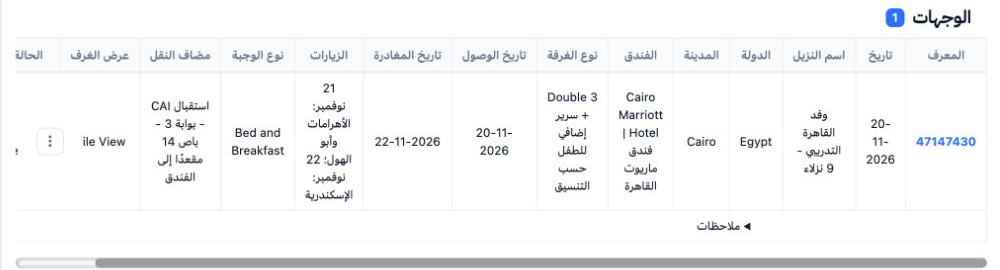
The record appears in the file’s Destinations section; the example reference is 47147430. Choose Actions → Edit, change the intended value, Save and verify the row. The trial changed the meeting point to Gate 3. Scroll horizontally for the remaining fields and open Notes when needed.

5 Deletion confirmation

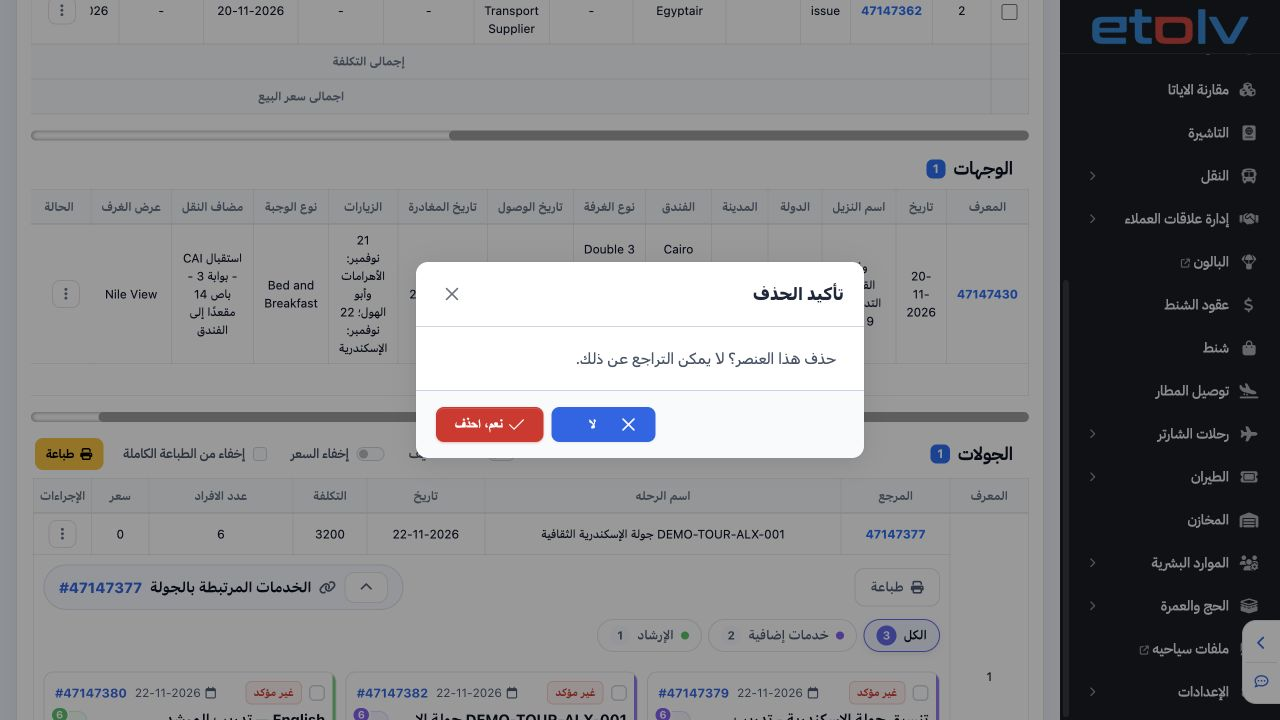
5 Choose Actions → Delete. The warning states that deletion cannot be undone. Verify the intended record and select No to keep it. The example...
Choose Actions → Delete. The warning states that deletion cannot be undone. Verify the intended record and select No to keep it. The example cancels deletion and retains the destination.

Sign in to record the lessons you have read. Sign in