Skip to content
Trio Travel guide

Booking Document Types Setup

On this page
  1. 1 Open Document Types
  2. 2 Add a type and its prices
  3. 3 Edit the type
  4. 4 Verify the saved change
  5. 5 Review deletion and keep the type
  6. 6 Search by name
  7. 7 Use the type in Documents

1 Open Document Types

1 Open Settings → Document Types. The example contains a saved Travel Document Review training type, initially costing 200 and priced at EGP 3...
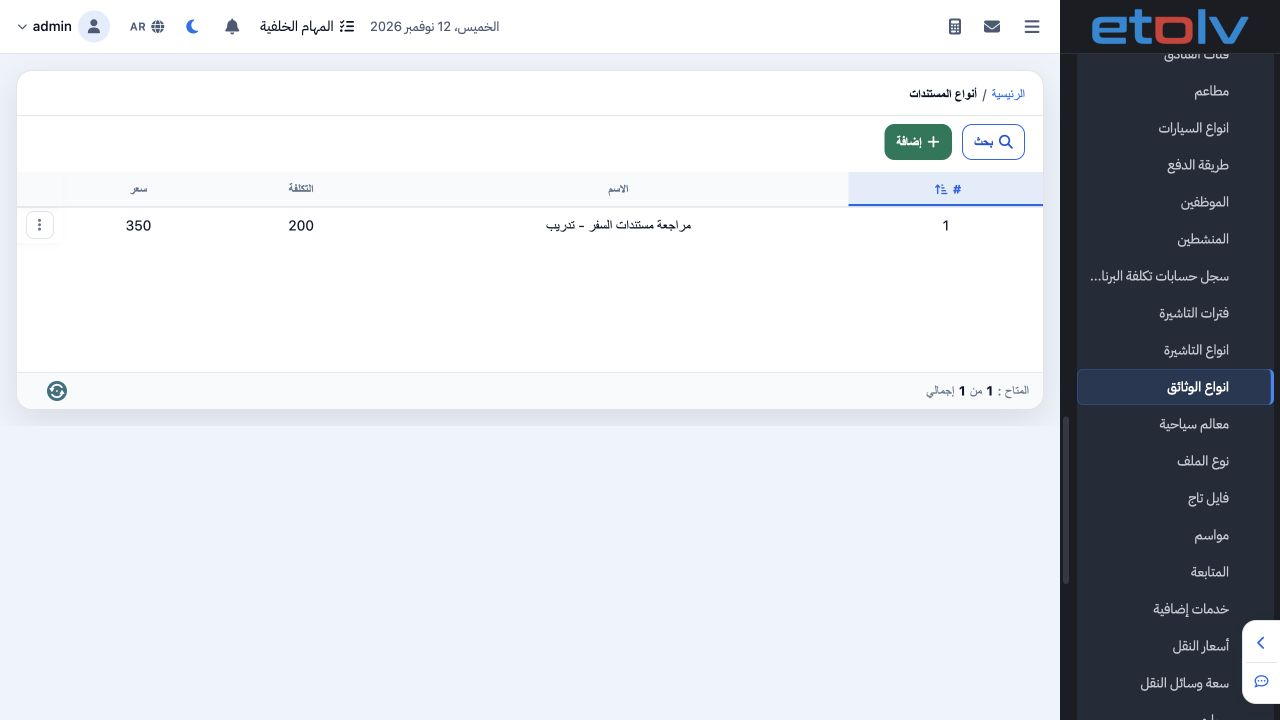
Open Settings → Document Types. The example contains a saved Travel Document Review training type, initially costing 200 and priced at EGP 350 before the edit. The type is used when adding a Documents service to a General Tourism file.

2 Add a type and its prices

2 Select Add. Enter name, cost and price, then choose the currency. This example uses cost 200, price 350 and EGP. Select Save; Cancel exits w...
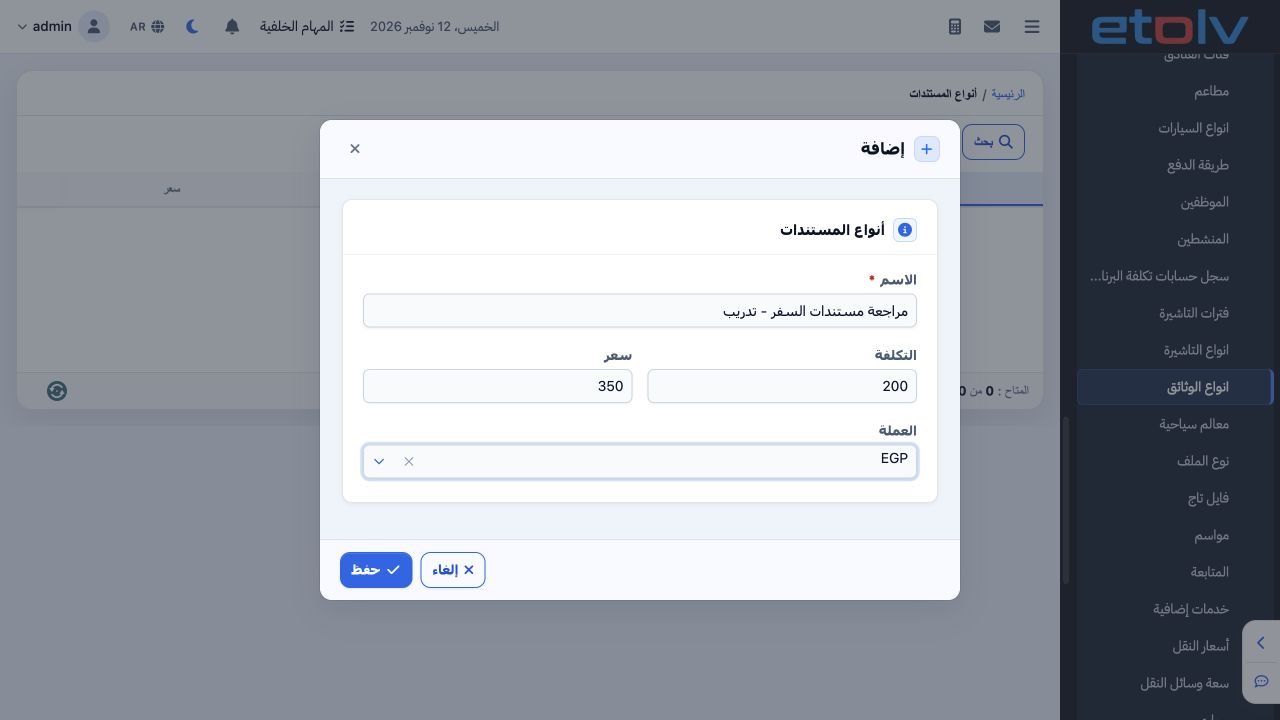
Select Add. Enter name, cost and price, then choose the currency. This example uses cost 200, price 350 and EGP. Select Save; Cancel exits without saving.

3 Edit the type

3 Open the row’s three-dot menu and choose Edit. Wait for the current values to appear, then change price from 350 to 400 while keeping cost 2...
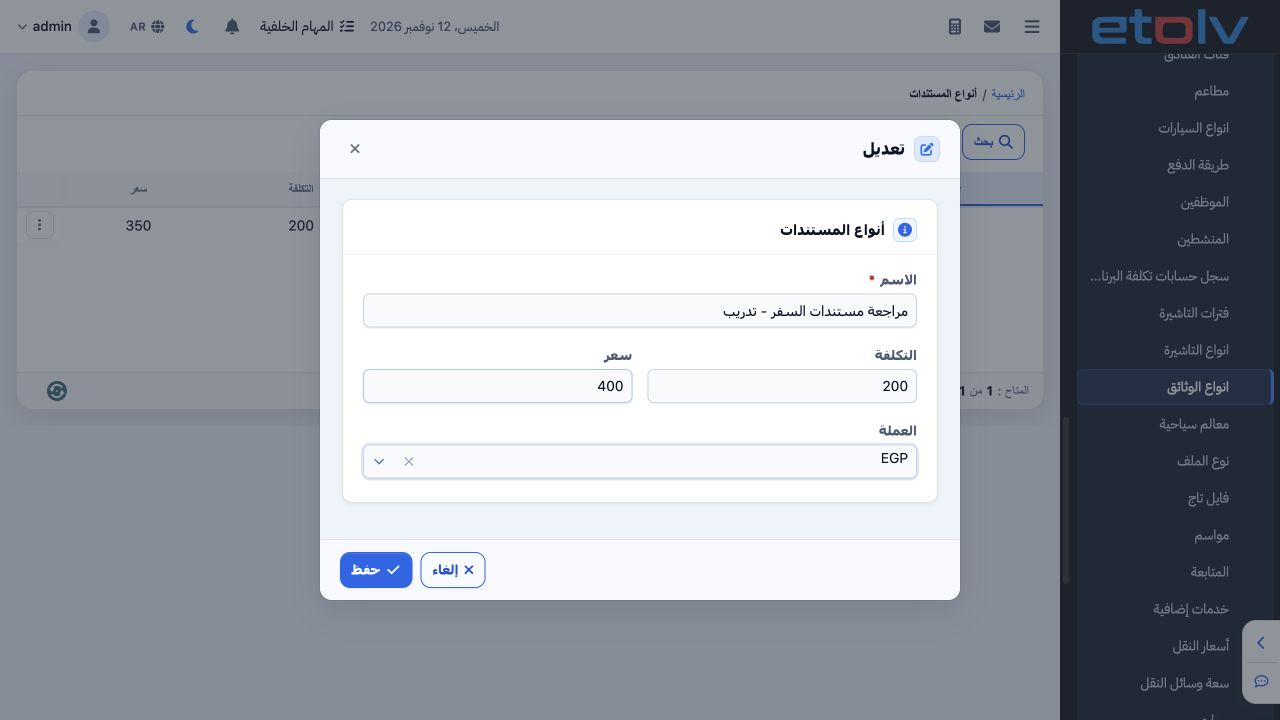
Open the row’s three-dot menu and choose Edit. Wait for the current values to appear, then change price from 350 to 400 while keeping cost 200 and EGP. Select Save.

4 Verify the saved change

4 The saved type now shows price 400 and cost 200. Review the row after saving to verify that the intended change persisted.
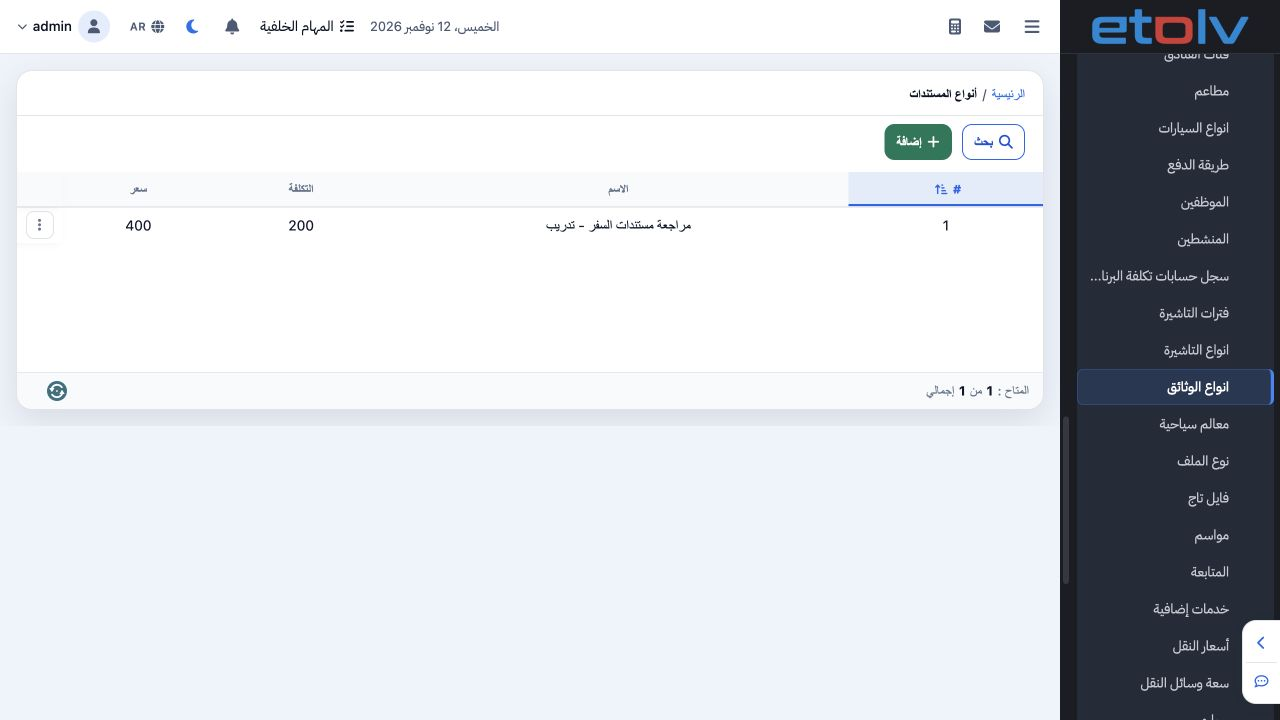
The saved type now shows price 400 and cost 200. Review the row after saving to verify that the intended change persisted.

5 Review deletion and keep the type

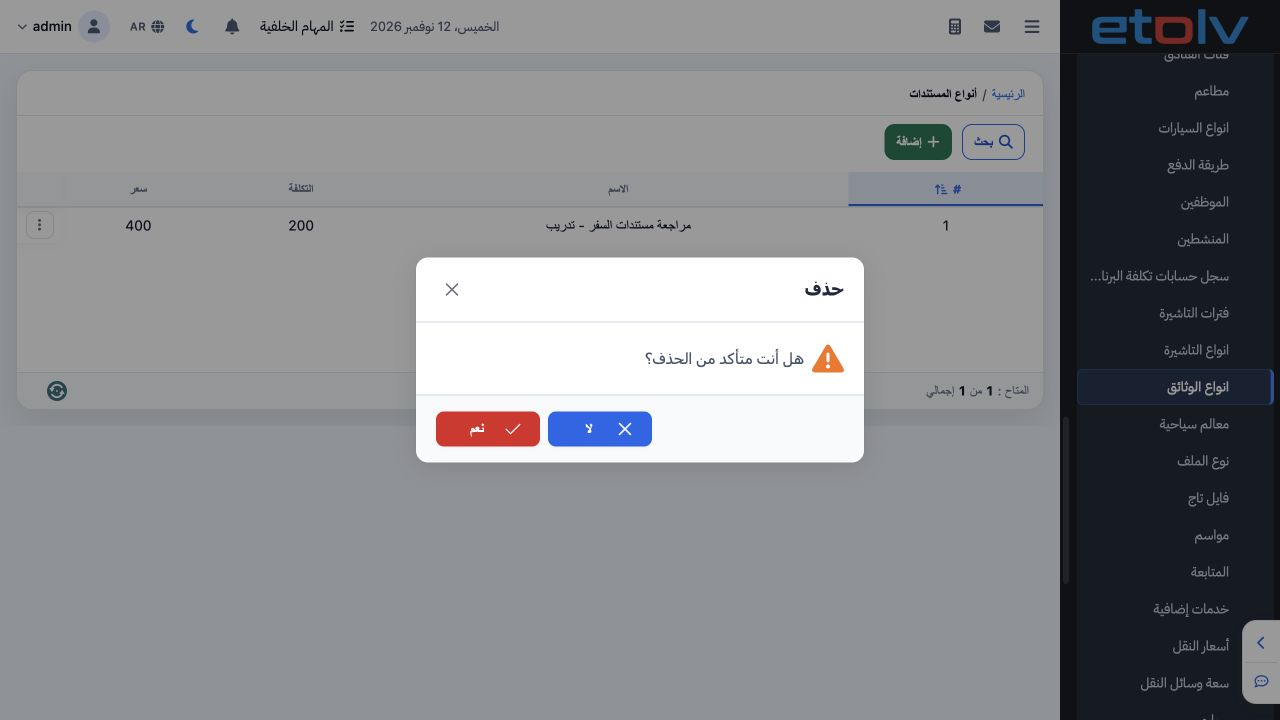
5 Choose Delete from the row menu to display confirmation. Select No to cancel and keep the type, as performed in this example. Yes is the opt...
Choose Delete from the row menu to display confirmation. Select No to cancel and keep the type, as performed in this example. Yes is the option that continues deletion.

6 Search by name

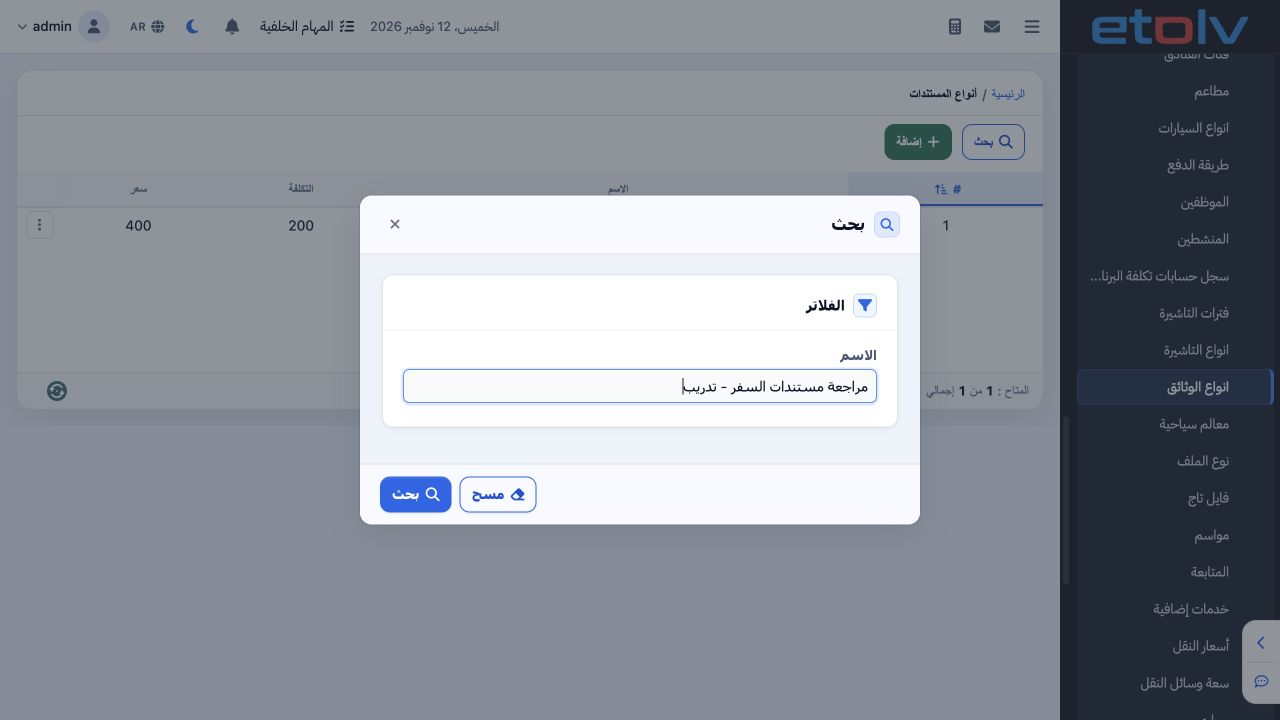
6 Select Search, enter the complete training type name, then select Search in the dialog. The example returned the saved type with cost 200 an...
Select Search, enter the complete training type name, then select Search in the dialog. The example returned the saved type with cost 200 and price 400. Clear removes the criterion.

7 Use the type in Documents

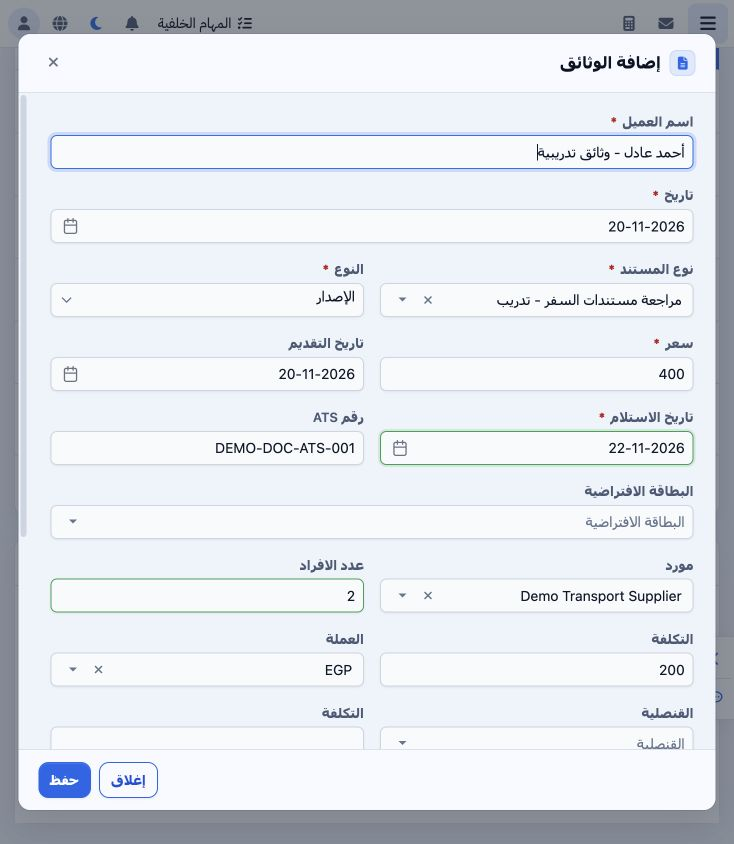
7 Inside a General Tourism file, open Documents and select the saved type. The example retrieved the updated price 400, cost 200 and EGP. Comp...
Inside a General Tourism file, open Documents and select the saved type. The example retrieved the updated price 400, cost 200 and EGP. Complete owner, dates, supplier and quantity using the separate Documents service guide.

Sign in to record the lessons you have read. Sign in