Skip to content
Trio Travel guide

Sales Invoices

On this page
  1. Ways to create an invoice
  2. Choose the invoice section
  3. Create a manual invoice
  4. Post the invoice
  5. Verify status and journal entry
  6. Link an invoice to a General Tourism file
  7. Verify the saved file link
  8. Convert a reservation to an invoice

Use this guide to choose how to create a sales invoice, select the section, post a manual invoice and review its entry.

Ways to create an invoice

Standalone manual invoice. Open Add Sales Invoice and enter the customer and line items in a section that allows standalone entry, such as Bookings in this example.

Invoice linked to an existing file. In General Tourism, use File No. on the line to select a saved file. Its number comes from Portal → General Tourism → Files.

Convert a booking or file. Start from the booking or file and select the option to convert it to an invoice. The system copies source data into the invoice for review.
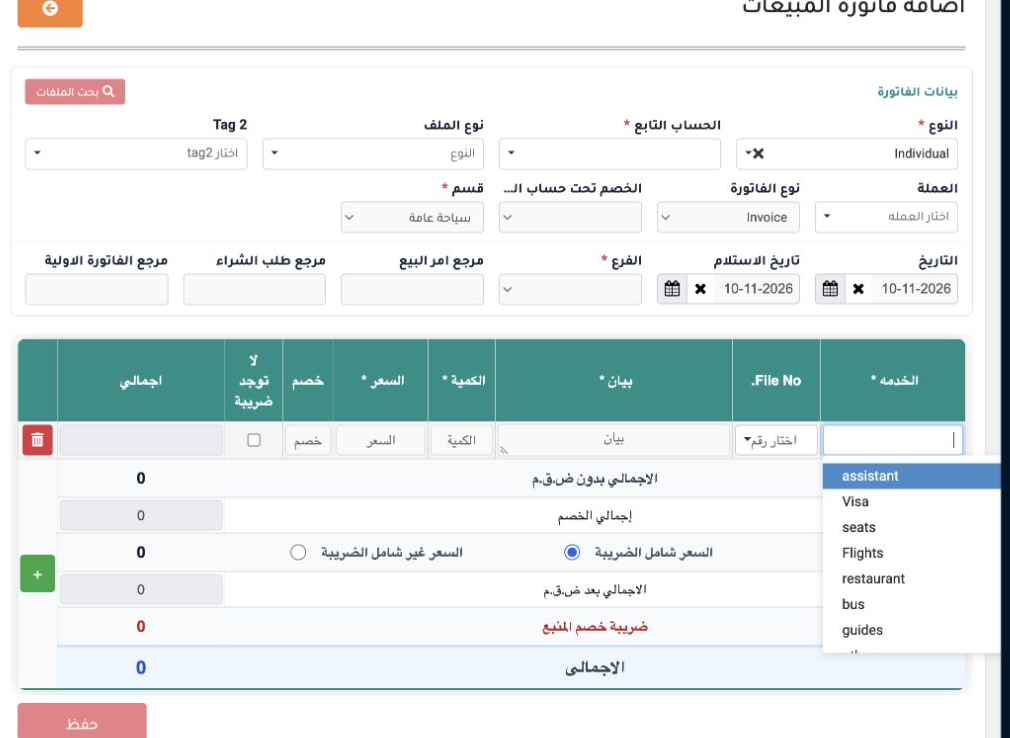
1 A General Tourism line displays File No. and offers a section-specific service list.
A General Tourism line displays File No. and offers a section-specific service list.

Choose the invoice section

Choose the section responsible for the transaction before adding line items. The differences below were observed in the Add Sales Invoice form.

SectionWhat appears on the invoice line
BookingsService list includes Flights, accommodation and transportation. Used for the manual example.
Simple ReservationText field for the line item service.
General TourismService list includes Tour, accommodation and guides. Each line displays File No.
AviationText field for the line item service.
TransportText field for the service and a vehicle picker.
LimousineLimousine appears in the service list, alongside a vehicle picker.
2 The Transport section adds a vehicle field to the invoice line. Limousine also displays the vehicle field.
The Transport section adds a vehicle field to the invoice line. Limousine also displays the vehicle field.

Create a manual invoice

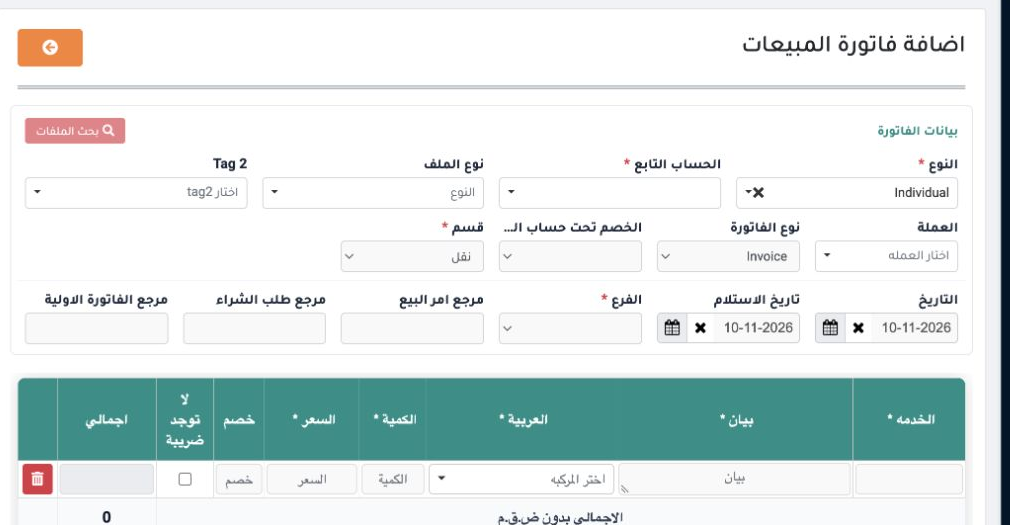
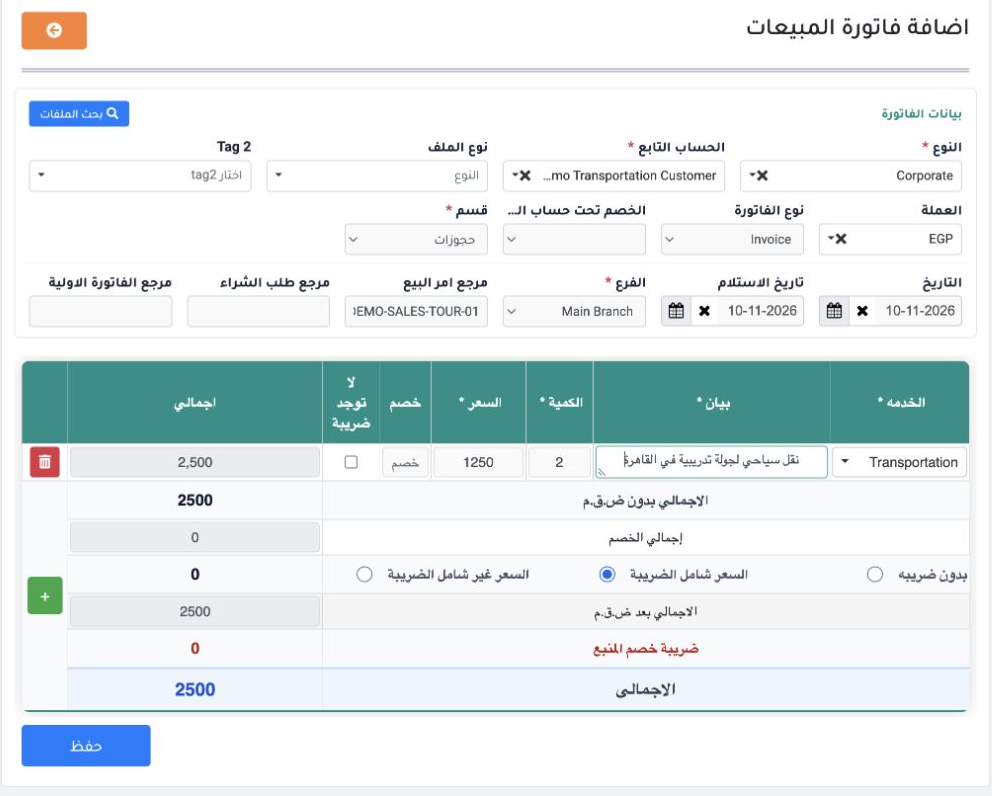
3 Go to Accounting → Sales Invoice → Add Sales Invoice. Select the customer type, customer account, currency, branch and section. Select +, ch...
Go to Accounting → Sales Invoice → Add Sales Invoice. Select the customer type, customer account, currency, branch and section. Select +, choose the service, and enter the description, quantity and price. This Bookings example uses transportation, quantity 2 and EGP 1,250 per unit. Review the total and tax option, then select Save.

Post the invoice

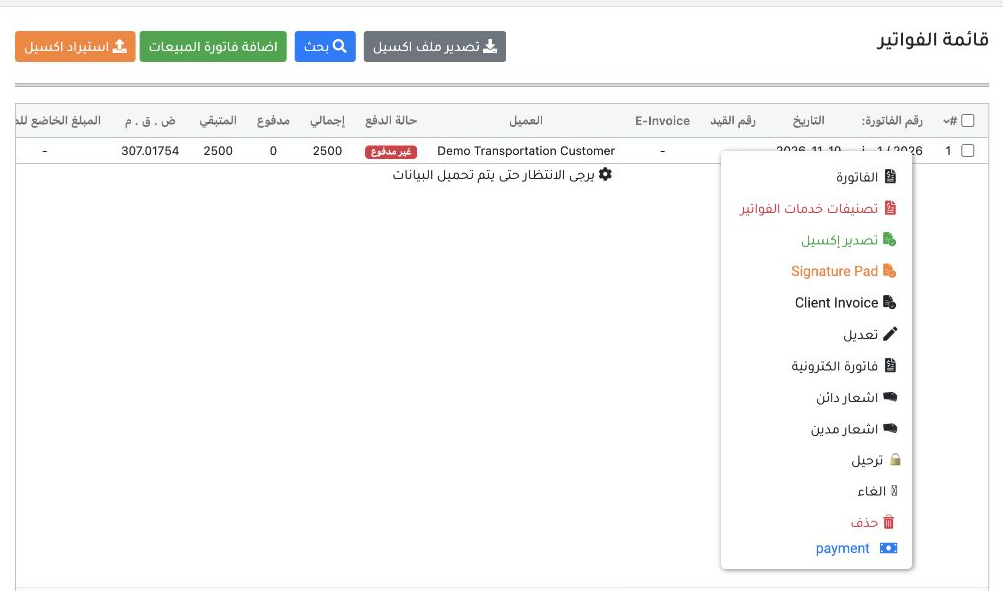
4 In the invoice register, right-click the invoice row and select Post. The example invoice is i - 1 / 2026.
In the invoice register, right-click the invoice row and select Post. The example invoice is i - 1 / 2026.
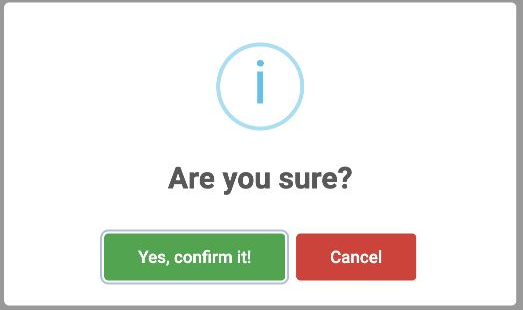
5 Check the selected invoice, then choose Yes, confirm it!. The register showed Posting in progress while processing.
Check the selected invoice, then choose Yes, confirm it!. The register showed Posting in progress while processing.

Verify status and journal entry

6 After processing, the posting status was Confirmed.
After processing, the posting status was Confirmed.
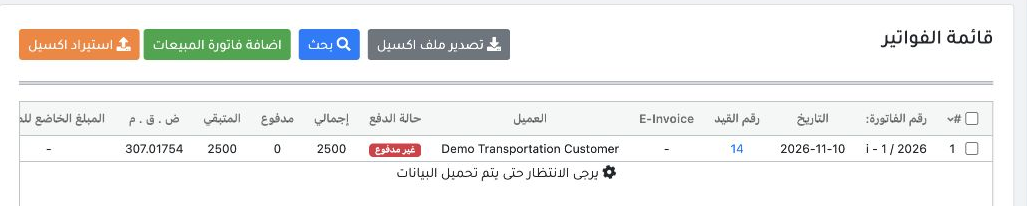
7 Payment status remained Unpaid, with EGP 2,500 outstanding. Open journal link 14, then select View from the J-14 row menu.
Payment status remained Unpaid, with EGP 2,500 outstanding. Open journal link 14, then select View from the J-14 row menu.
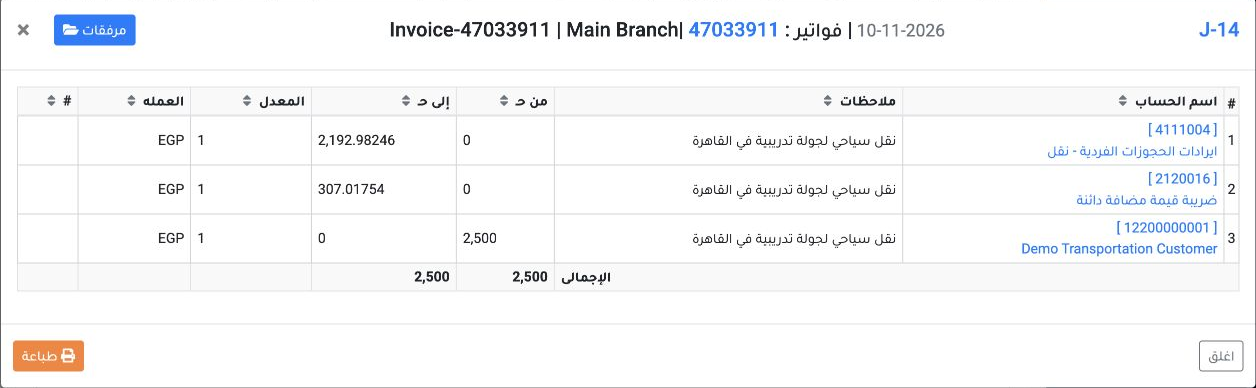
8 J-14 debited the customer (12200000001) EGP 2,500 and credited individual booking transport revenue (4111004) EGP 2,192.98246 and VAT payabl...
J-14 debited the customer (12200000001) EGP 2,500 and credited individual booking transport revenue (4111004) EGP 2,192.98246 and VAT payable (2120016) EGP 307.01754.

Link an invoice to a General Tourism file
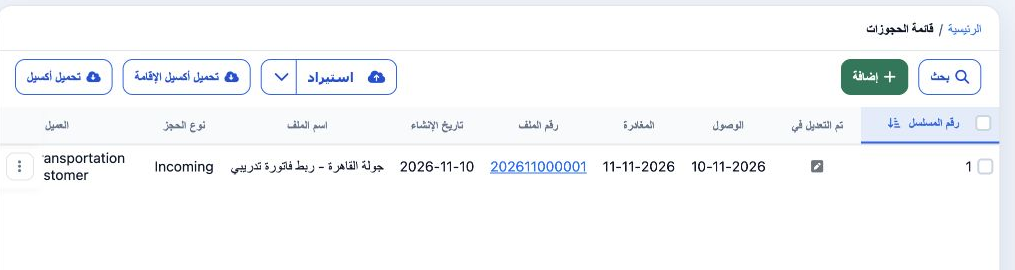
9 In Portal → General Tourism → Files, find the saved file number. The example is 202611000001.
In Portal → General Tourism → Files, find the saved file number. The example is 202611000001.
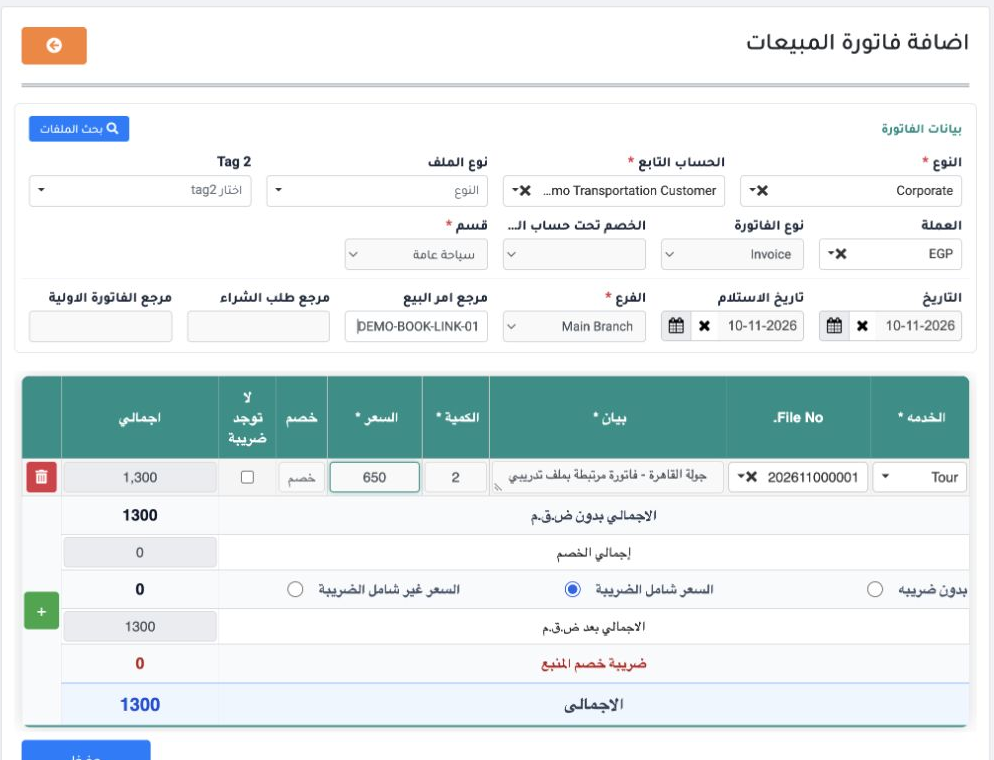
10 In Add Sales Invoice, choose General Tourism and add a line. Select Tour and the file in File No. Enter the description, quantity and price,...
In Add Sales Invoice, choose General Tourism and add a line. Select Tour and the file in File No. Enter the description, quantity and price, then save.

Verify the saved file link

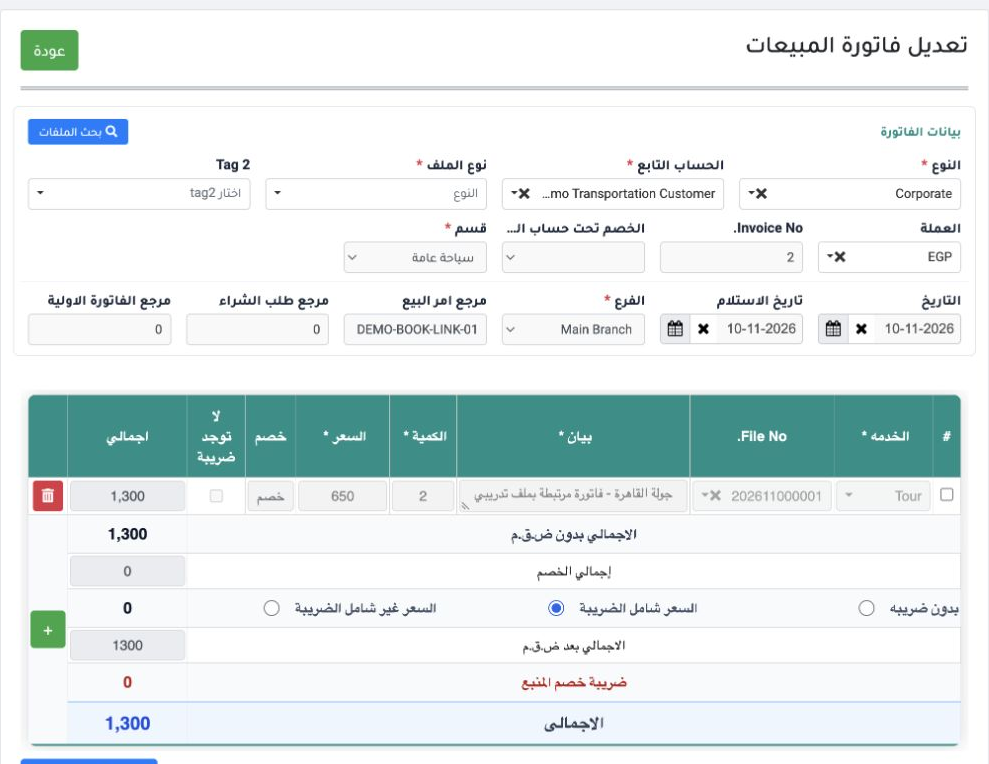
11 Reopen i - 2 / 2026 from the register. File 202611000001 remained on the Tour line, with a total of EGP 1,300.
Reopen i - 2 / 2026 from the register. File 202611000001 remained on the Tour line, with a total of EGP 1,300.

Convert a reservation to an invoice

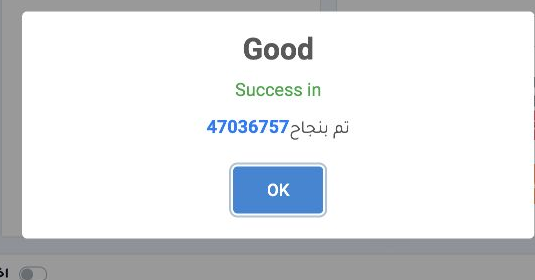
12 Open reservation 47036165 after saving its services, choose Export to Invoice, and confirm. Open the invoice link in the success message.
Open reservation 47036165 after saving its services, choose Export to Invoice, and confirm. Open the invoice link in the success message.
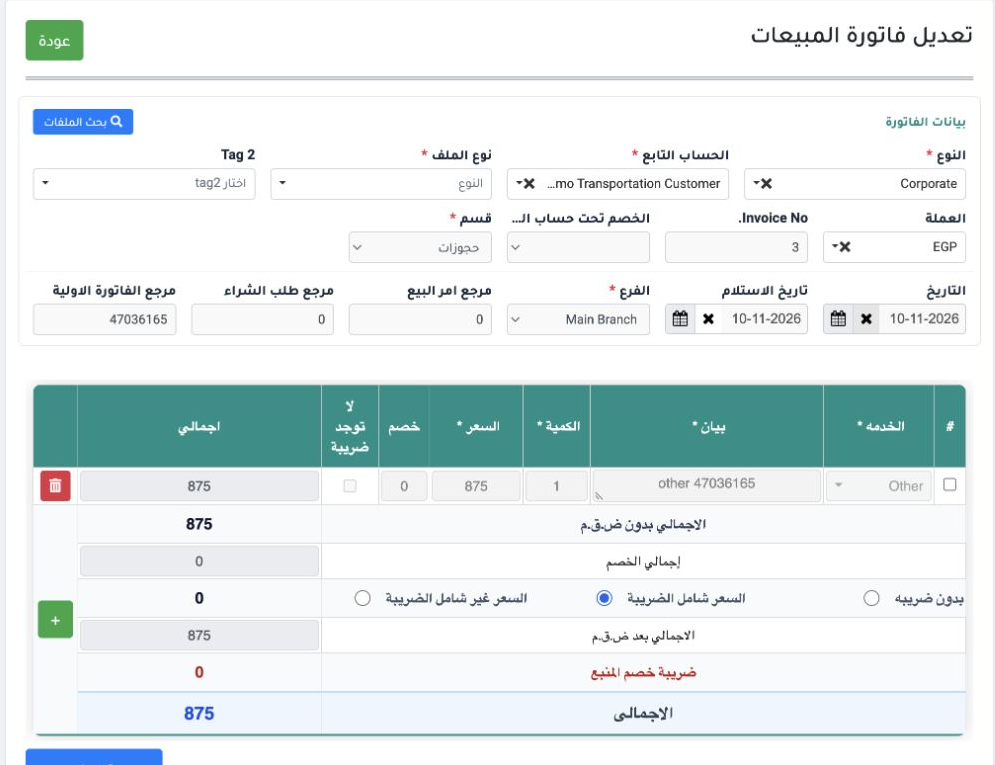
13 Invoice i - 3 / 2026 showed the customer and type, branch and currency, and the reservation number as the pro forma reference. It showed one...
Invoice i - 3 / 2026 showed the customer and type, branch and currency, and the reservation number as the pro forma reference. It showed one other line at EGP 875 and generated the description other 47036165.

Review the line description and total after conversion. Both records displayed 10 November 2026, and the invoice appeared as Unconfirmed in the register.

Sign in to record the lessons you have read. Sign in