Skip to content
Trio Travel guide

Journal Entries

On this page
  1. Review the saved entry
  2. Add a balanced entry
  3. Entries in a closed period
  4. Find an entry

Review the saved entry

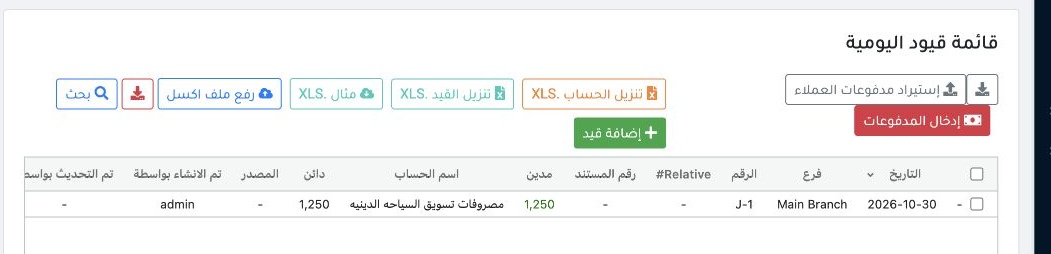
1 Open Accounting → Journal Entries. The example shows J-1, dated 30 October 2026, with EGP 1,250 in both debit and credit. Use the Account or...
Open Accounting → Journal Entries. The example shows J-1, dated 30 October 2026, with EGP 1,250 in both debit and credit. Use the Account or Entry download to export.

Add a balanced entry

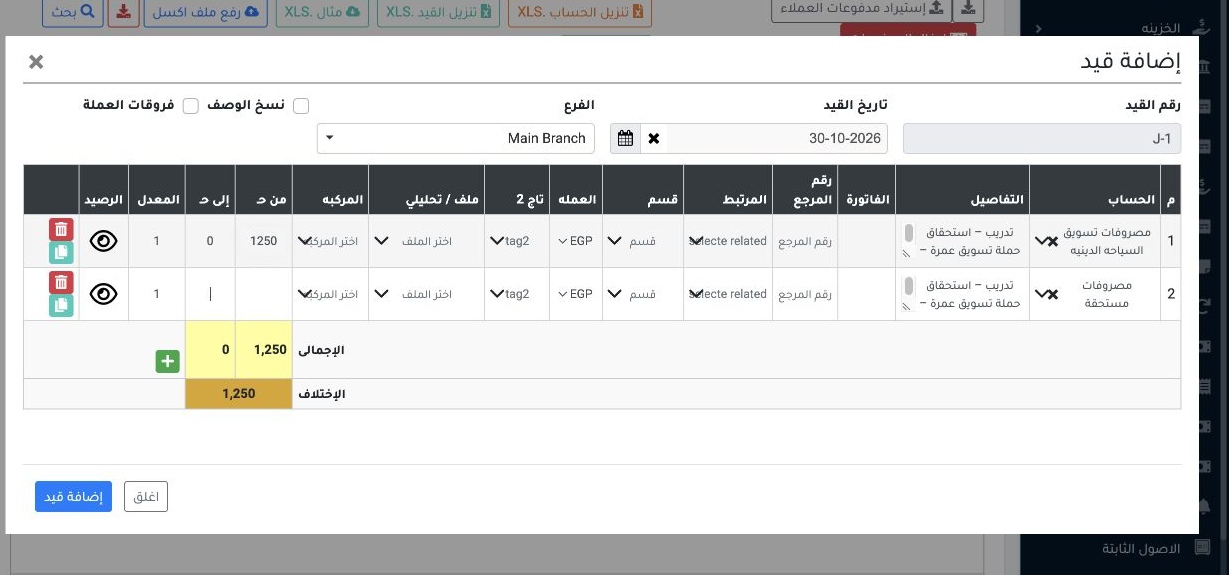
2 Select Add Entry. Set the date and branch, and enter each line’s ledger, description and amount. In the example, religious tourism marketing...
Select Add Entry. Set the date and branch, and enter each line’s ledger, description and amount. In the example, religious tourism marketing is debited and accrued expenses are credited. Review that both sides balance before saving.

Entries in a closed period

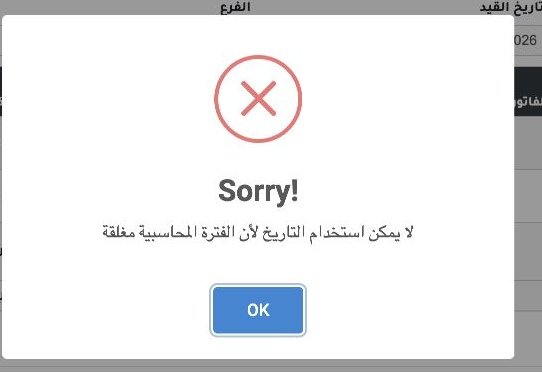
3 The system prevents saving an entry dated within a closed period. The example saved after the period reopened. Use receipt and payment vouch...
The system prevents saving an entry dated within a closed period. The example saved after the period reopened. Use receipt and payment vouchers for safe movements. Posting a voucher creates a journal entry. A manual journal entry does not create a voucher.

Find an entry

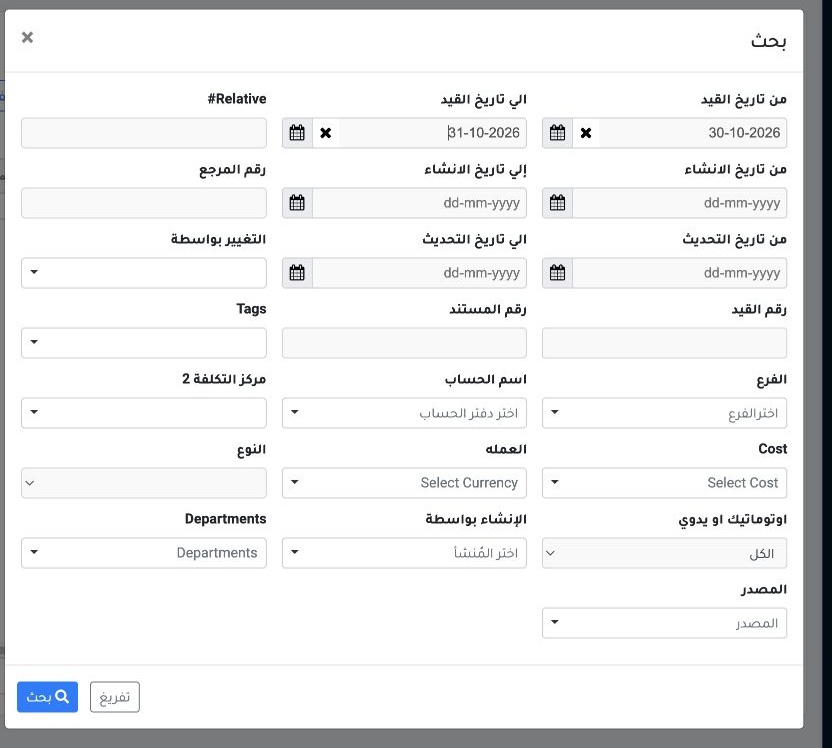
4 Open Search, then set an entry date range, number or type. The example uses 30–31 October to find the saved entry.
Open Search, then set an entry date range, number or type. The example uses 30–31 October to find the saved entry.

Sign in to record the lessons you have read. Sign in