Importing Electronic Invoices from Excel
On this page
1 Prepare the template and example
Open E-invoice → Invoices. Obtain the approved template and its column catalog. This example uses the Import worksheet with 32 columns. Keep column names unchanged and enter data starting in row 2.
Confirm the item, currency and branch exist in the current organization. Do not reuse branch or customer identifiers from another company’s catalog. The example uses EGS, internal code 1, EGP and exchange rate 1.
The training identities are fictitious. Successful import means the invoice was saved in Trio. Review, electronic signing, submission and processing status are subsequent steps.
2 Invoice identifiers and references

internalid: required invoice grouping key. Repeat it across rows to create multiple lines in one invoice. Invoice-level fields are read from the group’s first row. Avoid an ID already used in the same year for the same document type.
invoicetype: i for invoice, c for credit note and d for debit note. The catalog also supports ei, ec and ed; this example uses i. Blank or unrecognized input defaults to i, so enter the intended code explicitly.
proformainvoicenumber is the proforma reference; purchaseorderreference is the purchase order reference; salesorderreference is the sales order reference. These are optional and default to 0 when blank.
taxpayeractivitycode is the document activity code, 5229 here. internalcode is required on every line and must exactly match an existing item internal code. itemtype accepts uppercase EGS or GS1; blank defaults to EGS.
3 Quantity price and fixed discount

description is the line description and falls back to the item’s primary name when blank. currency is an existing currency code, such as EGP, and defaults to EGP. Verify the imported currency.
totaltaxablefees holds additional taxable line fees; the example uses 0. unittype is the unit-of-measure code and defaults to EA.
quantity is converted to an integer, truncating fractional units. price is the unit amount. Sales amount equals quantity × price. Both fields default to 0 when blank.
discount is a fixed line amount, not a percentage. To apply 10% to 2000, enter 200 in this template. exchangerate converts the line currency to EGP and defaults to 1.
4 Taxes and receiver type

itemsdiscount is an additional line item discount. t1 and t4 are their respective percentages on line net total. The training example uses 14 and 3 as directed by the system owner; use the applicable rates for your transaction.
subtype is a shared import field used for both T1 and T4. When blank, T1 defaults to V009 and T4 to W009. The example displayed W009 as Supporting export subsidies. Review it in the item editor before signing and choose the applicable subtype.
extradiscountamount is the document-level additional discount and defaults to 0. branchid is an existing internal branch ID in the current organization. Blank uses the signed-in user’s branch.
type: 1 Person, 2 Business or 3 Foreigner. With an explicit type, provide customername; Business and Foreigner also require customerid. This example uses type 2 and fictitious tax ID 123456789, not a customer database record ID.
5 Receiver name and address

customername is required for an explicit receiver type. country accepts a country code or name. The example uses EG, also the blank default for direct receiver entry.
governate is the governorate, such as Cairo. regioncity is the city or district, such as Nasr City. region_city is an alias read when regioncity is blank; avoid conflicting entries.
street is the street/address. buildingnumber holds the building number. building_number is an alias used when buildingnumber is blank. The example uses Demo Tourism Street and building 10.
The importer may substitute a dash for missing direct-entry address fields. Complete and review correct address details; saving an imported row does not replace tax-platform validation.
6 Upload and reconcile the result
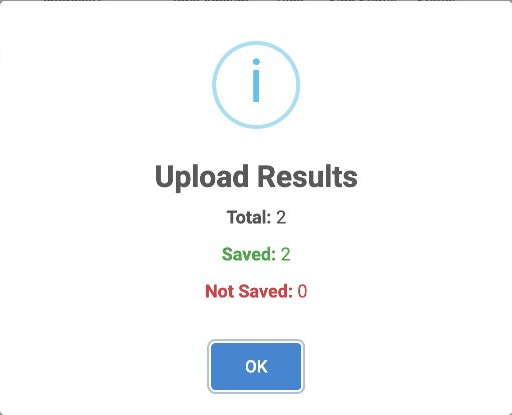
Save as xlsx. Choose Import From Excel and select the populated workbook. Verify its name in Upload EXCEL File, then select Yes; choose No if it is the wrong file. Wait for Upload Results before another upload.
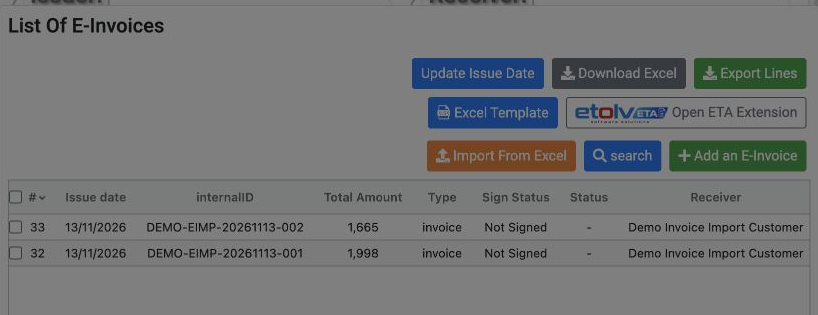
Search by internalID. Invoice 32 is DEMO-EIMP-20261113-001 for 1998; invoice 33 is DEMO-EIMP-20261113-002 for 1665. The combined amount is EGP 3663.
Invoice 1 reconciles as 1800 + 252 − 54 = 1998. Invoice 2 reconciles as 1500 + 210 − 45 = 1665. Check receiver name, identity, address, currency and every line rather than relying only on the saved count.
7 Review lines before signing
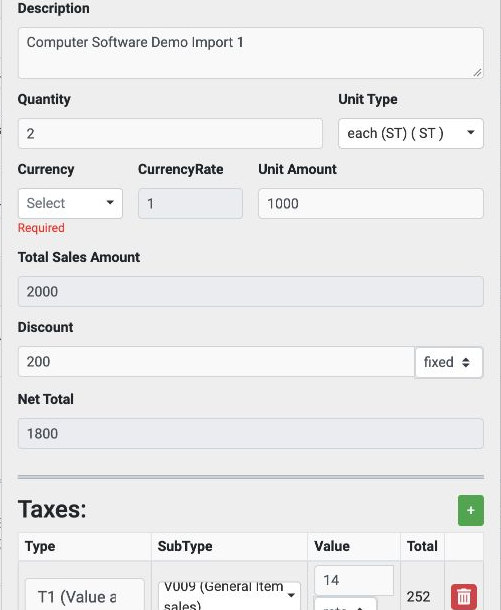
Confirm the first example has fixed discount 200, T1 14, T4 3 and total 1998. Review each tax subtype; an import default is not automatically appropriate for every activity.
When changing an item, save it in the item window and then save the invoice using Edit. Use Close to leave without saving. Ensure the entire invoice revision is saved before signing.
Imported invoices initially show Not Signed. After review, use the signing program and token, then submit and monitor the processing status. Import alone does not perform these steps.
8 Existing-customer lookup and error handling
According to the catalog, with type blank, a 14-character customerid is interpreted as a person identity and a 9-character value as a business tax number. Both routes require customername. An empty customerid follows the person route and also requires a name.
If customerid is neither 9 nor 14 characters and type is blank, the importer looks up an existing customer using tax_number, customer_id or serialId. The customer record needs country, city, region_city, address and a numeric building_number. Record data is used and the supplied customername is ignored on this route.
The tested example uses explicit type 2, name, tax ID and address; it does not verify the existing-customer lookup route. If Not Saved appears, review the template, item internal code and catalog type, receiver details, branch and duplicate internalid. Under the catalog rules, an error in one invoice group rejects that whole invoice.
Sign in to record the lessons you have read. Sign in