Skip to content
Trio Travel guide

Issuing and Settling a Payment Cheque

On this page
  1. Link the bank and ledger accounts
  2. Create the cheque book
  3. Issue a payment cheque
  4. Post the cheque and open the entry
  5. Review the issue entry
  6. Settle the posted cheque
  7. Verify the payment status
  8. Find the settlement entry
  9. Review the settlement debit and credit

Set up a cheque book, issue and post a payment cheque, then settle it and review both journal entries.

Link the bank and ledger accounts
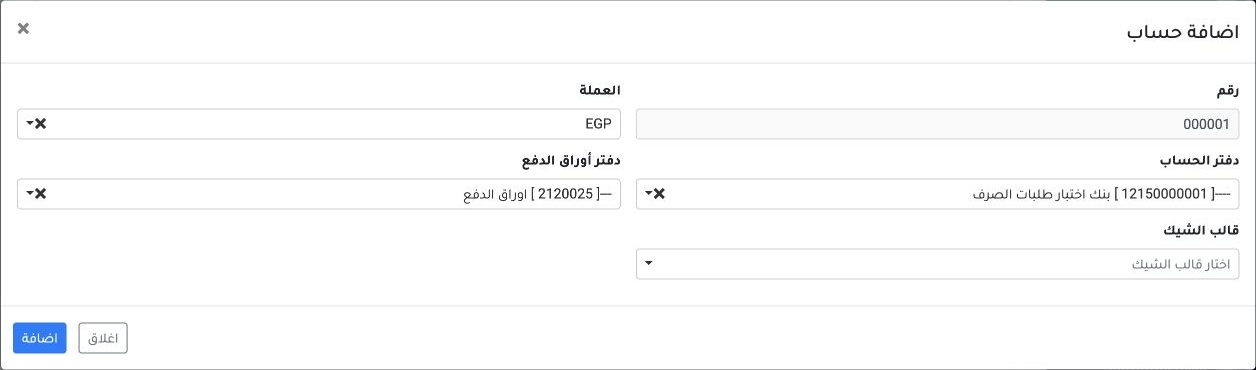
1 In Settings → Banks, add a bank record if needed. Open the bank row menu and choose Accounts → Add Account. Enter the account number and cur...
In Settings → Banks, add a bank record if needed. Open the bank row menu and choose Accounts → Add Account. Enter the account number and currency, select the bank ledger and notes payable ledger, and save. The example links account 000001 to ledgers 12150000001 and 2120025.

Create the cheque book

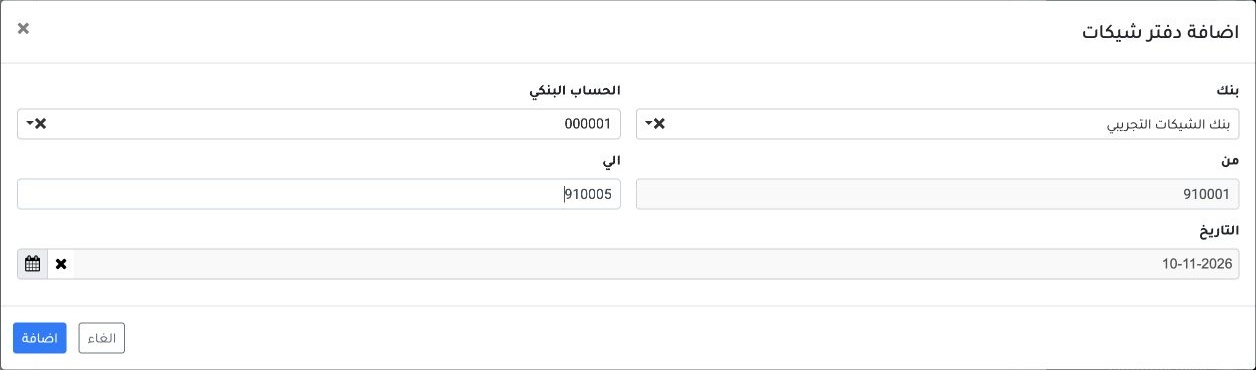
2 Open Banks → Cheques → Cheque Books and choose Add Cheque Book. Select the bank and account. Enter the date and the first and last cheque nu...
Open Banks → Cheques → Cheque Books and choose Add Cheque Book. Select the bank and account. Enter the date and the first and last cheque numbers, then choose Add. This example uses 910001 through 910005.

Issue a payment cheque

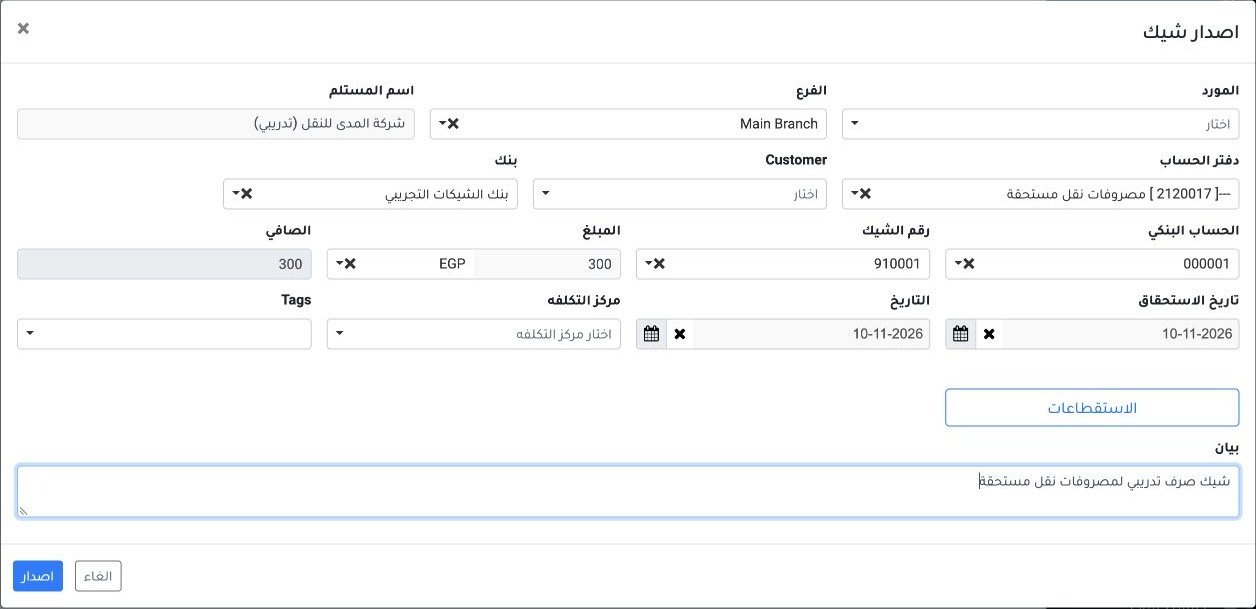
3 In Banks → Cheques → Cheque Report, choose Issue Cheque. Set the branch, payee and offset ledger. Select the bank, account and an available...
In Banks → Cheques → Cheque Report, choose Issue Cheque. Set the branch, payee and offset ledger. Select the bank, account and an available cheque number. Enter the amount, issue date, due date and description. Review the net amount and choose Issue.

Post the cheque and open the entry

4 Right-click cheque 910001 and choose Post. After the queue finishes, refresh the register and check Notes Payable and Posted. The payment st...
Right-click cheque 910001 and choose Post. After the queue finishes, refresh the register and check Notes Payable and Posted. The payment status in this example remained Unpaid. Open the Journal Entry link from the row.

Review the issue entry

5 In Journal Entries, choose View from the row menu for J-2. The entry debited Accrued Transport Expenses (2120017) and credited Notes Payable...
In Journal Entries, choose View from the row menu for J-2. The entry debited Accrued Transport Expenses (2120017) and credited Notes Payable (2120025) for EGP 300 each.

Settle the posted cheque

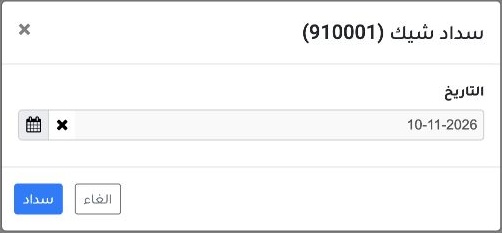
6 In Cheques, right-click the posted cheque and choose Settle Cheque. Check the cheque number and settlement date, then choose Settle. The exa...
In Cheques, right-click the posted cheque and choose Settle Cheque. Check the cheque number and settlement date, then choose Settle. The example uses the bank account already linked to cheque 910001.

Verify the payment status

7 Refresh the cheque register and verify that cheque 910001 shows Paid in the payment column. Scroll horizontally if needed.
Refresh the cheque register and verify that cheque 910001 shows Paid in the payment column. Scroll horizontally if needed.

Find the settlement entry

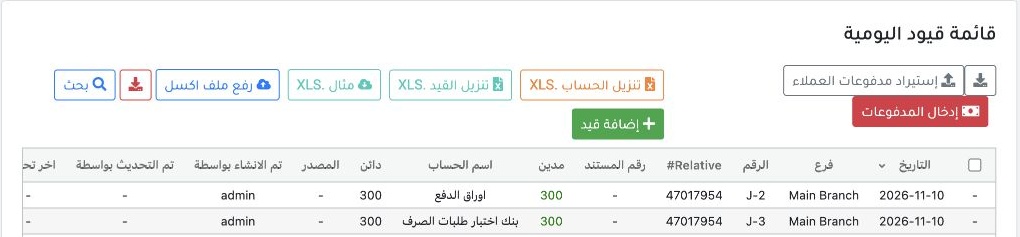
8 Open the Journal Entry link on the cheque row. In this example the list shows issue entry J-2 and settlement entry J-3 under the same refere...
Open the Journal Entry link on the cheque row. In this example the list shows issue entry J-2 and settlement entry J-3 under the same reference, 47017954. Choose View from the J-3 row menu.

Review the settlement debit and credit
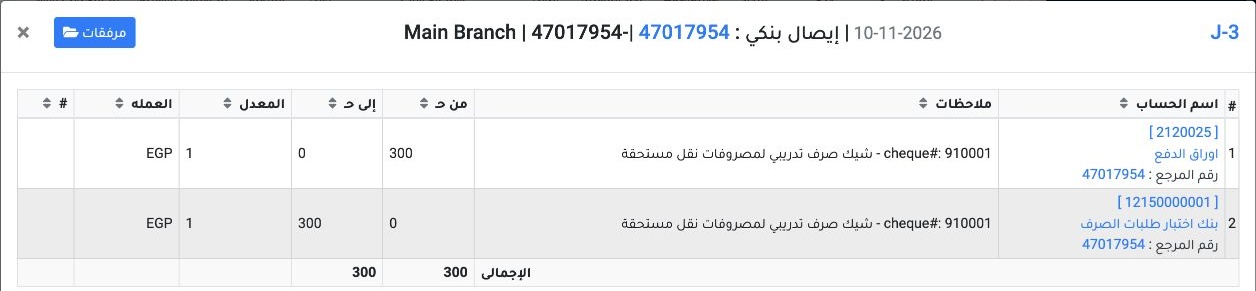
9 Settlement entry J-3 debited Notes Payable (2120025) and credited the Payment Requests Test Bank (12150000001) for EGP 300 each.
Settlement entry J-3 debited Notes Payable (2120025) and credited the Payment Requests Test Bank (12150000001) for EGP 300 each.

Sign in to record the lessons you have read. Sign in