Skip to content
Trio Travel guide

Define banks

On this page
  1. Review the bank and its actions
  2. Edit the bank name
  3. Review and cancel deletion

Use this screen to maintain bank names in the bank directory. Open Accounting, Settings, Banks, or https://portal.etolv.net/acc/accounting/banks. The table shows each bank’s displayed number and name.

Select Add Bank, enter the bank name in Name Of Bank, then select Add. Use Close or × to leave the dialog if you do not want to add the bank.
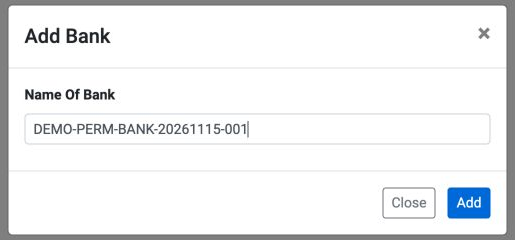
1 The Add Bank dialog contains the bank name. The example uses DEMO-PERM-BANK-20261115-001.
The Add Bank dialog contains the bank name. The example uses DEMO-PERM-BANK-20261115-001.

After saving, check the name in the directory. Maintaining the bank name is separate from entering a bank account number or recording a receipt or payment voucher.

Review the bank and its actions

2 After reloading, the new bank appears as number2. The existing bank number1 remains.
After reloading, the new bank appears as number2. The existing bank number1 remains.

Open the actions menu for the intended bank row. Available options depend on your permissions: Accounts opens the bank’s accounts, Edit changes the bank name, and Delete opens a deletion confirmation.
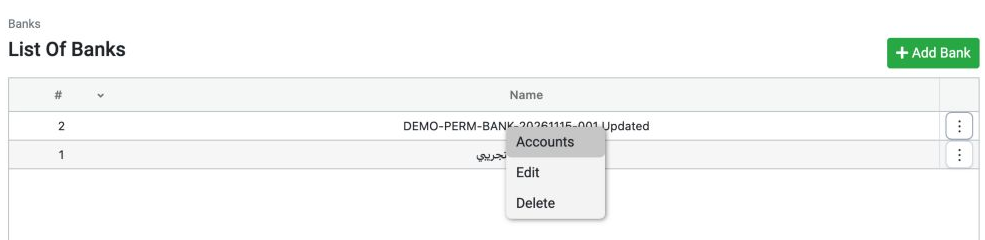
3 The bank actions menu shows Accounts, Edit and Delete. Check that you selected the intended bank before taking an action.
The bank actions menu shows Accounts, Edit and Delete. Check that you selected the intended bank before taking an action.

Accounts opens the accounts belonging to the selected bank. Edit changes the bank’s name in this directory.

Edit the bank name

Choose Edit from the row menu. Change Name Of Bank, then select Edit to save. Use Close or × to leave the dialog if you do not want to save the change.
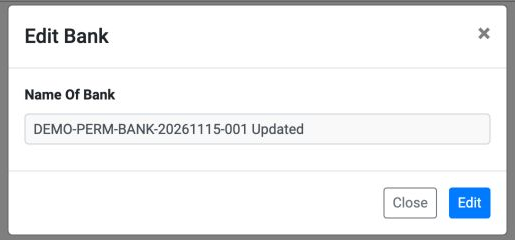
4 Reopening Edit Bank displays the saved name ending in Updated.
Reopening Edit Bank displays the saved name ending in Updated.
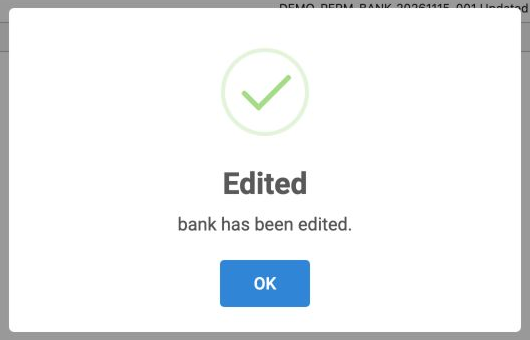
5 The Edited message confirms a successful save. Select OK, then check the bank name in the directory.
The Edited message confirms a successful save. Select OK, then check the bank name in the directory.

Review and cancel deletion

Choose Delete from the bank’s menu to open the confirmation. Read the warning before proceeding. Select Cancel to keep the bank.
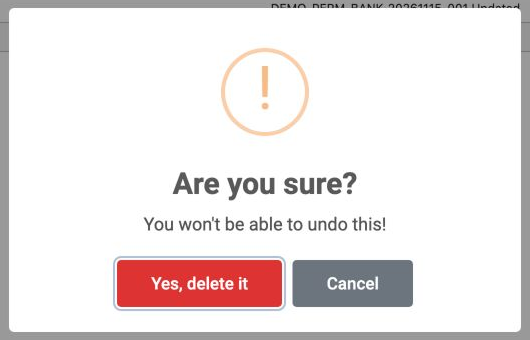

6 The confirmation warns that deletion cannot be undone. Cancel was selected in this example; the bank was not deleted.
The confirmation warns that deletion cannot be undone. Cancel was selected in this example; the bank was not deleted.
7 Bank number2 remains as DEMO-PERM-BANK-20261115-001 Updated. Existing bank number1 also remains.
Bank number2 remains as DEMO-PERM-BANK-20261115-001 Updated. Existing bank number1 also remains.

Sign in to record the lessons you have read. Sign in