Skip to content
Trio Travel guide

Payment Orders

On this page
  1. Set up the payment method
  2. Add the payment order
  3. Post the selected order
  4. Follow the posting queue
  5. Find the posted order
  6. Verify confirmation
  7. Open the journal from the register
  8. Review the debit and credit

This example shows how to record and post a customer payment using a bank payment method, then review the resulting journal entry.

Set up the payment method
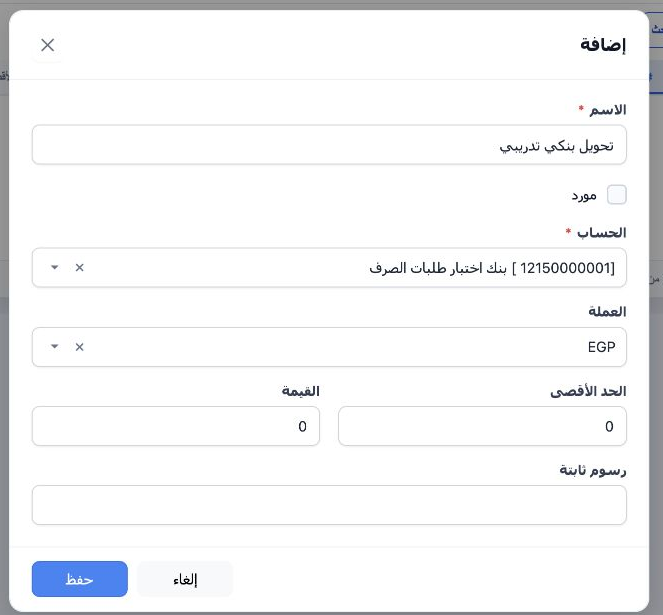
1 If the payment method list is empty, open Portal → Settings → Payment Method → Add. Enter a name, select the bank ledger and currency, then...
If the payment method list is empty, open Portal → Settings → Payment Method → Add. Enter a name, select the bank ledger and currency, then save. In this example, Training Bank Transfer is linked to bank ledger 12150000001 in EGP.

Add the payment order

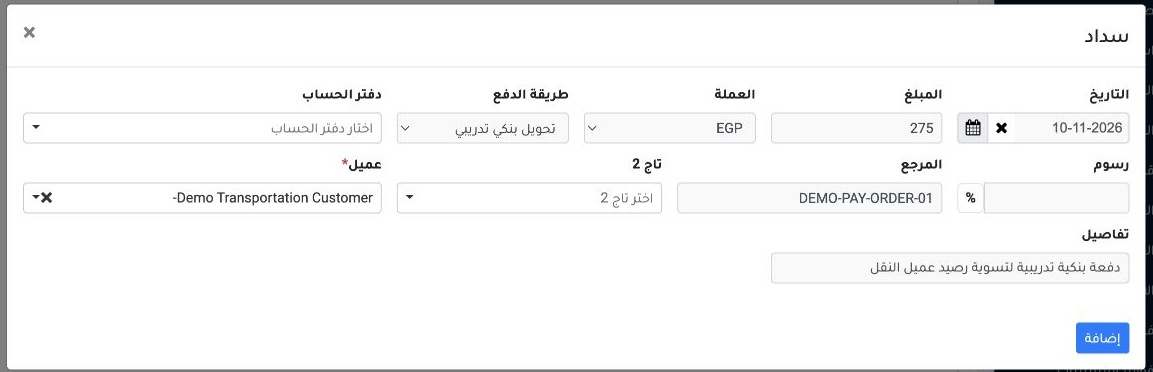
2 Go to Accounting → Banks → Payment Orders and select Add Payment. Enter the date, amount and currency, then choose the payment method and cu...
Go to Accounting → Banks → Payment Orders and select Add Payment. Enter the date, amount and currency, then choose the payment method and customer. Enter the reference and description, then select Add. This example uses EGP 275 and reference DEMO-PAY-ORDER-01. The system used the bank ledger linked to the payment method.

Post the selected order

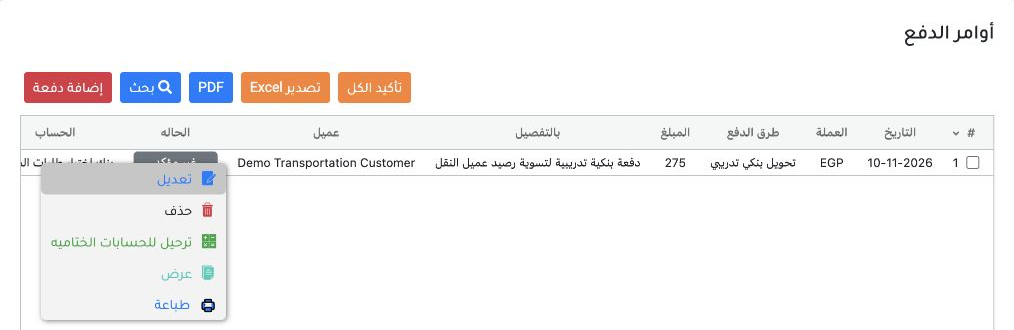
3 After saving, the order appears as Unconfirmed. Right-click its row and choose Post to Final Accounts.
After saving, the order appears as Unconfirmed. Right-click its row and choose Post to Final Accounts.

Follow the posting queue

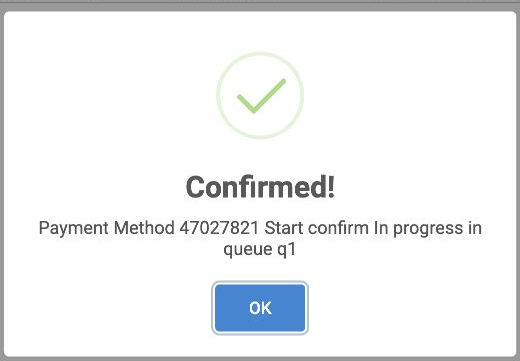
4 At this stage, the Confirmed! message means the order has entered the posting queue. Close the message and check the order again after proce...
At this stage, the Confirmed! message means the order has entered the posting queue. Close the message and check the order again after processing.

Find the posted order

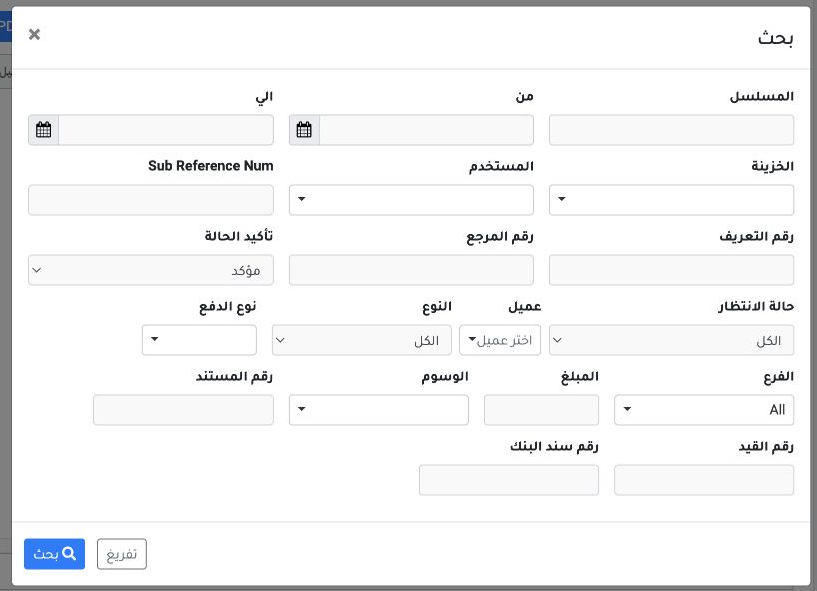
5 The register opens with unconfirmed orders. Select Search, set the confirmation filter to Confirmed, and run the search.
The register opens with unconfirmed orders. Select Search, set the confirmation filter to Confirmed, and run the search.

Verify confirmation

6 Locate order 1. Its status changed to Confirmed, and the row shows the Payment Requests Test Bank ledger.
Locate order 1. Its status changed to Confirmed, and the row shows the Payment Requests Test Bank ledger.

Open the journal from the register

7 Scroll the register horizontally to the queue status. It shows Complete, and the posting number links to 11. Open the link, then choose View...
Scroll the register horizontally to the queue status. It shows Complete, and the posting number links to 11. Open the link, then choose View from the J-11 row menu.

Review the debit and credit

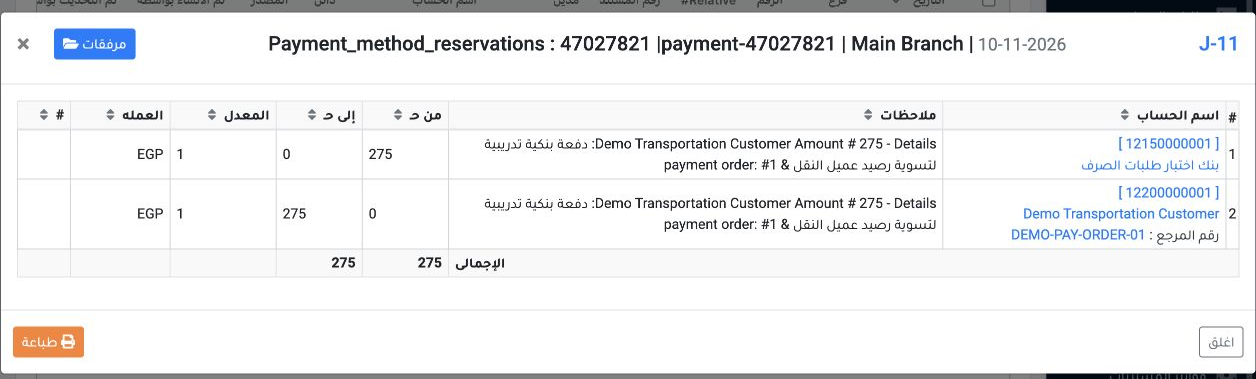
8 In J-11, the system debited the Payment Requests Test Bank (12150000001) and credited Demo Transportation Customer (12200000001) for EGP 275...
In J-11, the system debited the Payment Requests Test Bank (12150000001) and credited Demo Transportation Customer (12200000001) for EGP 275 each. This example records an inflow to the bank.

Sign in to record the lessons you have read. Sign in