Skip to content
Trio Travel guide

Collecting an Individual Customer Payment

On this page
  1. Add an individual customer
  2. Record the collection
  3. Verify posting
  4. Review the debit and credit
  5. Unpost the collection
  6. Verify that the collection is unposted
  7. Check the previous journal entry
  8. Repost the collection
  9. Review the new journal entry

Record the customer payment in Collection, then review the journal entry created on save.

Add an individual customer
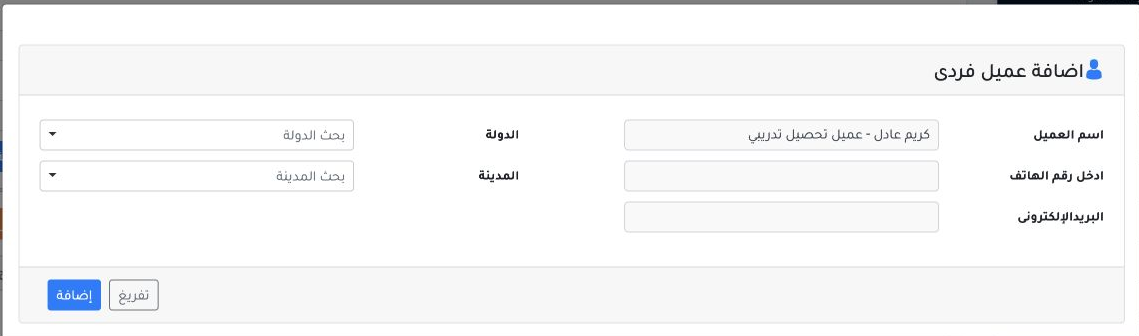
1 Open Accounting → Collection. To add an individual customer, select + next to Customer, enter the name, and select Add. After saving, find a...
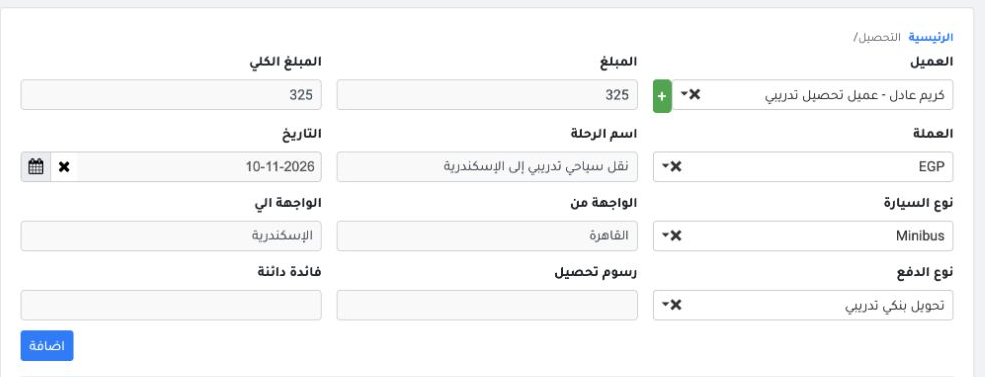
Open Accounting → Collection. To add an individual customer, select + next to Customer, enter the name, and select Add. After saving, find and select the customer. This example uses Karim Adel, a training customer.

Record the collection

2 Enter the amount and total, then select the currency. Enter the collection date, trip name, origin and destination. Select the vehicle and p...
Enter the amount and total, then select the currency. Enter the collection date, trip name, origin and destination. Select the vehicle and payment types, then choose Add. In this example, the amount and total are both EGP 325, the vehicle type is Minibus, and the payment type is Training Bank Transfer.

Verify posting

3 After saving, collection 1 shows a link to entry 12. Saving created the entry immediately, and the row menu offered Unpost. To review the jo...
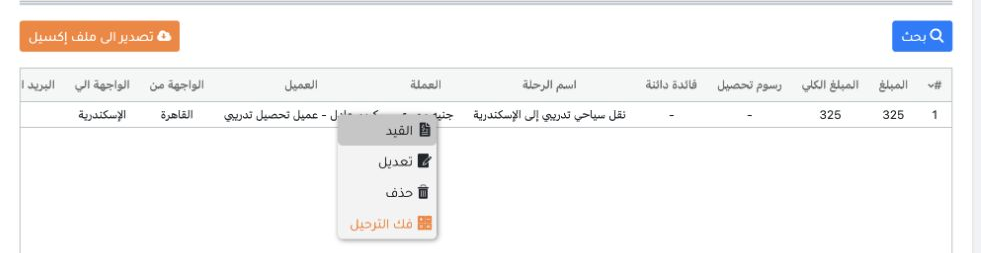
After saving, collection 1 shows a link to entry 12. Saving created the entry immediately, and the row menu offered Unpost. To review the journal, open link 12 in the Journal Entry Number column.

Review the debit and credit

4 In Journal Entries, open the J-12 row menu and choose View. In this example, the system debited Payment Requests Test Bank (12150000001) and...
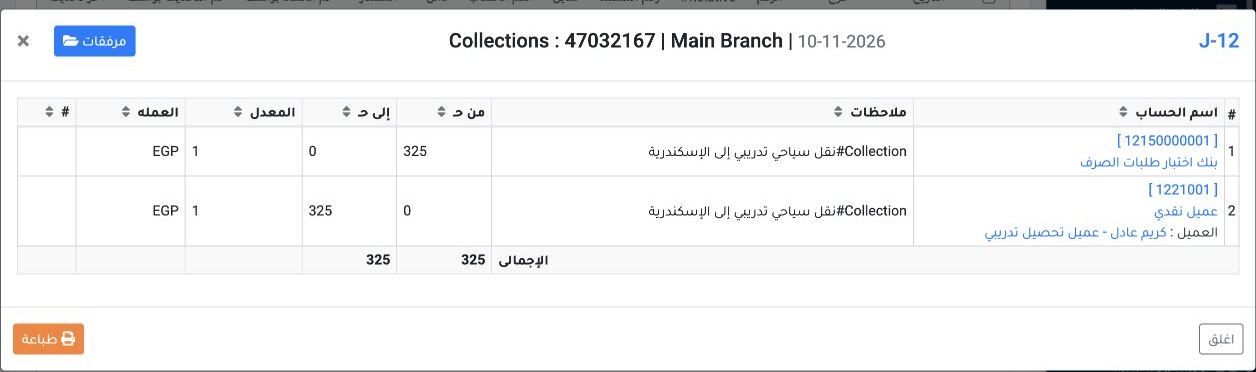
In Journal Entries, open the J-12 row menu and choose View. In this example, the system debited Payment Requests Test Bank (12150000001) and credited Cash Customer (1221001) for EGP 325 each. The individual customer’s name appears in the credit line details.

Unpost the collection

5 In Accounting → Collection, right-click collection 1 and choose Unpost. Close the success message when it appears.
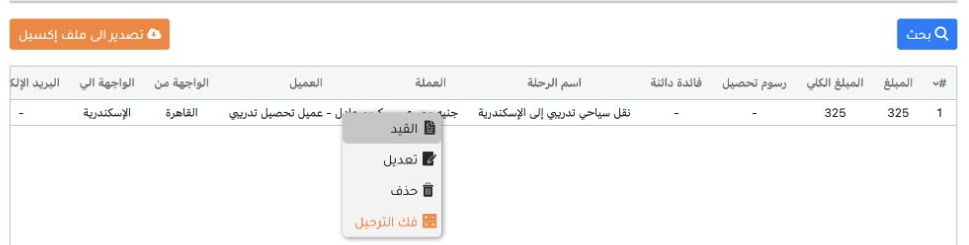
In Accounting → Collection, right-click collection 1 and choose Unpost. Close the success message when it appears.

Verify that the collection is unposted
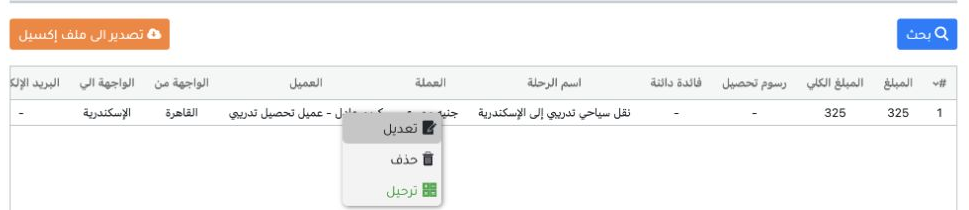
6 The collection remains in the register. In this example, link 12 disappears and Post is available in the row menu.
The collection remains in the register. In this example, link 12 disappears and Post is available in the row menu.

Check the previous journal entry

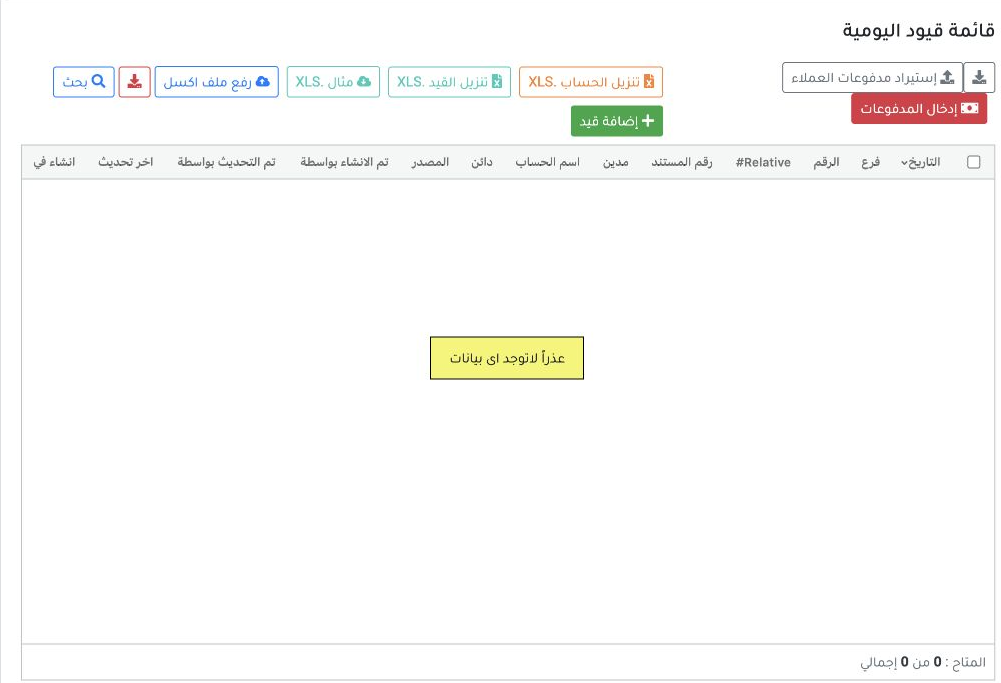
7 After unposting, checking journal entries for process 47032167 returned zero entries. J-12 was absent from the results.
After unposting, checking journal entries for process 47032167 returned zero entries. J-12 was absent from the results.

Repost the collection

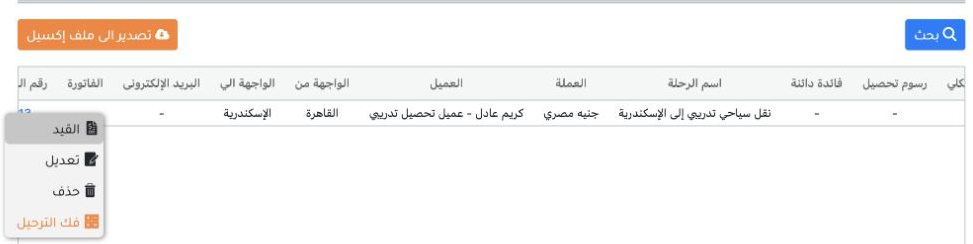
8 Return to collection 1 and choose Post from its row menu. After posting, link 13 appears and Unpost is available again. Open link 13 to revi...
Return to collection 1 and choose Post from its row menu. After posting, link 13 appears and Unpost is available again. Open link 13 to review the new entry.

Review the new journal entry

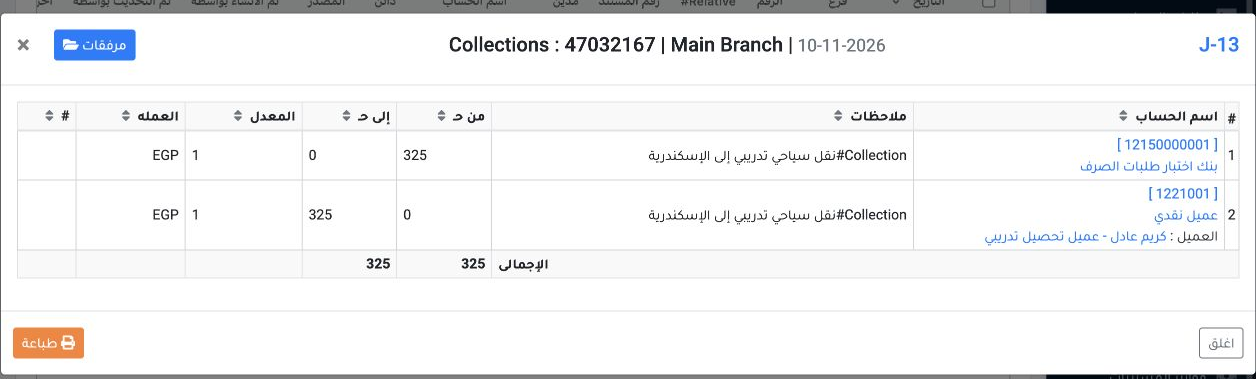
9 J-13 was the only entry under process 47032167. It debited the bank account (12150000001) and credited Cash Customer (1221001) for EGP 325 e...
J-13 was the only entry under process 47032167. It debited the bank account (12150000001) and credited Cash Customer (1221001) for EGP 325 each. The customer’s name appears in the credit line details.

Sign in to record the lessons you have read. Sign in