Skip to content
Trio Travel guide

Employee Missions

On this page
  1. 1 Add a mission
  2. 2 Edit a mission
  3. 3 Review the saved duration
  4. 4 Open search filters
  5. 5 Deletion confirmation

Record the employee, mission dates and working times.

1 Add a mission
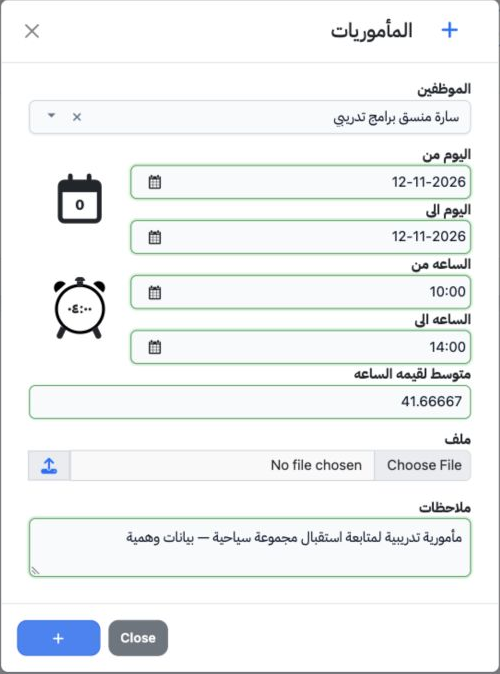
1 Open Human Resources → Operations → Missions, then Add. Select the employee and both dates using the calendar. Set start and end times with...
Open Human Resources → Operations → Missions, then Add. Select the employee and both dates using the calendar. Set start and end times with the time picker, review the hourly value, enter notes and select + to save. The example uses Sarah on 12 November 2026 from 10:00 to 14:00.

2 Edit a mission

2 Choose Edit from the row menu, update the notes and select the pencil button to save. The example reason was changed to مأمورية استقبال مجمو...
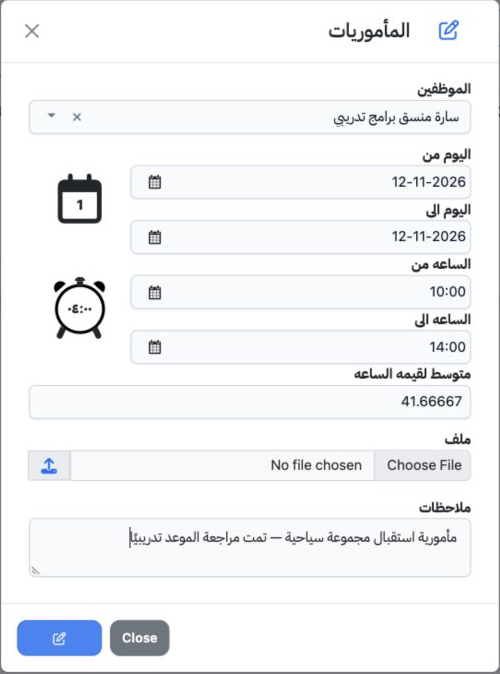
Choose Edit from the row menu, update the notes and select the pencil button to save. The example reason was changed to مأمورية استقبال مجموعة سياحية — تمت مراجعة الموعد تدريبيًا. The four-hour period stayed unchanged.

3 Review the saved duration

3 Review the employee, dates and times in the list. Record 1 shows duration 04:00, day count 1 and hourly value 41.66667.
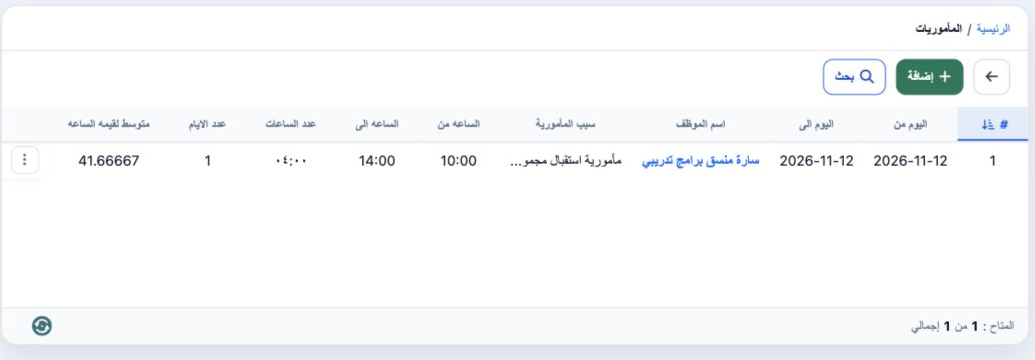
Review the employee, dates and times in the list. Record 1 shows duration 04:00, day count 1 and hourly value 41.66667.

4 Open search filters

4 Select Search to open filters for date from, date to and employees. Close exits the dialog.
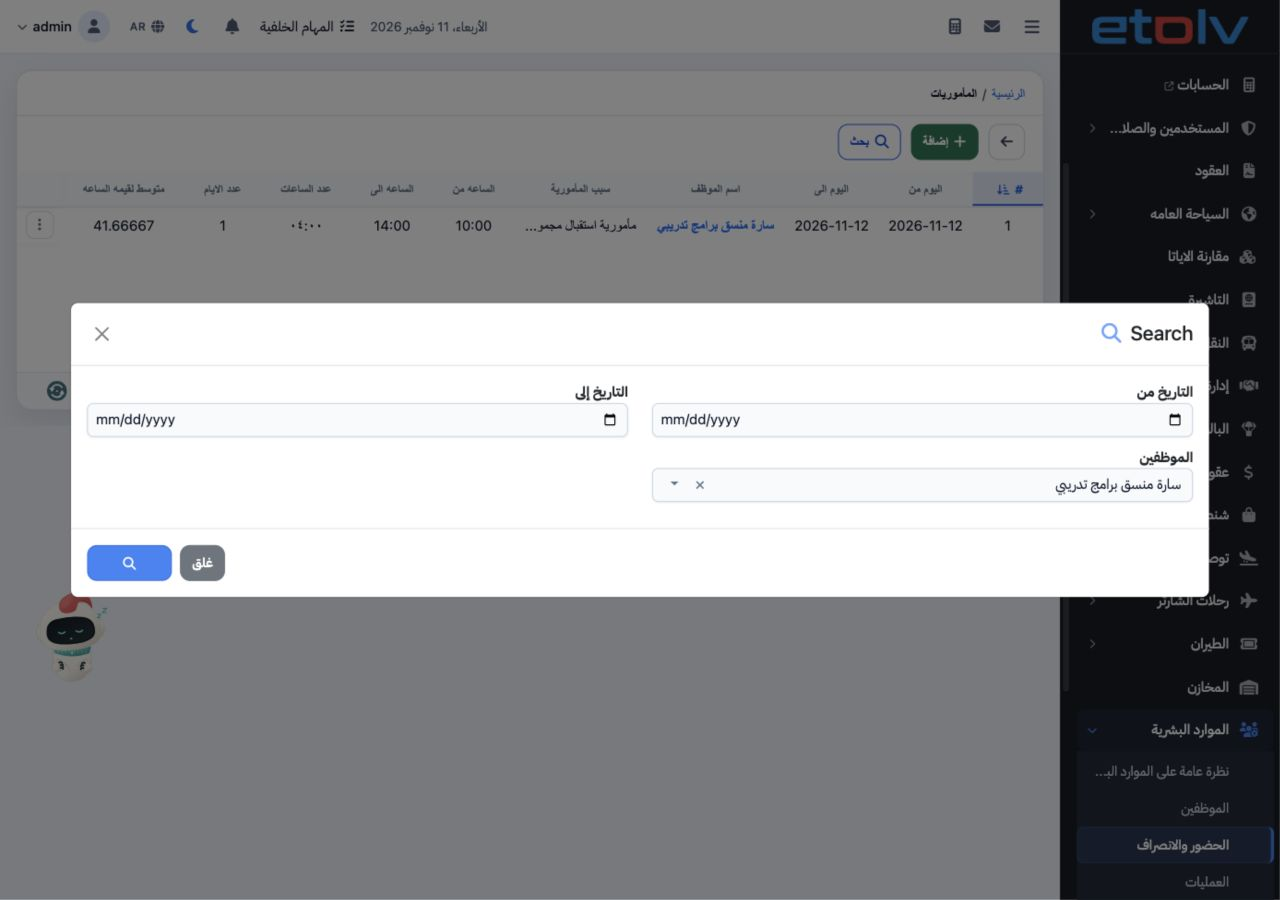
Select Search to open filters for date from, date to and employees. Close exits the dialog.

5 Deletion confirmation

5 Choose delete from the row menu. Cancel keeps the record and Yes, Delete confirms removal. Deletion was cancelled in the example.
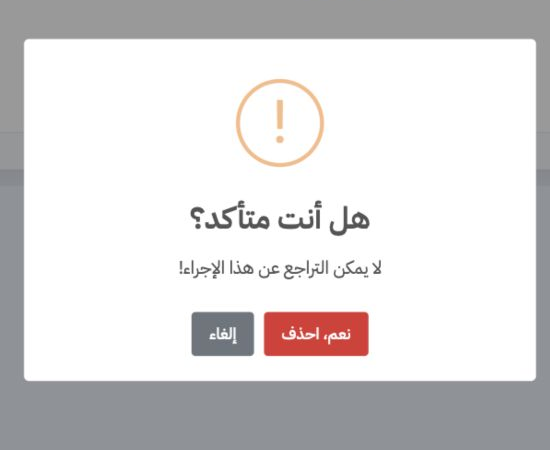
Choose delete from the row menu. Cancel keeps the record and Yes, Delete confirms removal. Deletion was cancelled in the example.

Sign in to record the lessons you have read. Sign in