Skip to content
Trio Travel guide

Employee Daily Tasks

On this page
  1. 1 Add a task
  2. 2 Edit and update status
  3. 3 Search and follow up
  4. 4 Deletion confirmation

Assign a task, set its dates and status, and track completion.

1 Add a task
1 Open Human Resources → Operations → Daily Tasks, then Add. Enter the title, assignment date and due date. Select priority and status, and en...
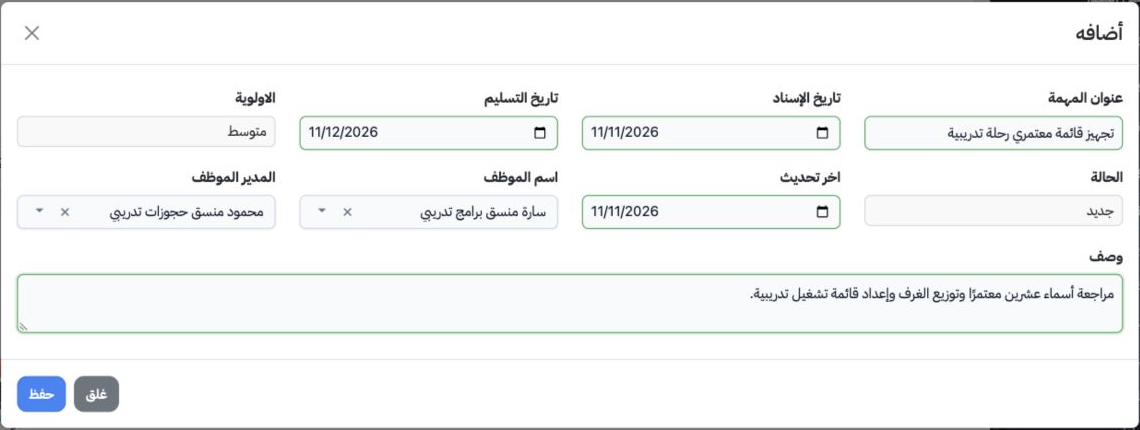
Open Human Resources → Operations → Daily Tasks, then Add. Enter the title, assignment date and due date. Select priority and status, and enter Last Update. Select the employee and manager, enter the description and save. The training task was assigned to Sarah with Mahmoud as manager, Medium priority and New status.

2 Edit and update status

2 Choose Edit from the row menu. Update fields or description and select New, In Progress, Late or Completed. Select Save. This example change...
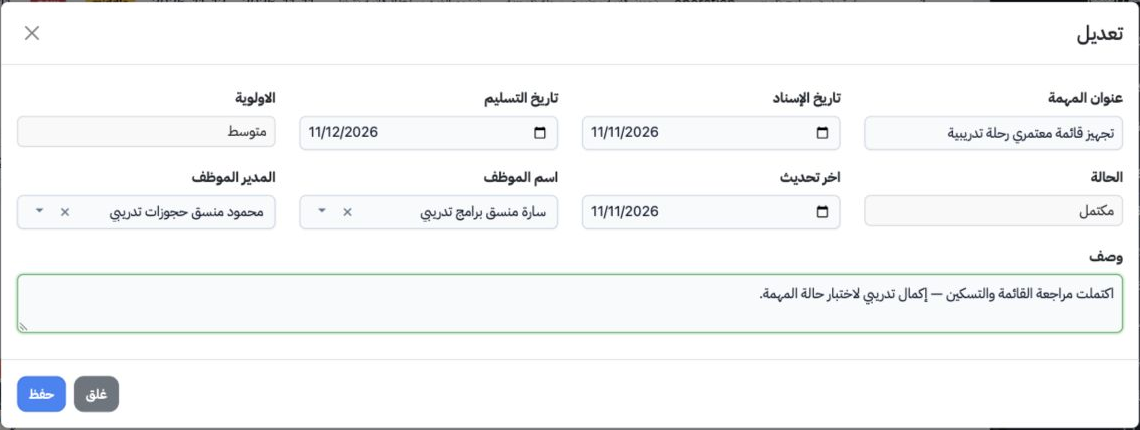
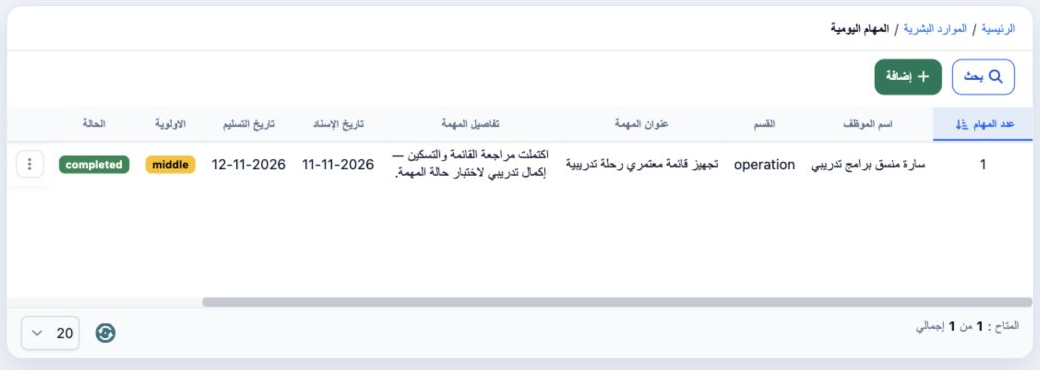
Choose Edit from the row menu. Update fields or description and select New, In Progress, Late or Completed. Select Save. This example changes the task to Completed and updates its description; the list then displays completed.

3 Search and follow up

3 Select Search, choose the employee or manager and run the search. Selecting Sarah returned the training task. Clear removes the search filte...
Select Search, choose the employee or manager and run the search. Selecting Sarah returned the training task. Clear removes the search filters. Scroll the table horizontally to inspect the remaining columns.

4 Deletion confirmation

4 Choose Delete from the task menu. Review the record, then Cancel to keep it or Yes, Delete to confirm removal. Deletion was cancelled and th...
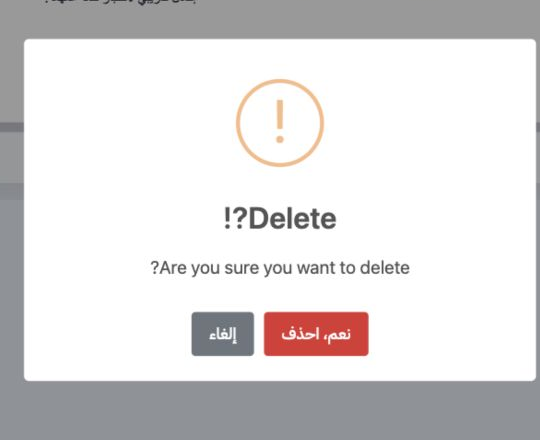
Choose Delete from the task menu. Review the record, then Cancel to keep it or Yes, Delete to confirm removal. Deletion was cancelled and the completed training task remains saved.

Sign in to record the lessons you have read. Sign in