Skip to content
Trio Travel guide

Leave Types

On this page
  1. 1 Define a leave type
  2. 2 Edit the type
  3. 3 Search and export
  4. 4 Review deletion

Create, update and find a leave type.

1 Define a leave type
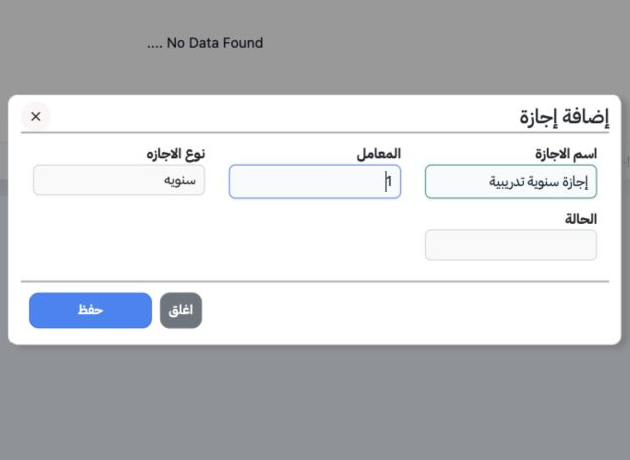
1 Open Human Resources, Settings, then Leave (الاجازات), and select Add. Enter the name and Factor (المعامل); choose Monthly or Annual and Ded...
Open Human Resources, Settings, then Leave (الاجازات), and select Add. Enter the name and Factor (المعامل); choose Monthly or Annual and Deduction or Paid. The training example uses an annual paid type with factor 1. Select Save.

2 Edit the type

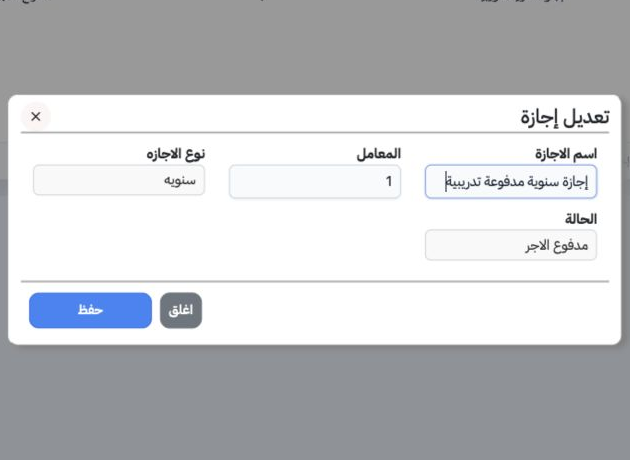
2 Choose Edit from the record’s row menu and review the name, factor, type and status. The example renames the record إجازة سنوية مدفوعة تدريب...
Choose Edit from the record’s row menu and review the name, factor, type and status. The example renames the record إجازة سنوية مدفوعة تدريبية and retains its other values. Save.

3 Search and export

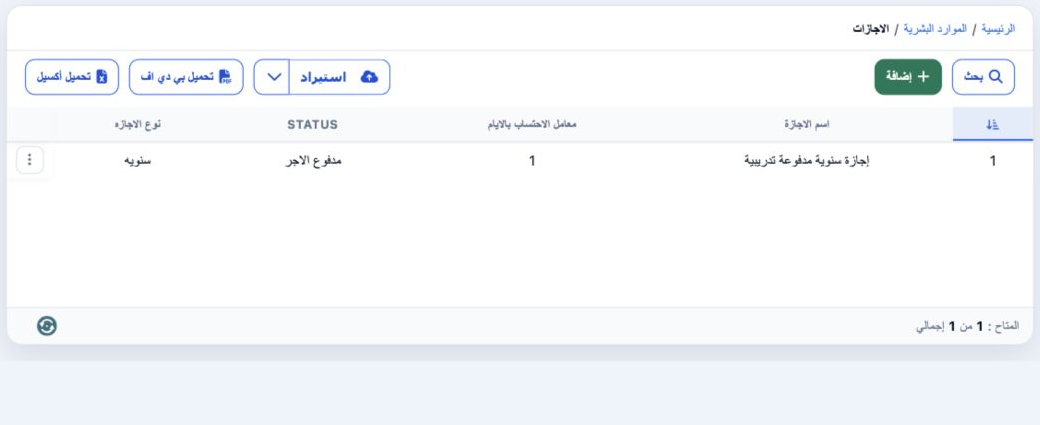
3 Select Search, enter the full name and optionally choose leave type and status, then choose the magnifier. The screenshot shows the updated...
Select Search, enter the full name and optionally choose leave type and status, then choose the magnifier. The screenshot shows the updated record with factor 1, Paid status and Annual type. Download Excel exports the list.

4 Review deletion

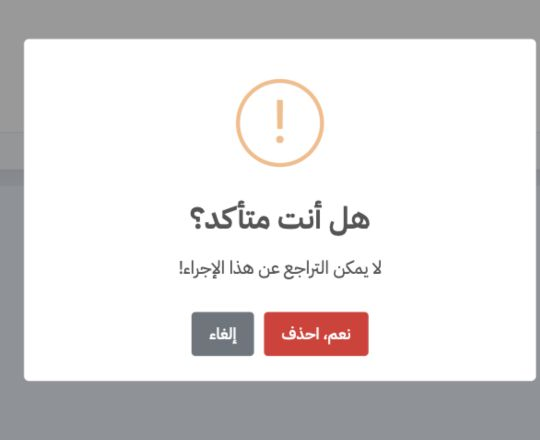
4 Choose Delete in the row menu. The confirmation warns that deletion cannot be undone. Cancel retains the type; Yes, Delete confirms the inte...
Choose Delete in the row menu. The confirmation warns that deletion cannot be undone. Cancel retains the type; Yes, Delete confirms the intended removal. Deletion was cancelled in this example.

Sign in to record the lessons you have read. Sign in