Skip to content
Trio Travel guide

HR Jobs and Positions

On this page
  1. 1 Add a position
  2. 2 Edit the position
  3. 3 Search and export
  4. 4 Confirm or cancel deletion

Create, edit, find and export job positions.

1 Add a position
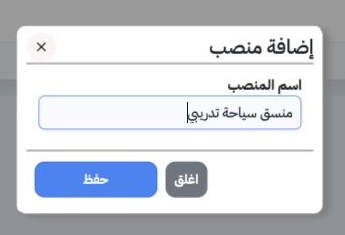
1 Open Human Resources, Settings, then Jobs (الوظائف). The page is titled Positions (المناصب). Select Add, enter the position name and select...
Open Human Resources, Settings, then Jobs (الوظائف). The page is titled Positions (المناصب). Select Add, enter the position name and select Save. The example created منسق سياحة تدريبي as record 1.

2 Edit the position

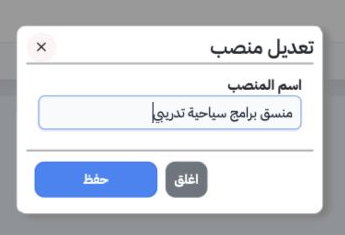
2 Open the position row’s three-dot menu and choose Edit. Change the name and select Save. The same training record was renamed منسق برامج سيا...
Open the position row’s three-dot menu and choose Edit. Change the name and select Save. The same training record was renamed منسق برامج سياحية تدريبي.

3 Search and export

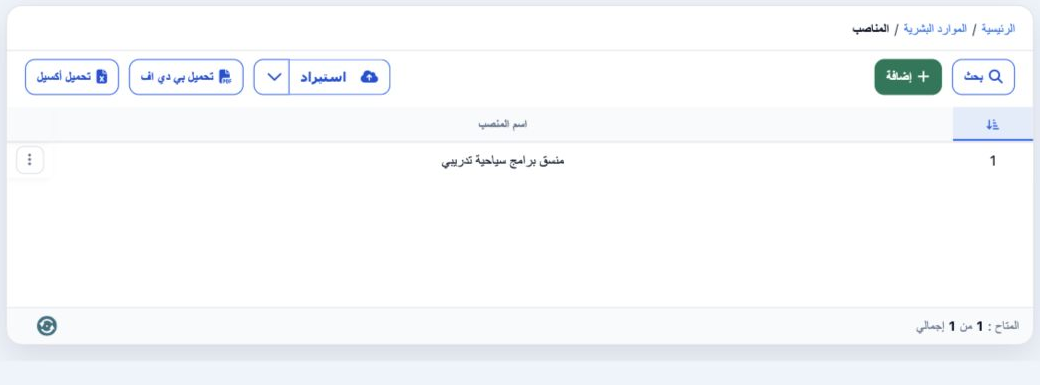
3 Select Search, enter the full name in Name and select the magnifier inside the dialog. The exact training name returned the edited record. R...
Select Search, enter the full name in Name and select the magnifier inside the dialog. The exact training name returned the edited record. Reopen Search and use Clear (تفريغ) to remove the filter. Download Excel produced an XLSX containing the Arabic position name.

4 Confirm or cancel deletion

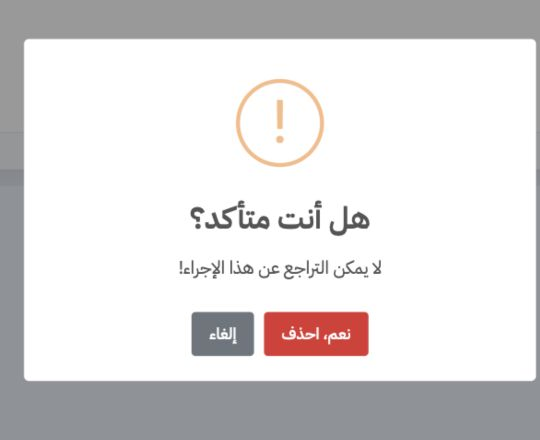
4 Choose Delete in the row menu. The dialog warns that the action cannot be undone. Cancel keeps the position; Yes, Delete confirms removal af...
Choose Delete in the row menu. The dialog warns that the action cannot be undone. Cancel keeps the position; Yes, Delete confirms removal after checking the selected record. Deletion was cancelled in this example so the job remains available.

Sign in to record the lessons you have read. Sign in