Skip to content
Trio Travel guide

Late Arrival and Early Exit Permits

On this page
  1. 1 Add a permit
  2. 2 Edit and review duration
  3. 3 Approve the permit
  4. 4 Search and review results
  5. 5 Review deletion

Record an employee permit and review its time, status and approval.

1 Add a permit
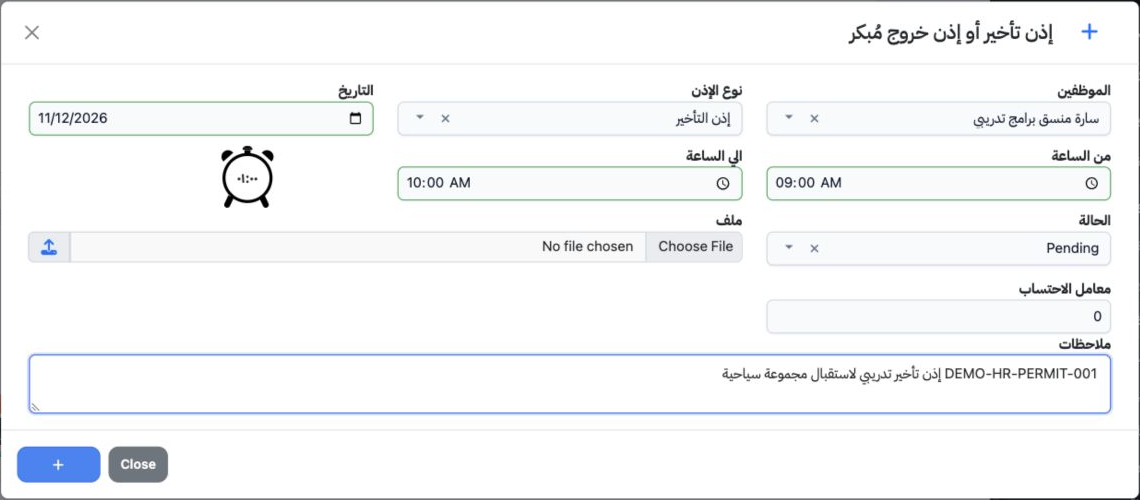
1 Open Human Resources → Operations → Late Arrival or Early Exit Permit and choose Add. Select the employee and either Late Arrival or Early E...
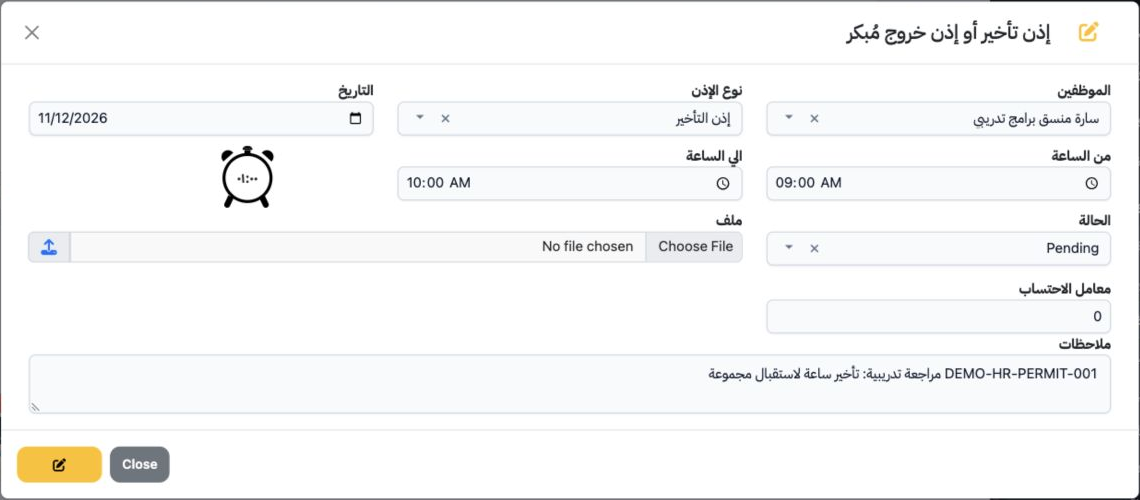
Open Human Resources → Operations → Late Arrival or Early Exit Permit and choose Add. Select the employee and either Late Arrival or Early Exit. Enter the date, start/end times, status and notes, then select the + button at the bottom. The example records Sarah on 12 November 2026 from 09:00 to 10:00 with Pending status. A file upload control and Calculation Factor field are also available.

2 Edit and review duration

2 Choose Edit from the row menu. Review the employee, permit type, date and times. Update the notes and select the pencil button at the bottom...
Choose Edit from the row menu. Review the employee, permit type, date and times. Update the notes and select the pencil button at the bottom to save. Reopen the record to verify it. The edited training note persisted and the duration remained one hour.

3 Approve the permit

3 Choose done from the row menu, review the request and select Accept in the confirmation. Reopen the record to check its status. The example...
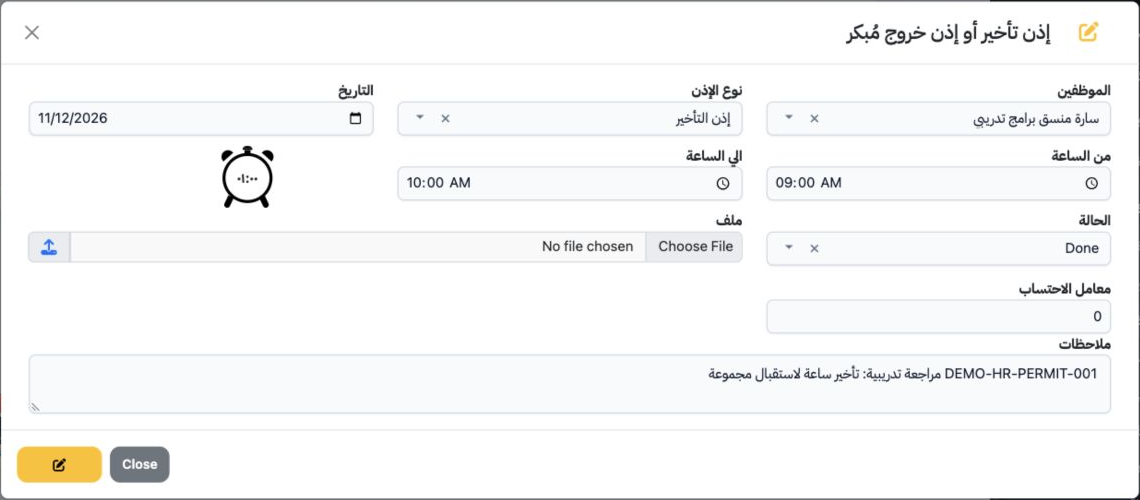
Choose done from the row menu, review the request and select Accept in the confirmation. Reopen the record to check its status. The example changed to Done after approval and displayed a check mark in the list.

4 Search and review results

4 Select Search. Choose the employee and optionally the permit type, exact date or date range, then select the search icon inside the dialog....
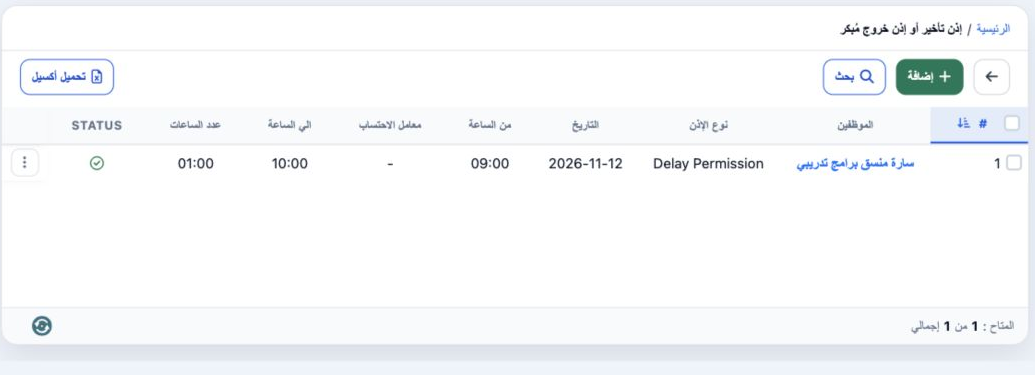
Select Search. Choose the employee and optionally the permit type, exact date or date range, then select the search icon inside the dialog. Clear resets the filters. Searching for Sarah returned training record 1 with a duration of 01:00. Download Excel is available above the list.

5 Review deletion

5 Choose delete from the row menu. The confirmation warns that the action cannot be undone. Select Cancel to retain the permit, or review the...
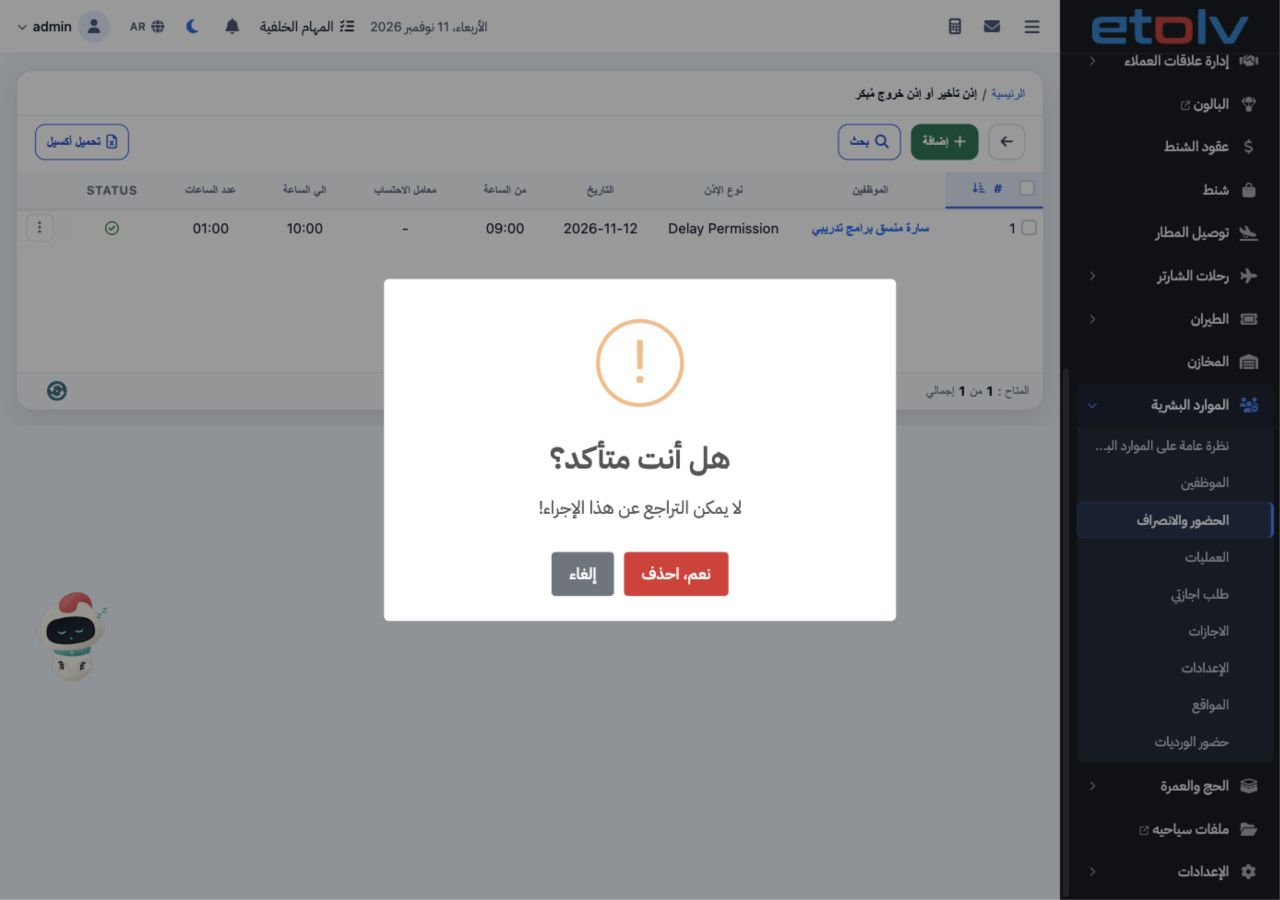
Choose delete from the row menu. The confirmation warns that the action cannot be undone. Select Cancel to retain the permit, or review the intended record before Yes, Delete. Deletion was cancelled and the training permit was retained.

Sign in to record the lessons you have read. Sign in