Skip to content
Trio Travel guide

Public Holidays

On this page
  1. 1 Add a holiday
  2. 2 Edit and review calculation intervals
  3. 3 Search and export
  4. 4 Deletion confirmation

Record company holidays and review the saved dates.

1 Add a holiday
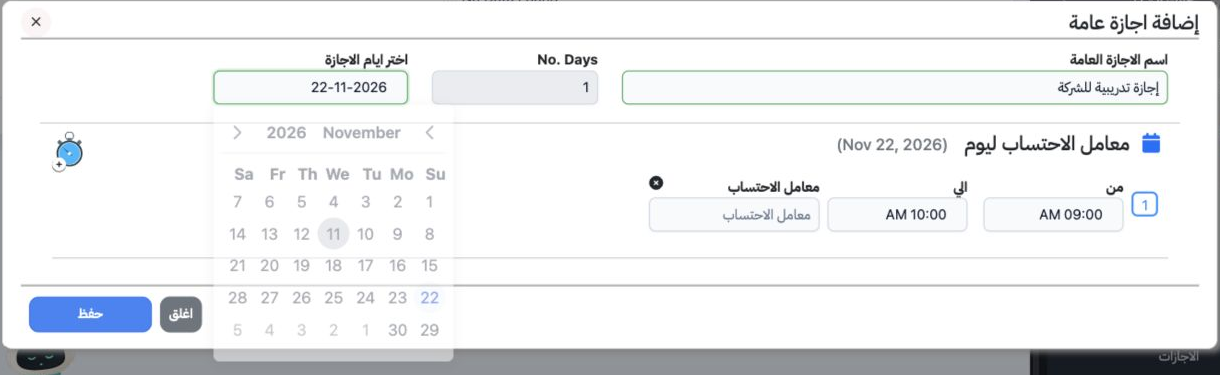
1 Open Human Resources → Operations → Public Holidays, then Add. Enter a name and select dates in the calendar. No. Days is calculated from th...
Open Human Resources → Operations → Public Holidays, then Add. Enter a name and select dates in the calendar. No. Days is calculated from the selected dates and cannot be typed manually. The example selects 22 November 2026, producing one day. Select Save.

2 Edit and review calculation intervals
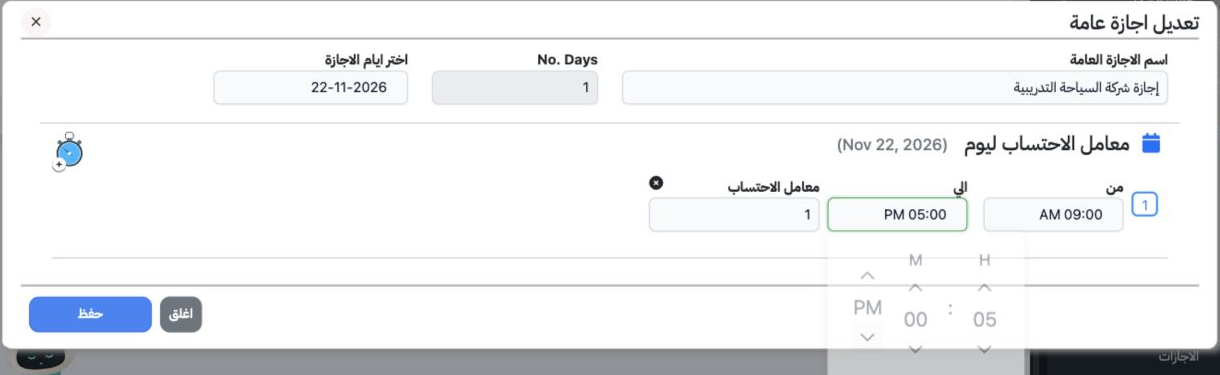
2 Choose Edit from the holiday’s row menu. Change the name or dates. Each date exposes From, To and Calculation Factor. Use the clock picker a...
Choose Edit from the holiday’s row menu. Change the name or dates. Each date exposes From, To and Calculation Factor. Use the clock picker and AM/PM controls for time, and enter your organization’s approved factor. The training example shows 9 AM to 5 PM with factor 1. Save and reopen the record to review the saved values.

3 Search and export

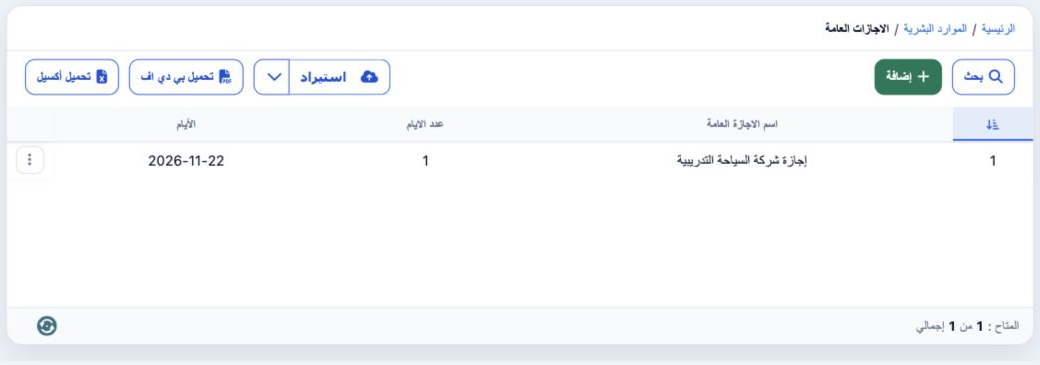
3 Select Search, enter the full name in Name and choose the magnifier. The result shows إجازة شركة السياحة التدريبية with one day and the sele...
Select Search, enter the full name in Name and choose the magnifier. The result shows إجازة شركة السياحة التدريبية with one day and the selected date. Clear inside Search removes the filter. Download Excel produces an XLSX and Download PDF produces a PDF report.

4 Deletion confirmation

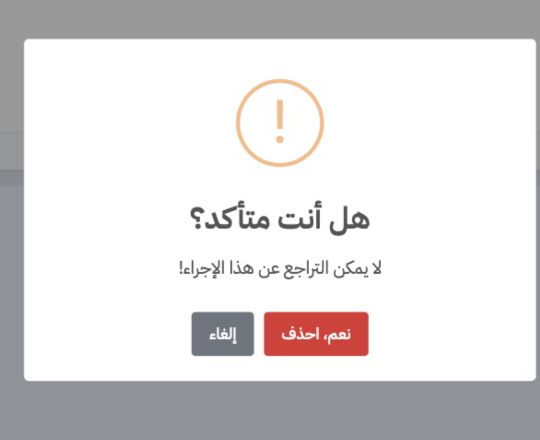
4 Choose Delete from the row menu. Check the intended record, then Cancel to keep it or Yes, Delete to confirm. Deletion was cancelled and the...
Choose Delete from the row menu. Check the intended record, then Cancel to keep it or Yes, Delete to confirm. Deletion was cancelled and the training holiday remains saved.

Sign in to record the lessons you have read. Sign in